Of course! The concept of a "message box" in Java is primarily handled by the javax.swing.JOptionPane class. It's the standard way to create simple dialog boxes to display information, ask for user input, or get a yes/no decision.
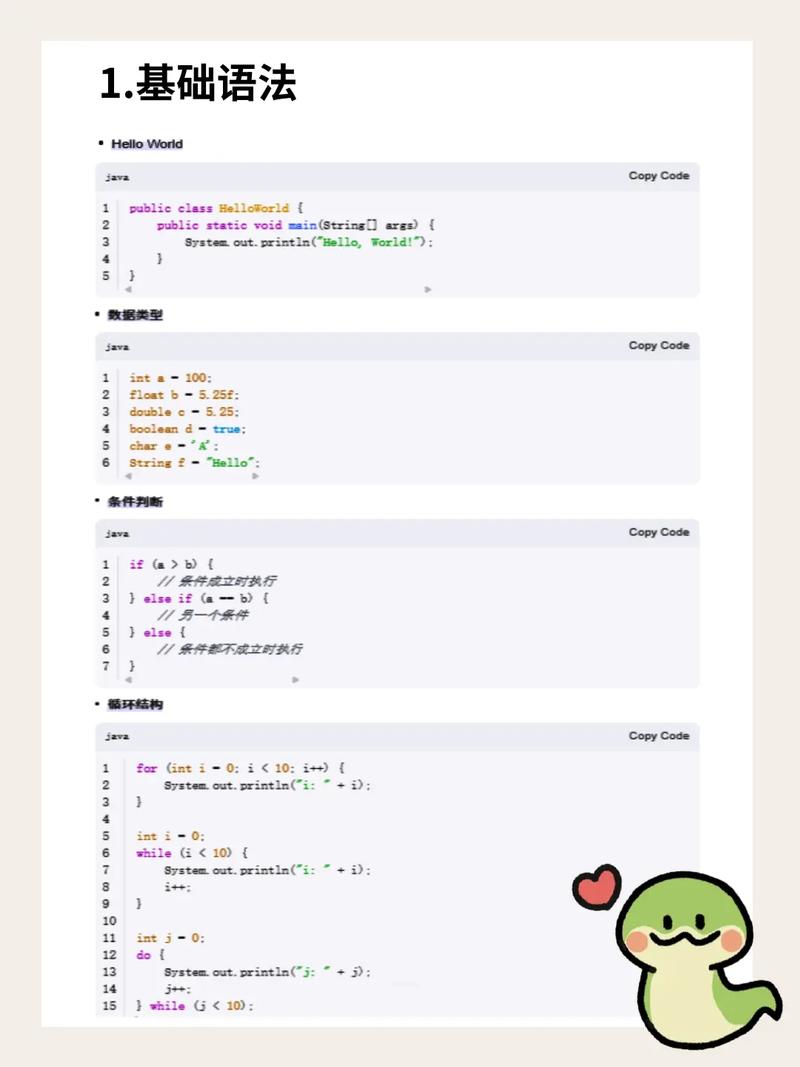
Here's a comprehensive guide covering the most common use cases.
The Basic Message Box (Information)
This is the simplest type of dialog, used to display a message to the user with an "OK" button.
Code Example:
import javax.swing.JOptionPane;
public class SimpleMessageBox {
    public static void main(String[] args) {
        // The parent component can be null for a dialog without a specific parent frame.
        // The message is the text to display.
        // The title is the text for the dialog window's title bar.
        // The messageType icon (e.g., JOptionPane.INFORMATION_MESSAGE).
        JOptionPane.showMessageDialog(null,
                                      "Operation completed successfully!",
                                      "Success",
                                      JOptionPane.INFORMATION_MESSAGE);
    }
}
How it looks:
Message Box Types (Icons)
JOptionPane provides several standard icons to convey the type of message.
| Constant | Icon | Description |
|---|---|---|
ERROR_MESSAGE |
❌ | For error messages. |
WARNING_MESSAGE |
⚠️ | For warning messages. |
INFORMATION_MESSAGE |
ℹ️ | For informational messages (default). |
QUESTION_MESSAGE |
❓ | For questions requiring a yes/no answer. |
PLAIN_MESSAGE |
(None) | No icon is displayed. |
Code Example:
import javax.swing.JOptionPane;
public class MessageTypeExample {
    public static void main(String[] args) {
        // Error Message
        JOptionPane.showMessageDialog(null, "A critical error has occurred.", "Error", JOptionPane.ERROR_MESSAGE);
        // Warning Message
        JOptionPane.showMessageDialog(null, "This action cannot be undone.", "Warning", JOptionPane.WARNING_MESSAGE);
        // Plain Message (no icon)
        JOptionPane.showMessageDialog(null, "This is a plain message.", "Notification", JOptionPane.PLAIN_MESSAGE);
    }
}
Confirming with Yes/No or OK/Cancel
Often, you need to ask the user a question and get a decision. The showConfirmDialog method is perfect for this.
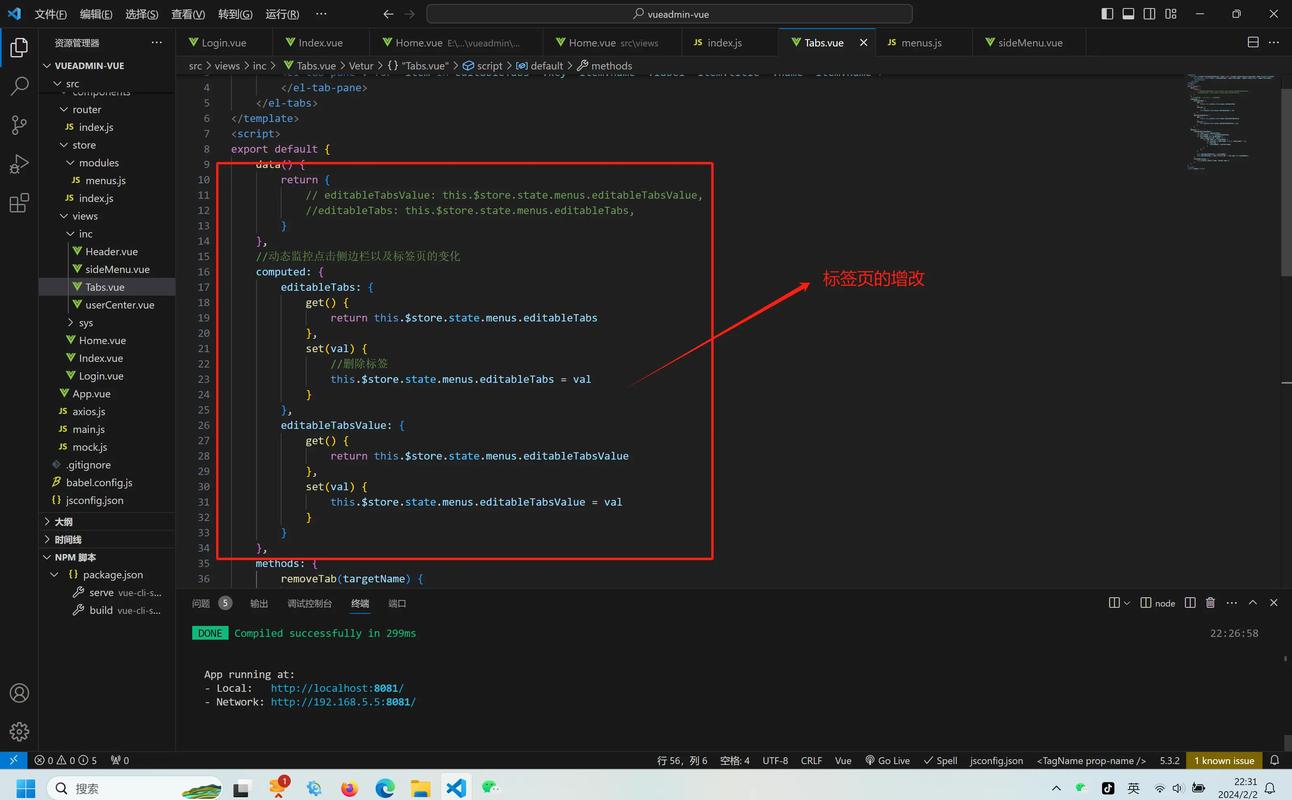
It returns an int value representing the user's choice:
JOptionPane.YES_OPTIONJOptionPane.NO_OPTIONJOptionPane.CANCEL_OPTIONJOptionPane.CLOSED_OPTION(if the user closes the dialog without clicking a button)
Code Example:
import javax.swing.JOptionPane;
public class ConfirmDialogExample {
    public static void main(String[] args) {
        int choice = JOptionPane.showConfirmDialog(null,
                                                   "Do you want to save changes before exiting?",
                                                   "Confirm Exit",
                                                   JOptionPane.YES_NO_CANCEL_OPTION,
                                                   JOptionPane.QUESTION_MESSAGE);
        if (choice == JOptionPane.YES_OPTION) {
            System.out.println("User chose YES: Saving changes...");
        } else if (choice == JOptionPane.NO_OPTION) {
            System.out.println("User chose NO: Exiting without saving.");
        } else if (choice == JOptionPane.CANCEL_OPTION) {
            System.out.println("User chose CANCEL: Staying in the application.");
        } else { // CLOSED_OPTION
            System.out.println("User closed the dialog.");
        }
    }
}
How it looks:
Getting User Input (Text)
If you need to ask the user for a text input, use showInputDialog. It returns the user's input as a String, or null if the user cancels or closes the dialog.
Code Example:
import javax.swing.JOptionPane;
public class InputDialogExample {
    public static void main(String[] args) {
        // Simple input dialog
        String name = JOptionPane.showInputDialog(null, "Please enter your name:");
        // Check if the user clicked "Cancel" or closed the dialog
        if (name != null && !name.trim().isEmpty()) {
            System.out.println("Hello, " + name + "!");
        } else {
            System.out.println("Name was not provided.");
        }
        // Input dialog with a combo box for selection
        Object[] possibilities = {"Red", "Green", "Blue"};
        String color = (String) JOptionPane.showInputDialog(null,
                "Choose a color:",
                "Color Selection",
                JOptionPane.PLAIN_MESSAGE,
                null,
                possibilities,
                "Red"); // "Red" will be the default selection
        System.out.println("Selected color: " + color);
    }
}
How it looks:
Customizing with Option Panes
For more complex dialogs, you can create an JOptionPane object directly and then create a JDialog from it. This gives you full control over the buttons, message, and icon.
Code Example:
import javax.swing.*;
import java.awt.event.ActionEvent;
import java.awt.event.ActionListener;
public class CustomOptionPaneExample {
    public static void main(String[] args) {
        // Create the buttons for the option pane
        Object[] options = {"Retry", "Skip", "Cancel"};
        int choice = JOptionPane.showOptionDialog(null,
                "Failed to connect to the server. What would you like to do?",
                "Connection Error",
                JOptionPane.YES_NO_CANCEL_OPTION,
                JOptionPane.ERROR_MESSAGE,
                null,     // Use default icon
                options,  // The buttons to display
                options[0]); // The default button to select
        // Handle the user's choice
        switch (choice) {
            case 0: // Retry
                System.out.println("Retrying connection...");
                break;
            case 1: // Skip
                System.out.println("Skipping this task.");
                break;
            case 2: // Cancel
                System.out.println("Operation cancelled by user.");
                break;
            default: // Closed dialog
                System.out.println("Dialog was closed.");
                break;
        }
    }
}
How it looks:
Important Considerations for GUI Applications
If you are building a proper GUI application with a main window (JFrame), it's best practice to pass the main window as the parent component. This does two things:
- It makes the dialog box "modal" (it blocks interaction with the parent window until the dialog is closed).
- It centers the dialog box over the parent window.
Example with a JFrame:
import javax.swing.*;
public class MessageBoxWithParent {
    public static void main(String[] args) {
        // Create the main window
        JFrame mainFrame = new JFrame("Main Application");
        mainFrame.setDefaultCloseOperation(JFrame.EXIT_ON_CLOSE);
        mainFrame.setSize(400, 300);
        mainFrame.setLocationRelativeTo(null); // Center the window
        mainFrame.setVisible(true);
        // Show a message box with the main frame as the parent
        JOptionPane.showMessageDialog(mainFrame,
                                      "Welcome to the application!",
                                      "Welcome",
                                      JOptionPane.INFORMATION_MESSAGE);
    }
}
Summary
| Method | Purpose | Return Value |
|---|---|---|
showMessageDialog |
Display an informational message. | void |
showConfirmDialog |
Ask a yes/no/cancel question. | int (YES, NO, CANCEL, CLOSED) |
showInputDialog |
Ask for text input. | String (or null if cancelled) |
showOptionDialog |
Create a fully custom dialog with your own buttons. | int (index of the button clicked) |
For any simple dialog needs in a Swing application, JOptionPane is the perfect tool. It's easy to use and provides a consistent look and feel across different platforms.