Of course! "Ubuntu Python web" is a fantastic and powerful combination. This guide will walk you through the entire process, from setting up your Ubuntu machine to building and deploying a web application using Python.
We'll cover the most popular and robust stack:
- OS: Ubuntu (the server)
- Web Server: Nginx (pronounced "Engine-X"). It's a high-performance, stable, and efficient web server and reverse proxy.
- Application Server: Gunicorn. This is what runs your Python web application and communicates with Nginx.
- Python Web Framework: Flask. A lightweight and flexible framework perfect for getting started. The principles apply equally to Django.
Overview of the Architecture
Here's how these pieces work together:
- User Request: A user's browser requests your website (e.g.,
http://your_domain.com). - Nginx (The Receptionist): Nginx receives the request first. It's configured to handle static files (CSS, images, JavaScript) directly, which is very fast.
- Gunicorn (The Python Worker): For dynamic requests (like rendering a page from Python code), Nginx passes the request to Gunicorn.
- Flask App (The Business Logic): Gunicorn runs your Python Flask application, which processes the request and generates an HTML response.
- The Journey Back: The HTML response travels back from Flask -> Gunicorn -> Nginx -> and finally to the user's browser.
This architecture is highly scalable and secure.
Step-by-Step Guide
Let's build a simple "Hello, World!" web application.
Step 1: Set Up Your Ubuntu Server
First, connect to your Ubuntu server via SSH. For a fresh server, start by updating the package list.
sudo apt update
sudo apt upgrade -y
Step 2: Install Python, Pip, and Virtual Environment
We need Python and its package installer, pip. We'll also create a virtual environment to isolate our project's dependencies.
# Install Python 3, pip, and development tools
sudo apt install python3 python3-pip python3-dev -y
# Install pip for Python 3 (sometimes it's named pip3)
sudo apt install python3-pip -y
# Install venv module for creating virtual environments
sudo apt install python3-venv -y
# Create a directory for your project
mkdir my_python_app
cd my_python_app
# Create a virtual environment named 'venv'
python3 -m venv venv
# Activate the virtual environment
source venv/bin/activate
# Your terminal prompt should now change to show (venv)
# All subsequent commands will run inside this isolated environment.
Step 3: Install the Flask Web Framework
Now that our environment is active, let's install Flask.
# Install Flask
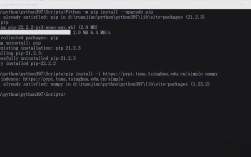
pip install Flask
# (Optional but Recommended) Install Gunicorn now too
pip install gunicorn
Step 4: Create a Simple Flask Application
Let's create a basic app.py file.
nano app.py
Paste the following code into the file:
# app.py
from flask import Flask
# Create an instance of the Flask class
app = Flask(__name__)
# Define a route for the root URL ("/")
@app.route('/')
def hello():
    return "<h1>Hello from my Python Web App on Ubuntu!</h1>"
# Define another route
@app.route('/about')
def about():
    return "<h2>About this page</h2><p>This is a simple Flask app served with Gunicorn and Nginx.</p>"
# This allows the script to be run directly
if __name__ == '__main__':
    # For development only. Use Gunicorn in production.
    app.run(host='0.0.0.0', port=5000)
Save the file and exit (Ctrl+X, then Y, then Enter).
Test it locally: You can run the app temporarily to see if it works.
# Make sure your virtual environment is still active!
# Run the Flask development server
flask run
You should see output like this:
* Running on http://127.0.0.1:5000/
You can test this by visiting http://<your_server_ip>:5000 in your browser. If it works, press Ctrl+C to stop the server.
Step 5: Create a Gunicorn Entry Point
Gunicorn needs to know which Python file and which application object (our app instance) to run. We'll create a simple configuration file for this.
Create a file named wsgi.py:
nano wsgi.py
Paste in this code:
# wsgi.py
from app import app
# This is the application instance that Gunicorn will use.
# The 'app' variable is the name of the Flask application instance in app.py
Save and exit.
Now, test if Gunicorn can run your app:
# Run Gunicorn, telling it to look for the 'app' variable in the 'wsgi.py' file
gunicorn --bind 0.0.0.0:5000 wsgi:app
Visit http://<your_server_ip>:5000 again. It should work! Stop Gunicorn with Ctrl+C.
Step 6: Install and Configure Nginx
Nginx will act as the public-facing server.
# Install Nginx
sudo apt install nginx -y
# Allow Nginx through the firewall (if you have it enabled)
sudo ufw allow 'Nginx Full'
# Start and enable the Nginx service
sudo systemctl start nginx
sudo systemctl enable nginx
Now, let's configure Nginx to forward requests to Gunicorn.
# Create a new Nginx configuration file for your site
sudo nano /etc/nginx/sites-available/my_python_app
Paste the following configuration. Remember to replace your_domain.com with your actual domain or server IP.
# /etc/nginx/sites-available/my_python_app
server {
    listen 80;
    server_name your_domain.com; # Replace with your domain or IP
    location / {
        # Pass the request to the Gunicorn socket
        proxy_pass http://127.0.0.1:8000;
        proxy_set_header Host $host;
        proxy_set_header X-Real-IP $remote_addr;
        proxy_set_header X-Forwarded-For $proxy_add_x_forwarded_for;
        proxy_set_header X-Forwarded-Proto $scheme;
    }
}
Save and exit.
Now, enable this site by creating a symbolic link to sites-enabled:
sudo ln -s /etc/nginx/sites-available/my_python_app /etc/nginx/sites-enabled/
It's good practice to remove the default site:
sudo rm /etc/nginx/sites-enabled/default
Test your Nginx configuration for errors:
sudo nginx -t
If it says syntax is ok and test is successful, restart Nginx to apply the changes:
sudo systemctl restart nginx
Step 7: Create a Gunicorn Systemd Service
To make our application run automatically in the background and start on server boot, we'll use systemd.
Create a service file:
sudo nano /etc/systemd/system/my_python_app.service
Paste the following configuration. Make sure the paths are correct for your setup.
# /etc/systemd/system/my_python_app.service
[Unit]
Description=Gunicorn instance to serve my_python_app
After=network.target
[Service]
User=www-data # A standard user for web services
Group=www-data
WorkingDirectory=/home/your_username/my_python_app # IMPORTANT: Change to your project path
Environment="PATH=/home/your_username/my_python_app/venv/bin" # IMPORTANT: Change to your venv path
ExecStart=/home/your_username/my_python_app/venv/bin/gunicorn --workers 3 --bind unix:my_python_app.sock wsgi:app
[Install]
WantedBy=multi-user.target
Key Changes to Make:
User=www-data,Group=www-data: This runs the service as a non-privileged user, which is more secure.WorkingDirectory: Must be the absolute path to your project folder.Environment="PATH=...": Must be the absolute path to your virtual environment'sbindirectory.ExecStart: We are now binding to a Unix socket, which is more efficient than a network port for local communication.
Save and exit.
Now, start and enable your new service:
sudo systemctl start my_python_app
sudo systemctl enable my_python_app
Check the status to make sure it's running correctly:
sudo systemctl status my_python_app
You should see active (running).
Step 8: Final Nginx Configuration (for Socket)
We need to update the Nginx configuration to use the Unix socket that Gunicorn is now creating.
sudo nano /etc/nginx/sites-available/my_python_app
Modify the proxy_pass line to point to the socket file.
# /etc/nginx/sites-available/my_python_app
server {
    listen 80;
    server_name your_domain.com;
    location / {
        # Pass the request to the Gunicorn socket
        proxy_pass http://unix:/home/your_username/my_python_app/my_python_app.sock; # IMPORTANT: Change path
        proxy_set_header Host $host;
        proxy_set_header X-Real-IP $remote_addr;
        proxy_set_header X-Forwarded-For $proxy_add_x_forwarded_for;
        proxy_set_header X-Forwarded-Proto $scheme;
    }
}
Important: The path to the socket must match the one in your Gunicorn ExecStart command.
Restart Nginx one last time:
sudo systemctl restart nginx
Step 9: You're Live!
Open your web browser and navigate to http://your_domain.com (or your server's IP address).
You should see: "Hello from my Python Web App on Ubuntu!"
Congratulations! You have successfully set up a production-ready Python web application on Ubuntu.
Next Steps & Best Practices
- Domain Name: Point a domain name to your server's IP address for a professional touch.
- Security (HTTPS): Use Let's Encrypt with the
certbottool to get free SSL/TLS certificates and enable HTTPS. This is a critical next step.sudo apt install certbot python3-certbot-nginx sudo certbot --nginx -d your_domain.com
- Database: For most applications, you'll need a database like PostgreSQL or MySQL.
- Process Management: For more complex applications, consider using Supervisor instead of
systemdto manage multiple Gunicorn worker processes. - Deployment Tools: Learn to automate this entire process with tools like Ansible or Fabric.