Of course! Let's dive into plotting with pylab in Python.
What is pylab?
First, a very important point: pylab is considered outdated.
It was originally designed to make the transition from MATLAB to Python easier by importing both matplotlib.pyplot and numpy into the same namespace. This means you could call functions like plot() or array() directly without a prefix.
However, the modern and highly recommended best practice is to use the object-oriented interface provided by matplotlib.pyplot. It's more explicit, less prone to namespace conflicts, and gives you much more control over your plots.
So, while we'll show you how to use pylab as you asked, I will strongly encourage you to use the modern matplotlib.pyplot method instead.
The Old Way: Using pylab
This is the direct answer to your request. You import pylab and then call its functions directly.
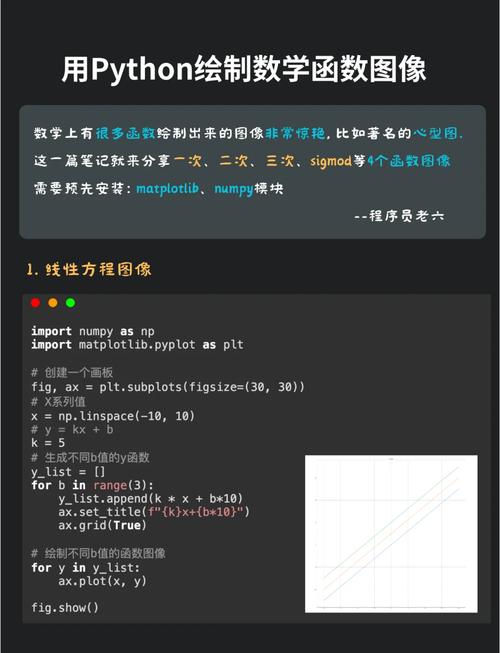
Basic Line Plot
This is the simplest type of plot.
# Import the pylab module
import pylab
# 1. Create some data
x = [1, 2, 3, 4, 5]
y = [2, 4, 6, 8, 10]
# 2. Create the plot
pylab.plot(x, y)
# 3. Add titles and labels (good practice!)
pylab.title("My First pylab Plot")
pylab.xlabel("X-axis")
pylab.ylabel("Y-axis")
# 4. Display the plot
pylab.show()
What this code does:
pylab.plot(x, y): Creates a line plot withxvalues on the horizontal axis andyvalues on the vertical axis.pylab.title(),pylab.xlabel(),pylab.ylabel(): Add text to make the plot understandable.pylab.show(): This command opens a window and displays your plot.
Plotting Multiple Lines and Customization
You can plot multiple lines on the same axes and customize their appearance.
import pylab
# Data for two lines
x = [0, 1, 2, 3, 4, 5]
y1 = [0, 2, 4, 1, 3, 5]
y2 = [0, 1, 3, 2, 4, 6]
# Plot the first line (blue, with a circle marker)
pylab.plot(x, y1, 'bo-', label='Series 1')
# Plot the second line (red, with a dashed line)
pylab.plot(x, y2, 'r--', label='Series 2')
# Add a legend, title, and labels
pylab.legend()
pylab.title("Multiple Lines with Customization")
pylab.xlabel("Time")
pylab.ylabel("Value")
# Display the plot
pylab.show()
What this code does:
pylab.plot(x, y1, 'bo-', label='Series 1'): The third argument'bo-'is a format string:b: blue coloro: circle marker- solid line
pylab.plot(x, y2, 'r--', label='Series 2'):r: red color- dashed line
pylab.legend(): Creates a legend based on thelabelarguments in theplotcalls.
The Modern & Recommended Way: matplotlib.pyplot
This is the standard way to do it in the Python community. It's more explicit and powerful.
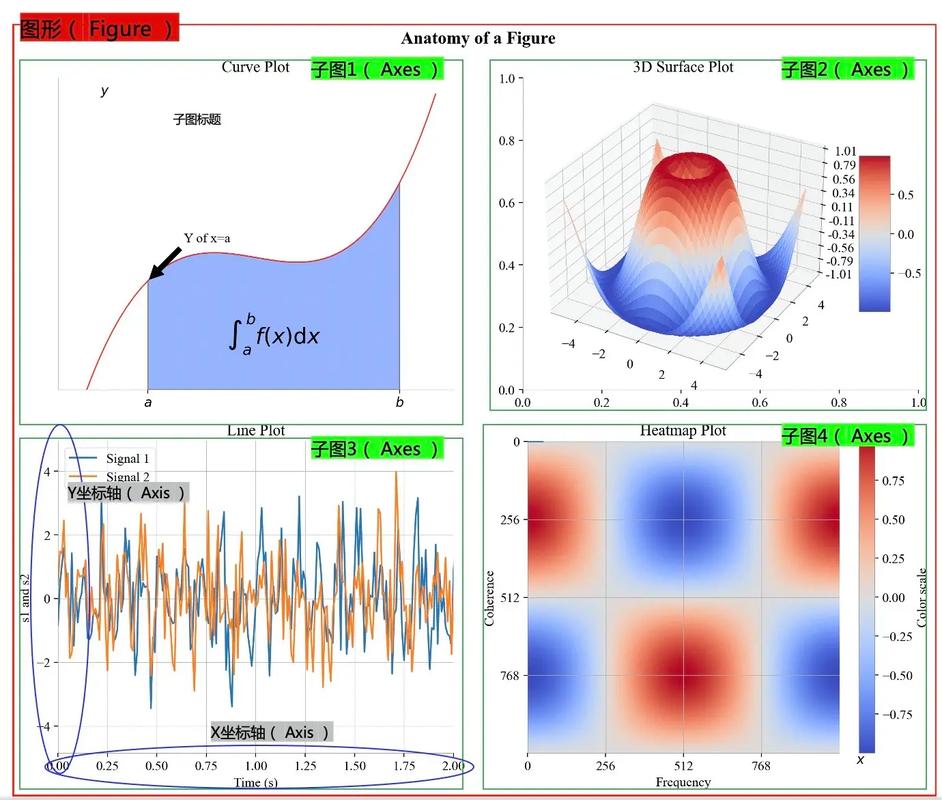
The key difference is that you create a figure and an axes object explicitly. The axes object is the actual plotting area, and you call its methods (like .plot(), .set_title()) to modify it.
Basic Line Plot (Modern Way)
# Import the pyplot module from matplotlib
import matplotlib.pyplot as plt
# 1. Create some data
x = [1, 2, 3, 4, 5]
y = [2, 4, 6, 8, 10]
# 2. Create a figure and an axes object
fig, ax = plt.subplots()
# 3. Plot the data on the axes object
ax.plot(x, y)
# 4. Add titles and labels using the axes object's methods
ax.set_title("My First Modern Matplotlib Plot")
ax.set_xlabel("X-axis")
ax.set_ylabel("Y-axis")
# 5. Display the plot
plt.show()
This does the exact same thing as the pylab version, but the structure is clearer. You know exactly where to find the plotting functions (ax.plot) and the formatting functions (ax.set_title).
Plotting Multiple Lines and Customization (Modern Way)
import matplotlib.pyplot as plt
# Data for two lines
x = [0, 1, 2, 3, 4, 5]
y1 = [0, 2, 4, 1, 3, 5]
y2 = [0, 1, 3, 2, 4, 6]
# Create a figure and an axes object
fig, ax = plt.subplots()
# Plot the first line on the axes
ax.plot(x, y1, 'bo-', label='Series 1')
# Plot the second line on the same axes
ax.plot(x, y2, 'r--', label='Series 2')
# Add legend, title, and labels using the axes object
ax.legend()
ax.set_title("Multiple Lines with Customization")
ax.set_xlabel("Time")
ax.set_ylabel("Value")
# Display the plot
plt.show()
The output is identical to the pylab version, but the code is more robust and scalable.
Other Common Plot Types
Here are examples of other popular plots using the modern matplotlib.pyplot method.
Bar Chart
import matplotlib.pyplot as plt
categories = ['A', 'B', 'C', 'D']
values = [15, 30, 45, 10]
fig, ax = plt.subplots()
ax.bar(categories, values)
ax.set_title('Bar Chart Example')
ax.set_xlabel('Category')
ax.set_ylabel('Value')
plt.show()
Scatter Plot
import matplotlib.pyplot as plt
import numpy as np # Often used for generating data
# Generate some random data
x = np.random.rand(50)
y = np.random.rand(50)
colors = np.random.rand(50)
sizes = 1000 * np.random.rand(50) # Size of the markers
fig, ax = plt.subplots()
ax.scatter(x, y, c=colors, s=sizes, alpha=0.5, cmap='viridis')
ax.set_title('Scatter Plot Example')
ax.set_xlabel('X values')
ax.set_ylabel('Y values')
plt.show()
Histogram
import matplotlib.pyplot as plt
import numpy as np
# Generate data from a normal distribution
data = np.random.randn(1000)
fig, ax = plt.subplots()
ax.hist(data, bins=30, color='skyblue', edgecolor='black')
ax.set_title('Histogram Example')
ax.set_xlabel('Value')
ax.set_ylabel('Frequency')
plt.show()
Summary: pylab vs. matplotlib.pyplot
| Feature | pylab (Old Way) |
matplotlib.pyplot (Modern Way) |
|---|---|---|
| Import | import pylab |
import matplotlib.pyplot as plt |
| Plotting | pylab.plot(x, y) |
fig, ax = plt.subplots() ax.plot(x, y) |
| Labels | pylab.xlabel("...") |
ax.set_xlabel("...") |
| Control | Implicit, can be confusing. | Explicit, very clear and powerful. |
| Recommendation | Not recommended for new code. | Highly recommended. |
Final Advice: While pylab works, it's a relic. Learning to use matplotlib.pyplot with the fig, ax = plt.subplots() pattern will serve you much better as you create more complex and professional visualizations in Python.