Of course! The error FileNotFoundError: [Errno 2] No such file or directory is one of the most common errors in Python. It means exactly what it says: your Python script tried to access a file or directory, but the operating system couldn't find it at the path you provided.
Let's break down why this happens and how to fix it, from the most common causes to the best debugging practices.
The Core Problem: Incorrect Path
The fundamental issue is that the path you are using in your code (e.g., in open(), pd.read_csv(), os.listdir()) does not match the actual location of the file on your computer.
Paths can be tricky because they depend on:
- Your Current Working Directory (CWD): Where your script is being run from.
- Absolute vs. Relative Paths: How you specify the location.
Common Causes and How to Fix Them
Cause 1: Incorrect Relative Path (The Most Common Culprit)
A relative path describes the location of a file relative to the current working directory. If your CWD is wrong, the relative path will be wrong.
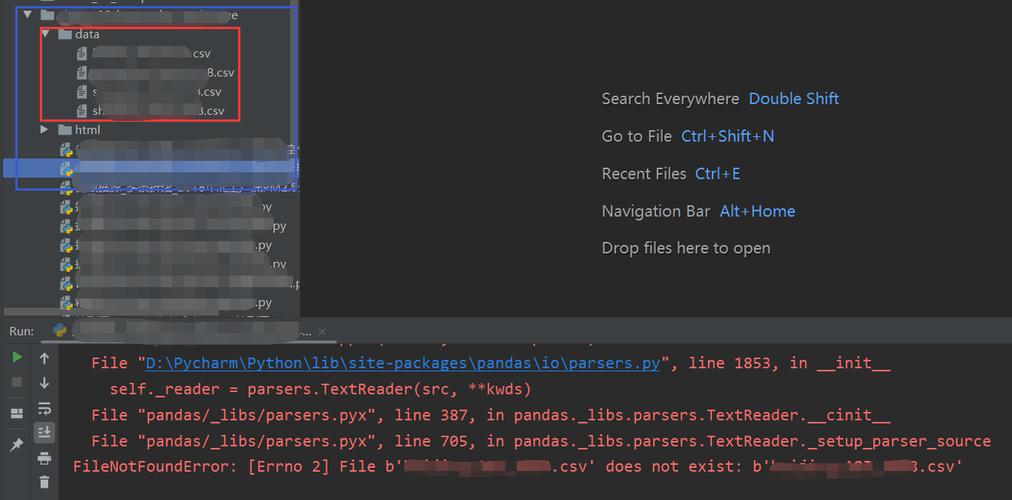
Example Scenario: Your project folder looks like this:
my_project/
├── main.py
└── data/
    └── input.csv
Your main.py script contains:
# This is a RELATIVE path
with open('data/input.csv', 'r') as f:
    print(f.read())
When this fails: If you run the script from the wrong directory, Python won't find the file.
# You are in your home directory, not 'my_project'
$ cd ~
$ python /path/to/my_project/main.py
# FileNotFoundError: [Errno 2] No such file or directory: 'data/input.csv'
How to Fix It:
-
Solution A: Run the script from the correct directory. This is the simplest and often best solution.
# Navigate to the directory containing your script
$ cd /path/to/my_project
# Now run the script
$ python main.py
Now, when Python executes
main.py, its CWD is/path/to/my_project, so the relative pathdata/input.csvcorrectly resolves to/path/to/my_project/data/input.csv. -
Solution B: Use an Absolute Path. An absolute path is the full path from the root of your filesystem (e.g.,
C:\on Windows or on Linux/macOS). It doesn't depend on the CWD.# This is an ABSOLUTE path (Linux/macOS example) with open('/home/user/my_project/data/input.csv', 'r') as f: print(f.read()) # This is an ABSOLUTE path (Windows example) with open('C:\\Users\\user\\my_project\\data\\input.csv', 'r') as f: print(f.read())Pro-Tip: Hard-coding absolute paths in your script is not portable (it breaks when you move the project). A better practice is to build the absolute path dynamically using the
pathlibmodule.
Cause 2: Typos in the Filename or Path
This is another very simple but frequent mistake. A small typo is all it takes.
Example:
The file is named report_data.csv, but your code has a typo.
# Typo in the filename
with open('data/report_data.csv', 'r') as f: # Correct
with open('data/report_dat.csv', 'r') as f: # Typo!
How to Fix It: Double-check every character in your path. Use your file explorer to verify the exact name and location of the file.
Cause 3: The File is in a Different Directory Than Expected
You might have assumed the file was in one place, but it was actually created or saved somewhere else.
How to Fix It:
- Use your file explorer to navigate to the file and copy its exact path.
- Print the path you are trying to use in your Python script right before you try to open it. This is a powerful debugging technique (see "Debugging Strategies" below).
Cause 4: Using the Wrong Path Separator
This is a cross-platform issue.
- Windows uses a backslash
\as a separator. - Linux and macOS use a forward slash .
If you write a path with a forward slash on Windows, it might work in many modern Python environments, but it's not guaranteed. The reverse (using \ on Linux/macOS) will definitely fail.
Example (Failing on Windows):
# This will likely fail on a Windows system
file_path = 'C:/Users/user/Documents/data.txt'
# Python might interpret this as an "escape sequence" and get confused
How to Fix It:
-
Best Practice: Use
os.path.join()or, even better, thepathlibmodule, which automatically handles the correct separator for your operating system.Using
os.path:import os # os.path.join is smart about the separator file_path = os.path.join('C:', 'Users', 'user', 'Documents', 'data.txt')Using
pathlib(Recommended):from pathlib import Path # Path objects handle everything elegantly file_path = Path('C:/Users/user/Documents/data.txt') # Or using forward slashes, which pathlib understands on all systems file_path = Path('C:\\Users\\user\\Documents\\data.txt')
Debugging Strategies: How to Find the Problem
When you see FileNotFoundError, don't guess. Investigate.
Strategy 1: Print the Absolute Path You Are Trying to Use
Before you open the file, print the full, absolute path that your code has constructed. This will immediately show you if the path is what you expect it to be.
import os
# The relative path from your script
relative_path = 'data/input.csv'
# Get the absolute path based on the CWD
absolute_path = os.path.abspath(relative_path)
print(f"Trying to open this absolute path: {absolute_path}")
# Now try to open it
try:
    with open(absolute_path, 'r') as f:
        print("File opened successfully!")
except FileNotFoundError:
    print(f"ERROR: The file was not found at the path:\n{absolute_path}")
Strategy 2: Check Your Current Working Directory (CWD)
Your script's behavior depends entirely on its CWD. Print it to see where you are.
import os
print(f"Current Working Directory: {os.getcwd()}")
# Now you know where Python thinks it is, and you can judge if your relative path makes sense.
Strategy 3: Check if the File Exists Before Trying to Open It
You can use os.path.exists() to verify the path's existence.
import os
file_path = 'data/input.csv'
if os.path.exists(file_path):
    print("File exists! Proceeding to open...")
    with open(file_path, 'r') as f:
        content = f.read()
        print(content)
else:
    # Get the absolute path for a more helpful error message
    abs_path = os.path.abspath(file_path)
    print(f"ERROR: File not found at '{file_path}' (absolute path: '{abs_path}')")
Summary: Best Practices to Avoid This Error
-
Use
pathlib: It's the modern, object-oriented way to handle file paths. It's more readable, less error-prone, and cross-platform compatible.from pathlib import Path # Define base path relative to the script's location base_dir = Path(__file__).parent / 'data' file_path = base_dir / 'input.csv' if file_path.exists(): with open(file_path, 'r') as f: print(f.read()) else: print(f"File not found: {file_path.resolve()}") # .resolve() shows the absolute path -
Be Explicit: Prefer absolute paths or paths constructed relative to your script's location (
Path(__file__).parent) over ambiguous relative paths. -
Validate: Always check if a path exists before trying to access it, especially when writing code that will be used by others or run in different environments.
-
Run from the Right Directory: For simple scripts, just
cdinto the correct directory before runningpython your_script.py. It's the simplest solution.