Of course! Here is a comprehensive guide to using Java with LibreOffice, covering everything from the basic setup to practical examples.
The Core Concept: UNO (Universal Network Objects)
LibreOffice, like its predecessor OpenOffice.org, is built on a component architecture called UNO (Universal Network Objects). UNO is a cross-platform software component model that allows different programming languages (like C++, Java, Python, etc.) to interact with the LibreOffice application and its documents.
When you use Java to control LibreOffice, you are essentially using Java as a "remote client" to connect to a running instance of LibreOffice and send it UNO commands.
Method 1: Using the UNO Java Bridge (The Classic Approach)
This is the traditional way to interact with LibreOffice from a Java application. It requires you to have a local installation of LibreOffice and a specific JAR file from it.
How it Works
- You start a LibreOffice instance in "headless" mode (without a visible user interface) or a visible mode.
- Your Java application connects to this running instance via a socket connection.
- The
juh.jar(Java UNO Helper) library provides the necessary classes to establish this connection and send commands.
Step-by-Step Guide
Prerequisites:
- A Java Development Kit (JDK) installed (e.g., JDK 8 or newer).
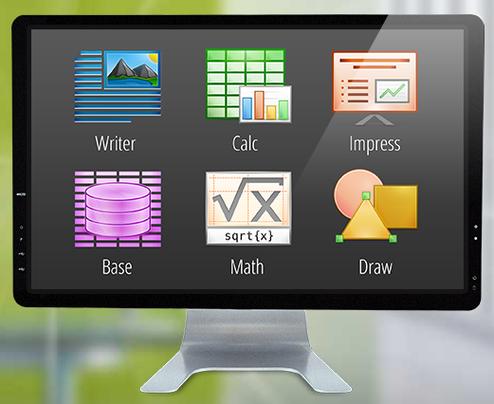
- A local installation of LibreOffice.
Find the juh.jar Library:
The juh.jar file is located inside your LibreOffice installation directory. The path is typically:
- Windows:
C:\Program Files\LibreOffice\program\juh.jar - macOS:
/Applications/LibreOffice.app/Contents/java/unoil.jar(Note: on macOS, you often needunoil.jarwhich includesjuh.jar) - Linux:
/usr/lib/libreoffice/program/juh.jar
Write a Java Program:
Let's create a simple Java class that connects to LibreOffice, creates a new text document, writes "Hello from Java!", and saves it.
HelloWorld.java
import com.sun.star.beans.PropertyValue;
import com.sun.star.frame.XStorable;
import com.sun.star.lang.XComponent;
import com.sun.star.lang.XMultiComponentFactory;
import com.sun.star.text.XText;
import com.sun.star.text.XTextDocument;
import com.sun.star.uno.XComponentContext;
public class HelloWorld {
    public static void main(String[] args) {
        // The connection string to the running office process
        String unoConnectString = "socket,host=localhost,port=2002;urp;StarOffice.ComponentContext";
        try {
            // Get the local component context
            XComponentContext localContext = com.sun.star.comp.helper.Bootstrap.bootstrap();
            // Get the service manager
            XMultiComponentFactory serviceManager = localContext.getServiceManager();
            // Create a desktop component to open documents
            Object desktop = serviceManager.createInstanceWithContext("com.sun.star.frame.Desktop", localContext);
            // Query the XComponent interface for the desktop
            XComponent xDesktop = (XComponent) UnoRuntime.queryInterface(XComponent.class, desktop);
            // Create a new text document
            XTextDocument textDoc = (XTextDocument) UnoRuntime.queryInterface(
                XTextDocument.class,
                serviceManager.createInstanceWithContext("com.sun.star.text.TextDocument", localContext)
            );
            // Get the text from the document
            XText text = textDoc.getText();
            text.setString("Hello from Java! This document was created using UNO.");
            // Save the document
            XStorable xStorable = (XStorable) UnoRuntime.queryInterface(XStorable.class, textDoc);
            // Define the filter and the location to save
            PropertyValue[] storeProps = new PropertyValue[1];
            storeProps[0] = new PropertyValue();
            storeProps[0].Name = "FilterName";
            storeProps[0].Value = "writer8"; // For .odt files
            // storeProps[0].Value = "MS Word 97"; // For .doc files
            String savePath = System.getProperty("user.home") + "/Desktop/java_uno_example.odt";
            xStorable.storeToURL("file:///" + savePath.replace("\\", "/"), storeProps);
            System.out.println("Document saved to: " + savePath);
            // Close the document
            textDoc.close(true);
        } catch (Exception e) {
            e.printStackTrace();
        }
    }
}
Note: The UnoRuntime class is part of juh.jar and is used to cast UNO objects to their specific Java interfaces.
Compile and Run:
You need to include the juh.jar in your classpath when compiling and running.
On Linux/macOS:
# Compile
javac -cp "/usr/lib/libreoffice/program/juh.jar" HelloWorld.java
# Run (in a separate terminal, start LibreOffice first)
soffice --accept="socket,host=localhost,port=2002;urp;StarOffice.ServiceManager" --headless &
# Now run the Java program
java -cp ".:/usr/lib/libreoffice/program/juh.jar" HelloWorld
On Windows:
# Compile
javac -cp "C:\Program Files\LibreOffice\program\juh.jar" HelloWorld.java
# Run (in a separate command prompt, start LibreOffice first)
"C:\Program Files\LibreOffice\program\soffice.exe" --accept="socket,host=localhost,port=2002;urp;StarOffice.ServiceManager" --headless
# Now run the Java program
java -cp ".;C:\Program Files\LibreOffice\program\juh.jar" HelloWorld
Method 2: Using LibreOffice Headless with ProcessBuilder (Simpler for Automation)
If your goal is simply to convert documents or perform batch operations without needing the full UNO API in Java, the simplest method is to launch the LibreOffice headless process directly from your Java code using ProcessBuilder.
This is much easier but offers less granular control than the UNO bridge.
Example: Converting a .docx file to .pdf
DocumentConverter.java
import java.io.File;
public class DocumentConverter {
    public static void main(String[] args) {
        // Path to the LibreOffice executable
        String libreOfficePath = "C:\\Program Files\\LibreOffice\\program\\soffice.exe"; // Windows
        // String libreOfficePath = "/usr/bin/libreoffice"; // Linux
        // Input and output files
        File inputFile = new File("C:\\path\\to\\your\\document.docx");
        File outputFile = new File("C:\\path\\to\\your\\output.pdf");
        // Command to convert DOCX to PDF in headless mode
        // The 'headless' switch runs without a GUI.
        // The 'convertto' switch specifies the output format.
        // The 'outdir' switch specifies the output directory.
        String[] command = {
            libreOfficePath,
            "--headless",
            "--convert-to",
            "pdf",
            "--outdir",
            outputFile.getParent(),
            inputFile.getAbsolutePath()
        };
        try {
            System.out.println("Starting conversion...");
            Process process = new ProcessBuilder(command).start();
            // Wait for the process to finish
            int exitCode = process.waitFor();
            if (exitCode == 0) {
                System.out.println("Conversion successful!");
                System.out.println("Output file: " + outputFile.getAbsolutePath());
            } else {
                System.err.println("Conversion failed with exit code: " + exitCode);
            }
        } catch (Exception e) {
            e.printStackTrace();
        }
    }
}
How to Run:
- Make sure LibreOffice is installed.
- Update the paths in the Java code to match your system.
- Compile and run the Java program:
javac DocumentConverter.java
java DocumentConverter
Comparison: UNO Bridge vs. ProcessBuilder
| Feature | UNO Java Bridge | ProcessBuilder |
|---|---|---|
| Granularity | High. You can manipulate every part of a document (text, styles, cells, etc.). | Low. You can only trigger conversions and basic command-line operations. |
| Complexity | High. Requires understanding the UNO API, finding JARs, and managing connections. | Low. Simple Java code, no external libraries needed. |
| Use Case | Complex automation, building custom tools, integrating document processing into a larger Java application. | Simple batch conversions, file format changes, server-side document processing. |
| Dependencies | Requires juh.jar from a local LibreOffice installation. |
Requires a local LibreOffice installation on the machine where the code runs. |
| Performance | Faster for multiple operations on a single document, as the LibreOffice process stays running. | Slower for many small tasks, as each conversion starts and stops a new process. |
Modern Considerations: LibreOffice Online / Collabora
For modern, web-based applications, the traditional UNO bridge is often not the best fit. Instead, consider using LibreOffice Online (or its community-driven variant, Collabora Online).
LibreOffice Online is a server-based version that exposes LibreOffice's functionality via a REST API. Your Java application would act as a client to this API.
- How it works: You upload a document to the LibreOffice Online service, it processes it (e.g., converts, renders to PDF), and you download the result.
- Pros: Scales well, accessible from any language that can make HTTP requests, true separation between your application and the office suite.
- Cons: More complex to set up as it requires a dedicated server environment (Docker, Kubernetes, etc.).
Summary
- For deep, programmatic control over documents from a Java desktop application, use the UNO Java Bridge with
juh.jar. It's powerful but complex. - For simple, automated conversions or batch jobs, use
ProcessBuilder. It's much simpler and gets the job done for common tasks. - For web applications or scalable, server-side processing, look into LibreOffice Online / Collabora Online.