Of course! nohup java -jar is a very common and powerful combination for running Java applications in the background, especially on servers. Let's break it down piece by piece.
The Core Components
-
java -jar: This is the command to run your Java application.java: The command to invoke the Java Virtual Machine (JVM).-jar: A flag that tells the JVM to run the program encapsulated in a JAR (Java Archive) file.<your-app.jar>: The name of your application's JAR file.
-
nohup: This is the key to making your application run "headlessly" or "detached."- Stands for: No Hang Up.
- What it does: It runs a command that is immune to hangups (SIGHUP signals). This means if you close your terminal window or log out of the server, the command will continue to run in the background instead of being terminated.
Putting It All Together: The Basic Command
The most basic form of the command is:
nohup java -jar your-application.jar
What Happens When You Run This?
When you execute this command, nohup does a few things automatically:
- Detaches from the Terminal: The process starts running in the background, and you immediately get your command prompt back.
- Handles Standard Output (stdout): By default, it redirects any output printed by your Java application (e.g.,
System.out.println()) to a file namednohup.outin the current directory. - Handles Standard Error (stderr): It also redirects any error messages to the same
nohup.outfile. - Handles Input: It redirects any input (from
System.in) to/dev/null, because the process is no longer connected to a terminal to receive input.
A More Practical and Complete Example
In a real-world scenario, you'll want more control over the output, the working directory, and the process itself. Here is a more robust command:
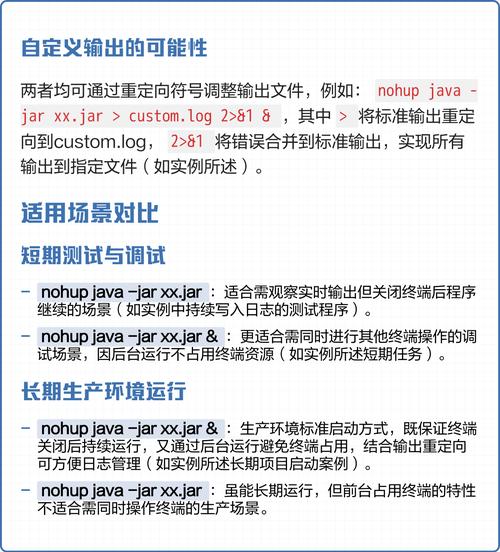
nohup java -jar your-application.jar > app.log 2>&1 &
Let's dissect this improved command:
| Part | Description |
|---|---|
nohup |
Ensures the process continues running after you log out. |
java -jar your-application.jar |
Your application's start command. |
> app.log |
Redirects Standard Output to a file named app.log. This is cleaner than the default nohup.out. |
2>&1 |
Redirects Standard Error (2) to the same place as Standard Output (1). This is a crucial step to ensure all logs (both regular and error) go into the same file. |
& |
Runs the command in the background. This is essential for nohup to work effectively, as it gives you back your terminal prompt immediately. |
The Result of the Practical Command:
- Your Java application starts running in the background.
- All console output and error messages are appended to the
app.logfile. - You can safely close your SSH session, and the application will remain running.
How to Manage Your Running Application
Once your application is running, you'll need to know how to manage it.
Check if it's Running
Use the ps (process status) command to find your Java process.
# The 'grep' part filters the list to show only lines containing "java"
ps aux | grep java
You should see an output similar to this:
# The actual output
user   12345  0.5  2.0  1.5G 512M pts/0  Sl+  10:30   5:23 java -jar your-application.jar
# The grep command itself also shows up, so you can ignore the line with "grep java"
user   12350  0.0  0.0  11280   960 pts/0    S+   10:31   0:00 grep --color=auto java
The important part is the process ID (PID), which is the second number (12345 in this example).
Stop the Application
You need the PID from the step above to stop the process.
# Replace 12345 with your actual PID
kill 12345
If the process doesn't stop gracefully, you can force-kill it:
# Forcefully kills the process
kill -9 12345
See the Application's Output (Logs)
Since you redirected the output to app.log, you can view it using tail.
# View the last 20 lines of the log file
tail -f app.log
# View the last 100 lines
tail -n 100 app.log
The -f flag is very useful as it "follows" the file, printing new log entries to your screen in real-time. Press Ctrl+C to stop following.
Modern Alternatives: Process Managers
While nohup is great for simple tasks, modern applications often use dedicated process managers. They provide much more robust features like:
- Automatic Restart: If your application crashes, the manager will automatically restart it.
- Logging Management: Better log rotation and management.
- Monitoring: Built-in status checks.
- Service Management: Ability to start, stop, and restart your application like a system service.
Popular choices include:
systemd: The standard on most modern Linux distributions (Ubuntu, CentOS, etc.). You create a.servicefile to manage your app.pm2: A very popular process manager for Node.js, but it works great for any long-running process, including Java apps. It's easy to use and has a rich feature set.Supervisor: A classic, cross-platform process management system.
Example using pm2:
# Install pm2 globally
npm install pm2 -g
# Start your JAR file with pm2
pm2 start your-application.jar --name "my-java-app"
# Check status
pm2 status
# View logs
pm2 logs my-java-app
# Stop the application
pm2 stop my-java-app
Summary
| Method | Pros | Cons | Best For |
|---|---|---|---|
nohup |
- Simple, built-in into every Linux/Unix system. - No installation needed. |
- No auto-restart on crash. - Basic logging (single file). - No central management. |
Quick tests, simple scripts, or when you don't have access to install a process manager. |
systemd / pm2 |
- Auto-restart on crash. - Robust logging & monitoring. - Can be set to start on server boot. - Professional-grade management. |
- Requires configuration files. - May need to be installed. |
Production environments, critical applications, and long-running services. |