Of course! This is a great question, but it has a few layers. Let's break it down because the answer depends heavily on what you want to do:
- Getting GPS data from an iPhone running Python directly.
- Getting GPS data from an iPhone into a Python script on a computer.
- Simulating GPS data on an iPhone for testing.
Here’s a detailed guide covering all three scenarios.
Scenario 1: Running Python Directly on an iPhone (iOS)
This is the most direct interpretation. You can run Python code on an iPhone using apps from the App Store. The most popular one is Pythonista 3.
Using Pythonista 3
Pythonista is a powerful Python 3 environment for iOS. It has full access to the device's hardware, including the GPS.
How it works:
Pythonista provides a module called location that gives you easy access to the Core Location framework on iOS.
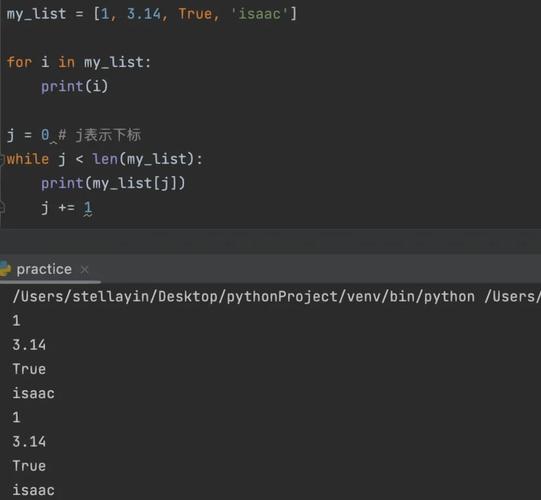
Example Code in Pythonista:
This simple script will print the latitude and longitude whenever the location is updated.
import location
import time
# Set the desired accuracy
location.start_updates()
try:
    while True:
        # Get the current location data
        loc = location.get_location()
        if loc:
            print(f"Latitude: {loc['latitude']}")
            print(f"Longitude: {loc['longitude']}")
            print(f"Timestamp: {loc['timestamp']}")
            print("-" * 20)
        else:
            print("Waiting for location data...")
        # Wait for 5 seconds before the next update
        time.sleep(5)
except KeyboardInterrupt:
    print("Stopping location updates.")
    location.stop_updates()
How to use it:
- Install Pythonista 3 from the App Store.
- Copy and paste the code into a new script.
- Run the script. The first time, iOS will ask for your permission to access Location Services. You must grant it.
Pros:
- Direct execution on the device.
- Full access to native APIs (GPS, camera, contacts, etc.).
Cons:
- Pythonista is a paid app.
- You are limited to the iOS environment. You can't easily use standard libraries that require a full OS like Linux or Windows (e.g.,
pandas,scikit-learnmight have issues).
Scenario 2: Getting iPhone GPS Data into a Python Script on a Computer
This is the most common use case for developers and data scientists. You want to collect GPS data on your iPhone and send it to a Python script running on your Mac or PC.
There are two excellent ways to do this:
Method A: The Best Way - Using an App and a Local Server
This is the most robust and flexible method. You run a small web server on your computer, and an app on your iPhone sends the GPS data to it.
Step 1: Set up the Python Server (on your Mac/PC)
This server will listen for POST requests from the iPhone app.
# server.py
from http.server import BaseHTTPRequestHandler, HTTPServer
import json
import datetime
class SimpleHTTPRequestHandler(BaseHTTPRequestHandler):
    def do_POST(self):
        # 1. Read the incoming data
        content_length = int(self.headers['Content-Length'])
        post_data = self.rfile.read(content_length)
        # 2. Parse the JSON data
        try:
            data = json.loads(post_data.decode('utf-8'))
            print("--- New GPS Data Received ---")
            print(f"Time: {datetime.datetime.now()}")
            print(f"Latitude: {data.get('latitude')}")
            print(f"Longitude: {data.get('longitude')}")
            print(f"Accuracy: {data.get('accuracy')} meters")
            print(f"Device: {data.get('device_name')}")
            print("-" * 30)
        except json.JSONDecodeError:
            print("Error: Could not decode JSON data.")
        # 3. Send a response back to the iPhone
        self.send_response(200)
        self.send_header('Content-type', 'application/json')
        self.end_headers()
        response = {'status': 'success', 'message': 'Data received'}
        self.wfile.write(json.dumps(response).encode('utf-8'))
if __name__ == '__main__':
    # Make sure your computer and iPhone are on the same network
    # Find your computer's IP address (e.g., '192.168.1.15')
    server_address = ('192.168.1.15', 8000)
    httpd = HTTPServer(server_address, SimpleHTTPRequestHandler)
    print(f"Server running on http://{server_address[0]}:{server_address[1]}")
    httpd.serve_forever()
Step 2: Run the Server
Save the code as server.py and run it from your terminal:
python server.py
Important: Note your computer's IP address (the one printed in the terminal).
Step 3: Use an App on the iPhone to Send Data
You need an app that can send HTTP requests. "HTTP Requestor" or "Shortcuts" (built-in) are perfect for this.
Using the "Shortcuts" App (Free & Powerful):
- Open the Shortcuts app on your iPhone.
- Tap the icon to create a new shortcut.
- Add the following actions in order:
- Get Current Location: This action gets the user's GPS coordinates.
- Ask for Input: Set it to "Text" and ask for the server URL. The default should be
http://YOUR_COMPUTER_IP:8000(replace with your IP). - Make URL: This will combine the base URL and the endpoint. For the endpoint, use something like
/gps. - Send HTTP Request:
- Method:
POST - URL: Select the "Make URL" action from the previous step.
- Request Body: Choose
JSON. - Set the JSON key-value pairs to match what your Python script expects (e.g.,
latitude,longitude,accuracy,device_name).
- Method:
- Add "Show Result" at the end to see the server's response.
- Tap "Done" and give your shortcut a name, like "Send GPS to Server".
Now, whenever you run this shortcut, it will grab your location and send it to your Python script!
Method B: The Easiest Way - Using a Third-Party Service
Services like Pushpin or GPS Track Editor allow you to record a GPX/KML file on your iPhone and then download it to your computer. Your Python script can then parse this file.
Example using a GPX file:
- Use an app like "GPS Track Editor" to record your track and export it as a
.gpxfile. - Email the file to yourself and download it to your computer.
- Use a Python library like
gpxpyto parse the data.
# parse_gpx.py
import gpxpy
import gpxpy.gpx
# Load the GPX file
with open('my_track.gpx', 'r') as gpx_file:
    gpx = gpxpy.parse(gpx_file)
# Iterate through tracks and points
for track in gpx.tracks:
    for segment in track.segments:
        for point in segment.points:
            print(f'Point at ({point.latitude}, {point.longitude}) -> {point.time}')
Pros:
- Simple, no server setup needed.
- Good for post-trip analysis.
Cons:
- Not real-time. You have to stop recording, export, and download the data.
- Relies on third-party apps and services.
Scenario 3: Simulating GPS on an iPhone for Development
If you're developing an app or a script that uses GPS, you don't want to go outside every time you test. You can simulate a route directly on your iPhone.
How to do it:
- Connect your iPhone to your Mac using a USB cable.
- Open the Xcode app (it's free from the Mac App Store).
- In the Xcode menu, go to Window > Devices and Simulators.
- Select your iPhone from the list on the left.
- Go to the "Features" tab and check the box for "Location".
- You can now choose a custom GPX file to simulate a route or select one of Apple's pre-recorded routes (e.g., "Run in San Francisco").
This is the standard way for iOS app developers to test location-based features.
Summary Table
| Method | Best For | Pros | Cons |
|---|---|---|---|
| Pythonista 3 | Direct scripting, automation on the device. | Full hardware access, runs natively. | Paid app, limited Python environment. |
| Python Server + App | Real-time data collection, IoT projects, custom apps. | Highly flexible, real-time, full control over data. | Requires a bit of setup (server + app). |
| GPX Export/Import | Post-trip analysis, logging, fitness tracking. | Simple, no coding on the phone needed. | Not real-time, manual process. |
| Xcode Simulation | iOS app development and testing. | Perfect for testing, no GPS hardware needed. | Requires a Mac and Xcode, only for app dev. |