Of course! Let's get you started with Appium and Python 3. This guide is designed for beginners and will walk you through setting up your environment, writing your first test script, and understanding the core concepts.
Important Note: Python 3.0 vs. Python 3.x
When people say "Python 3.0," they usually mean Python 3 in general (Python 3.6, 3.9, 3.11, etc.). The official Appium Python client library, Appium-Python-Client, is fully compatible with all modern versions of Python 3. You should not use the literal version python 3.0, as it's very old and not recommended for development.
This guide assumes you are using a modern, stable version of Python 3 (e.g., 3.9, 3.10, or 3.11).
Prerequisites
Before you start, make sure you have the following installed:
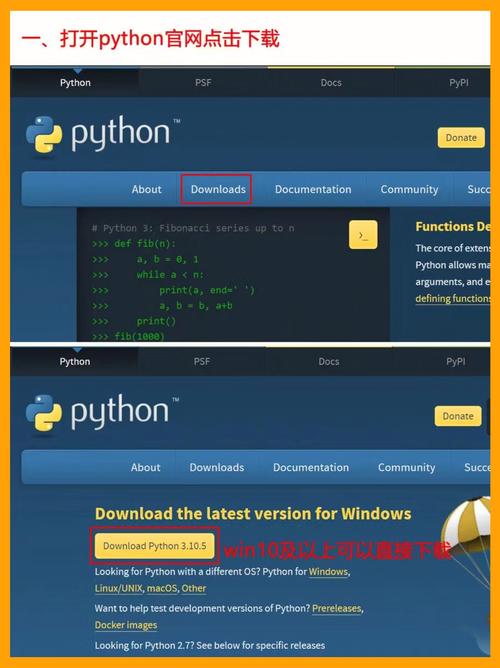
- Python 3: Download and install a recent version of Python 3 from the official Python website. During installation, make sure to check the box that says "Add Python to PATH".
- pip: Python's package installer. It usually comes with Python. You can verify by running
pip --versionorpip3 --versionin your terminal. - Appium Server: You need the Appium server running. The easiest way is to use Appium Desktop.
- Download it from the official Appium website.
- Install and launch it. You don't need to start a server yet, but have the application ready.
- A Mobile Device or Emulator/Simulator:
- Android: An Android device with USB debugging enabled, or an Android Emulator (via Android Studio or AVD Manager).
- iOS: A real iOS device (requires a Mac) or the iOS Simulator (also requires a Mac).
Step 1: Install the Appium Python Client
Open your terminal or command prompt and install the official Appium Python client library using pip.

pip install Appium-Python-Client
This single command will install all the necessary dependencies, including webdriverio, which is the underlying driver Appium uses.
Step 2: Your First Test Script (Hello, Mobile World!)
Let's write a simple script that connects to Appium, launches an app (we'll use the built-in Calculator app for this example), performs a simple calculation, and then closes the session.
This example is for Android. An iOS example is provided later.
Script: first_test.py
import time
from appium import webdriver
from appium.options.android import UiAutomator2Options
# --- 1. Define your desired capabilities ---
# These are the instructions for Appium on how to connect to your device/app.
caps = {
    # --- Common Capabilities ---
    "platformName": "Android",  # The OS of the device
    "deviceName": "Pixel_API_34", # A name for your device (can be anything, but must match Appium Desktop)
    # --- App-Specific Capabilities ---
    "appPackage": "com.android.calculator2",  # The package name of the app
    "appActivity": "com.android.calculator2.Calculator", # The activity to start
    # --- Automation Engine ---
    "automationName": "UiAutomator2" # The modern, recommended automation engine for Android
}
# --- 2. Appium Server URL ---
# The default port for Appium is 4723. If you are using Appium Desktop,
# you can find the URL at the top of the status bar (e.g., http://127.0.0.1:4723/wd/hub).
APPIUM_SERVER_URL = 'http://127.0.0.1:4723'
# --- 3. Initialize the WebDriver ---
# This is the command that connects your script to the Appium server.
print("Connecting to Appium server...")
driver = webdriver.Remote(APPIUM_SERVER_URL, options=UiAutomator2Options().load_capabilities(caps))
print("Successfully connected!")
# --- 4. Interact with the Application (Find Elements and Perform Actions) ---
# Appium uses locators to find elements on the screen. Common locator strategies are:
# - id: The most reliable if available.
# - accessibility_id: Great for buttons with text (e.g., "7", "Add").
# - xpath: A powerful but sometimes slower way to locate elements.
try:
    # Find the '7' button by its accessibility ID
    seven_button = driver.find_element("accessibility id", "7")
    seven_button.click()
    # Find the '+' button by its accessibility ID
    add_button = driver.find_element("accessibility id", "Add")
    add_button.click()
    # Find the '3' button by its accessibility ID
    three_button = driver.find_element("accessibility id", "3")
    three_button.click()
    # Find the '=' button by its accessibility ID
    equals_button = driver.find_element("accessibility id", "Equals")
    equals_button.click()
    # --- 5. Verify the Result ---
    # Find the result display element
    result_field = driver.find_element("id", "com.android.calculator2:id/result")
    # Get the text from the element
    result_text = result_field.text
    print(f"The result of 7 + 3 is: {result_text}")
    # Assert that the result is what we expect
    assert "10" in result_text, "Calculation result is incorrect!"
    print("Test Passed: The calculation is correct.")
finally:
    # --- 6. Quit the Driver ---
    # This is crucial to end the session and free up resources.
    print("Quting the driver session.")
    driver.quit()
Step 3: Run Your Test
-
Start Appium Desktop: Launch the Appium Desktop application.
 (图片来源网络,侵删)
 -
Start a Server: Click the "Start Server" button. You should see the server running on
http://127.0.0.1:4723. -
Connect Your Device: Make sure your Android device or emulator is connected and visible.
-
Run the Script: Open your terminal, navigate to the directory where you saved
first_test.py, and run it:python first_test.py
You should see the Appium logs in the Appium Desktop console as the script runs, and your device's Calculator app will perform the calculation. The script will print the result and "Test Passed" to your terminal before quitting.
Step 4: Understanding the Core Concepts
Desired Capabilities
The caps dictionary is the most important part of your setup. It tells Appium everything it needs to know:
platformName: "Android" or "iOS".deviceName: A logical name for your device.appPackage&appActivity: Required for launching an app on Android. You can find these using tools like Appium Desktop's "App Inspector" oradb.automationName: "UiAutomator2" (for Android) or "XCUITest" (for iOS). These are the modern, default, and recommended engines.udid: The unique device ID. Usually not needed if you only have one device connected, but useful for multiple devices.noReset: "true" or "false". Prevents the app from being uninstalled and reinstalled between sessions, which can speed up tests.
Locating Elements
Finding the right element is the key to writing stable tests.
- ID (
id): The fastest and most reliable locator. Use it whenever possible. - Accessibility ID (
accessibility id): Maps to thecontentDescription(Android) oraccessibility identifier(iOS) property. It's a great cross-platform way to find elements by their label. - XPath (
xpath): A powerful language for finding elements based on their structure in the UI hierarchy. Use it as a last resort or for complex elements. - UI Automator (Android only): Allows you to use Android's UIAutomator library to find elements. The
UiAutomator2option handles this for you.
The Driver Object (driver)
The driver object is your bridge to the mobile device. It has many methods:
driver.find_element(...): Finds a single element.driver.find_elements(...): Finds a list of elements.element.click(): Taps an element.element.send_keys("text"): Types text into a field (e.g., a search box).element.text: Gets the visible text of an element.driver.get_screenshot_as_file("screenshot.png"): Takes a screenshot.driver.quit(): Very important! Closes the session and terminates the Appium session on the device.
iOS Example
The script for iOS is very similar. You just need to change the capabilities to match iOS conventions.
Prerequisites for iOS
- A Mac computer.
- Xcode installed.
- An iOS device connected or the Simulator running.
Script: first_test_ios.py
import time
from appium import webdriver
from appium.options.ios import XCUITestOptions
# --- 1. Define your desired capabilities for iOS ---
caps = {
    "platformName": "iOS",
    "deviceName": "iPhone 14", # Name of your iOS device/simulator in Xcode
    "app": "/path/to/your/app.app", # IMPORTANT: Path to the .app bundle on your Mac
    # WDA is the automation engine for iOS, similar to UiAutomator2
    "automationName": "XCUITest",
    # Sometimes you need to specify the UDID for iOS
    # "udid": "YOUR_IOS_DEVICE_UDID"
}
# --- 2. Appium Server URL ---
APPIUM_SERVER_URL = 'http://127.0.0.1:4723'
# --- 3. Initialize the WebDriver ---
print("Connecting to Appium server for iOS...")
driver = webdriver.Remote(APPIUM_SERVER_URL, options=XCUITestOptions().load_capabilities(caps))
print("Successfully connected!")
# --- 4. Interact with the Application ---
# iOS locators often use accessibility IDs or labels.
try:
    # Example: Calculating 7 + 3 in the iOS Calculator
    seven_button = driver.find_element("accessibility id", "Seven")
    seven_button.click()
    add_button = driver.find_element("accessibility id", "Plus")
    add_button.click()
    three_button = driver.find_element("accessibility id", "Three")
    three_button.click()
    equals_button = driver.find_element("accessibility id", "Equals")
    equals_button.click()
    # The result is in a label element
    result_field = driver.find_element("accessibility id", "Result")
    result_text = result_field.text
    print(f"The result of 7 + 3 is: {result_text}")
    assert "10" in result_text, "Calculation result is incorrect!"
    print("Test Passed: The iOS calculation is correct.")
finally:
    # --- 5. Quit the Driver ---
    print("Quitting the driver session.")
    driver.quit()
Next Steps
- Page Object Model (POM): For larger projects, organize your locators and actions into separate classes to make your code more maintainable.
- Test Frameworks: Integrate your scripts with a testing framework like Pytest or Unittest for better test structure, assertions, and reporting.
- Appium Desktop Inspector: Use the "Start Inspector Session" button in Appium Desktop to explore the UI of your app, find element locators, and see live updates. This is an invaluable tool.