Of course! Here is a comprehensive guide on how to get started with Appium on a Mac using Python. This guide covers everything from installation to writing your first test script.
Overview: Appium on Mac with Python
Appium is a powerful, open-source automation framework for testing native, mobile web, and hybrid applications on iOS and Android. Using Python with Appium allows you to write clean, readable, and maintainable test scripts.
This guide will focus on iOS automation, as it's the most common use case for Mac users. We'll cover the necessary tools, setup, and a complete working example.
Prerequisites
Before you start, ensure you have the following installed:
- Python 3: Download and install the latest version of Python from the official Python website. Make sure to check "Add Python to PATH" during installation.
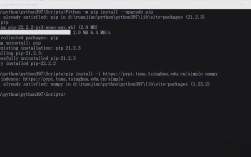
- pip: Python's package installer. It usually comes with Python. You can verify by running
pip --versionin your terminal. - Xcode: This is essential for iOS automation. You can download it for free from the Mac App Store.
- Homebrew: A popular package manager for macOS. It makes installing other tools much easier.
- Install it by pasting this command into your Terminal:
/bin/bash -c "$(curl -fsSL https://raw.githubusercontent.com/Homebrew/install/HEAD/install.sh)"
- Install it by pasting this command into your Terminal:
Step 1: Install Node.js and Appium
Appium is built on Node.js, so you need to install it first.
-
Install Node.js: The easiest way is using Homebrew:
brew install node
Verify the installation:
node -v
npm -v
-
Install Appium: You can install Appium globally using
npm(Node Package Manager):npm install -g appium
Verify the installation:
appium --version
Step 2: Install Python Libraries
Now, let's install the necessary Python libraries for our test script.
- Appium-Python-Client: The official Python client for Appium.
- Pytest: A popular and powerful testing framework for Python.
Open your terminal and run:
pip install Appium-Python-Client pytest
Step 3: Configure Your Mac for iOS Automation
This is a crucial step. You need to give your Mac permission to automate the Simulator.
- Open Automator: You can find it in
Applications/Utilities. - Create a New Quick Action:
- In Automator, select "New Document".
- Choose "Quick Action" and click "Choose".
- Set the Workflow:
- Workflow receives current:
workflow receives current [no input]inany application. - Add a "Run Shell Script" action: Drag the "Run Shell Script" action from the left-hand library into the workflow area.
- Change Shell: In the "Run Shell Script" action, change the "Shell" dropdown from
/bin/bashto/usr/bin/osascript. - Paste the Code: Replace the default text with the following AppleScript code:
tell application "System Events"
    tell process "Simulator"
        set frontmost to true
        keystroke "a" using command down
        delay 0.5
        keystroke "a" using command down
        delay 0.5
        keystroke "a" using command down
        delay 0.5
        key code 51
    end tell
end tell
- Workflow receives current:
- Save the Quick Action: Save it with a name like "Enable UI Automation".
- Grant Permissions:
- Go to
System Settings > Privacy & Security > Accessibility. - Click the button, find Automator in the list, and add it.
- Make sure the switch next to Automator is turned ON.
- Go to
Step 4: Launch an iOS Simulator
You need an app to automate. The easiest way is to run a sample app in the iOS Simulator.
- Open Xcode and accept the license agreement.
- Open a Sample App: Go to
File > Open...and navigate to the sample app. A good one is in Xcode itself:- Path:
/Applications/Xcode.app/Contents/Developer/Applications/Simulator.app/Contents/Developer/Platforms/iPhoneOS.platform/Developer/Library/CoreSimulator/Profiles/Runtimes/iOS.simruntime/Contents/Resources/DeviceSets/iOS DeviceSet/Pre-built Applications - Look for a simple app like
TouchML.apporUIKitCatalog.app. Let's useUIKitCatalog.appfor this example.
- Path:
- Run the App:
- In Xcode, go to
Product > Runor pressCmd + R. - This will build and launch the app in the Simulator.
- In Xcode, go to
Step 5: Find Appium Capabilities
Appium uses "capabilities" to tell the server what to automate. The most important capability for iOS is udid, the unique identifier of your Simulator.
-
Find the Simulator's UDID:
- Open the Simulator.
- In the Simulator's menu bar, go to
Device > About This Device.... - Look for the Identifier. This is the UDID. Copy it (e.g.,
00008030-001A4A2E2A3E802E).
-
Find the App's Bundle ID:
- In the Simulator, go to the Home Screen.
- Find the app you launched (e.g.,
UIKit Catalog). - Long-click on the app icon until it jiggles, then click the
i(info) button. - The Bundle Identifier will be listed there (e.g.,
com.example.apple-samplecode.UICatalog).
Step 6: Write Your First Python Test Script
Now for the fun part! Create a new file named test_ios_app.py and paste the following code into it.
Explanation of the Code:
Desired Capabilities: A dictionary that tells Appium how to connect to the device and app.driver = webdriver.Remote(...): This connects your Python script to the Appium server.driver.find_element(...): Finds an element on the screen. We use accessibility IDs, which are the most reliable way to locate elements.driver.tap(...): Simulates a tap on an element.driver.quit(): Closes the Appium session and quits the driver.
import pytest
from appium import webdriver
from appium.webdriver.common.appiumby import AppiumBy
# --- Test Configuration ---
# Update these values based on your setup
APPIUM_SERVER_URL = 'http://localhost:4723/wd/hub'
# Use the UDID you found in Step 5
SIMULATOR_UDID = '00008030-001A4A2E2A3E802E'
# Use the Bundle ID you found in Step 5
APP_BUNDLE_ID = 'com.example.apple-samplecode.UICatalog'
# Path to the app in the Simulator. This is a standard path.
APP_PATH = '/Applications/Xcode.app/Contents/Developer/Applications/Simulator.app/Contents/Developer/Platforms/iPhoneOS.platform/Developer/Library/CoreSimulator/Profiles/Runtimes/iOS.simruntime/Contents/Resources/DeviceSets/iOS DeviceSet/Pre-built Applications/UIKitCatalog.app'
# --- Test Case ---
def test_launch_appium():
    """
    A simple test to launch the UIKitCatalog app and interact with a button.
    """
    # 1. Define the desired capabilities
    capabilities = {
        'platformName': 'iOS',
        'deviceName': 'iPhone 15', # Can be any name, but must match Simulator
        'automationName': 'XCUITest',
        'udid': SIMULATOR_UDID,
        'app': APP_PATH,
        'wdaStartupRetries': 4,
        'noReset': True,
        'fullReset': False
    }
    # 2. Initialize the Appium driver
    driver = webdriver.Remote(APPIUM_SERVER_URL, capabilities)
    try:
        # 3. Wait for the app to launch and find an element
        # We'll look for the "Buttons" cell in the table view
        # The accessibility ID for "Buttons" is 'Buttons'
        print("Looking for the 'Buttons' element...")
        buttons_element = driver.find_element(by=AppiumBy.ACCESSIBILITY_ID, value='Buttons')
        # 4. Tap on the element
        print("Tapping on 'Buttons'...")
        buttons_element.click()
        # 5. Wait for the new view to appear and verify
        # We'll look for the "Standard" button on the new screen
        print("Looking for the 'Standard' button on the next screen...")
        standard_button = driver.find_element(by=AppiumBy.ACCESSIBILITY_ID, value='Standard')
        # Assert that the button is displayed
        assert standard_button.is_displayed()
        print("Success! 'Standard' button is displayed.")
        # Optional: Tap the standard button to see the effect
        # standard_button.click()
    finally:
        # 6. Quit the driver
        print("Quitting the driver...")
        driver.quit()
Step 7: Run Your Test
-
Start the Appium Server: Open a new terminal window and run:
appium
You should see output indicating the server is running on
http://0.0.0.0:4723. Leave this terminal window open. -
Run the Python Script: Open a second terminal window. Navigate to the directory where you saved
test_ios_app.pyand run pytest:pytest test_ios_app.py -v -s
-vfor verbose output.-sto show print statements.
You should see the Appium server logs in the first terminal and the test execution logs in the second. The script will launch the app, tap the "Buttons" cell, and verify that the "Standard" button appears on the next screen. If everything passes, you'll see a PASSED message!
Troubleshooting
Could not find or connect to Appium server: Make sure theappiumcommand is running in a terminal and that theAPPIUM_SERVER_URLin your script is correct (http://localhost:4723/wd/hub).An unknown server-side error occurred while processing the command: This is a common error. Double-check yourudid,apppath, and bundle ID. Make sure the Simulator is running and the app is installed on it.Element not found: Yourfind_elementlocator might be wrong. Use Appium's Inspector (see next section) to find the correct accessibility ID or other locator strategy.
Bonus: Using Appium Inspector
The Appium Inspector is a graphical tool that helps you inspect the UI of your app and find the correct locators (like accessibility IDs, XPaths, etc.).
- Start Appium: Make sure your Appium server is running (
appiumcommand). - Start Inspector: In a new terminal, run:
appium-inspector
- Connect:
- In the "Desired Capabilities" tab, enter the same capabilities you used in your Python script.
- Click "Start Session".
- Inspect:
- The Inspector window will show the screen of your app.
- Click on any element, and the "Selectors" tab on the right will show you its properties, including the Accessibility ID, which is the most reliable locator for iOS automation. This is incredibly useful for writing your
find_elementcalls.