Of course! Let's dive deep into Python and JupyterLab. They are two of the most powerful and popular tools in the modern data science and scientific computing ecosystem.
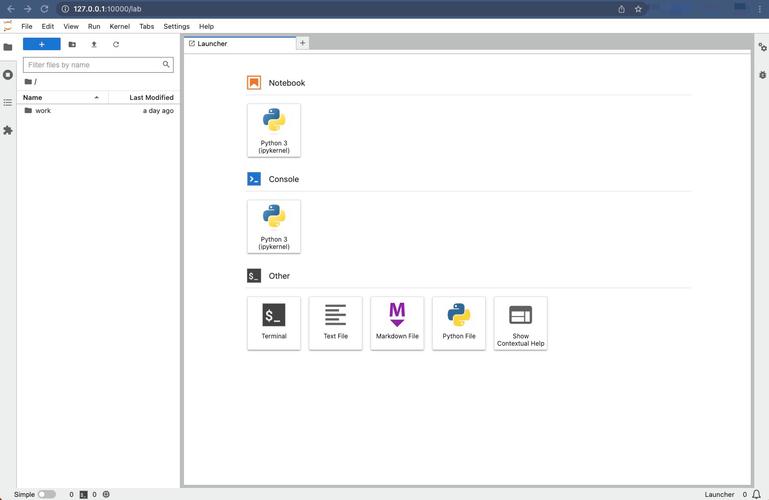
I'll structure this answer into three main parts:
- What is JupyterLab? (The "What" and "Why")
- How to Use JupyterLab with Python (The "How")
- Best Practices and Advanced Features (To go from beginner to pro)
Part 1: What is JupyterLab?
Think of JupyterLab as a next-generation web-based interactive development environment (IDE) for notebooks, code, and data.
The Core Concept: The Notebook
At its heart, Jupyter is famous for its notebook (files with the .ipynb extension). A notebook is a document that contains a mix of:
- Live Code: You can write and execute Python (and other languages) code in "cells".
- Narrative Text: You can write explanations, documentation, and reports using Markdown.
- Visualizations: The output of your code (like plots, charts, tables) is displayed directly below the code cell.
- Mathematical Equations: You can render LaTeX equations.
This interactive, narrative format is perfect for:
- Data Exploration: Trying out different analyses and seeing the results immediately.
- Data Cleaning: Iteratively cleaning data and documenting the steps.
- Machine Learning: Training models and visualizing performance metrics.
- Teaching and Learning: Explaining concepts with code and text side-by-side.
- Sharing Results: Creating a single, self-contained document that tells a story with data.
What's the difference between Jupyter Notebook and JupyterLab?
This is a common and important question.
| Feature | Classic Jupyter Notebook | JupyterLab |
|---|---|---|
| Interface | Single-document interface. You work on one notebook at a time. | Multi-document interface. A flexible workbench with tabs, panels, and drag-and-drop. |
| Layout | Fixed layout. | Highly customizable. You can arrange code, text, terminals, and documentation side-by-side. |
| File Browser | Separate view, often in a different tab. | Integrated file browser that you can see alongside your notebooks. |
| Features | More basic. | Advanced features like code debugging, variable inspection, and terminal access. |
| Target Audience | Simpler tasks, quick prototyping, beginners. | Full-fledged development, complex projects, power users. |
Conclusion: JupyterLab is the more modern, powerful, and recommended environment for most users. The Classic Notebook is still great for simple, linear workflows and is what most people think of when they hear "Jupyter Notebook." For this guide, we'll focus on JupyterLab.
Part 2: How to Use JupyterLab with Python
This is a step-by-step guide to get you up and running.
Step 1: Install Python
If you don't have Python, the easiest way to get it is through the Anaconda Distribution. Anaconda comes with Python, JupyterLab, and hundreds of data science packages pre-installed. It's the best choice for beginners.
If you prefer a more minimal installation, you can get Python from python.org.
Step 2: Install JupyterLab
If you used Anaconda, you can skip this step as it's already included. If you have a standard Python installation, open your terminal or command prompt and run:
# It's highly recommended to use pip to install in a virtual environment
pip install jupyterlab
Step 3: Launch JupyterLab
Once installed, you can launch it from your terminal:
jupyter lab
This command will start the Jupyter server and automatically open a new tab in your default web browser, showing the JupyterLab interface.
Step 4: Create and Run Your First Notebook
- In the JupyterLab Launcher (the screen you see when it first opens), click on Python 3 under Notebooks. This will create a new, blank notebook.
- You'll see a cell with a
In [ ]:prompt. This is a code cell. - Type some simple Python code into the cell. Let's start with
print("Hello, JupyterLab!"). - To run the cell, you can:
- Press
Shift + Enter(This is the most common shortcut). - Click the "Run" button in the toolbar at the top.
- Press
You will see the output appear directly below the cell.
- Now, let's create a Markdown cell for documentation. Click the button in the toolbar to add a new cell. By default, it will be a code cell. In the toolbar at the top, change the cell type from "Code" to "Markdown".
- In the new Markdown cell, type some text, like
# My First Analysis. You can even add some LaTeX:$E = mc^2$. - To render the Markdown, press
Shift + Enter.
You now have a live document with both code and text!
Step 5: Essential JupyterLab Features
-
Shortcuts: JupyterLab is all about efficiency. Learn a few key shortcuts:
A: Insert a new cell above.B: Insert a new cell below.D, D(press D twice): Delete the current cell.Z: Undo cell deletion.M: Change cell to Markdown.Y: Change cell to Code.Shift + Enter: Run cell and select the next one.Ctrl + Enter: Run cell but keep the current cell selected.
-
Kernel: The "kernel" is the computational engine that runs your code. If your code seems stuck or you want to start fresh, you can restart the kernel. Go to the menu: Kernel -> Restart Kernel. This will clear all variables from memory.
-
Variable Inspector: JupyterLab has a built-in variable inspector. Click the "Views" menu on the left and select "Variable Inspector." This panel will show you all the variables you've created, their types, and their values. It's incredibly useful for debugging.
-
Plotting: When you use a plotting library like Matplotlib or Seaborn, you need to make sure the plots display correctly. Add this line of code to the top of your notebook:
%matplotlib inline
This tells Matplotlib to render plots directly in the output of the cells.
Part 3: Best Practices and Advanced Features
Best Practices
- Restart and Run All: Before sharing or finalizing a notebook, always go to Kernel -> Restart & Run All. This ensures that your notebook can be executed from top to bottom without errors, which is crucial for reproducibility.
- Break Down Long Cells: Don't write one giant cell with 100 lines of code. Break it down into smaller, logical steps. This makes your code easier to read, debug, and explain.
- Use Markdown for Narration: Don't just write code. Use Markdown cells to explain what you are doing, why you are doing it, and what the results mean. A good notebook tells a story.
- Name Your Files: Give your notebooks descriptive names (e.g.,
01_data_exploration.ipynb,02_model_training.ipynb).
Advanced Features
-
Running Python Scripts (
.pyfiles): JupyterLab isn't just for.ipynbfiles. You can open and edit standard Python scripts. You can even run a script from within a notebook cell using the operator:# This will run the script 'my_script.py' from the terminal !python my_script.py
-
Interactive Widgets: Jupyter has a powerful
ipywidgetslibrary that lets you create interactive user interface elements (sliders, dropdowns, buttons) directly in your notebook. This is fantastic for creating dashboards and exploring data interactively.from ipywidgets import interact import numpy as np def f(x): return x interact(f, x=10); # This will create a slider that you can drag to change the value of x. -
Extensions: The Jupyter ecosystem has a rich set of extensions that can add new functionality, like table of contents, code folding, and spell checking. You can manage them with a tool called
jupyter-contrib-nbextensions. -
Connecting to Kernels: You can run your notebook code on a different machine or a cloud server. For example, you can run a heavy machine learning model on a powerful remote server while doing your interactive analysis on your local laptop. This is done by connecting your JupyterLab frontend to a remote kernel.
Summary
| Concept | Description |
|---|---|
| JupyterLab | A modern, web-based IDE for creating and sharing computational documents (notebooks). |
Notebook (.ipynb) |
A file containing live code, narrative text, equations, and visualizations. |
| Cell | A block in a notebook that can be either code or Markdown. |
| Kernel | The computational engine that executes your code. |
| Anaconda | A recommended Python distribution that bundles Python, Jupyter, and key data science libraries. |
JupyterLab is an indispensable tool for anyone working with data in Python. Its interactive nature makes the process of analysis, visualization, and communication intuitive and effective.