Of course! The term "Python OpenOffice" refers to using the Python programming language to interact with and automate OpenOffice or its successor, Apache OpenOffice.
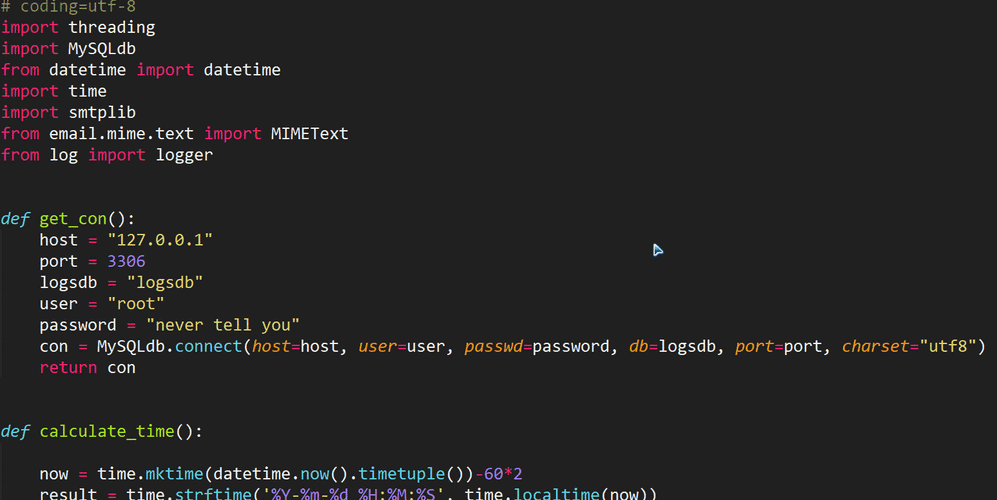
The most common and powerful way to do this is by using a library called pyuno. It allows Python to act as a client to the OpenOffice application, giving you programmatic control over its features like writing to documents, manipulating spreadsheets, and creating presentations.
Here’s a complete guide covering the concepts, setup, and practical examples.
The Core Concept: pyuno and UNO
- UNO (Universal Network Objects): This is the internal component model of OpenOffice/LibreOffice. Think of it as the "API" that OpenOffice uses to talk to its own parts (a document, a cell in a spreadsheet, a paragraph of text). Everything in OpenOffice is a UNO object.
pyuno: This is a Python extension that allows Python to connect to the UNO runtime of a running OpenOffice/LibreOffice instance. It translates Python calls into UNO calls, effectively letting you script OpenOffice from your Python code.
Important Note: This method requires a running instance of OpenOffice/LibreOffice. You cannot use pyuno on a document that is simply a file on your disk; you must launch the office application first.
Step-by-Step Setup
Step 1: Install OpenOffice/LibreOffice
You must have OpenOffice or LibreOffice (the recommended, community-driven successor) installed on your system.
Step 2: Install Python
Ensure you have Python installed. pyuno is compatible with both Python 2 and 3, but Python 3 is strongly recommended.
Step 3: Install the pyuno Library
The pyuno library doesn't come with Python. You need to install it using pip. It's a single package that works across platforms.
pip install pyuno
Step 4: Configure OpenOffice/LibreOffice to Listen for Connections
This is a crucial step. By default, the office application doesn't listen for external connections. You need to start it with a special flag.
-
Open your command line or terminal.
 (图片来源网络,侵删)
 -
Navigate to the directory where the OpenOffice/LibreOffice
programfolder is located.- Windows:
C:\Program Files\LibreOffice\program - macOS:
/Applications/LibreOffice.app/Contents/MacOS - Linux:
/usr/lib/libreoffice/program(this path can vary)
- Windows:
-
Run the following command to start the office in "headless" or "accept" mode. The
acceptflag tells it to listen for connections, andnofirststartwizardprevents it from showing the initial setup dialog.# For Linux/macOS soffice --accept="socket,host=localhost,port=2002;urp;StarOffice.ServiceManager" --nofirststartwizard # For Windows # You might need to use 'soffice.exe' and the path might be different soffice.exe --accept="socket,host=localhost,port=2002;urp;StarOffice.ServiceManager" --nofirststartwizard
You will see a command prompt window remain open. This is your running OpenOffice instance that is now ready to be controlled by Python. Do not close this window.
Practical Examples
Now, let's write some Python code to interact with the running office instance.
Example 1: Creating a Simple Text Document
This example connects to OpenOffice, creates a new text document, adds some text, and saves it.
import uno
import uno组件 # This module provides helper functions for UNO types
import sys
# --- Connection Setup ---
# This part is boilerplate to connect to the running office instance.
local_context = uno.getComponentContext()
resolver = local_context.ServiceManager.createInstanceWithContext(
    "com.sun.star.bridge.UnoUrlResolver", local_context)
context = resolver.resolve("uno:socket,host=localhost,port=2002;urp;StarOffice.ServiceManager")
desktop = context.ServiceManager.createInstanceWithContext("com.sun.star.frame.Desktop", context)
# --- Document Manipulation ---
# 1. Create a new text document
doc = desktop.loadComponentFromURL("private:factory/swriter", "_blank", 0, ())
# 2. Get the text from the document
text = doc.getText()
# 3. Create a cursor to select and insert text
cursor = text.createTextCursor()
# 4. Insert text
text.insertString(cursor, "Hello from Python!", 0)
text.insertString(cursor, "\n\nThis document was created automatically.", 0)
text.insertString(cursor, "\n\nThe current time is: " + uno.createUnoStruct("com.sun.star.util.DateTime"), 0)
# 5. Save the document
# The URL must use forward slashes, even on Windows.
file_url = uno.systemPathToFileUrl("C:/Users/YourUser/Documents/my_python_doc.odt")
doc.storeToURL(file_url, ())
# 6. Close the document
doc.close(True)
print("Document created and saved successfully!")
Example 2: Reading Data from a Spreadsheet
This example opens an existing spreadsheet, reads data from a specific cell, and prints it.
import uno
import uno组件
import sys
# --- Connection Setup (same as before) ---
local_context = uno.getComponentContext()
resolver = local_context.ServiceManager.createInstanceWithContext(
    "com.sun.star.bridge.UnoUrlResolver", local_context)
context = resolver.resolve("uno:socket,host=localhost,port=2002;urp;StarOffice.ServiceManager")
desktop = context.ServiceManager.createInstanceWithContext("com.sun.star.frame.Desktop", context)
# --- Spreadsheet Manipulation ---
# 1. Open an existing spreadsheet
# Make sure this file exists!
file_url = uno.systemPathToFileUrl("C:/path/to/your/spreadsheet.ods")
doc = desktop.loadComponentFromURL(file_url, "_blank", 0, ())
# 2. Get the first sheet
sheets = doc.getSheets()
sheet = sheets.getByIndex(0) # Get the first sheet (index 0)
# 3. Get the cell A1
cell = sheet.getCellByPosition(0, 0) # (column, row)
# 4. Get the cell's value and type
value = cell.getValue()
cell_type = cell.getType()
print(f"Cell A1 contains: {value}")
print(f"Cell A1 type is: {cell_type}")
# 5. Close the document without saving
doc.close(False)
print("Spreadsheet read successfully!")
Example 3: Writing Data to a Spreadsheet
This example creates a new spreadsheet and writes data into it.
import uno
import uno组件
import sys
# --- Connection Setup ---
local_context = uno.getComponentContext()
resolver = local_context.ServiceManager.createInstanceWithContext(
    "com.sun.star.bridge.UnoUrlResolver", local_context)
context = resolver.resolve("uno:socket,host=localhost,port=2002;urp;StarOffice.ServiceManager")
desktop = context.ServiceManager.createInstanceWithContext("com.sun.star.frame.Desktop", context)
# --- Spreadsheet Manipulation ---
# 1. Create a new spreadsheet
doc = desktop.loadComponentFromURL("private:factory/scalc", "_blank", 0, ())
sheet = doc.getSheets().getByIndex(0)
# 2. Write headers
sheet.getCellByPosition(0, 0).setString("Product")
sheet.getCellByPosition(1, 0).setString("Quantity")
sheet.getCellByPosition(2, 0).setString("Price")
# 3. Write data rows
data = [
    ("Apple", 50, 0.5),
    ("Banana", 75, 0.3),
    ("Orange", 30, 0.6)
]
for i, row in enumerate(data):
    sheet.getCellByPosition(0, i + 1).setString(row[0])
    sheet.getCellByPosition(1, i + 1).setValue(row[1])
    sheet.getCellByPosition(2, i + 1).setValue(row[2])
# 4. Save and close
file_url = uno.systemPathToFileUrl("C:/Users/YourUser/Documents/my_python_sheet.ods")
doc.storeToURL(file_url, ())
doc.close(True)
print("Spreadsheet created and saved successfully!")
Important Considerations and Alternatives
When to Use pyuno / uno-components:
- Deep Integration: You need fine-grained control over document properties, styles, and complex formatting.
- Accessing All Features: You can use virtually any feature available in the OpenOffice API, including mail merge, database access, and custom dialogs.
- Automating an Existing Workflow: You are already using OpenOffice and want to script its behavior.
When to Consider Alternatives:
LibreOffice with Python (Alternative to pyuno)
A more modern approach is to use the built-in Python interpreter inside LibreOffice. This is simpler for some tasks as you don't need a separate connection.
- How it works: You write a Python script, place it in LibreOffice's
user/Scripts/pythondirectory, and run it from within the application (Tools -> Macros -> Organize Macros -> Python). - Pros: No separate Python process or connection needed. Direct access to the document object.
- Cons: Not suitable for server-side automation, as it requires a user to be in the GUI.
python-docx (for .docx files)
If your goal is simply to create or modify Microsoft Word documents (.docx), python-docx is a much better choice. It's a pure Python library that doesn't require a running office suite.
pip install python-docx
from docx import Document
doc = Document()
doc.add_heading('Document Title', 0)
doc.add_paragraph('This is a paragraph added by python-docx.')
doc.save('my_docx_document.docx')
openpyxl (for .xlsx files)
Similarly, for working with Excel files (.xlsx), openpyxl is the standard and recommended library. It's powerful, easy to use, and doesn't need OpenOffice.
pip install openpyxl
from openpyxl import Workbook
wb = Workbook()
ws = wb.active
ws['A1'] = "Hello"
ws['B1'] = "openpyxl!"
wb.save('my_excel_sheet.xlsx')
Summary Table
| Method | Pros | Cons | Best For |
|---|---|---|---|
pyuno |
Full control over OpenOffice/LibreOffice; can handle .odt, .ods, .odp etc. |
Complex setup; requires a running office instance; steeper learning curve. | Deep automation of OpenOffice workflows, complex document manipulation. |
| In-Office Python Script | No external connection needed; direct access to the document object. | Requires user interaction with the GUI; not for server-side use. | Macros and tasks initiated from within LibreOffice itself. |
python-docx |
Simple, pure Python library; no office app needed; great for .docx. |
Only for Microsoft Word format, not OpenOffice formats. | Creating and modifying .docx files in a simple, scriptable way. |
openpyxl |
Simple, pure Python library; no office app needed; great for .xlsx. |
Only for Microsoft Excel format, not OpenOffice formats. | Creating and modifying .xlsx files in a simple, scriptable way. |