Of course! Using Python with SolidWorks is a powerful way to automate tasks, create custom tools, and integrate your CAD workflow with other software. This guide will cover the fundamentals, from setup to practical examples.
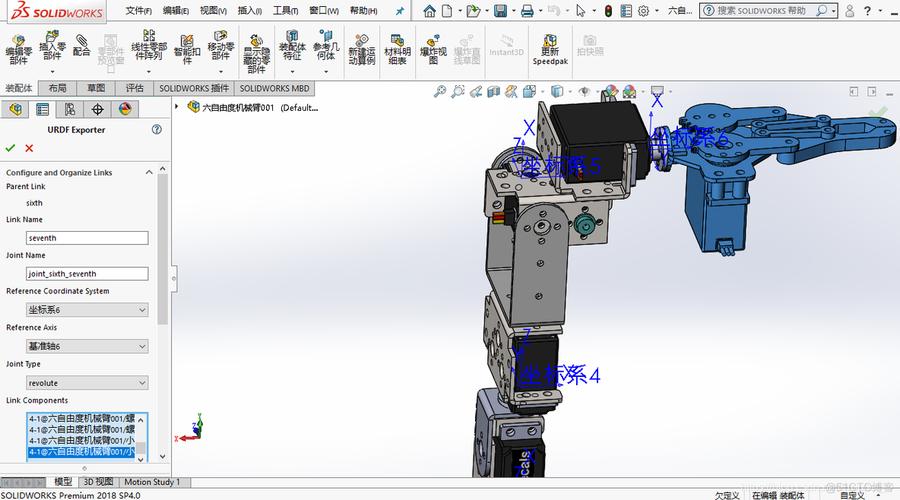
What is SolidWorks API?
SolidWorks has a built-in programming interface called the SolidWorks API (Application Programming Interface). This API exposes the SolidWorks object model, which is a hierarchy of objects, methods, and properties that you can control programmatically. Python can't talk directly to this API, so we need a bridge.
The Bridge: pywin32
The standard and most common way to bridge Python and the SolidWorks API is by using the pywin32 library. This library allows Python to act as a COM (Component Object Model) client, which is how the SolidWorks API communicates with external applications.
Step 1: Prerequisites & Setup
- Install Python: Make sure you have Python installed on your system (version 3.6+ is recommended).
- Install SolidWorks: You must have a licensed version of SolidWorks installed.
- Install
pywin32: Open your command prompt or terminal and install the library.pip install pywin32
- Know Your SolidWorks Installation Path: You'll need the path to the
sldworks.tlb(Type Library) file. This file provides the definitions for the API.- Typical Path:
C:\Program Files\SOLIDWORKS Corp\SOLIDWORKS\api\tlb\sldworks.tlb - 64-bit Version: If you have a 64-bit version of SolidWorks, the path might be
C:\Program Files\SOLIDWORKS Corp\SOLIDWORKS\api\tlb64\sldworks.tlb
- Typical Path:
Step 2: Your First Python Script ("Hello, World!")
Let's start with the most basic script: connecting to SolidWorks and getting its version.
import win32com.client
# --- Connection to SolidWorks ---
# Create a dispatch object for the SolidWorks application
# 'SldWorks' is the ProgID for SolidWorks
sw_app = win32com.client.Dispatch("SldWorks.Application")
# Make SolidWorks visible (it runs in the background by default)
sw_app.Visible = True
# --- Get Information ---
# Get the version number of the active SolidWorks instance
version = sw_app.GetVersion()
print(f"Successfully connected to SolidWorks!")
print(f"SolidWorks Version: {version}")
# --- Important: Clean Up ---
# Release the object to free up memory
# This is crucial for preventing memory leaks and orphaned processes
win32com.client.ReleaseObject(sw_app)
To run this:

- Save the code as a
.pyfile (e.g.,hello_solidworks.py). - Run it from your terminal:
python hello_solidworks.py. - A SolidWorks window should appear, and you'll see the version printed in your terminal.
Step 3: Navigating the SolidWorks Object Model
The key to programming SolidWorks is understanding its object hierarchy. It's like a family tree.
Application(SldWorks)ActiveDoc(ModelDoc2) - The currently active document (Part, Assembly, or Drawing)Extension(ModelDocExtension)FeatureManager(FeatureManager)Feature(Feature)
SelectionManager(SelectionMgr)
Here’s a visual representation:
SldWorks.Application
└── ActiveDoc (ModelDoc2)
    ├── FeatureManager
    │   └── Feature (e.g., Extrude, Cut, Fillet)
    └── SelectionManager
Example: Getting the Name of the Active Document
import win32com.client
sw_app = win32com.client.Dispatch("SldWorks.Application")
sw_app.Visible = True
# Get the active document (if any)
# This returns a ModelDoc2 object
model = sw_app.ActiveDoc
if model:
    # Get the title of the document (e.g., "part1.SLDPRT")
    doc_title = model.GetTitle()
    print(f"Active Document: {doc_title}")
else:
    print("No active document found.")
win32com.client.ReleaseObject(model)
win32com.client.ReleaseObject(sw_app)
Step 4: Practical Examples
Example 1: Create a Simple Cube (Part)
This script will create a new part, create a 2D sketch, extrude it, and save the part.
import win32com.client
import os
# Define file path for the new part
file_path = os.path.join(os.getcwd(), "my_cube.SLDPRT")
# --- Connection ---
sw_app = win32com.client.Dispatch("SldWorks.Application")
sw_app.Visible = True
# --- Create a New Part ---
# Get the new part document
new_part = sw_app.NewDocument(r"C:\Program Files\SOLIDWORKS Corp\SOLIDWORKS\data\templates\part.prtdot", 0, 0, 0)
# Get the modeldoc2 interface
model = sw_app.ActiveDoc
# --- Create a Sketch ---
# Get the sketch manager for the part
sketch_manager = model.SketchManager
# Create a new sketch on the Front Plane
sketch_manager.InsertSketch(True) # True for a 3D sketch
# Get the model view for creating geometry
model_view = model.ActiveView
# Create a simple square sketch
# We'll use the CreateCircle2 method for simplicity (it can create lines too)
# Center at (0,0), Radius 0.05
sketch_manager.CreateCircle2(0, 0, 0, 0.05, 0, 0, 0)
# --- Extrude the Sketch ---
# Get the feature manager
feat_mgr = model.FeatureManager
# Define the extrude parameters
# Direction: 1 (from sketch plane), Depth: 0.1
feat_mgr.FeatureExtrusion2(True, False, False, 0, 0, 0.1, 0.01, False, False, False, False, 0, 0, False, False, False, False, False, False, False, 0, 0, 0)
# --- Save the Part ---
model.SaveAs(file_path)
print(f"Part created and saved to: {file_path}")
# --- Clean Up ---
win32com.client.ReleaseObject(feat_mgr)
win32com.client.ReleaseObject(sketch_manager)
win32com.client.ReleaseObject(model)
win32com.client.ReleaseObject(sw_app)
Example 2: Get All Features in a Part
This script opens an existing part and prints the name of every feature.
import win32com.client
import os
# Path to an existing part
file_path = r"C:\path\to\your\part.SLDPRT" # <-- CHANGE THIS PATH
if not os.path.exists(file_path):
    print(f"Error: File not found at {file_path}")
else:
    # --- Connection ---
    sw_app = win32com.client.Dispatch("SldWorks.Application")
    sw_app.Visible = True
    # --- Open the Part ---
    model = sw_app.OpenDoc6(file_path, 1, 0, "", 0) # 1 = swDocPART
    if not model:
        print("Failed to open the document.")
    else:
        # --- Get Features ---
        feat_mgr = model.FeatureManager
        features = feat_mgr.GetFeatures(False) # False = get all features
        if features:
            print("Features in the part:")
            # features is a collection, loop through it
            for i in range(features.Count):
                feature = features.Item(i+1) # Collections are 1-based
                print(f"- {feature.Name}")
        else:
            print("No features found in the part.")
        # --- Clean Up ---
        win32com.client.ReleaseObject(features)
        win32com.client.ReleaseObject(feat_mgr)
        win32com.client.ReleaseObject(model)
        sw_app.CloseDoc(file_path) # Close the document
    win32com.client.ReleaseObject(sw_app)
Step 5: Essential Tips and Best Practices
-
ReleaseObject()is Your Best Friend: Always release COM objects when you are done with them. Failing to do so can lead to memory leaks and orphanedSldWorks.exeprocesses running in the background. A good practice is to use atry...finallyblock.sw_app = None try: sw_app = win32com.client.Dispatch("SldWorks.Application") # ... do work ... finally: if sw_app: win32com.client.ReleaseObject(sw_app) -
The SolidWorks API Help File: This is your most valuable resource.
- Location:
C:\Program Files\SOLIDWORKS Corp\SOLIDWORKS\api\doc\sldworks_api.chm - This help file contains documentation for every object, method, and property, including examples in VBA/C++. You can often translate the logic directly to Python.
- Location:
-
Use the Macro Recorder: SolidWorks has a built-in macro recorder.
- Go to
Tools > Macro > Record.... - Perform the actions you want to automate (e.g., create a sketch, add a hole).
- Stop the recorder. This will generate a VBA macro file (
.swp). - Open the
.swpfile in a text editor. The VBA code will show you the exact API calls and parameters you need to replicate in Python. This is an incredible learning tool.
- Go to
-
Error Handling: Wrap your code in
try...exceptblocks to handle potential errors gracefully (e.g., a file not found, or trying to get an active document when none is open). -
Python IDEs: Use a good IDE like Visual Studio Code or PyCharm. They provide excellent code completion and debugging capabilities, which are essential when working with the complex SolidWorks API.
Alternatives to pywin32
While pywin32 is the most common, other libraries exist:
pythoncom: This is part ofpywin32and gives you lower-level access to COM. You generally don't need to use it directly unless you're doing very advanced stuff.swcommands: A newer, open-source library that aims to simplify common SolidWorks tasks by wrapping the raw API calls. It's worth checking out if you find the raw API too verbose.pip install swcommands
- COM-Types: A modern alternative to
pywin32that uses type stubs for better autocompletion and static analysis in IDEs like VS Code. It's more complex to set up but offers a better developer experience.
Summary
| Topic | Key Takeaway |
|---|---|
| Connection | Use win32com.client.Dispatch("SldWorks.Application"). |
| Object Model | Navigate the hierarchy: SldWorks -> ActiveDoc -> FeatureManager -> Feature. |
| Core Task | Get an object, call a method or get a property, then ReleaseObject(). |
| Learning | Use the API Help File and the Macro Recorder extensively. |
| Best Practice | Always release objects to prevent memory leaks. |
Start small, record a macro to see how it's done, and then translate that logic into Python. Happy coding