Of course! Let's dive deep into Python and PyScripter. This is an excellent combination for anyone serious about Python development on Windows.
Here’s a comprehensive guide covering what they are, why you'd use them together, and a step-by-step tutorial.
What is PyScripter?
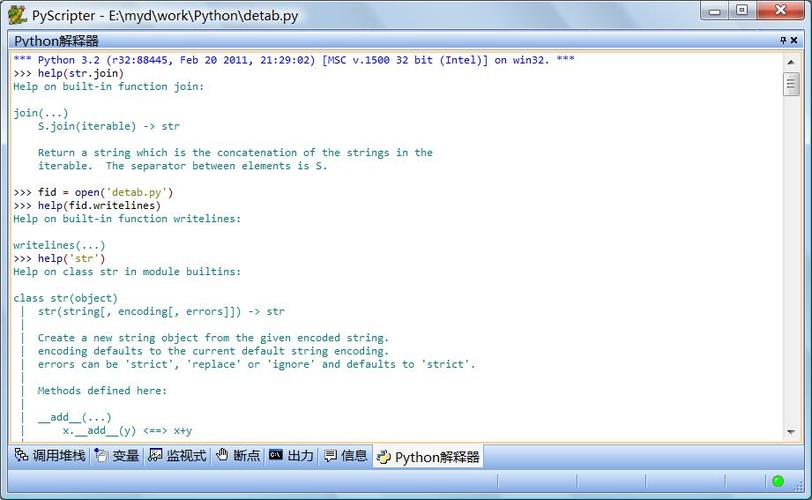
PyScripter is a free and open-source Integrated Development Environment (IDE) specifically designed for the Python language. It's written in Delphi (Object Pascal), which makes it extremely fast and responsive, even on older hardware.
It's particularly popular among Windows users because it's a native Windows application that integrates seamlessly with the OS.
Key Features of PyScripter:
- Lightning Fast: Being a native Windows app, it's much faster than many Java-based or Electron-based IDEs.
- Code Intelligence: Features like code completion, parameter hints, and code insight are powerful and responsive.
- Integrated Debugger: A full-featured debugger that allows you to set breakpoints, step through code, inspect variables, and watch expressions.
- Code Folding: Lets you collapse and expand sections of your code for better readability.
- Syntax Highlighting: Customizable syntax highlighting for Python and many other file types.
- Code Navigation: Features like "Go to Definition" help you quickly jump to where a function or variable is defined.
- Integrated Unit Testing: Built-in support for running popular Python testing frameworks like
unittestandpytest. - Remote Python Interpreter: You can configure PyScripter to use a Python installation from a different machine or a virtual environment.
- Extensibility: You can add custom tools and macros to extend its functionality.
- Excellent for Beginners: It's less intimidating than some other IDEs (like Visual Studio) but more powerful than a simple text editor.
What is Python?
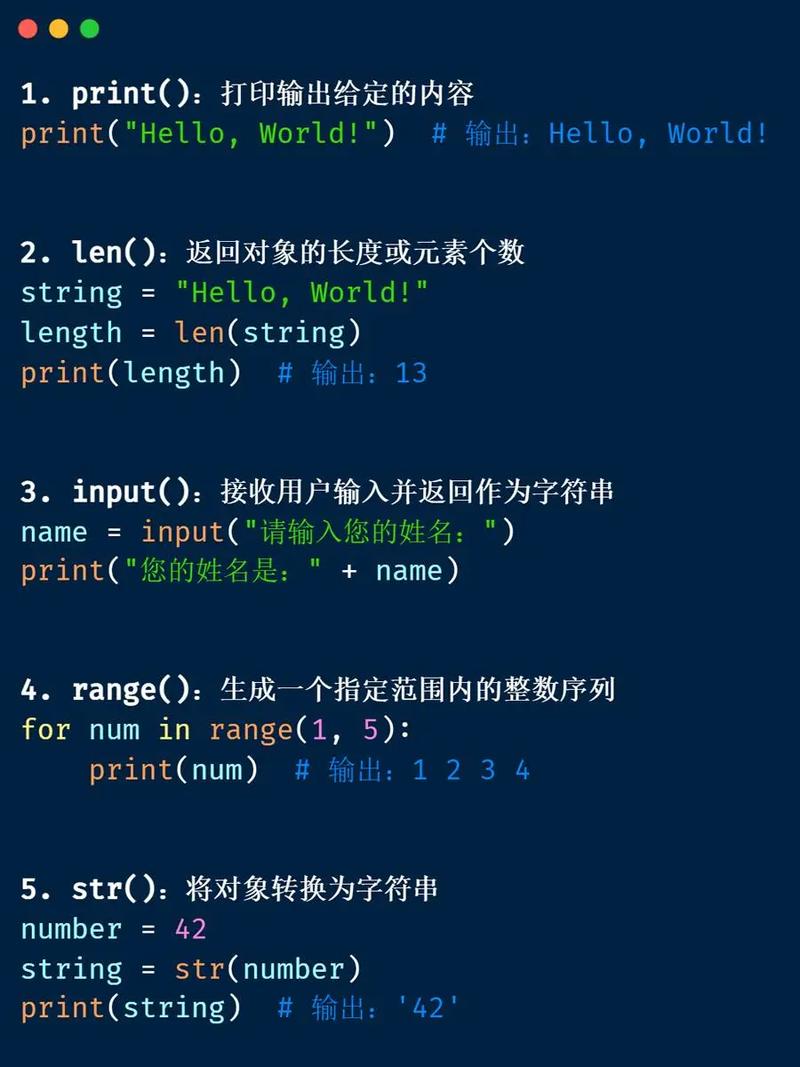
Python is a high-level, interpreted, general-purpose programming language. It's famous for its simple, readable syntax, which makes it a fantastic language for beginners and a powerful tool for experts.
- Interpreted: You don't need to compile your code into an executable file. You can run it directly.
- Simple Syntax: Code looks like plain English, which is easy to learn and understand.
- Huge Standard Library: Comes with "batteries included," meaning it has a vast library of pre-built modules for tasks like file I/O, web requests, data manipulation, etc.
- Massive Ecosystem: The Python Package Index (PyPI) hosts hundreds of thousands of third-party packages (
pip install package_name), allowing you to easily add powerful functionality.
Why Use PyScripter for Python?
While there are many great Python environments (like VS Code, PyCharm, Jupyter Notebooks), PyScripter has a unique niche.
Choose PyScripter if:
- You are on Windows: It's a native, polished experience for the Windows platform.
- You want speed and responsiveness: It launches instantly and feels snappy.
- You need a powerful, self-contained IDE: You don't want to juggle multiple extensions and configurations to get a good debugging and coding experience.
- You are a beginner: The interface is clean and focuses on the core features of Python development without overwhelming you.
- You work with large Python scripts: Its performance and code navigation tools are excellent for managing larger codebases.
Step-by-Step Tutorial: Getting Started
Here’s how to set up your environment and write your first Python script.
Step 1: Install Python
Before you can use PyScripter, you need to have Python installed on your system.
-
Download the Installer: Go to the official Python website: python.org.
-
Run the Installer: Download the latest stable release (e.g., Python 3.12) and run the installer.
-
CRITICAL STEP: Add Python to PATH! In the installer window, make sure you check the box that says "Add Python to PATH". This allows you to run Python from the command line and lets PyScripter find it easily.
-
Install: Click "Install Now". This will install Python for all users on your machine.
Step 2: Install PyScripter
- Download the Installer: Go to the PyScripter homepage: pyscripter.org.
- Choose the Version: Download the latest stable version (e.g., PyScripter 3.x). It's a single installer file.
- Run the Installer: Run the downloaded
.exefile. The installation is straightforward. Just follow the on-screen prompts. You can accept the default settings.
Step 3: Configure PyScripter to Use Your Python Installation
When you first run PyScripter, it might not automatically find your Python installation. You need to tell it where to look.
- Open PyScripter.
- Go to the menu bar and click
Tools->Options. - In the Options window, on the left, select
Python Interpreter. - On the right, you should see a list of Python versions found on your system. If you checked "Add Python to PATH" in Step 1, it should be listed here. Select the correct version (e.g., Python 3.12).
- Click
Applyand thenOK.
Step 4: Write and Run Your First Script
Let's write the classic "Hello, World!" program.
-
Create a New File: Click the "New" icon (it looks like a blank page) on the toolbar, or go to
File->New. -
Write the Code: In the editor window that appears, type the following code:
# This is a comment. It's ignored by Python. # The print() function outputs text to the console. print("Hello, World from PyScripter!") # Let's do something a little more interesting. name = "Python Developer" print(f"Welcome, {name}!") -
Save the File: Click the "Save" icon (floppy disk) or go to
File->Save. Save it ashello.pysomewhere you can find it easily. -
Run the Script:
- The Easy Way: Click the green "Run" icon (a play button) on the toolbar.
- The Keyboard Shortcut: Press
F9.
You will see the output appear in the "Messages" window at the bottom of the PyScripter screen.
```
Hello, World from PyScripter!
Welcome, Python Developer!
```
Congratulations! You've successfully written and run a Python script using PyScripter.
Using the Debugger (A More Advanced Feature)
The debugger is one of PyScripter's best features. Let's use it.
-
Modify your code: Change
hello.pyto include a simple function and a potential error.def add_numbers(a, b): """This function adds two numbers.""" result = a + b return result # --- Main part of the script --- x = 10 y = 5 print(f"Adding {x} and {y}...") sum_result = add_numbers(x, y) print(f"The sum is: {sum_result}") # Let's try to cause an error print("\nNow, let's try to cause an error.") z = "hello" # This line will cause a TypeError because you can't add an int and a string. bad_sum = add_numbers(x, z) print(f"This will not be printed: {bad_sum}") -
Set a Breakpoint: A breakpoint pauses the execution of your code at a specific line. Click in the grey margin to the left of the line
sum_result = add_numbers(x, y). A red dot will appear. -
Start Debugging: Press
F8(or click the debug icon that looks like a person stepping forward).- The program will run and pause at your breakpoint.
- The line with the breakpoint will be highlighted in yellow.
- Look at the "Locals" window at the bottom. It will show you the current values of all variables in the current scope (
x = 10,y = 5).
-
Step Through the Code:
- Press
F8(Step Over) again. This executes the current line and moves to the next one. Theadd_numbersfunction will run, and you'll see theresultvariable appear in the Locals window. - Press
F8again. Thesum_resultvariable will be assigned. - Press
F8to execute theprintstatement. You'll see the output in the Messages window.
- Press
-
Inspect the Error:
- Continue pressing
F8until you get to the linebad_sum = add_numbers(x, z). - Press
F8one more time. PyScripter will pause, and the "Messages" window will show aTracebackerror message. This tells you exactly what went wrong: aTypeErrorbecause you tried to add an integer and a string.
- Continue pressing
This is the power of a debugger: it lets you inspect your program's state step-by-step, making it much easier to find and fix bugs.
Summary
| Tool | Role | Why it's Great |
|---|---|---|
| Python | The Programming Language | Simple, readable, powerful, with a massive ecosystem of libraries. |
| PyScripter | The IDE (Editor & Debugger) | Fast, lightweight, and feature-rich, providing a seamless development experience for Python on Windows. |
Together, they form a powerful and efficient combination for anyone looking to do serious Python development on a Windows machine.