Of course! The term "stylesheet" in the context of Python can refer to a few different things, depending on what you're trying to style. Here’s a breakdown of the most common interpretations, from simple text formatting to complex web development.

Let's cover the main areas:
- Styling Command-Line Output (for Scripts)
- Styling Web Applications (HTML/CSS in Python)
- Styling Desktop GUI Applications
- Styling Data Visualizations (Charts & Plots)
Styling Command-Line Output (Terminal Text)
When you run a Python script in the terminal, you can style the text (e.g., color, bold, underline) to make the output more readable or to signal different types of messages (like errors or success).
The most popular and easy-to-use library for this is rich.
Example using the rich library
First, install it:
pip install rich
Now, in your Python script, you can use the print function with special "markup" or create a Console object for more control.
Simple Markup:
rich allows you to use a simple BBCode-like syntax.
from rich import print
# Basic colors
print("[bold red]This is a bold, red error message![/bold red]")
print("[green]This is a success message.[/green]")
# Styles
print("[underline]This text is underlined.[/underline]")
print("[bold]This text is bold.[/bold]")
# Combining styles
print("[bold blue]This is bold and blue.[/bold blue]")
# Tables
from rich.table import Table
table = Table(show_header=True, header_style="bold magenta")
table.add_column("Name", style="cyan", no_wrap=True)
table.add_column("Age", style="green")
table.add_column("Occupation", justify="right", style="yellow")
table.add_row("John Doe", "30", "Software Engineer")
table.add_row("Jane Smith", "25", "Data Scientist")
print(table)
Output in the terminal:
This is a bold, red error message!
This is a success message.
This text is underlined.
This text is bold.
This is bold and blue.
┌─────────┬─────┬────────────────────┐
│   Name  │ Age │     Occupation     │
├─────────┼─────┼────────────────────┤
│ John Doe│  30 │  Software Engineer │
│ Jane Smith│  25 │    Data Scientist  │
└─────────┴─────┴────────────────────┘
Styling Web Applications (HTML & CSS)
This is the most common meaning of "stylesheet." In web development with Python (using frameworks like Flask, Django, or FastAPI), a stylesheet is a CSS (Cascading Style Sheets) file that controls the visual presentation of your HTML.
The Python backend handles the logic and data, and the CSS file handles the styling.
Example using Flask
Project Structure:
/my_flask_app
├── app.py
├── static/
│   └── style.css
└── templates/
    └── index.html
The HTML Template (templates/index.html)
This file links to your stylesheet using the <link> tag inside the <head>.
<!DOCTYPE html>
<html lang="en">
<head>
    <meta charset="UTF-8">
    <meta name="viewport" content="width=device-width, initial-scale=1.0">My Styled Page</title>
    <!-- Link to the stylesheet -->
    <link rel="stylesheet" href="{{ url_for('static', filename='style.css') }}">
</head>
<body>
    <h1>Hello from Flask!</h1>
    <p>This paragraph is styled by our stylesheet.</p>
    <button class="styled-button">Click Me</button>
</body>
</html>
The Stylesheet (static/style.css)
This is where the "stylesheet" logic lives. It uses CSS selectors to target HTML elements and apply styles.
/* General body styling */
body {
    font-family: -apple-system, BlinkMacSystemFont, "Segoe UI", Roboto, Helvetica, Arial, sans-serif;
    background-color: #f0f2f5;
    color: #333;
    margin: 0;
    padding: 20px;
    text-align: center;
}
/* Heading styling */
h1 {
    color: #1a73e8;
}
/* Paragraph styling */
p {
    font-size: 1.1em;
    line-height: 1.6;
    max-width: 600px;
    margin: 20px auto;
}
/* Button styling */
.styled-button {
    background-color: #1a73e8;
    color: white;
    border: none;
    padding: 12px 24px;
    font-size: 16px;
    border-radius: 8px;
    cursor: pointer;
    transition: background-color 0.3s ease;
}
.styled-button:hover {
    background-color: #155ab6;
}
The Python Flask App (app.py)
This file serves the HTML template.
from flask import Flask, render_template
app = Flask(__name__)
@app.route('/')
def index():
    return render_template('index.html')
if __name__ == '__main__':
    app.run(debug=True)
When you run app.py and visit http://127.0.0.1:5000, you'll see the page styled according to style.css.
Styling Desktop GUI Applications
For desktop apps built with Python, you use GUI frameworks like Tkinter, PyQt/PySide, or Kivy. These have their own ways of styling widgets.
Example using Tkinter
Tkinter doesn't use CSS, but you can configure styles using dictionaries or use ttk (themed Tkinter) with styles.
import tkinter as tk
from tkinter import ttk
# Create the main window
root = tk.Tk()"Styled Tkinter App")
root.geometry("400x300")
# --- Using ttk.Style for more advanced theming ---
style = ttk.Style(root)
# Configure a style for a button
style.configure("TButton",
                font=('Helvetica', 12, 'bold'),
                padding=10,
                relief="flat",
                background="#0078D7")
# Configure a style for a label
style.configure("TLabel",
               font=('Helvetica', 14),
               background="#f0f0f0",
               padding=20)
# --- Create widgets using the configured style ---
label = ttk.Label(root, text="Welcome to the App!", style="TLabel")
label.pack(pady=20)
button = ttk.Button(root, text="Click Me", style="TButton")
button.pack(pady=10)
# Run the application
root.mainloop()
Styling Data Visualizations (Charts & Plots)
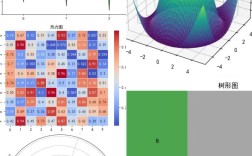
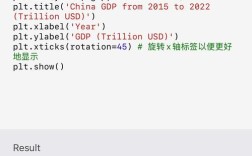
Libraries like Matplotlib and Seaborn are used for creating charts and plots. You can style them extensively, either globally or for individual plots.
Example using Matplotlib
You can set styles for the entire plot or customize individual elements.
import matplotlib.pyplot as plt
import numpy as np
# Generate some data
x = np.linspace(0, 10, 100)
y = np.sin(x)
# --- Method 1: Using a pre-defined style ---
# plt.style.use('seaborn-v0_8-darkgrid') # A popular style
# plt.plot(x, y, label='Sine Wave')
# plt.title("Sine Wave (Seaborn Style)")
# plt.legend()
# --- Method 2: Manual Styling ---
fig, ax = plt.subplots()
# Style the line
ax.plot(x, y,
        color='#1f77b4',  # A nice blue color
        linewidth=2.5,
        linestyle='--',
        label='Sine Wave')
# Style the axes and labels
ax.set_title("Manually Styled Sine Wave", fontsize=16, pad=20)
ax.set_xlabel("X-axis", fontsize=12)
ax.set_ylabel("Y-axis", fontsize=12)
ax.legend()
ax.grid(True, linestyle=':', alpha=0.6) # Style the grid
plt.show()
Summary: Which "Stylesheet" do you need?
| Your Goal | The "Stylesheet" You Need | Key Python Libraries/Tools |
|---|---|---|
| Make terminal script output readable | Text formatting with color and markup | rich, colorama |
| Style a website built with Python | A CSS file linked from an HTML template | Flask, Django, FastAPI + CSS |
| Style a desktop application's look | Widget styles and themes | Tkinter, PyQt/PySide, Kivy |
| Style charts and data plots | Plot formatting, colors, and themes | Matplotlib, Seaborn, Plotly |