Of course! asciitable is a fantastic and simple Python library for creating beautiful, formatted ASCII tables from your data. It's perfect for command-line tools, logging, or displaying data in a clean, readable way without needing a complex GUI.
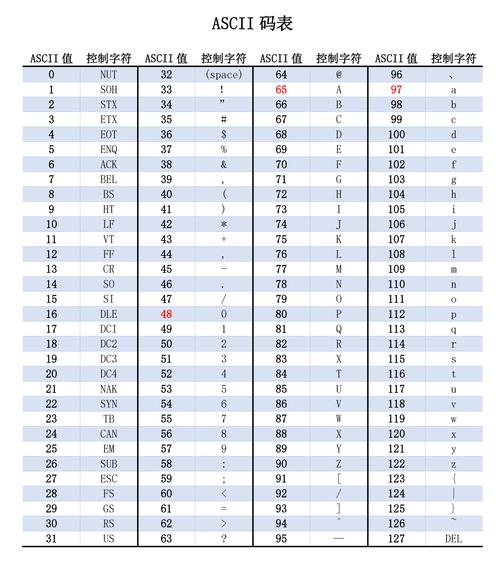
Here's a complete guide covering everything from installation to advanced usage.
Installation
First, you need to install the library. It's available on PyPI, so you can use pip:
pip install asciitable
Basic Usage: Creating a Simple Table
The core idea is to create a table from a list of lists (rows of data). The first list is typically the header.
import asciitable
# Your data: a list of lists
# The first list is the header
data = [
    ['Name', 'Age', 'City'],
    ['Alice', 30, 'New York'],
    ['Bob', 25, 'Los Angeles'],
    ['Charlie', 35, 'Chicago']
]
# Create the table
table = asciitable.Table(data)
# Print the table to the console
print(table)
Output:
+---------+-----+-------------+
|  Name   | Age |    City     |
+---------+-----+-------------+
|  Alice  |  30 |  New York   |
|   Bob   |  25 | Los Angeles |
| Charlie |  35 |   Chicago   |
+---------+-----+-------------+
Customizing the Table
asciitable offers several ways to customize the appearance of your table.
a) Using a Dictionary for Data
Using a dictionary where keys are column names is often more readable.
import asciitable
data_dict = {
    'Name': ['Alice', 'Bob', 'Charlie'],
    'Age': [30, 25, 35],
    'City': ['New York', 'Los Angeles', 'Chicago']
}
table = asciitable.Table(data_dict)
print(table)
The output is the same, but the input is more structured.
b) Specifying Column Order
If you use a dictionary, you can control the column order.
table = asciitable.Table(data_dict, order=['City', 'Name', 'Age'])
print(table)
Output:
+-------------+---------+-----+
|    City     |  Name   | Age |
+-------------+---------+-----+
|  New York   |  Alice  |  30 |
| Los Angeles |   Bob   |  25 |
|   Chicago   | Charlie |  35 |
+-------------+---------+-----+
c) Changing the Table Style
The style parameter is the most powerful customization tool. It's a string that defines the characters used for the table's borders.
Available Styles:
default: Standard double-line borders (like the example above).ms: Microsoft Excel-style borders.grid: Simple single-line borders.markdown: Headers are formatted like Markdown headers.plain: No borders, just data aligned in columns.
Example: Markdown Style
import asciitable
data = [
    ['Name', 'Age', 'City'],
    ['Alice', 30, 'New York'],
    ['Bob', 25, 'Los Angeles'],
]
# Use the 'markdown' style
table = asciitable.Table(data, style='markdown')
print(table)
Output:
| Name   | Age | City       |
|--------|-----|------------|
| Alice  |  30 | New York   |
| Bob    |  25 | Los Angeles|
Example: Plain Style
table = asciitable.Table(data, style='plain')
print(table)
Output:
Name   Age City
Alice  30  New York
Bob    25  Los Angeles
d) Setting Column Alignment
You can align text to the left, right, or center. This is done by passing a list of alignment characters to the align parameter.
l: Left alignr: Right alignc: Center align
import asciitable
data = [
    ['Product', 'Price', 'In Stock'],
    ['Apple', 0.5, True],
    ['Banana', 0.35, False],
    ['Orange', 0.6, True],
]
# Align Price to the right and In Stock to the center
table = asciitable.Table(data, align=['l', 'r', 'c'])
print(table)
Output:
+----------+-------+-----------+
| Product  | Price | In Stock  |
+----------+-------+-----------+
|  Apple   |  0.50 |    True   |
|  Banana  |  0.35 |   False   |
|  Orange  |  0.60 |    True   |
+----------+-------+-----------+
Advanced Features
a) Automatic Column Widths
By default, asciitable calculates the width of each column based on its content. You can override this by providing a widths list.
import asciitable
data = [
    ['Short', 'A Very Long Header Name', 'X'],
    ['Data1', 'Some content here', 'Y'],
    ['Data2', 'More content', 'Z'],
]
# Force the first column to be 10 characters wide
table = asciitable.Table(data, widths=[10, None, None]) # None means auto-size
print(table)
Output:
+----------+-------------------------+---+
|   Short  | A Very Long Header Name | X |
+----------+-------------------------+---+
|   Data1  |     Some content here   | Y |
|   Data2  |      More content      | Z |
+----------+-------------------------+---+
b) Saving to a File
You can easily save the table output to a text file.
import asciitable
data = [
    ['Project', 'Status', 'Progress (%)'],
    ['Website Redesign', 'Done', 100],
    ['API Development', 'In Progress', 75],
    ['Mobile App', 'Not Started', 0],
]
table = asciitable.Table(data, style='grid')
# Save to a file
with open('project_status.txt', 'w') as f:
    f.write(str(table))
print("Table saved to project_status.txt")
If you open project_status.txt, it will contain:
+-------------------+---------------+---------------+
|      Project      |     Status    | Progress (%)  |
+-------------------+---------------+---------------+
| Website Redesign  |      Done     |      100      |
|  API Development  | In Progress   |      75       |
|   Mobile App      |  Not Started  |       0       |
+-------------------+---------------+---------------+
Full Example: Putting It All Together
Let's create a more complex, realistic example.
import asciitable
# Sample data from a system report
report_data = {
    'Server': ['web-01', 'db-01', 'api-01', 'cache-01'],
    'Status': ['Online', 'Online', 'Degraded', 'Offline'],
    'CPU_Load': [12.5, 45.2, 78.9, 0.0],
    'Memory_Usage': ['4.2 GB / 8 GB', '7.1 GB / 16 GB', '2.5 GB / 4 GB', '0.1 GB / 4 GB']
}
# Define the order and alignment for a clean report
# 'l' for left-align text, 'r' for right-align numbers
column_order = ['Server', 'Status', 'CPU_Load', 'Memory_Usage']
column_align = ['l', 'l', 'r', 'l']
# Create the table with custom style and alignment
server_table = asciitable.Table(
    report_data,
    order=column_order,
    align=column_align,
    style='grid' # Clean grid style for a report
)
# Print the final table
print("--- System Health Report ---")
print(server_table)
print("--- End of Report ---")
Output:
--- System Health Report ---
+-----------+----------+-----------+---------------------+
|  Server   |  Status  | CPU_Load  |    Memory_Usage     |
+-----------+----------+-----------+---------------------+
|  web-01   | Online   |    12.5   |  4.2 GB / 8 GB      |
|  db-01    | Online   |    45.2   |  7.1 GB / 16 GB     |
|  api-01   | Degraded |    78.9   |  2.5 GB / 4 GB      |
| cache-01  | Offline  |     0.0   |  0.1 GB / 4 GB      |
+-----------+----------+-----------+---------------------+
--- End of Report ---
When to Use asciitable
- Command-Line Interface (CLI) Tools: Perfect for displaying command output in a structured way.
- Scripts and Automation: Great for logging data or generating human-readable reports from script output.
- Data Exploration: Quickly print a subset of a pandas DataFrame or other data structure to the console.
- Simple Reporting: When you need a basic text-based report without the overhead of HTML or PDF generation.
Alternatives
While asciitable is great, it's good to know other options:
tabulate: The most popular alternative. It's very similar in functionality but has a slightly different API and supports even more table formats (like LaTeX, HTML). Many people findtabulateto be the de-facto standard.prettytable: Another excellent library focused on creating "pretty" tables with a wide range of customization options.- Pandas
DataFrame.to_string(): If you're already using pandas, its built-into_string()method can format data into a table, though it's less flexible for pure text-based styling thanasciitableortabulate.
For most simple use cases, asciitable is an excellent choice due to its simplicity and clear API.