Of course! The term "Python array file" can mean a few different things. I'll cover the most common interpretations, from the most basic to the most practical.
Summary of Options
| Method | Best For | Pros | Cons |
|---|---|---|---|
Python's array module |
Storing lists of a single, basic numeric type (like all integers or all floats) in a file. | Very memory-efficient for large amounts of numbers. Simple API. | Less flexible than list. Not as commonly used as NumPy. |
NumPy's np.save/np.load |
The standard for scientific computing. Saving NumPy arrays to a file. | Fast, space-efficient, and preserves data types and shapes. The go-to for data science. | Requires the NumPy library. |
| Standard Python Lists (JSON) | Saving any Python object (lists, dicts, strings, etc.) in a human-readable format. | No external libraries needed. Human-readable and universal. | Slower and less space-efficient than binary formats. Not for very large arrays. |
| Standard Python Lists (Pickle) | Saving any Python object to a compact, binary format. | Preserves all Python object types and structures. Very flexible. | Not secure (can execute code). Not human-readable. |
Option 1: Using Python's Built-in array Module
This is the most direct answer to "Python array file". The array module provides an efficient way to store C-style arrays of basic data types. It's great for saving a simple, homogeneous list of numbers to a file.
Key Methods:
array.array(typecode, initializer): Creates an array.array.tofile(f): Writes the array to a file objectf.array.fromfile(f, n): Readsnitems from a file objectf.
Example:
import array
# 1. Create an array of integers
# 'i' is the type code for signed integers
my_array = array.array('i', [10, 20, 30, 40, 50])
print(f"Original array: {my_array}")
# 2. Write the array to a binary file
# We use 'wb' (write binary) mode
with open('data_array.bin', 'wb') as f:
    my_array.tofile(f)
    print("Array saved to data_array.bin")
# 3. Read the array back from the file
# We must create a new array of the same type
new_array = array.array('i')
# We need to know how many items to read, or read until EOF
# Let's read the same number of items as the original
with open('data_array.bin', 'rb') as f:
    # We read 5 integers from the file
    new_array.fromfile(f, 5)
print(f"Array read from file: {new_array}")
# Verify they are the same
print(f"Are arrays equal? {my_array == new_array}")
Option 2: The Scientific Standard - NumPy
For any serious numerical work in Python, the NumPy library is the industry standard. It's optimized for performance and has its own simple functions for saving and loading arrays.
First, install NumPy if you haven't:
pip install numpy
Key Methods:
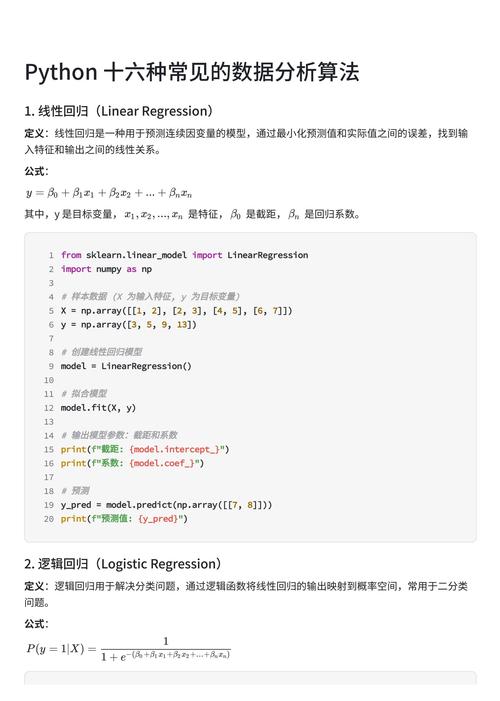
numpy.save(file, arr): Saves a NumPy array to a.npyfile.numpy.load(file): Loads a.npyfile into a NumPy array.
Example:
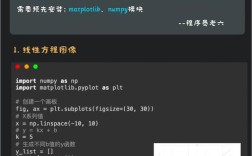
import numpy as np
# 1. Create a NumPy array
# This can be multi-dimensional
my_np_array = np.array([[1, 2, 3], [4, 5, 6]], dtype=np.int32)
print(f"Original NumPy array:\n{my_np_array}")
print(f"Data type: {my_np_array.dtype}")
# 2. Save the array to a .npy file
# The .npy extension is conventional
np.save('numpy_data.npy', my_np_array)
print("NumPy array saved to numpy_data.npy")
# 3. Load the array back from the file
loaded_np_array = np.load('numpy_data.npy')
print(f"\nLoaded NumPy array:\n{loaded_np_array}")
print(f"Data type: {loaded_np_array.dtype}")
# Verify
print(f"\nAre arrays equal? \n{np.array_equal(my_np_array, loaded_np_array)}")
NumPy also has np.savez for saving multiple arrays in one .npz file (a zip archive), and np.savetxt/np.loadtxt for saving to a human-readable text file.
Option 3: Standard Python Lists (JSON)
If your "array" is just a standard Python list and you need to save it in a way that is readable by other programs or humans, JSON is the perfect format. It's a universal data format.
Key Methods:
json.dump(obj, file): Serializes an object (like a list) and writes it to a file.json.load(file): Deserializes a JSON file and returns a Python object.
Example:
import json
# 1. Create a standard Python list (can be mixed types)
my_list = [1, "hello", 3.14, True, [5, 6, 7]]
print(f"Original list: {my_list}")
# 2. Save the list to a JSON file
# We use 'w' (write) mode. indent makes it human-readable.
with open('data.json', 'w') as f:
    json.dump(my_list, f, indent=4)
    print("List saved to data.json")
# 3. Read the list back from the file
with open('data.json', 'r') as f:
    loaded_list = json.load(f)
print(f"List read from file: {loaded_list}")
# Verify
print(f"Are lists equal? {my_list == loaded_list}")
Option 4: Standard Python Lists (Pickle)
Pickle is Python's way of serializing objects. It can save almost any Python object (lists, dicts, custom classes) to a binary file. It's very fast and preserves the object's structure perfectly.
⚠️ Security Warning: Never load a pickle file from an untrusted source, as it can execute arbitrary code.
Key Methods:
pickle.dump(obj, file): Serializes an object and writes it to a file.pickle.load(file): Deserializes a pickle file and returns a Python object.
Example:
import pickle
# 1. Create a complex Python object
data = {
    'name': 'Alice',
    'id': 123,
    'scores': [88, 92, 95],
    'is_active': True
}
print(f"Original data: {data}")
# 2. Save the object to a pickle file
# We use 'wb' (write binary) mode
with open('data.pkl', 'wb') as f:
    pickle.dump(data, f)
    print("Data saved to data.pkl")
# 3. Read the object back from the file
with open('data.pkl', 'rb') as f:
    loaded_data = pickle.load(f)
print(f"Data read from file: {loaded_data}")
# Verify
print(f"Are objects equal? {data == loaded_data}")
Which One Should You Choose?
- For simple, large lists of numbers: Use the
arraymodule (Option 1) or NumPy (Option 2). NumPy is generally preferred. - For scientific data, machine learning, or large numerical arrays: Use NumPy (Option 2). It's the standard for a reason.
- For data exchange with other systems or for human readability: Use JSON (Option 3).
- For saving complex Python objects within your own application: Use Pickle (Option 4). It's the most flexible for Python-specific tasks.