
Of course! The Raspberry Pi and Python are a match made in heaven. Python is the most popular and recommended programming language for the Raspberry Pi, largely thanks to the Raspberry Pi Foundation actively promoting it through their educational resources like the Raspberry Pi Pico and their Sense HAT.
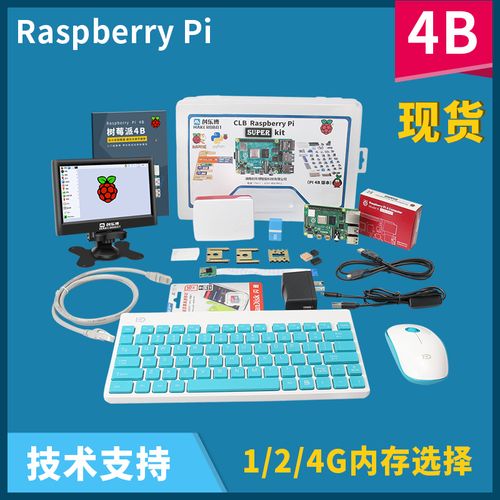
Here’s a comprehensive guide to get you started with Python on your Raspberry Pi, from the basics to more advanced projects.
Why Python on the Raspberry Pi?
- Beginner-Friendly: Python has a clean, readable syntax that makes it easy to learn the fundamentals of programming.
- Pre-installed: The official Raspberry Pi OS (formerly Raspbian) comes with Python 3 pre-installed.
- Massive Ecosystem: There are countless libraries (pre-written code) for almost anything you can imagine:
- GPIO Control:
RPi.GPIO,gpiozero(easiest for beginners) - Hardware Interaction:
Adafruit CircuitPython,pigpio(for advanced timing) - Computer Vision:
OpenCV-Python - Web Frameworks:
Flask,Django - Data Science:
NumPy,Pandas,Matplotlib
- GPIO Control:
- Community Support: A huge, active community means you'll find tutorials, forums, and help for any problem you encounter.
Getting Started: Your First Python Script
Let's start with the classic "Hello, World!" program.
Step 1: Open the Terminal
The easiest way to run Python code is directly from the terminal.
- Click the terminal icon (a black monitor) in the top toolbar.
- Or use the shortcut:
Ctrl + Alt + T.
Step 2: Start the Python Interpreter
In the terminal, type python3 and press Enter. You'll see a >>> prompt, which means the Python interpreter is waiting for your commands.
pi@raspberrypi:~ $ python3
Python 3.9.2 (default, Feb 28 2025, 17:03:44)
[GCC 10.2.1 20250110] on linux
Type "help", "copyright", "credits" or "license" for more information.
>>>
Step 3: Write Your First Line of Code
Type the following and press Enter:
>>> print("Hello, Raspberry Pi!")
Hello, Raspberry Pi!
The print() function displays whatever is inside the parentheses on the screen. You've just run your first Python script!
Step 4: Exit the Interpreter
To go back to the terminal prompt, type exit() and press Enter.
>>> exit()
pi@raspberrypi:~ $
Writing and Running a Python File
For anything more than a few lines, you'll want to save your code in a file.
Step 1: Create a File
Use a simple text editor like nano. In the terminal, type:
nano hello.py
nanois the simple command-line editor.hello.pyis the name of your file. The.pyextension is important, as it tells the system this is a Python script.
Step 2: Write Your Code
The nano editor will open. Type your code:
# This is a comment. It's ignored by the computer.
# It's good practice to add comments to explain your code.
print("Hello from a file!")
print("This is much better for longer programs.")
Step 3: Save and Exit
To save the file in nano:
- Press
Ctrl + O(the letter "O", not the number zero). nanowill ask you to confirm the filename. Just pressEnter.- Press
Ctrl + Xto exitnano.
Step 4: Run Your Script
Now, go back to your terminal and run the file using the python3 command:
pi@raspberrypi:~ $ python3 hello.py
Hello from a file!
This is much better for longer programs.
Congratulations! You've successfully created and executed a Python script.
The "Hello, World!" of Hardware: Blinking an LED
This is where the real fun begins. We'll use Python to make an LED connected to the Raspberry Pi's GPIO pins blink.
What You'll Need:
- A Raspberry Pi (any model with GPIO pins)
- An LED (any color)
- A 220Ω resistor (to protect the LED)
- A breadboard and some jumper wires
Wiring:
- Connect the long leg of the LED (anode) to one end of the resistor.
- Connect the other end of the resistor to GPIO Pin 17 on the Raspberry Pi.
- Connect the short leg of the LED (cathode) to a GND (Ground) pin on the Raspberry Pi.
The Code (blink.py):
We'll use the gpiozero library, which is the easiest way to control hardware on a Pi.
from gpiozero import LED
from time import sleep
# Create an LED object, connected to GPIO 17
led = LED(17)
# Print a message to the console
print("Blinking LED. Press Ctrl+C to stop.")
try:
    while True: # This creates an infinite loop
        led.on()      # Turn the LED on
        print("LED is ON")
        sleep(1)      # Wait for 1 second
        led.off()     # Turn the LED off
        print("LED is OFF")
        sleep(1)      # Wait for 1 second
except KeyboardInterrupt:
    # This code runs if the user presses Ctrl+C
    print("\nProgram stopped by user.")
    led.close() # Clean up the GPIO pin
Run the Code:
Save the code as blink.py and run it from the terminal:
pi@raspberrypi:~ $ python3 blink.py
Blinking LED. Press Ctrl+C to stop.
LED is ON
LED is OFF
LED is ON
LED is OFF
... (and so on)
You will see the LED blink on and off every second. To stop the program, press Ctrl + C in the terminal.
Essential Libraries and Resources
As you get more advanced, you'll rely on these libraries and resources.
| Library/Resource | Description | Best For... |
|---|---|---|
gpiozero |
The official, beginner-friendly library for controlling GPIO pins, motors, sensors, etc. | Everyone! Starting out with hardware projects. |
RPi.GPIO |
The original, lower-level GPIO library. It's more complex but offers more precise control. | Users coming from older projects or needing advanced timing. |
pigpio |
A library that runs a background daemon for precise timing and hardware PWM. | Servo motors, high-speed communication protocols like I2C/SPI. |
tkinter |
Python's built-in GUI (Graphical User Interface) toolkit. | Creating simple desktop applications with buttons, windows, and text boxes. |
Flask |
A lightweight web framework for Python. | Building web servers, creating web dashboards for your Pi projects. |
OpenCV-Python |
The most popular library for computer vision, image, and video processing. | Object detection, face recognition, security cameras, photo booths. |
Sense HAT |
A library specifically for the Sense HAT add-on (has an LED matrix, joystick, and sensors). | Astro Pi projects, learning about sensors and displays. |
Project Ideas
Once you're comfortable with the basics, here are some ideas to challenge yourself:
- Motion-Activated Camera: Use a PIR motion sensor and the
picameralibrary to take a photo whenever someone walks by. - Twitter Bot: Use the
Tweepylibrary to post automated tweets from your Pi. - Home Automation Dashboard: Use
Flaskto create a simple web page that can turn a relay on/off to control a lamp. - Weather Station: Use sensors like the BME280 (temperature, humidity, pressure) and log the data to a file or display it on an LCD screen.
- Retro Gaming Console: Install RetroPie and use Python to write simple scripts to launch your favorite emulators.
Getting Help
- Official Raspberry Pi Documentation: https://www.raspberrypi.com/documentation/ (The best place to start)
- Python.org Documentation: https://docs.python.org/3/ (For learning the Python language itself)
- Stack Overflow: A fantastic Q&A site for specific programming problems.
- Reddit: Subreddits like
r/raspberry_piandr/learnpythonare very active and helpful.


