Of course! Cropping an image in OpenCV with Python is a fundamental and very common task. The key thing to understand is that cropping is simply selecting a specific rectangular region of interest (ROI) from the image.
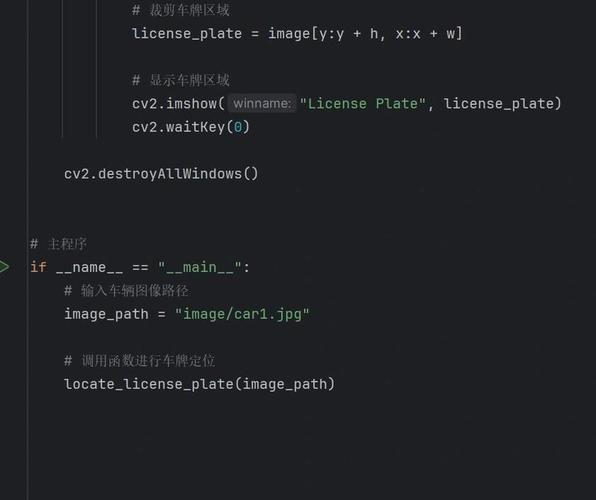
The Core Concept: Array Slicing
In OpenCV, images are represented as NumPy arrays. Therefore, cropping an image is just a matter of using NumPy's array slicing syntax.
The syntax is:
cropped_image = image[y:y+h, x:x+w]
Where:
(x, y)is the top-left corner coordinate of the rectangle you want to crop.(w, h)is the width and height of the rectangle.image[y:y+h, x:x+w]selects the pixels from rowyto rowy+hand from columnxto columnx+w.
Step-by-Step Example
Let's walk through a complete, runnable example.
Setup
First, make sure you have OpenCV installed:
pip install opencv-python
You'll also need an image. For this example, let's use a sample image from the web. You can download one or use your own. Let's assume you have an image named my_image.jpg in the same directory as your script.
The Code
Here is the complete Python script to load an image, define a crop area, and display the result.
import cv2
import numpy as np
# --- 1. Load the Image ---
# Make sure 'my_image.jpg' is in the same folder or provide the full path.
image_path = 'my_image.jpg'
# If you don't have an image, you can use this one:
# image_path = 'https://opencv.org/wp-content/uploads/2025/05/logo-opencv-org-3.png'
# Read the image from the file
image = cv2.imread(image_path)
# Check if the image was loaded successfully
if image is None:
    print(f"Error: Could not load image from {image_path}")
    exit()
# --- 2. Define the Crop Area (ROI) ---
# The coordinates are (x, y, width, height)
# Let's crop a 300x300 pixel area starting from (100, 50)
x = 100  # Starting x-coordinate (column)
y = 50   # Starting y-coordinate (row)
w = 300  # Width of the crop area
h = 300  # Height of the crop area
# --- 3. Crop the Image ---
# Use array slicing to get the region of interest
cropped_image = image[y:y+h, x:x+w]
# --- 4. Display the Original and Cropped Images ---
cv2.imshow('Original Image', image)
cv2.imshow('Cropped Image', cropped_image)
# Wait for a key press to close the windows
cv2.waitKey(0)
cv2.destroyAllWindows()
# --- 5. (Optional) Save the Cropped Image ---
cv2.imwrite('cropped_image.jpg', cropped_image)
print("Cropped image saved as 'cropped_image.jpg'")
How to Run It:
- Save the code as a Python file (e.g.,
crop_image.py). - Place an image named
my_image.jpgin the same directory. - Run the script from your terminal:
python crop_image.py. - Two windows will appear: one with the original image and one with the cropped portion. Press any key to close them.
Advanced Cropping Techniques
Cropping from the Center
Sometimes you want to crop a centered square or rectangle from an image. Here's how you can do that.
import cv2
import numpy as np
# Load an image (let's assume it's not square)
image = cv2.imread('my_image.jpg')
if image is None:
    print("Error: Could not load image")
    exit()
# Get image dimensions
height, width = image.shape[:2]
# Define the size of the square you want to crop
crop_size = 300
# Calculate the starting coordinates (x, y) to center the crop
x = int((width - crop_size) / 2)
y = int((height - crop_size) / 2)
# Crop the centered square
center_cropped_image = image[y:y+crop_size, x:x+crop_size]
cv2.imshow('Center Cropped Image', center_cropped_image)
cv2.waitKey(0)
cv2.destroyAllWindows()
Cropping by Percentage
You can also define the crop area as a percentage of the original image's dimensions. This is useful for creating responsive crops.
import cv2
image = cv2.imread('my_image.jpg')
if image is None:
    print("Error: Could not load image")
    exit()
# Get image dimensions
height, width = image.shape[:2]
# Define crop percentages (e.g., crop 20% from all sides)
left = int(0.2 * width)
right = int(0.8 * width)
top = int(0.2 * height)
bottom = int(0.8 * height)
# Crop the image using the calculated coordinates
# Syntax: image[top:bottom, left:right]
percentage_cropped_image = image[top:bottom, left:right]
cv2.imshow('Percentage Cropped Image', percentage_cropped_image)
cv2.waitKey(0)
cv2.destroyAllWindows()
Common Pitfalls and Important Notes
-
Color Channels (BGR vs. RGB): OpenCV loads images in BGR (Blue, Green, Red) format by default, while libraries like Matplotlib use RGB. If you display your image using Matplotlib, the colors will look wrong. This doesn't affect cropping itself, but it's a crucial concept to remember.
# To display with correct colors in Matplotlib:
import matplotlib.pyplot as plt
# Convert BGR to RGB
rgb_image = cv2.cvtColor(image, cv2.COLOR_BGR2RGB)
plt.imshow(rgb_image)
plt.show()
-
Integer Coordinates: The coordinates
x,y,w, andhmust be integers. NumPy slicing will raise an error if you use floats. If you perform calculations that result in floats (like in the percentage example), be sure to convert them to integers usingint(). -
Out-of-Bounds Coordinates: Be careful not to define a crop area that extends beyond the image boundaries (e.g.,
xis negative orx+wis greater than the image width). This will not raise an error but will produce an unexpected result (an empty or smaller-than-expected image). You should add checks to ensure your crop coordinates are valid.