Of course! Creating interactive maps in Python using Echarts is a fantastic way to visualize geospatial data. The most popular and powerful library for this is Pyecharts.
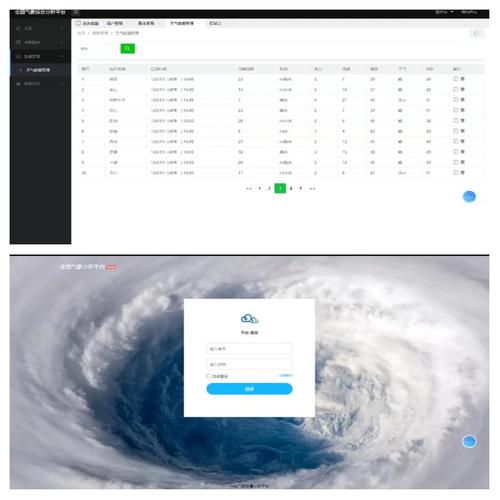
Pyecharts is a Python library that interfaces with the Echarts JavaScript library. It allows you to create complex, interactive, and publication-quality charts directly from Python.
Here’s a comprehensive guide covering everything from installation to creating different types of maps, with clear examples.
Installation
First, you need to install pyecharts. It's recommended to install it in a dedicated Python environment to avoid dependency conflicts.
# Create a virtual environment (optional but recommended)
python -m venv pyecharts_env
source pyecharts_env/bin/activate  # On Windows: pyecharts_env\Scripts\activate
# Install pyecharts
pip install pyecharts
The Basic Workflow
Creating a map with Pyecharts generally follows these steps:
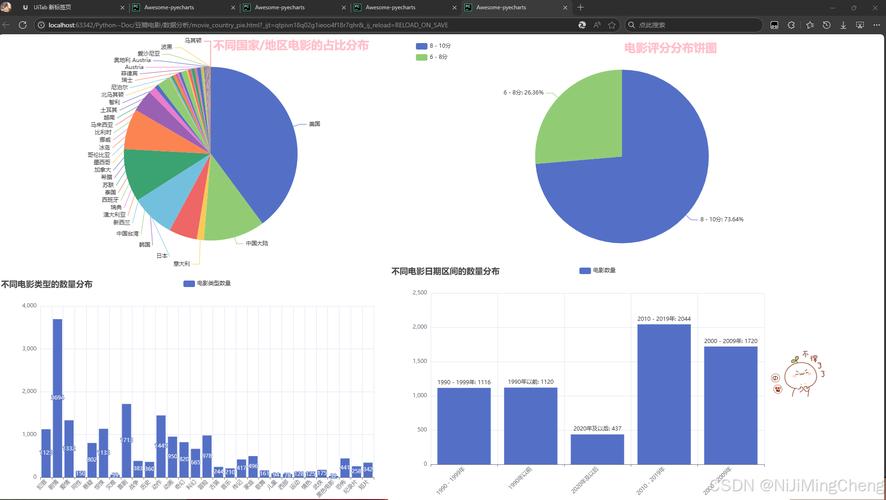
- Import Libraries: Import
pyechartsoptions and the specific chart type. - Prepare Data: Your data needs to be in a specific format, typically a list of
[name, value]pairs, wherenameis the region name andvalueis a numerical attribute. - Instantiate a Chart Object: Create an instance of the map chart (e.g.,
Map()). - Set Global Options: Configure the chart's title, tooltip, visual map, etc., using the
set_global_opts()method. This is where you define things like the color scale. - Add Data: Pass your prepared data to the chart using the
add()method. - Render the Chart: Generate an HTML file that contains the interactive chart. You can open this file in any web browser.
Example 1: A Simple Choropleth Map (Map with Color Gradient)
Let's create a map of China showing the GDP of some provinces.
Step 1: Prepare the Data
The data must be a list of lists/tuples. The first element is the region name (must match the map's internal name), and the second is the value.
# Data for some Chinese provinces and their GDP (in billions)
data = [
    ("Guangdong", 12950),
    ("Jiangsu", 12300),
    ("Shandong", 8300),
    ("Zhejiang", 7350),
    ("Henan", 6100),
    ("Sichuan", 5600),
    ("Hubei", 5000),
    ("Fujian", 4880),
]
Step 2: Write the Python Code
from pyecharts.charts import Map
from pyecharts import options as opts
# 1. Data Preparation
data = [
    ("Guangdong", 12950),
    ("Jiangsu", 12300),
    ("Shandong", 8300),
    ("Zhejiang", 7350),
    ("Henan", 6100),
    ("Sichuan", 5600),
    ("Hubei", 5000),
    ("Fujian", 4880),
]
# 2. Instantiate the Map chart
# We use Map() for a national-level map. For provinces, we'd use Map().add()
china_map = Map()
# 3. Add data to the map
# The first argument is the series name.
# The second is the data.
# The third is the map name, which must be "china" for the national map.
china_map.add(
    series_name="GDP (亿元)",
    data_pair=data,
    maptype="china",
    is_map_symbol_show=False,  # Hide the dots on the map
)
# 4. Set Global Options
china_map.set_global_opts(opts=opts.TitleOpts(title="中国省份GDP分布图"),
    visualmap_opts=opts.VisualMapOpts(
        max_=13000,  # The maximum value for the color scale
        min_=4000,   # The minimum value for the color scale
        is_piecewise=True,  # Use discrete intervals
        pieces=[
            {"min": 10000, "label": ">= 10000", "color": "#5470C6"},
            {"min": 8000, "max": 10000, "label": "8000 - 10000", "color": "#91CC75"},
            {"min": 6000, "max": 8000, "label": "6000 - 8000", "color": "#FAC858"},
            {"min": 4000, "max": 6000, "label": "4000 - 6000", "color": "#EE6666"},
        ],
    ),
    tooltip_opts=opts.TooltipOpts(
        trigger="item", formatter="{b}<br/>GDP: {c} 亿元"
    ),  # Custom tooltip content
)
# 5. Render the chart to an HTML file
china_map.render("china_gdp_map.html")
print("Map has been generated as china_gdp_map.html")
Step 3: View the Result
Run the script. It will create a file named china_gdp_map.html. Open this file in your web browser. You'll see an interactive map where you can hover over provinces to see their GDP, and the color represents the value.
Example 2: A Map with Markers (Scatter Plot on Map)
This example shows the locations of major Chinese cities as markers on the map.
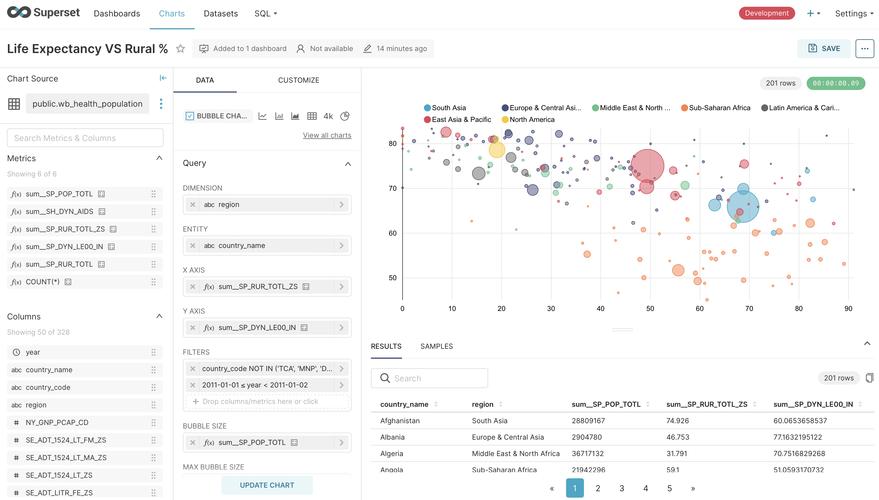
Step 1: Prepare the Data
Here, we'll use longitude and latitude coordinates for the markers.
# Data for major cities: [longitude, latitude, name, value]
cities_data = [
    [116.4074, 39.9042, "Beijing", 2189],
    [121.4737, 31.2304, "Shanghai", 2424],
    [113.2644, 23.1291, "Guangzhou", 1530],
    [114.0579, 22.5431, "Shenzhen", 1344],
    [114.3055, 30.5928, "Chongqing", 3123],
]
Step 2: Write the Python Code
from pyecharts.charts import Map
from pyecharts import options as opts
from pyecharts.globals import ChartType, SymbolType
# 1. Data Preparation
cities_data = [
    [116.4074, 39.9042, "Beijing", 2189],
    [121.4737, 31.2304, "Shanghai", 2424],
    [113.2644, 23.1291, "Guangzhou", 1530],
    [114.0579, 22.5431, "Shenzhen", 1344],
    [114.3055, 30.5928, "Chongqing", 3123],
]
# 2. Instantiate the Map chart
china_map_with_markers = Map()
# 3. Add data to the map
# We use ChartType.EFFECT_SCATTER for animated markers
china_map_with_markers.add(
    series_name="主要城市人口",
    data_pair=cities_data,
    maptype="china",
    is_map_symbol_show=False, # Hide the base map dots
    type_=ChartType.EFFECT_SCATTER, # Use scatter plot for markers
)
# 4. Add connections (optional, but cool)
# This will draw lines from Beijing to all other cities
lines_data = [
    [116.4074, 39.9042, 121.4737, 31.2304],
    [116.4074, 39.9042, 113.2644, 23.1291],
    [116.4074, 39.9042, 114.0579, 22.5431],
    [116.4074, 39.9042, 114.3055, 30.5928],
]
china_map_with_markers.add(
    series_name="连接线",
    data_pair=lines_data,
    maptype="china",
    type_=ChartType.LINES,
    effect_opts=opts.EffectOpts(
        symbol=SymbolType.ARROW, symbol_size=6, color="blue", trail_length=0.5
    ),
    linestyle_opts=opts.LineStyleOpts(curve=0.2, opacity=0.7, width=1, color="blue"),
)
# 5. Set Global Options
china_map_with_markers.set_global_opts(opts=opts.TitleOpts(title="中国主要城市分布"),
    tooltip_opts=opts.TooltipOpts(
        trigger="item", formatter="{b}<br/>人口: {c} 万"
    ),
)
# 6. Render the chart
china_map_with_markers.render("china_cities_map.html")
print("Map with markers has been generated as china_cities_map.html")
Important Concepts & Customization
Map Types
Pyecharts supports a wide variety of maps. You just need to change the maptype parameter.
- National Level:
"china","usa","japan","france", etc. - Provincial Level (China):
"广东","江苏","浙江". You must first load the province map data.# To use a provincial map, you need to load the data first from pyecharts.datasets import register_url register_url("https://cdn.jsdelivr.net/npm/echarts@5.4.3/map/js/")Then, set
maptypeto the province's name, e.g.,maptype="广东".
Data Loading from Pandas
It's very common to load data from a CSV or Excel file using pandas.
import pandas as pd
# Assume you have a file 'data.csv' with columns: 'Province', 'GDP'
df = pd.read_csv("data.csv")
# Convert the DataFrame to the required [name, value] format
data = [list(x) for x in df.values]
Themes
You can change the overall look and feel of your chart using themes.
from pyecharts.globals import ThemeType
# Instantiate the chart with a theme
china_map = Map(init_opts=opts.InitOpts(theme=ThemeType.DARK)) # Or ThemeType.LIGHT, ThemeType.CHALK, etc.
Saving as Static Images (PNG/SVG)
By default, Pyecharts renders to HTML. To save a static image, you need two additional tools: selenium and snapshot-phantomjs.
-
Install dependencies:
pip install selenium snapshot-phantomjs
# You also need to download phantomjs from https://phantomjs.org/download.html
# and add it to your system's PATH.
-
Modify the render call:
# Instead of .render("filename.html")
china_map.render("china_gdp_map.png") # Can be .png, .jpeg, .svg, .pdf
Pyecharts will automatically use Selenium to control a headless browser (PhantomJS) to take a screenshot of the chart and save it.
Official Resources
- Pyecharts Official Documentation: https://pyecharts.org/ (The best place to find all chart types, options, and examples)
- Echarts Official Gallery (for inspiration): https://echarts.apache.org/examples/zh/index.html (You can often find a chart you like and find the Pyecharts equivalent)