Of course! The concept of a "virtual key" in Python most commonly refers to simulating keyboard and mouse input. This is incredibly useful for automation, testing, creating macros, or controlling applications programmatically.
The most popular and powerful library for this is pyautogui. It works on Windows, macOS, and Linux.
Here’s a complete guide covering:
- The
pyautoguiLibrary: The standard for keyboard and mouse automation. - The
keyboardLibrary: A great alternative, especially for listening for hotkeys. - The
pynputLibrary: A more low-level library that can both listen and control input. - Platform-Specific Tools: For more advanced use cases.
The pyautogui Library (Recommended for Beginners)
pyautogui is the go-to library for GUI automation. It can virtually move the mouse, click, drag, and type.
Installation
First, you need to install it:
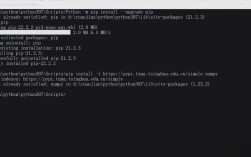
pip install pyautogui
Key Concepts
- Hotkeys: Combinations like
Ctrl+CorAlt+Tab. - Key Names:
pyautoguiuses specific names for keys (e.g.,enter,esc,f1,shift). - Fail-Safe: This is a crucial safety feature. If you move the mouse cursor to the upper-left corner of the screen (0, 0),
pyautoguiwill raise apyautogui.FailSafeException, stopping your script. You can disable it withpyautogui.FAILSAFE = False.
Example 1: Typing "Hello, World!"
This is the most basic use case: simulating typing.
import pyautogui
import time
print("Starting in 5 seconds... Move your mouse to the top-left corner to abort.")
time.sleep(5)
# Type the string "Hello, World!"
pyautogui.write("Hello, World!", interval=0.1) # interval is the time between each key press
print("Done typing.")
Example 2: Simulating Hotkeys (e.g., Ctrl+C)
To simulate a key combination, you use the hotkey() function.
import pyautogui
import time
print("Simulating Ctrl+C in 3 seconds...")
time.sleep(3)
# Simulate pressing the Ctrl and C keys simultaneously
pyautogui.hotkey('ctrl', 'c')
print("Ctrl+C simulated.")
Example 3: Simulating Complex Key Sequences
Sometimes you need to press keys in a specific sequence, not all at once. For example, Alt+F to open the File menu, then S to save.
import pyautogui
import time
print("Simulating Alt+F, then S to save a file in 3 seconds...")
time.sleep(3)
# Press and release Alt, then press and release F
pyautogui.press('alt')
pyautogui.press('f')
# A small delay might be needed for the menu to open
time.sleep(0.5)
# Press and release S
pyautogui.press('s')
print("Save command simulated.")
Common pyautogui Keyboard Functions
| Function | Description |
|---|---|
pyautogui.write('text') |
Types the given string. |
pyautogui.press('key') |
Presses a single key (e.g., enter, esc, a). |
pyautogui.keyDown('key') |
Holds down a key. |
pyautogui.keyUp('key') |
Releases a key. |
pyautogui.hotkey('ctrl', 'v') |
Presses a combination of keys in order. |
pyautogui.press('enter') |
Simulates pressing the Enter key. |
The keyboard Library
keyboard is another excellent library. It's known for being very reliable for global hotkeys and has a slightly different syntax.
Installation
pip install keyboard
Example: Typing and Hotkeys
import keyboard
import time
print("Typing 'Test' in 3 seconds...")
time.sleep(3)
keyboard.write("This is a test from the keyboard library.")
print("\nSimulating Ctrl+Shift+P in 3 seconds...")
time.sleep(3)
keyboard.send("ctrl+shift+p") # A simpler way to send a hotkey
print("\nDone.")
The pynput Library
pynput is more powerful and flexible. It can both control the keyboard and listen for keyboard events. This makes it perfect for creating custom hotkey listeners.
Installation
pip install pynput
Example: Controlling the Keyboard
The Controller class is used for control.
from pynput.keyboard import Controller
import time
keyboard = Controller()
print("Typing 'Pynput is working' in 3 seconds...")
time.sleep(3)
# Type a string
for char in "Pynput is working":
    keyboard.type(char)
    time.sleep(0.1)
print("\nSimulating Alt+Tab in 3 seconds...")
time.sleep(3)
# Simulate a key combination
keyboard.press('alt')
keyboard.press('tab')
time.sleep(0.5)
keyboard.release('tab')
keyboard.release('alt')
print("Done.")
Example: Listening for Hotkeys
This is where pynput shines. You can make a script that runs in the background and triggers an action when a specific key is pressed.
from pynput import keyboard
# The function to be called when a key is pressed
def on_press(key):
    try:
        print(f'Alphanumeric key {key.char} pressed')
        if key.char == 'a':
            print("'a' was pressed! Performing action...")
            # Your custom action here
    except AttributeError:
        print(f'Special key {key} pressed')
# The function to be called when a key is released
def on_release(key):
    print(f'{key} released')
    if key == keyboard.Key.esc:
        # Stop listener
        return False
# Collect events until released
with keyboard.Listener(
        on_press=on_press,
        on_release=on_release) as listener:
    listener.join()
Platform-Specific Tools
For the most robust or complex automation, you might need to use platform-specific APIs.
Windows: pywin32
If you need to interact with Windows-specific UI elements (not just type generic keys), pywin32 is the way to go. It gives you access to the Windows COM API.
pip install pywin32
Example (Conceptual): This is more complex and requires knowing the specific UI elements of the application you're controlling.
import win32com.client
# Get a handle to the application
# This is a simplified example; real usage is more complex
shell = win32com.client.Dispatch("WScript.Shell")
shell.SendKeys("^c") # ^ means Ctrl
macOS: AppScript
On macOS, you can use appscript to control applications directly via their AppleScript dictionaries.
pip install appscript
Example (Conceptual): Controlling the TextEdit application.
from appscript import app, mactypes
# Open TextEdit
textedit = app('TextEdit')
textedit.activate()
# Type some text
textedit.insert(mactypes.Alias('path:/to/your/file.txt').its.raw)
textedit.insert('Hello from AppScript!')
Summary and Recommendation
| Library | Best For | Pros | Cons |
|---|---|---|---|
pyautogui |
General purpose automation, beginners. | Easy to use, cross-platform, great for GUI testing. | Can be a bit slow; relies on screen coordinates for mouse. |
keyboard |
Global hotkeys, simple scripts. | Simple syntax, reliable for hotkeys. | Windows-focused, less control than pynput. |
pynput |
Advanced control, listeners, background tasks. | Can both listen and control, cross-platform, very powerful. | Slightly steeper learning curve for listeners. |
| Platform-Specific | Deep integration with OS/apps. | Most powerful and reliable for specific tasks. | Not cross-platform, requires platform-specific knowledge. |
For most use cases, start with pyautogui. It's the most straightforward and widely used solution for "virtual key" simulation in Python. If you need to listen for keys in the background, switch to pynput.