Of course! "Button click" in Python most commonly refers to creating a graphical user interface (GUI) where a button is displayed, and when the user clicks it, a specific piece of code runs.
The most popular library for creating GUIs in Python is Tkinter, as it comes built-in with Python. I'll start with that and then show you how to do it with PyQt/PySide, which is another very powerful option.
The Easiest Way: Using Tkinter (Built-in)
Tkinter is perfect for beginners and simple applications. The core idea is to:
- Create a main window.
- Create a button widget.
- Tell the button what to do when it's clicked by linking it to a function.
Basic Example: A Simple Click Counter
This example creates a window with a button. Each time you click the button, a counter increases, and the button's text updates.
import tkinter as tk
from tkinter import messagebox
# --- 1. Create the main window ---
# The root window is the main window of our application.
window = tk.Tk()
window.title("My First Button App")
window.geometry("300x150") # Set the size of the window (width x height)
# --- 2. A variable to keep track of clicks ---
click_count = 0
# --- 3. Define the function to run on button click ---
# This function will be called every time the button is clicked.
def on_button_click():
    """This function updates the label and shows a message box."""
    global click_count # We need to declare it as global to modify it
    click_count += 1
    # Update the text of the label
    label.config(text=f"Button has been clicked {click_count} times!")
    # Show a pop-up message box
    messagebox.showinfo("Click!", "You clicked the button!")
# --- 4. Create the GUI elements (widgets) ---
# A label to display text
label = tk.Label(window, text="Click the button to start!", font=("Arial", 14))
label.pack(pady=20) # .pack() is a simple way to place the widget. pady adds vertical padding.
# A button that calls the 'on_button_click' function when clicked.
# The 'command' argument is the key to making a button do something.
click_button = tk.Button(
    window,
    text="Click Me!",
    command=on_button_click, # IMPORTANT: Don't use parentheses () here!
    bg="lightblue",        # Optional: Background color
    fg="black",            # Optional: Text color
    font=("Arial", 12)
)
click_button.pack(pady=10)
# --- 5. Start the application's main loop ---
# This line keeps the window open and listens for events (like clicks).
window.mainloop()
How to Run This Code:
- Save it as a Python file (e.g.,
app.py). - Run it from your terminal:
python app.py
Explanation of Key Parts:
tk.Tk(): Creates the main application window.tk.Label: A widget for displaying text or images.tk.Button: The widget that represents a button.command=on_button_click: This is the most important part. It tells the button to execute theon_button_clickfunction when it's pressed.- Crucial Point: Notice we write
command=on_button_clickand notcommand=on_button_click(). The parentheses would call the function immediately when the script is run, not when the button is clicked. We just pass the function itself as an object. window.mainloop(): This starts the Tkinter event loop. The program will now wait for user interaction (like button clicks, key presses, etc.) and will only exit when you close the window.
More Advanced: Using PyQt/PySide
For more complex, professional-looking applications, PyQt or PySide are excellent choices. They use a more object-oriented approach and have a huge number of widgets. PySide is officially supported by The Qt Company and is generally recommended for new projects.
First, you need to install it:
pip install PySide6
Example: A Click Counter with PyQt/PySide
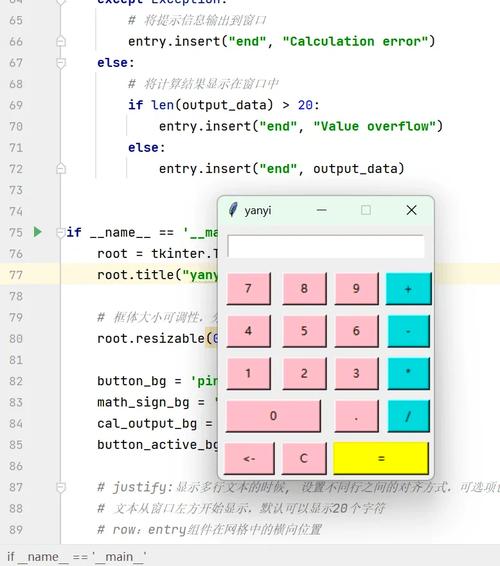
This code does the same thing as the Tkinter example but in the PyQt/PySide style.
import sys
from PySide6.QtWidgets import QApplication, QMainWindow, QPushButton, QLabel, QVBoxLayout, QWidget
from PySide6.QtGui import QFont
# It's good practice to create a custom class for your main window
class MainWindow(QMainWindow):
    def __init__(self):
        super().__init__()
        self.setWindowTitle("PyQt Button App")
        self.setGeometry(300, 300, 300, 150) # x, y, width, height
        # --- 1. Create a central widget and a layout ---
        # In PyQt, you usually use a layout to manage widget positions.
        central_widget = QWidget()
        self.setCentralWidget(central_widget)
        layout = QVBoxLayout(central_widget) # QVBoxLayout arranges widgets vertically
        # --- 2. Create the widgets ---
        self.label = QLabel("Click the button to start!")
        self.label.setFont(QFont("Arial", 14))
        self.click_button = QPushButton("Click Me!")
        self.click_button.setFont(QFont("Arial", 12))
        # --- 3. Connect the button's signal to a slot ---
        # A 'signal' is an event that a widget can emit (like a click).
        # A 'slot' is a function that can react to a signal.
        self.click_button.clicked.connect(self.on_button_click)
        # --- 4. Add widgets to the layout ---
        layout.addWidget(self.label)
        layout.addWidget(self.click_button)
        # --- 5. Initialize the counter ---
        self.click_count = 0
    # --- The slot (function) to be called on click ---
    def on_button_click(self):
        """This function updates the label and shows a message box."""
        self.click_count += 1
        self.label.setText(f"Button has been clicked {self.click_count} times!")
        # To show a message box, you need to import QMessageBox
        from PySide6.QtWidgets import QMessageBox
        QMessageBox.information(self, "Click!", "You clicked the button!")
# --- Standard boilerplate to run the app ---
if __name__ == "__main__":
    app = QApplication(sys.argv) # Every PyQt app needs a QApplication instance
    window = MainWindow()
    window.show() # Windows are hidden by default, so you must show them
    sys.exit(app.exec()) # Start the event loop
Explanation of Key Parts:
- Object-Oriented: We create a
MainWindowclass that inherits fromQMainWindow. This is the standard structure. - Layouts (
QVBoxLayout): Instead of simple.pack(), PyQt uses layouts to give you precise control over widget positioning and resizing. - Signals and Slots: This is the PyQt way of handling events.
self.click_button.clicked: This is the signal that the button emits when it's clicked..connect(): This method links the signal to a function (the slot).self.on_button_click: This is our slot. Notice it's a method of our class and doesn't take any arguments (other thanself).
Summary: Tkinter vs. PyQt/PySide
| Feature | Tkinter | PyQt/PySide |
|---|---|---|
| Ease of Use | Easier for beginners. Simpler API. | More complex due to object-oriented nature and signals/slots. |
| Dependencies | Built-in with Python. No installation needed. | Must be installed via pip. |
| Look & Feel | Looks like the native OS (Windows, macOS, Linux). | Can be made to look native, but also has a modern, consistent "Qt" look. |
| Features | Good for basic to moderate applications. | Huge number of advanced widgets and features. Excellent for complex apps. |
| License | Python License (permissive). | PyQt has a GPL or commercial license. PySide has an LGPL license (more permissive). |
Recommendation:
- If you are a beginner or just need a simple utility, start with Tkinter.
- If you are building a professional, complex application with a modern UI, PySide6 is the way to go.