Of course! The relationship between Java, Linux, and the Shell is fundamental to modern software development, especially for backend services, big data, and DevOps. Let's break it down into three main areas:
- Running Java Applications on Linux
- Using the Linux Shell to Manage Java
- Calling Java from Shell Scripts
Running Java Applications on Linux
This is the most common scenario. You have a compiled Java application (a .jar file) and you want to run it on a Linux server.
Prerequisites: The Java Development Kit (JDK)
First, you need a JDK installed. The JDK contains the Java compiler (javac) and the Java Virtual Machine (java), which is needed to run your code.
Check if Java is installed: Open your terminal (the Shell) and type:
java -version
javac -version
If you see version numbers, you're good to go. If not, you need to install it.
Installing the JDK (on Debian/Ubuntu):
# Update your package list
sudo apt update
# Install the default JDK (usually OpenJDK 11 or 17)
sudo apt install openjdk-11-jdk
# Or to install a specific version, like 17
sudo apt install openjdk-17-jdk
Installing the JDK (on Red Hat/CentOS/Fedora):
# Install the EPEL repository if you haven't already
sudo dnf install epel-release
# Install OpenJDK 11
sudo dnf install java-11-openjdk-devel
# Or install OpenJDK 17
sudo dnf install java-17-openjdk-devel
Running a Java Application (.jar file)
Let's say you have a file named my-app.jar.
Basic Execution:
The command is java -jar <your-file.jar>.

java -jar my-app.jar
Running in the Background:
If you want your application to keep running after you close the terminal, use the & operator.
java -jar my-app.jar &
- Problem: This will stop if you log out or close the terminal.
- Solution: Use a tool like
screenortmuxto create a persistent session.
Running as a Service (Systemd):
For production servers, you should never run a Java app directly in the terminal. The standard way is to run it as a systemd service. This ensures it starts on boot, restarts if it crashes, and can be managed with simple commands.
-
Create a service file:
sudo nano /etc/systemd/system/my-app.service -
Add the following content:
[Unit]
Description=My Awesome Java Application
After=network.target
[Service]
# The user that will run the application. It's best practice to create a dedicated user.
User=myjavauser
Group=myjavauser
# The command to start the application
ExecStart=/usr/bin/java -jar /path/to/your/my-app.jar
# Restart policy
Restart=on-failure
RestartSec=10
# Set memory limits (optional but recommended)
LimitMEMLOCK=infinity
LimitNOFILE=65536
[Install]
WantedBy=multi-user.target
-
Manage the service:
# Reload systemd to recognize the new service
sudo systemctl daemon-reload
# Start the service
sudo systemctl start my-app.service
# Enable the service to start on boot
sudo systemctl enable my-app.service
# Check the status of your service
sudo systemctl status my-app.service
# View the application's logs (stdout/stderr)
journalctl -u my-app.service -f
Using the Linux Shell to Manage Java
The Shell is your command-line interface for interacting with the system, including your Java environment.
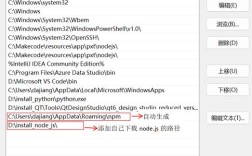
Environment Variables
Java's behavior is heavily influenced by environment variables set in the Shell.
-
JAVA_HOME: This is the most important one. It tells the system where the JDK is installed. Many tools (like Tomcat, Maven, Gradle) rely on this variable.# Check current JAVA_HOME echo $JAVA_HOME # Set it temporarily for the current session export JAVA_HOME=/usr/lib/jvm/java-11-openjdk-amd64 # Make it permanent by adding it to your shell profile (~/.bashrc or ~/.zshrc) echo 'export JAVA_HOME=/usr/lib/jvm/java-11-openjdk-amd64' >> ~/.bashrc source ~/.bashrc
-
PATH: Thejavaandjavacexecutables must be in a directory listed in yourPATHvariable for you to run them from any location.# Check your PATH echo $PATH # The JDK's 'bin' directory is usually added automatically during installation. # If not, you can add it: # export PATH=$PATH:/path/to/your/jdk/bin
Compiling Java from the Shell
You don't need an IDE to compile Java code.
-
Create a Java file:
nano HelloWorld.java -
Add some code:
public class HelloWorld { public static void main(String[] args) { System.out.println("Hello from Java on Linux!"); } } -
Compile it: The
javaccommand reads the.javafile and produces a.classfile.javac HelloWorld.java
You should now see a
HelloWorld.classfile. -
Run it: The
javacommand reads the.classfile (or a.jarcontaining it) and executes it.java HelloWorld
Output:
Hello from Java on Linux!- Important: Notice you don't type
java HelloWorld.class. You just type the class name.
- Important: Notice you don't type
Calling Java from Shell Scripts
This is where Java and the Shell powerfully interact. You can embed Java logic within your Linux automation scripts.
Simple Example: Calling a Java class from a Bash script
Let's extend our HelloWorld.java to accept an argument.
-
Update
HelloWorld.java:public class HelloWorld { public static void main(String[] args) { String name = "World"; if (args.length > 0) { name = args[0]; } System.out.println("Hello, " + name + "!"); } } -
Compile it:
javac HelloWorld.java -
Create a Bash script (
run_java.sh):#!/bin/bash echo "--- Starting Java application from Bash ---" # Call the Java application and pass an argument java HelloWorld "Bash Script" echo "--- Java application finished ---"
-
Make the script executable and run it:
chmod +x run_java.sh
./run_java.sh
Output:
--- Starting Java application from Bash ---
Hello, Bash Script!
--- Java application finished ---
Advanced Example: Passing Data Between Java and Bash
A very common pattern is for the shell script to gather information and pass it to Java, then capture the output from Java for further processing.
process_data.sh:
#!/bin/bash
# A shell variable
USER_NAME="Alice"
SERVER_STATUS="UP"
# Call the Java program, passing variables as arguments.
# Note: It's good practice to quote arguments.
RESULT=$(java DataProcessor "$USER_NAME" "$SERVER_STATUS")
# The 'echo' command from Java is now captured in the RESULT variable
echo "The Java program returned: $RESULT"
# Use the result in a shell conditional
if [[ "$RESULT" == "Success" ]]; then
    echo "Performing cleanup tasks..."
else
    echo "An error occurred. Logging to a file."
    echo "Java process failed at $(date)" >> /var/log/java_error.log
fi
DataProcessor.java:
public class DataProcessor {
    public static void main(String[] args) {
        // Receive arguments from the shell script
        String user = args[0];
        String status = args[1];
        System.out.println("Processing data for user: " + user);
        System.out.println("Server status is: " + status);
        // Simulate some logic and print a result to stdout
        // This stdout is what gets captured by the $(...) in the shell script.
        if (status.equals("UP")) {
            System.out.println("Success");
        } else {
            System.out.println("Failure");
        }
    }
}
To run this:
javac DataProcessor.java
chmod +x process_data.sh
./process_data.sh
Summary Table
| Task | Shell Command / Method | Purpose |
|---|---|---|
| Check Java Version | java -version |
Verify if the JRE/JDK is installed and see which version. |
| Compile Java Code | javac MyFile.java |
Convert .java source files into .class bytecode files. |
| Run Java Class | java MyClass |
Execute the compiled Java code. The class must have a main method. |
| Run Java Archive (JAR) | java -jar my-app.jar |
Execute a packaged Java application. |
| Set Java Home | export JAVA_HOME=/path/to/jdk |
Tell the system where to find the JDK. Crucial for many Java-based tools. |
| Run Java App as a Background Process | java -jar my-app.jar & |
Starts the app but doesn't block the terminal. The process will stop if you log out. |
| Run Java App as a Persistent Service | systemctl (create a .service file) |
The standard, robust way to run applications on Linux. Manages start, stop, restart, and logging. |
| Call Java from a Script | $(java MyClass "arg1" "arg2") |
Execute Java code from within a Bash script and capture its output for use in the script. |
| Pass Arguments to Java | java MyClass "argument from shell" |
Pass data from the shell environment into your running Java application. |