Of course! Here is a comprehensive guide to using the OpenCV Java API, covering setup, core concepts, and practical code examples.
What is OpenCV for Java?
OpenCV (Open Source Computer Vision Library) is a massive, open-source library for computer vision and machine learning. The Java API allows you to use this powerful library within your Java applications, whether they are desktop apps, web backends, or Android applications.
Setting Up OpenCV in a Java Project
The most common and recommended way to use OpenCV in a standard Java project (Maven or Gradle) is through the official opencv package.
Using Maven
Add the following dependency to your pom.xml file. Crucially, you must also add the native classifier.
<dependencies>
    <!-- OpenCV Core Library -->
    <dependency>
        <groupId>org.openpnp</groupId>
        <artifactId>opencv</artifactId>
        <version>4.9.0-0</version> <!-- Use the latest version available -->
    </dependency>
</dependencies>
<!-- You MUST add the native dependency for your platform -->
<profiles>
    <profile>
        <id>windows</id>
        <activation>
            <os>
                <family>windows</family>
            </os>
        </activation>
        <dependencies>
            <dependency>
                <groupId>org.openpnp</groupId>
                <artifactId>opencv</artifactId>
                <version>4.9.0-0</version>
                <classifier>windows-x86_64</classifier> <!-- or windows-x86 for 32-bit -->
            </dependency>
        </dependencies>
    </profile>
    <profile>
        <id>linux</id>
        <activation>
            <os>
                <family>linux</family>
            </os>
        </activation>
        <dependencies>
            <dependency>
                <groupId>org.openpnp</groupId>
                <artifactId>opencv</artifactId>
                <version>4.9.0-0</version>
                <classifier>linux-x86_64</classifier>
            </dependency>
        </dependencies>
    </profile>
    <profile>
        <id>mac</id>
        <activation>
            <os>
                <family>mac</family>
            </os>
        </activation>
        <dependencies>
            <dependency>
                <groupId>org.openpnp</groupId>
                <artifactId>opencv</artifactId>
                <version>4.9.0-0</version>
                <classifier>macosx-x86_64</classifier> <!-- or macosx-aarch64 for Apple Silicon -->
            </dependency>
        </dependencies>
    </profile>
</profiles>
Note: The org.openpnp group ID is the official Maven repository for OpenCV binaries. The version number should match the version of OpenCV you intend to use.
Using Gradle
Add the following to your build.gradle file. Again, the classifier is essential.
dependencies {
    // OpenCV Core Library
    implementation 'org.openpnp:opencv:4.9.0-0'
    // Add the native dependency for your platform
    // For Windows 64-bit
    runtimeOnly 'org.openpnp:opencv:4.9.0-0:windows-x86_64@jar'
    // For Linux 64-bit
    // runtimeOnly 'org.openpnp:opencv:4.9.0-0:linux-x86_64@jar'
    // For macOS 64-bit (Intel)
    // runtimeOnly 'org.openpnp:opencv:4.9.0-0:macosx-x86_64@jar'
    // For macOS Apple Silicon (ARM64)
    // runtimeOnly 'org.openpnp:opencv:4.9.0-0:macosx-aarch64@jar'
}
Loading the Native Library
In your Java code, you need to load the native OpenCV library before you can use any of its functions. A common place to do this is in a static initializer block.
import org.opencv.core.Core;
import org.opencv.core.Mat;
import org.opencv.imgcodecs.Imgcodecs;
import org.opencv.imgproc.Imgproc;
public class OpenCVIntro {
    // Load the native OpenCV library
    static {
        // This line loads the native library (e.g., opencv_java490.dll, libopencv_java490.so)
        // It must be called before any other OpenCV function.
        System.loadLibrary(Core.NATIVE_LIBRARY_NAME);
    }
    public static void main(String[] args) {
        System.out.println("Welcome to OpenCV " + Core.VERSION);
        // ... your OpenCV code here ...
    }
}
Core Concepts: The Mat Class
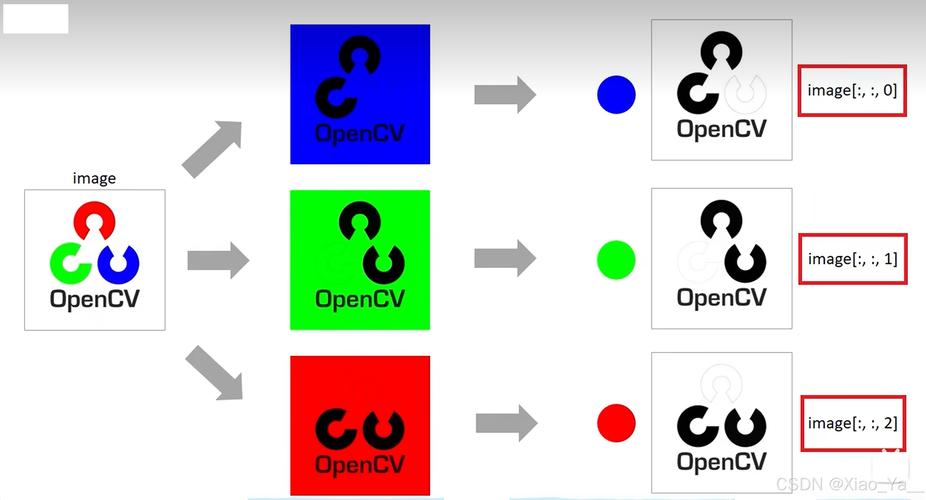
The most fundamental data structure in OpenCV is the Mat (Matrix) class. It represents a multi-dimensional dense numerical array, which is essentially an image. An image is just a 2D matrix of pixels, where each pixel can have one value (grayscale) or multiple values (color, like BGR or RGBA).
Mat: The primary object for storing images or any other matrix data.MatOfByte: For 1D arrays (e.g., from reading a file).MatOfInt: For integer arrays.MatOfFloat: For float arrays.MatOfPoint: For arrays of 2D points.MatOfPoint2f: For arrays of 2D points with float coordinates.
Basic Operations: Reading, Writing, and Displaying
Reading an Image
Use Imgcodecs.imread().
String imagePath = "path/to/your/image.jpg";
Mat image = Imgcodecs.imread(imagePath);
// Check if the image was loaded successfully
if (image.empty()) {
    System.out.println("Error: Could not open or find the image.");
    return;
}
Writing an Image
Use Imgcodecs.imwrite().
String outputPath = "path/to/output/image.jpg";
boolean success = Imgcodecs.imwrite(outputPath, image);
System.out.println("Image written successfully: " + success);
Displaying an Image (Using Java Swing)
OpenCV doesn't have a built-in GUI for Java, so you typically use Swing.
import javax.swing.*;
import java.awt.*;
import java.awt.image.BufferedImage;
public class ImageDisplayer {
    public static void displayImage(Mat image) {
        // Convert Mat to BufferedImage for Swing
        BufferedImage bufferedImage = matToBufferedImage(image);
        // Create a JFrame to display the image
        JFrame frame = new JFrame("OpenCV Image Display");
        frame.setDefaultCloseOperation(JFrame.EXIT_ON_CLOSE);
        JLabel label = new JLabel(new ImageIcon(bufferedImage));
        frame.getContentPane().add(label, BorderLayout.CENTER);
        // Pack the frame and make it visible
        frame.pack();
        frame.setVisible(true);
    }
    private static BufferedImage matToBufferedImage(Mat mat) {
        int type = BufferedImage.TYPE_BYTE_GRAY;
        if (mat.channels() > 1) {
            type = BufferedImage.TYPE_3BYTE_BGR;
        }
        int bufferSize = mat.channels() * mat.cols() * mat.rows();
        byte[] bytes = new byte[bufferSize];
        mat.get(0, 0, bytes); // Get the pixel data
        BufferedImage image = new BufferedImage(mat.cols(), mat.rows(), type);
        byte[] targetPixels = ((DataBufferByte) image.getRaster().getDataBuffer()).getData();
        System.arraycopy(bytes, 0, targetPixels, 0, bytes.length);
        return image;
    }
}
Intermediate Example: Image Processing Pipeline
Let's create a simple program that loads an image, converts it to grayscale, applies a Gaussian blur, and then detects edges using the Canny algorithm.
import org.opencv.core.*;
import org.opencv.imgcodecs.Imgcodecs;
import org.opencv.imgproc.Imgproc;
public class ImageProcessingPipeline {
    static {
        System.loadLibrary(Core.NATIVE_LIBRARY_NAME);
    }
    public static void main(String[] args) {
        // 1. Read the source image
        String sourcePath = "resources/lena.png"; // Assuming you have an image in the resources folder
        Mat source = Imgcodecs.imread(sourcePath, Imgcodecs.IMREAD_COLOR);
        if (source.empty()) {
            System.out.println("Error: Could not open or find the image.");
            return;
        }
        // 2. Convert the image to grayscale
        Mat gray = new Mat();
        Imgproc.cvtColor(source, gray, Imgproc.COLOR_BGR2GRAY);
        // 3. Apply a Gaussian blur to reduce noise
        Mat blurred = new Mat();
        Imgproc.GaussianBlur(gray, blurred, new Size(5, 5), 0);
        // 4. Detect edges using the Canny algorithm
        Mat edges = new Mat();
        Imgproc.Canny(blurred, edges, 50, 150); // Thresholds can be tuned
        // 5. Save and display the results
        Imgcodecs.imwrite("resources/lena_gray.jpg", gray);
        Imgcodecs.imwrite("resources/lena_blurred.jpg", blurred);
        Imgcodecs.imwrite("resources/lena_edges.jpg", edges);
        System.out.println("Processing complete. Check the output files.");
        // Display the original and edge-detected images
        ImageDisplayer.displayImage(source);
        ImageDisplayer.displayImage(edges);
    }
}
Advanced Example: Face Detection
This example uses the Haar Cascade classifier to detect faces in an image. You need the pre-trained classifier XML file (e.g., haarcascade_frontalface_default.xml).
- Download the classifier file from the OpenCV GitHub repository.
- Place it in your project's resources folder.
import org.opencv.core.*;
import org.opencv.imgcodecs.Imgcodecs;
import org.opencv.imgproc.Imgproc;
import org.opencv.objdetect.CascadeClassifier;
public class FaceDetection {
    static {
        System.loadLibrary(Core.NATIVE_LIBRARY_NAME);
    }
    public static void main(String[] args) {
        // 1. Load the cascade classifier
        String classifierPath = "resources/haarcascade_frontalface_default.xml";
        CascadeClassifier faceDetector = new CascadeClassifier();
        if (!faceDetector.load(classifierPath)) {
            System.out.println("Error: Could not load classifier file: " + classifierPath);
            return;
        }
        // 2. Read the image
        String imagePath = "resources/people.jpg"; // An image with faces
        Mat image = Imgcodecs.imread(imagePath, Imgcodecs.IMREAD_COLOR);
        if (image.empty()) {
            System.out.println("Error: Could not open or find the image.");
            return;
        }
        // 3. Detect faces
        // The MatOfRect is a special type for storing rectangles
        MatOfRect faceDetections = new MatOfRect();
        faceDetector.detectMultiScale(image, faceDetections);
        System.out.println(String.format("Detected %s faces", faceDetections.toArray().length));
        // 4. Draw a green rectangle around each detected face
        for (Rect rect : faceDetections.toArray()) {
            Imgproc.rectangle(
                image,                          // where to draw the box
                new Point(rect.x, rect.y),     // bottom left
                new Point(rect.x + rect.width, rect.y + rect.height), // top right
                new Scalar(0, 255, 0),         // color (in BGR)
                3                               // thickness
            );
        }
        // 5. Save and display the result
        Imgcodecs.imwrite("resources/detected_faces.jpg", image);
        ImageDisplayer.displayImage(image);
    }
}
Key Java API Packages
| Package | Description |
|---|---|
org.opencv.core |
Contains the fundamental data structures like Mat, Scalar, Point, Rect, Size, and RotatedRect. Also includes basic matrix operations. |
org.opencv.imgcodecs |
Provides functions for reading (imread) and writing (imwrite) images in various formats (JPEG, PNG, etc.). |
org.opencv.imgproc |
Contains a vast collection of image processing functions: filtering (GaussianBlur), color conversions (cvtColor), geometric transformations (resize, warpAffine), morphological operations (erode, dilate), and feature detection (Canny, HoughLines). |
org.opencv.features2d |
For detecting and describing image features like SIFT, SURF, ORB, etc. |
org.opencv.objdetect |
For object detection, primarily using Haar Cascades (CascadeClassifier) and HOG (HOGDescriptor). |
org.opencv.videoio |
For video I/O: reading from/webcams (VideoCapture) and writing to files (VideoWriter). |
org.opencv.dnn |
The Deep Neural Network module, used for loading and running models like TensorFlow, Caffe, and PyTorch. |
OpenCV on Android
Using OpenCV on Android is slightly different but follows the same principles.
-
Integration: The easiest way is to use the OpenCV Android SDK and integrate it via Gradle.
-
Initialization: You must initialize the OpenCV library in your
MainActivity'sonCreate()method or a custom Application class.// In your MainActivity.java import org.opencv.android.OpenCVLoader; @Override protected void onCreate(Bundle savedInstanceState) { super.onCreate(savedInstanceState); setContentView(R.layout.activity_main); if (!OpenCVLoader.initDebug()) { Log.d("OpenCV", "Internal OpenCV library not found. Using OpenCV Manager for initialization"); OpenCVLoader.initAsync(OpenCVLoader.OPENCV_VERSION, this, mLoaderCallback); } else { Log.d("OpenCV", "OpenCV library found inside package. Using it!"); mLoaderCallback.onManagerConnected(LoaderCallbackInterface.SUCCESS); } } private BaseLoaderCallback mLoaderCallback = new BaseLoaderCallback(this) { @Override public void onManagerConnected(int status) { if (status == LoaderCallbackInterface.SUCCESS) { // OpenCV is loaded, you can now use it // e.g., processCameraFrame(); } else { super.onManagerConnected(status); } } }; -
Permissions: You'll need to add camera and storage permissions to your
AndroidManifest.xml. -
Camera Access: Use the
CameraBridgeViewBase(from the OpenCV samples) to easily get camera frames asMatobjects for processing.
This guide should give you a solid foundation for starting with the OpenCV Java API. The best way to learn is by experimenting with different functions and building small projects.