Of course! "Python Selenium" is a very common and powerful combination for web automation. Here's a comprehensive guide covering what it is, why it's used, and how to get started with practical examples.
What is Python Selenium?
In simple terms, Selenium is a tool that lets you automate a web browser. You can write a Python script to tell a real web browser (like Chrome, Firefox, or Edge) to do things automatically, such as:
- Open a website.
- Click on buttons.
- Fill out forms.
- Extract data from a page.
- Take screenshots.
- Test if your website works as expected.
Analogy: Imagine you have a robot that can perfectly mimic your mouse movements and keyboard typing on a web browser. Selenium is that robot, and Python is the language you use to give it instructions.
Why Use Selenium with Python?
- Browser Automation: Automate repetitive tasks like logging into multiple sites, filling out forms, or checking prices.
- Web Scraping: When a website doesn't have a simple API, you can use Selenium to load the page, interact with it (e.g., click "Load More" buttons), and then scrape the data you need. It's great for handling JavaScript-heavy websites.
- Automated Testing: This is Selenium's primary use case. Developers write scripts to automatically test their web applications, ensuring that new features don't break existing ones.
- Cross-Browser Testing: You can run your scripts on different browsers (Chrome, Firefox, etc.) to ensure your website works everywhere.
- Python's Simplicity: Python has a clean, easy-to-read syntax, making it one of the most popular languages for using Selenium.
Step-by-Step Guide to Getting Started
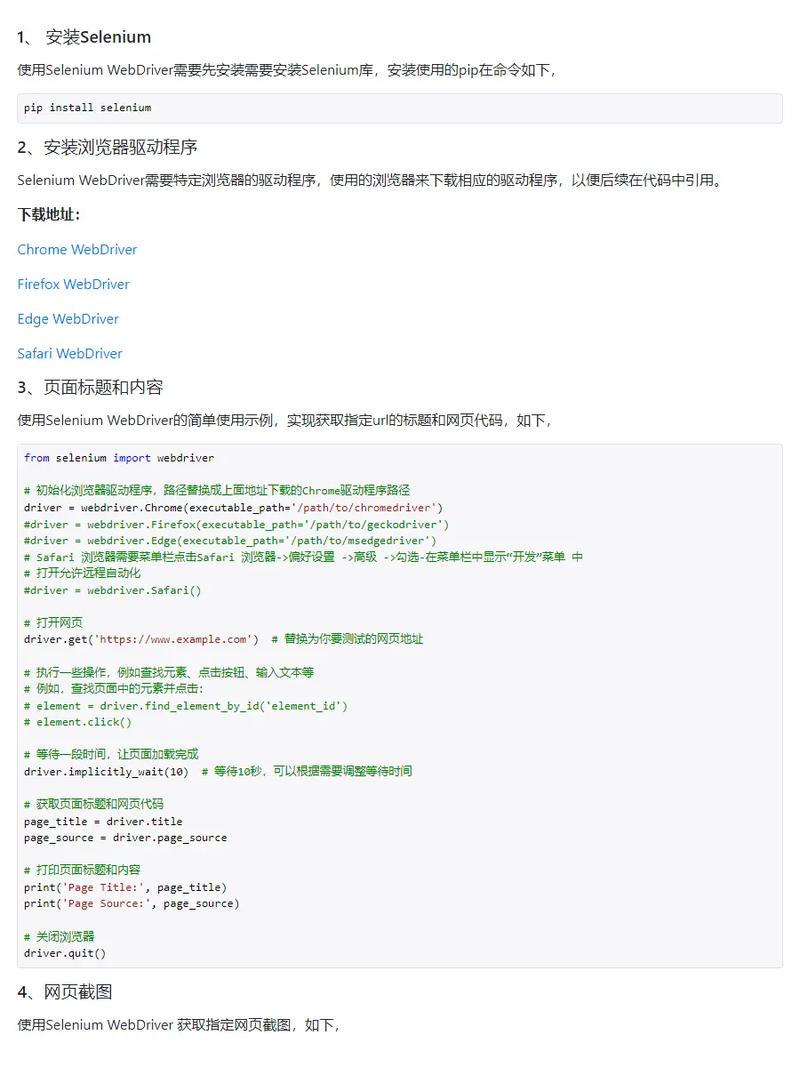
Step 1: Install Selenium
First, you need to install the Selenium library for Python. Open your terminal or command prompt and run:
pip install selenium
Step 2: Install a WebDriver
Selenium doesn't control the browser itself. It needs a special "driver" to act as a bridge between your script and the browser. You need to install the driver that matches the browser you want to automate.
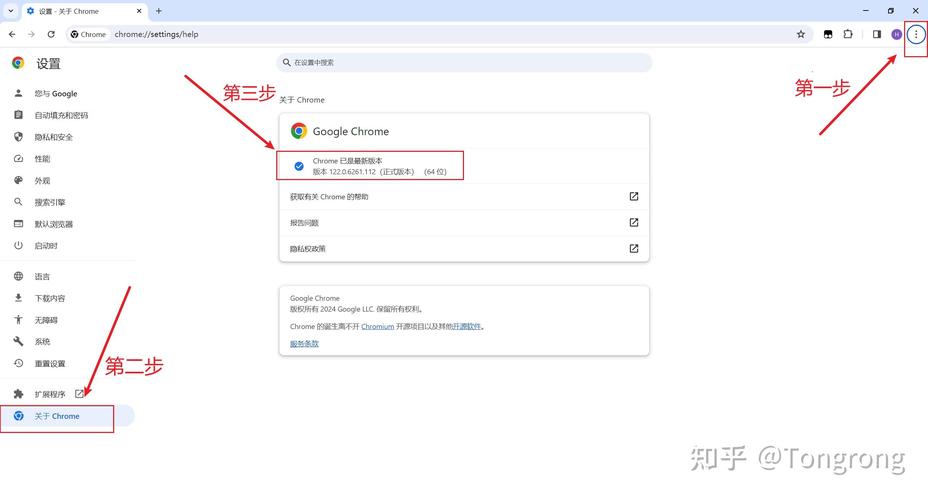
For Google Chrome:
- Check your Chrome version: Go to
chrome://settings/helpin your Chrome browser. - Download the ChromeDriver: Go to the official Chrome for Testing availability dashboard and download the
chromedriverthat matches your Chrome version. The file will be a.zip. - Unzip and place the driver: Unzip the file. You need to place the
chromedriver.exe(orchromedriveron Mac/Linux) in a location that your Python script can access.- Easy Method: Place it in the same folder as your Python script.
- Better Method (Recommended): Add the driver's location to your system's PATH environment variable. This way, you don't have to specify its location in your code.
Alternative: Use Selenium Manager (Modern & Easy) Selenium 4.6.0 and above includes a "Selenium Manager" that automatically downloads and manages the correct driver for you! This is the recommended approach now. You just need to specify the browser you want to use.
Step 3: Your First Script
Let's write a simple script that opens Google, searches for "Python", and prints the title of the results page.
# 1. Import the necessary modules
from selenium import webdriver
from selenium.webdriver.common.by import By
from selenium.webdriver.common.keys import Keys
from selenium.webdriver.chrome.service import Service as ChromeService
from webdriver_manager.chrome import ChromeDriverManager # This will auto-download the driver
# 2. Set up the WebDriver
# Selenium Manager will automatically handle the driver download and setup
driver = webdriver.Chrome(service=ChromeService(ChromeDriverManager().install()))
try:
    # 3. Open a website
    print("Opening Google...")
    driver.get("https://www.google.com")
    # 4. Find the search box element
    # We find elements using locators. 'By.NAME' is one way.
    # The name of Google's search box is 'q'.
    search_box = driver.find_element(By.NAME, "q")
    # 5. Interact with the element (type in the search box and press Enter)
    print("Searching for 'Python'...")
    search_box.send_keys("Python")
    search_box.send_keys(Keys.RETURN)
    # 6. Wait for the results to load and get the page title
    # A small pause can be useful for pages that load dynamically.
    # A better way is to use explicit waits (see advanced section).
    driver.implicitly_wait(5) # Wait up to 5 seconds for elements to appear
    # Get the title of the current page
    page_title = driver.title
    print(f"Page Title: {page_title}")
    # 7. Verify the result
    if "Python" in page_title:
        print("Success! The search results page title contains 'Python'.")
    else:
        print("Something went wrong.")
finally:
    # 8. Close the browser
    print("Closing the browser.")
    driver.quit()
To run this script: Save it as first_script.py and run it from your terminal:
python first_script.py
You should see a Chrome window open, perform the search, and then close, with all the print statements appearing in your terminal.
Core Concepts in Selenium
Locators (Finding Elements)
This is the most important skill. You need to tell Selenium which element on the page you want to interact with. Here are the most common locators:
| Locator Method | Description | Example |
|---|---|---|
By.ID |
Unique ID of an element. | driver.find_element(By.ID, "submit-button") |
By.NAME |
name attribute of an element. |
driver.find_element(By.NAME, "username") |
By.CLASS_NAME |
CSS class name. | driver.find_element(By.CLASS_NAME, "main-content") |
By.TAG_NAME |
HTML tag name (<a>, <div>, <p>). |
driver.find_element(By.TAG_NAME, "h1") |
By.XPATH |
A path to an element in the HTML structure. Very powerful. | driver.find_element(By.XPATH, "//div[@id='header']/a[1]") |
By.CSS_SELECTOR |
A CSS selector to find an element. Very powerful and modern. | driver.find_element(By.CSS_SELECTOR, "div#header > a") |
Pro Tip: Use your browser's Developer Tools (F12 or right-click -> "Inspect") to find the best locator for an element.
Interacting with Elements
Once you find an element, you can perform actions on it:
element = driver.find_element(By.ID, "my-button")
# Clicking
element.click()
# Typing
input_field = driver.find_element(By.NAME, "search-term")
input_field.send_keys("Hello Selenium")
# Clearing text from a field
input_field.clear()
Waits (Crucial for Modern Websites)
Websites often load content dynamically with JavaScript. If your script tries to find an element before it's loaded, it will fail. There are two types of waits:
-
Implicit Wait: Tells the driver to poll the DOM for a certain amount of time when trying to find an element. It's a global setting.
driver.implicitly_wait(10) # Wait up to 10 seconds for any element to be found
-
Explicit Wait (Recommended): Waits for a specific condition to be met before proceeding. It's much more reliable.
from selenium.webdriver.support.ui import WebDriverWait
from selenium.webdriver.support import expected_conditions as EC
try:
    # Wait up to 10 seconds until an element with ID 'results' is visible
    results_element = WebDriverWait(driver, 10).until(
        EC.visibility_of_element_located((By.ID, "results"))
    )
    print("Results are now visible!")
except Exception as e:
    print(f"Element not found after 10 seconds: {e}")
Common Tasks & Advanced Examples
Handling Dropdowns (<select>)
Use the Select class from selenium.webdriver.support.ui.
from selenium.webdriver.support.ui import Select
dropdown = driver.find_element(By.ID, "country-select")
select = Select(dropdown)
# Select by visible text
select.select_by_visible_text("Canada")
# Select by value
select.select_by_value("ca")
# Select by index (0-based)
select.select_by_index(0)
Handling Alerts and Pop-ups
# Trigger an alert (e.g., by clicking a button)
driver.find_element(By.ID, "alert-button").click()
# Switch to the alert
alert = driver.switch_to.alert
# Get the alert text
print(alert.text)
# Accept the alert (clicks "OK")
alert.accept()
# Dismiss the alert (clicks "Cancel")
# alert.dismiss()
Handling iFrames
iFrames are like windows within a webpage. You must switch to the iFrame before you can interact with its elements.
# Find the iframe element
iframe = driver.find_element(By.ID, "my-iframe")
# Switch to the iframe
driver.switch_to.frame(iframe)
# Now you can find elements inside the iframe
element_in_frame = driver.find_element(By.ID, "some-button")
element_in_frame.click()
# Switch back to the main page content
driver.switch_to.default_content()
Taking a Screenshot
# Save a screenshot of the current page
driver.save_screenshot("my_screenshot.png")
Best Practices
- Use Explicit Waits: Avoid
time.sleep(). It makes your tests slow and unreliable. UseWebDriverWaitfor precise timing. - Use Unique Locators: Prefer
IDorCSS_SELECTORoverCLASS_NAMEorXPATHif possible, as they are more stable and faster. - Clean Up: Always use a
try...finallyblock or a context manager to ensuredriver.quit()is called, even if your script fails. This closes the browser and frees up resources. - Organize Your Code: For larger projects, don't put everything in one file. Use Page Object Models (POM) to organize your locators and actions into classes, making your code cleaner and more maintainable.
This guide should give you a solid foundation for using Python with Selenium. Happy automating