Of course! JTextField is one of the most fundamental and widely used components in Java's Swing GUI toolkit. It's a basic text component that allows the user to enter a single line of text.

Here's a comprehensive guide covering everything from basic usage to advanced features.
What is a JTextField?
A JTextField is a Swing component that provides a single-line text editor. It's the go-to component for getting text input from a user, such as a name, an email address, a search query, or a number.
Basic Creation and Display
To use a JTextField, you need to have a JFrame (the main window) to display it in.
import javax.swing.*;
import java.awt.*;
public class BasicTextFieldExample {
    public static void main(String[] args) {
        // 1. Create the main window (JFrame)
        JFrame frame = new JFrame("Basic JTextField Example");
        frame.setDefaultCloseOperation(JFrame.EXIT_ON_CLOSE);
        frame.setSize(300, 150);
        frame.setLayout(new FlowLayout()); // Use a simple layout
        // 2. Create the JTextField
        JTextField textField = new JTextField(20); // 20 columns wide
        // 3. Add the JTextField to the JFrame
        frame.add(textField);
        // 4. Make the window visible
        frame.setVisible(true);
    }
}
Explanation:
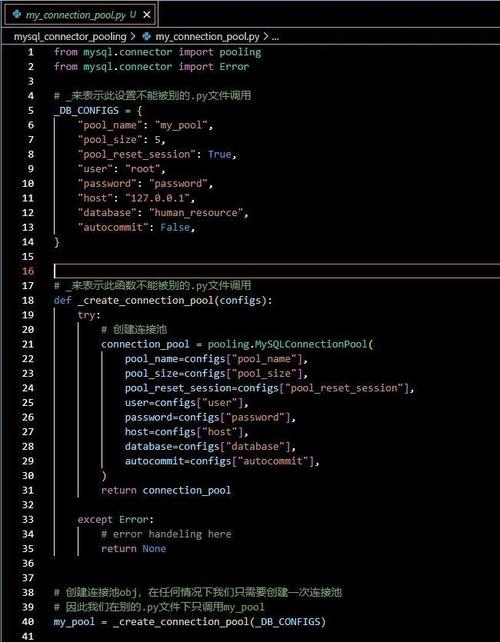
JFrame frame = new JFrame(...): Creates the main application window.frame.setDefaultCloseOperation(JFrame.EXIT_ON_CLOSE): Ensures the program stops when the window is closed.frame.setLayout(new FlowLayout()): Sets a layout manager that arranges components in a line.JTextField textField = new JTextField(20): Creates aJTextFieldthat is wide enough to display approximately 20 characters. The argument is the number of columns.frame.add(textField): Places the text field inside the frame.frame.setVisible(true): Displays the window.
Common Constructors
The JTextField class provides several constructors for different needs:
| Constructor | Description |
|---|---|
JTextField() |
Creates an empty text field. |
JTextField(int columns) |
Creates an empty text field with a specified number of columns. |
JTextField(String text) |
Creates a text field initialized with the given text. |
JTextField(String text, int columns) |
Creates a text field initialized with the given text and column width. |
JTextField(Document doc, String text, int columns) |
An advanced constructor that uses a custom Document to handle text storage and editing. |
Getting and Setting Text
The most common operations are getting the text the user entered and setting the text programmatically.
import javax.swing.*;
import java.awt.event.ActionEvent;
import java.awt.event.ActionListener;
public class GetSetTextExample {
    public static void main(String[] args) {
        JFrame frame = new JFrame("Get/Set Text Example");
        frame.setDefaultCloseOperation(JFrame.EXIT_ON_CLOSE);
        frame.setLayout(new FlowLayout());
        JTextField textField = new JTextField(20);
        JButton getButton = new JButton("Get Text");
        JButton setButton = new JButton("Set Text");
        // Action for the "Get Text" button
        getButton.addActionListener(new ActionListener() {
            @Override
            public void actionPerformed(ActionEvent e) {
                String currentText = textField.getText();
                JOptionPane.showMessageDialog(frame, "The text is: " + currentText);
            }
        });
        // Action for the "Set Text" button
        setButton.addActionListener(new ActionListener() {
            @Override
            public void actionPerformed(ActionEvent e) {
                textField.setText("Hello, World!");
            }
        });
        frame.add(textField);
        frame.add(getButton);
        frame.add(setButton);
        frame.pack(); // Sizes the frame to fit its contents
        frame.setVisible(true);
    }
}
Key Methods:
String getText(): Returns the text currently in the field.void setText(String text): Sets the text in the field.
Listening for User Input
Often, you want to react to the user typing in the field. The best way to do this is with a DocumentListener.
A DocumentListener has three methods:
insertUpdate(): Called when text is inserted.removeUpdate(): Called when text is removed.changedUpdate(): Called for attribute changes (less common for plain text).
Here's an example that updates a label as you type:
import javax.swing.*;
import javax.swing.event.DocumentEvent;
import javax.swing.event.DocumentListener;
public class DocumentListenerExample {
    public static void main(String[] args) {
        JFrame frame = new JFrame("Document Listener Example");
        frame.setDefaultCloseOperation(JFrame.EXIT_ON_CLOSE);
        frame.setLayout(new FlowLayout());
        JTextField textField = new JTextField(20);
        JLabel label = new JLabel("You typed: ");
        // Add a DocumentListener to the text field's document model
        textField.getDocument().addDocumentListener(new DocumentListener() {
            @Override
            public void insertUpdate(DocumentEvent e) {
                updateLabel();
            }
            @Override
            public void removeUpdate(DocumentEvent e) {
                updateLabel();
            }
            @Override
            public void changedUpdate(DocumentEvent e) {
                // Not used for plain text
                updateLabel();
            }
            private void updateLabel() {
                label.setText("You typed: " + textField.getText());
            }
        });
        frame.add(textField);
        frame.add(label);
        frame.pack();
        frame.setVisible(true);
    }
}
Common Methods and Properties
Here are other useful methods and properties:
| Method/Property | Description |
|---|---|
setEditable(boolean b) |
If false, the user cannot edit the text. Useful for displaying information. |
setColumns(int columns) |
Changes the width of the text field in columns. |
setFont(Font font) |
Sets the font for the text. |
setHorizontalAlignment(int alignment) |
Sets the alignment of the text. Use constants like SwingConstants.LEFT, CENTER, or RIGHT. |
setToolTipText(String text) |
Shows a helpful tooltip when the user hovers over the component. |
requestFocus() |
Programmatically gives the keyboard focus to this text field. |
addActionListener(ActionListener l) |
Listens for the "Enter" key being pressed in the text field. |
Input Validation
It's common to need to validate input, for example, to ensure a user enters a number. You can use an InputVerifier for this.
An InputVerifier is called when the component loses focus (e.g., the user clicks another component). It can stop the focus from leaving if the input is invalid.
import javax.swing.*;
import javax.swing.inputverifier.InputVerifier;
public class InputVerifierExample {
    public static void main(String[] args) {
        JFrame frame = new JFrame("Input Verifier Example");
        frame.setDefaultCloseOperation(JFrame.EXIT_ON_CLOSE);
        frame.setLayout(new FlowLayout());
        JTextField numberField = new JTextField(15);
        JButton nextButton = new JButton("Next Field (Try Me!)");
        // Create an InputVerifier to check if the text is a number
        InputVerifier numberVerifier = new InputVerifier() {
            @Override
            public boolean verify(JComponent input) {
                JTextField textField = (JTextField) input;
                try {
                    Integer.parseInt(textField.getText());
                    return true; // Input is valid
                } catch (NumberFormatException e) {
                    JOptionPane.showMessageDialog(frame, "Please enter a valid integer!", "Invalid Input", JOptionPane.ERROR_MESSAGE);
                    return false; // Input is invalid
                }
            }
        };
        // Set the verifier on the text field
        numberField.setInputVerifier(numberVerifier);
        frame.add(numberField);
        frame.add(nextButton);
        frame.pack();
        frame.setVisible(true);
    }
}
In this example, if you type text that isn't a number and then click "Next Field", a dialog will appear, and the focus will remain on the JTextField.
Complete Example: A Simple Login Form
This example combines several concepts: labels, text fields, buttons, and action listeners.
import javax.swing.*;
import java.awt.*;
import java.awt.event.ActionEvent;
import java.awt.event.ActionListener;
public class LoginFormExample {
    public static void main(String[] args) {
        // 1. Create the main frame
        JFrame frame = new JFrame("Login Form");
        frame.setDefaultCloseOperation(JFrame.EXIT_ON_CLOSE);
        frame.setSize(300, 150);
        frame.setLayout(new GridLayout(3, 2, 5, 5)); // 3 rows, 2 cols, with padding
        // 2. Create components
        JLabel userLabel = new JLabel("Username:");
        JLabel passLabel = new JLabel("Password:");
        JTextField userField = new JTextField();
        JPasswordField passField = new JPasswordField(); // Special field for passwords
        JButton loginButton = new JButton("Login");
        // 3. Add components to the frame
        frame.add(userLabel);
        frame.add(userField);
        frame.add(passLabel);
        frame.add(passField);
        frame.add(new JLabel()); // Empty label for spacing
        frame.add(loginButton);
        // 4. Add an action listener to the button
        loginButton.addActionListener(new ActionListener() {
            @Override
            public void actionPerformed(ActionEvent e) {
                String username = userField.getText();
                String password = new String(passField.getPassword()); // Get char array and convert to String
                // Simple validation
                if ("admin".equals(username) && "password123".equals(password)) {
                    JOptionPane.showMessageDialog(frame, "Login Successful!");
                } else {
                    JOptionPane.showMessageDialog(frame, "Invalid username or password!", "Login Failed", JOptionPane.ERROR_MESSAGE);
                }
            }
        });
        // 5. Display the window
        frame.setVisible(true);
    }
}
Note: For passwords, it's best to use JPasswordField, which by default masks the input with dots (). You get the password using getPassword(), which returns a char[]. This is more secure than a String because it can be cleared from memory more easily.