Of course! Here is a comprehensive English-language AutoCAD tutorial, structured for beginners. It covers the fundamental concepts, essential commands, and a step-by-step project to help you get started.
AutoCAD for Beginners: A Comprehensive Tutorial
Welcome to the world of AutoCAD! This tutorial will guide you from the very basics to creating your first simple 2D drawing. By the end, you'll have a solid foundation to build upon.
Part 1: The Absolute Basics
Before you draw anything, you need to understand the environment you're working in.
1 The User Interface (UI)
When you open AutoCAD, you'll see several key areas:

- Application Menu (Big "A" icon): The main menu for file operations like New, Open, Save, Print, and Export.
- Quick Access Toolbar (QAT): A customizable toolbar for the most common commands (e.g., Undo, Redo, Save).
- Ribbon: The primary command interface. It's organized into tabs (e.g., Home, Insert, Annotate) and panels (e.g., Draw, Modify, Layers).
- Drawing Area: The large, blank space where you create your drawings.
- Command Line: This is the most important area! It shows command options and allows you to type commands directly. Pay close attention to it.
- Status Bar: Located at the bottom, it displays coordinates, drawing tools (like Ortho, Object Snap), and workspace settings.
2 Essential Terminology
- DWG: The native file format for AutoCAD drawings.
- DXF: (Drawing Exchange Format) A standard file format for sharing CAD data between different programs.
- Model Space: The infinite 2D or 3D space where you create your model.
- Paper Space: A 2D space used for creating a layout to plot (print) your drawing. It acts like a sheet of paper.
- Units: The measurement system you'll use (e.g., Inches, Millimeters, Feet). Always set your units at the beginning of a new drawing!
- Layers: Think of these as clear, stacked sheets of transparency. You can organize different parts of your drawing (e.g., walls, furniture, text) on separate layers to make them easier to manage and hide.
Part 2: Your First Drawing - A Simple Floor Plan
Let's create a basic rectangular room. We'll use the Command Line and the Ribbon.
Step 1: Create a New Drawing
- Click the Application Menu (big "A") > New.
- Choose a template. For now, select acadiso.dwt (Metric) or acad.dwt (Imperial). This gives you a blank drawing with standard settings.
Step 2: Set Your Units
- Type
UNITSin the Command Line and press Enter. - A dialog box will appear. Under "Length," choose Decimal for metric or Architectural for imperial.
- Set the "Insertion scale" to match (e.g., Millimeters or Inches).
- Click OK.
Step 3: Draw the Outer Wall (A Rectangle)
We'll use the RECTANGLE command.
- Method 1 (Ribbon): Go to the Home tab > Draw panel > click the Rectangle icon.
- Method 2 (Command Line): Type
REC(the alias for RECTANGLE) and press Enter.
The Command Line will prompt you:
Specify first corner point:Click a point in the middle of the drawing area. This is one corner of your room.Specify other corner point or [Area/Dimensions/Rotation]:Now, type the dimensions. Let's make the room 5000mm x 4000mm. Type@5000,4000and press Enter.The symbol means "relative to the first point." So, you're telling AutoCAD to go 5000 units in the X direction and 4000 units in the Y direction from your starting point.
You should now have a rectangle!
Step 4: Draw an Inner Rectangle (a Door Opening)
Let's create an opening in one of the walls.
- Type
RECand press Enter. - The Command Line prompts:
Specify first corner point:Use your mouse to hover over the midpoint of the bottom wall line. A small triangle will appear, indicating the midpoint. Click when you see it.Specify other corner point or [Area/Dimensions/Rotation]:Type@1000,-200and press **Enter`. This creates a 1000mm wide, 200mm deep rectangle for the door opening.
Step 5: Use the TRIM Command
The door opening is just a rectangle on top of the wall. We need to "cut" the wall line. The TRIM command is perfect for this.
- Type
TRIMand press Enter. - The Command Line prompts:
Select cutting edges... Select objects or <select all>:Click on the two vertical lines of the door opening rectangle. Press Enter.Select object to trim or [Project/Edge/Undo]:Now, click on the horizontal wall segment that is inside the door opening. It will disappear.
Your wall now has a clean door opening!
Step 6: Add a Door Block
A simple line isn't a great representation of a door. Let's draw one.
- Make sure Object Snap is turned on (click the OSNAP button in the Status Bar to make it blue).
- Go to the Home tab > Draw panel > click the Line icon.
- Start at the top-left corner of the door opening.
- Draw an arc to represent the door swing. To do this easily:
- Type
ARCand press Enter. - At the prompt, type
Cfor Center and press Enter. - Click the bottom-right corner of the door opening (this will be the center of the arc).
- Click the top-left corner of the door opening (this is the start of the arc).
- Click the bottom-left corner of the door opening (this is the end of the arc).
- Type
You now have a door symbol!
Step 7: Add a Window
Let's add a window to the top wall.
- Draw a thin, long rectangle for the window frame. Use the
RECTANGLEcommand. - Start point: Click a point on the top wall.
- Other corner point: Type
@1500,-100and press Enter.
Step 8: Add Dimensions
Dimensions tell the viewer the size of the objects.
- Go to the Annotate tab > Dimensions panel.
- Click the Linear dimension icon.
- The Command Line prompts:
Specify first extension line origin:Click one corner of the outer room.Specify second extension line origin:Click the opposite corner.Specify dimension line location or [Text/Angle/Horizontal/Vertical/Rotated]:Move your mouse away from the object and click to place the dimension line.
Repeat this for the other walls and the window.
Part 3: Essential Commands to Know
Here is a list of fundamental commands you will use constantly. Learn their aliases (shortcuts) to speed up your work.
| Command (Alias) | Purpose | Example |
|---|---|---|
| LINE (L) | Draws straight line segments. | L (Enter) > Click points > Press C to close. |
| CIRCLE (C) | Draws a circle. | C (Enter) > Click center > Click for radius or type value. |
| MOVE (M) | Moves an object. | M (Enter) > Select object > Click base point > Click destination. |
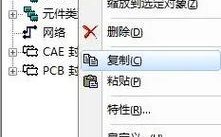
| COPY (CO/CP) | Copies an object. | CO (Enter) > Select object > Click base point > Click new location. |
| ROTATE (RO) | Rotates an object. | RO (Enter) > Select object > Click base point > Type angle. |
| SCALE (SC) | Resizes an object. | SC (Enter) > Select object > Click base point > Type scale factor (e.g., 2 for 200%). |
| EXTEND (EX) | Extends an object to meet another. | EX (Enter) > Select boundary edge > Click object to extend. |
| OFFSET (O) | Creates a parallel copy of an object. | O (Enter) > Type distance > Select object > Click side to offset. |
| ARRAY (AR) | Creates multiple copies in a pattern. | AR (Enter) > Select object > Choose Rectangular/Polar > Specify settings. |
| ERASE (E) | Deletes objects. | E (Enter) > Select objects > Press Enter. |
| PAN (P) | Moves your view without moving objects. | P (Enter) > Click and drag to pan. |
| ZOOM (Z) | Changes your view's magnification. | Z (Enter) > E for Extents (zoom to fit all), W for Window (zoom to an area). |
Part 4: Pro Tips for Efficiency
- Master the Command Line: Typing commands is often faster than using the mouse. Learn the common aliases.
- Use Object Snap (OSNAP): This feature ensures your cursor snaps to precise geometric points (Endpoint, Midpoint, Center, etc.). Keep it turned on!
- Learn Layers: Always use layers. Create a layer for "Walls," "Doors," "Furniture," etc. Set different colors and linetypes for each layer to keep your drawing organized.
- Use Blocks: A block is a group of objects that you can save as a single object. If you have a door or a chair that you use often, turn it into a block. This makes editing and file size management much easier.
- Save Often: Use
Ctrl + Sor the QAT Save button constantly. AutoCAD can crash, and you don't want to lose hours of work.
Part 5: Where to Find More Resources
- Official AutoCAD Learning Hub: https://www.autodesk.com/learn - The best source for official tutorials, videos, and documentation.
- Autodesk University: https://www.autodesk.com/autodesk-university - Free online courses from experts.
- YouTube: Countless channels offer free tutorials. Search for "AutoCAD for beginners," "AutoCAD tutorial," or specific commands you want to learn.
- Online Courses: Platforms like Udemy, Coursera, and LinkedIn Learning have comprehensive, paid courses that are often very structured and in-depth.
This tutorial should give you a strong start. The key to mastering AutoCAD is practice. Try to recreate simple objects around you, and don't be afraid to experiment. Good luck