Of course! Here's a comprehensive guide to using urllib on a Mac, covering everything from basic setup to practical examples and troubleshooting.
The Short Answer: How to Use urllib
urllib is a standard Python library, meaning it comes pre-installed with Python. You don't need to install anything extra.
-
Open your Terminal (you can find it in
Applications/Utilitiesor search for it with Spotlight). -
Check your Python version:
python3 --version
(On newer macOS versions,
pythonmight point to Python 2.7, so it's best to usepython3explicitly). (图片来源网络,侵删)
 -
Run Python:
python3
-
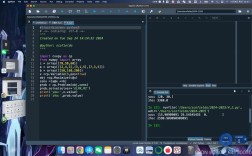
In the Python interpreter, you can start using
urllib:>>> import urllib.request >>> response = urllib.request.urlopen('https://www.python.org') >>> html = response.read() >>> print(html[:100]) # Print the first 100 bytes b'<!DOCTYPE html>\n<!--[if lt IE 7]> <html class="no-js ie6 lt-ie7 lt-ie8"> <![endif]-->\n<!--[if IE'
urllib on a Mac: A Detailed Guide
urllib is a collection of modules for working with URLs. The most common one you'll use is urllib.request.
Key Modules in urllib
urllib.request: For opening and reading URLs (like making HTTP requests). This is the workhorse.urllib.parse: For parsing URLs into components (like scheme, domain, path, query parameters).urllib.error: Contains exceptions raised byurllib.request.urllib.robotparser: For parsingrobots.txtfiles (less commonly used by developers).
Practical Example 1: Fetching a Web Page
This is the "Hello, World" of urllib. It fetches the HTML content of a webpage.
import urllib.request
import urllib.error
# The URL we want to fetch
url = 'https://www.python.org'
try:
    # Open the URL and get a response object
    with urllib.request.urlopen(url) as response:
        # Read the content of the response (the HTML)
        html = response.read()
        # The content is returned as bytes, so we decode it to a string
        html_string = html.decode('utf-8')
        # Print the first 500 characters
        print(html_string[:500])
except urllib.error.URLError as e:
    print(f"Failed to reach the server. Reason: {e.reason}")
except Exception as e:
    print(f"An error occurred: {e}")
What this code does:
import urllib.request: Imports the necessary module.urllib.request.urlopen(url): Opens the URL and returns a file-like object.response.read(): Reads the entire content from the response object.html.decode('utf-8'): Converts the byte string into a regular UTF-8 string, which is easier to work with.- The
withstatement ensures the network connection is properly closed.
Practical Example 2: Passing URL Parameters
Often, you need to send data to a server, like in a search query. This is done by adding parameters to the URL. urllib.parse.urlencode is perfect for this.
Let's say we want to search for "python" on a hypothetical search API.
import urllib.request
import urllib.parse
# The base URL for the search API
base_url = 'https://api.example.com/search'
# The parameters we want to send
query_params = {
    'q': 'python',
    'sort': 'relevance',
    'page': 1
}
# Encode the dictionary of parameters into a query string
# This turns {'q': 'python'} into 'q=python'
encoded_params = urllib.parse.urlencode(query_params)
# Combine the base URL with the encoded parameters
# The '?' is the standard separator for a URL and its query string
full_url = f"{base_url}?{encoded_params}"
print(f"Fetching URL: {full_url}")
try:
    with urllib.request.urlopen(full_url) as response:
        data = response.read()
        print("\nResponse received:")
        print(data.decode('utf-8'))
except urllib.error.URLError as e:
    print(f"Error fetching URL: {e.reason}")
Practical Example 3: Making a POST Request
A POST request is used to send data to a server to create or update a resource. This is common when submitting forms.
import urllib.request
import urllib.parse
import json
# The URL we are sending data to
url = 'https://httpbin.org/post' # httpbin.org is a great testing service
# Data to send in the POST request (as a dictionary)
post_data = {
    'username': 'macuser',
    'password': 's3cr3t'
}
# Encode the data to be sent in the request body
# We specify UTF-8 encoding
encoded_data = urllib.parse.urlencode(post_data).encode('utf-8')
# Create a request object
# We specify the method as 'POST' and add the data
req = urllib.request.Request(url, data=encoded_data, method='POST')
try:
    # Send the request and get the response
    with urllib.request.urlopen(req) as response:
        response_data = response.read()
        # httpbin.org returns JSON, so let's parse it
        json_response = json.loads(response_data.decode('utf-8'))
        print(json_response['form']) # Prints the data that was received by the server
except urllib.error.URLError as e:
    print(f"Error during POST request: {e.reason}")
Common Issues and Solutions on macOS
Issue 1: python vs python3
macOS comes with Python 2.7 pre-installed. If you type python, you'll likely use this old version, which has a different urllib structure.
Solution: Always use python3 in your Terminal to ensure you're using the modern, supported version of Python.
# Correct
python3 my_script.py
# Incorrect (likely uses Python 2.7)
python my_script.py
Issue 2: Proxy Settings
If you are on a corporate network or a school network, your Mac might be configured to use a proxy. urllib might fail to connect because it doesn't know about the proxy.
Symptom: urllib.error.URLError: <urlopen error [Errno 8] nodename nor servname provided, or not known>
Solution 1: Configure Proxy for urllib
You can tell urllib to use your system's proxy settings.
import urllib.request
# This will use the proxy settings defined in your macOS system preferences
proxy_support = urllib.request.ProxyHandler()
# Build an opener that uses this proxy
opener = urllib.request.build_opener(proxy_support)
# Install the opener. Now all urllib.request calls will use it.
urllib.request.install_opener(opener)
# Now your request will go through the proxy
try:
    with urllib.request.urlopen('https://www.python.org') as response:
        print(response.read().decode('utf-8')[:100])
except Exception as e:
    print(e)
Solution 2: Check System Proxy Settings
Go to System Settings > Network > select your active connection (e.g., Wi-Fi or Ethernet) > click Details... > Proxies. Make sure you understand the proxy configuration before telling Python to use it.
Issue 3: SSL Certificate Errors
On some older macOS versions or in specific corporate environments, you might encounter SSL certificate errors.
Symptom: urllib.error.URLError: <urlopen error [SSL: CERTIFICATE_VERIFY_FAILED] certificate verify failed...
Solution (Use with Caution): This is a workaround that disables SSL verification. This is less secure and should only be used if you understand the risks and are on a trusted network.
import urllib.request
import ssl
# Create an unverified SSL context
# This is a security risk, but can solve certificate issues
unverified_context = ssl._create_unverified_context()
url = 'https://www.python.org'
try:
    # Pass the context to urlopen
    with urllib.request.urlopen(url, context=unverified_context) as response:
        print(response.read().decode('utf-8')[:100])
except Exception as e:
    print(e)
Alternatives to urllib
While urllib is great and built-in, many developers prefer third-party libraries because they are often simpler and more powerful.
-
requests: The de facto standard for HTTP in Python. It's much more user-friendly.-
Installation:
pip3 install requests -
Example:
import requests
response = requests.get('https://www.python.org')
print(response.text[:100]) # .text automatically decodes the content
-
-
httpx: A modern, feature-rich library that supports both HTTP/1.1 and HTTP/2.
-
Installation:
pip3 install httpx -
Example:
import httpx
with httpx.Client() as client:
    response = client.get('https://www.python.org')
    print(response.text[:100])
-
For simple tasks, stick with urllib. For anything more complex, requests is highly recommended.