Of course! Here is a comprehensive guide on how to install and use VTK with Python on Ubuntu. This covers installation from the standard Ubuntu repositories (easy) and from source (more flexible, recommended for serious use).
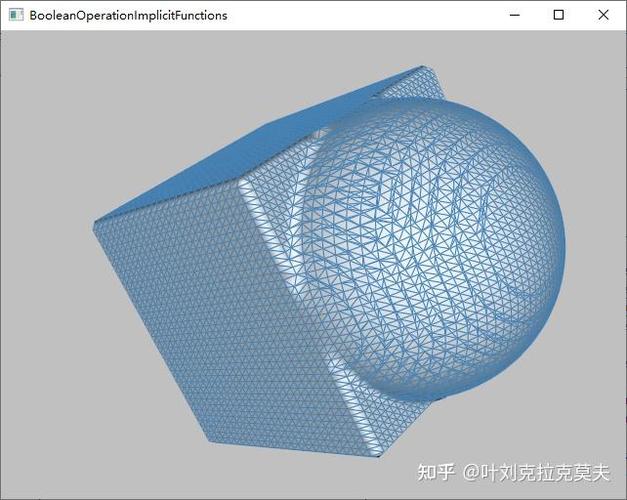
What is VTK?
Visualization Toolkit (VTK) is an open-source, software system for 3D graphics, image processing, and visualization. It's used heavily in scientific computing, medical imaging, CFD, and many other fields. Python is one of its most popular languages for scripting.
Method 1: Installing from Ubuntu's APT Repository (Easiest)
This is the simplest way to get started. It uses the python3-vtk package managed by Ubuntu's package manager.
Pros:
- Very easy, one command.
- Automatically handles dependencies.
- Integrated with your system's Python.
Cons:
- The version of VTK might be several years old and lack the latest features and bug fixes.
- It might not be compatible with the latest versions of NumPy or other scientific Python packages.
Step 1: Update Your System
First, it's always good practice to update your package lists and upgrade existing packages.
sudo apt update
sudo apt upgrade -y
Step 2: Install Python3 and VTK
Ubuntu usually comes with Python3 pre-installed. If not, you can install it. Then, install the VTK package for Python3.
# Install python3 and pip if not already present
sudo apt install -y python3 python3-pip
# Install the VTK package for Python3
sudo apt install -y python3-vtk
Step 3: Verify the Installation
Open a Python interpreter and try to import VTK. This command will also print the installed version.
python3 -c "import vtk; print('VTK version:', vtk.VTK_VERSION)"
If you see a VTK version number printed, the installation was successful!
Example Script (hello_vtk_apt.py):
Create a simple script to render a sphere.
import vtk
# Create a sphere source
sphere_source = vtk.vtkSphereSource()
sphere_source.SetCenter(0.0, 0.0, 0.0)
sphere_source.SetRadius(1.0)
sphere_source.SetThetaResolution(30)
sphere_source.SetPhiResolution(30)
# Create a mapper and actor
mapper = vtk.vtkPolyDataMapper()
mapper.SetInputConnection(sphere_source.GetOutputPort())
actor = vtk.vtkActor()
actor.SetMapper(mapper)
# Create a renderer, render window, and interactor
renderer = vtk.vtkRenderer()
render_window = vtk.vtkRenderWindow()
render_window.AddRenderer(renderer)
render_window_interactor = vtk.vtkRenderWindowInteractor()
render_window_interactor.SetRenderWindow(render_window)
# Add the actor to the scene
renderer.AddActor(actor)
renderer.SetBackground(0.1, 0.2, 0.4) # Set background color to a blue
# Start rendering and interaction
render_window.Render()
render_window_interactor.Start()
Run the script from your terminal:
python3 hello_vtk_apt.py
A window should appear showing a blue sphere. You can use your mouse to rotate it.
Method 2: Installing from Source (Recommended)
This method gives you the latest version of VTK and allows you to build it with specific features (like Qt or OpenGL2/3 support) and Python bindings.
Pros:
- Latest features and bug fixes.
- Better performance options.
- More control over the build process.
Cons:
- More complex, requires installing build dependencies.
- Can take a significant amount of time to compile.
Step 1: Install Build Dependencies
You need a C++ compiler, CMake (the build system), and other essential libraries.
sudo apt update
sudo apt install -y build-essential cmake git
Step 2: Install Python and VTK's Python Dependencies
VTK requires numpy for array handling. We'll also install pip to easily install other packages.
sudo apt install -y python3-dev python3-pip
# Install numpy, which is required by VTK
python3 -m pip install --user numpy
Note: Using python3 -m pip install --user installs packages to your user directory, avoiding the need for sudo.
Step 3: Download VTK Source Code
We'll use git to clone the official VTK repository from GitHub.
# Go to your home directory or a projects folder
cd ~
# Clone the VTK repository (this downloads the latest development version)
# For a stable release, you can use a tag, e.g., git clone --branch v9.2.0 https://github.com/Kitware/VTK.git VTK
git clone https://github.com/Kitware/VTK.git
cd VTK
Step 4: Configure and Build VTK with CMake
This is the most critical step. We will use CMake to configure the build, specifically telling it to build the Python 3 bindings.
# Create a directory for the build files (good practice)
mkdir build
cd build
# Run CMake to configure the project
# -DCMAKE_BUILD_TYPE=Release: Optimized build for performance.
# -DVTK_WRAP_PYTHON=ON: This is essential! It enables Python wrapping.
# -DVTK_PYTHON_VERSION=3: Explicitly tell VTK to build for Python 3.
cmake -DCMAKE_BUILD_TYPE=Release -DVTK_WRAP_PYTHON=ON -DVTK_PYTHON_VERSION=3 ..
If the CMake command succeeds, you will see a long list of configuration options ending with Configuring done.
Step 5: Compile VTK
Now, compile the source code. This can take a long time (from 30 minutes to several hours, depending on your CPU).
# Use -j to parallelize the build (use a number close to your CPU core count)
# For example, if you have 8 cores, use -j8
make -j8
Step 6: Install VTK
After the compilation is complete, install the built libraries and Python modules.
sudo make install
This will copy the necessary files to your system's library paths and Python site-packages.
Step 7: Verify the Installation
Check if the new, source-built version of VTK is recognized.
python3 -c "import vtk; print('VTK version:', vtk.VTK_VERSION)"
You should see a much newer version number compared to the APT installation.
Basic VTK Concepts and a "Hello World" Example
VTK programs generally follow a data processing pipeline:
- Source: An object that generates geometric data (e.g., a sphere, a cone).
- Filter: An object that processes the data (e.g., extract edges, apply a warp).
- Mapper: An object that converts the processed data into graphics primitives (points, lines, polygons).
- Actor: An object that has properties (color, position) and is placed in the scene.
- Renderer: A scene that contains actors and a camera.
- RenderWindow: A window on your screen that contains one or more renderers.
- RenderWindowInteractor: An object that handles user input (mouse, keyboard) to control the camera.
Here is a more complete example demonstrating these concepts.
Example Script (advanced_rendering.py):
This script creates a sphere, applies a filter to get its edges, and renders both the original sphere and its edges.
import vtk
# --- 1. Create a source (a sphere) ---
sphere_source = vtk.vtkSphereSource()
sphere_source.SetCenter(0.0, 0.0, 0.0)
sphere_source.SetRadius(1.0)
sphere_source.SetThetaResolution(50)
sphere_source.SetPhiResolution(50)
# --- 2. Create a filter to get the edges of the sphere ---
edges_filter = vtk.vtkExtractEdges()
edges_filter.SetInputConnection(sphere_source.GetOutputPort())
# --- 3. Create mappers for the sphere and its edges ---
# Mapper for the solid sphere
sphere_mapper = vtk.vtkPolyDataMapper()
sphere_mapper.SetInputConnection(sphere_source.GetOutputPort())
# Mapper for the wireframe edges
edges_mapper = vtk.vtkPolyDataMapper()
edges_mapper.SetInputConnection(edges_filter.GetOutputPort())
# --- 4. Create actors ---
# Actor for the solid sphere
sphere_actor = vtk.vtkActor()
sphere_actor.SetMapper(sphere_mapper)
sphere_actor.GetProperty().SetColor(1.0, 0.5, 0.3) # Orange color
# Actor for the edges
edges_actor = vtk.vtkActor()
edges_actor.SetMapper(edges_mapper)
edges_actor.GetProperty().SetColor(0.0, 0.8, 1.0) # Cyan color
edges_actor.GetProperty().SetLineWidth(2.0)
# --- 5. Create a renderer ---
renderer = vtk.vtkRenderer()
renderer.SetBackground(0.1, 0.2, 0.4) # Dark blue background
renderer.AddActor(sphere_actor)
renderer.AddActor(edges_actor)
# --- 6. Create a render window ---
render_window = vtk.vtkRenderWindow()
render_window.AddRenderer(renderer)
render_window.SetSize(800, 600)
render_window.SetWindowName("VTK Advanced Rendering")
# --- 7. Create an interactor ---
render_window_interactor = vtk.vtkRenderWindowInteractor()
render_window_interactor.SetRenderWindow(render_window)
# --- 8. Start the interaction ---
print("Rendering window. Use mouse to interact.")
render_window.Render()
render_window_interactor.Start()
To run this script:
python3 advanced_rendering.py
This will open a window showing an orange sphere with cyan edges, which you can rotate and zoom.