Of course! matplotlib is the most fundamental and widely-used plotting library in Python. It's incredibly powerful and flexible, allowing you to create static, animated, and interactive visualizations.
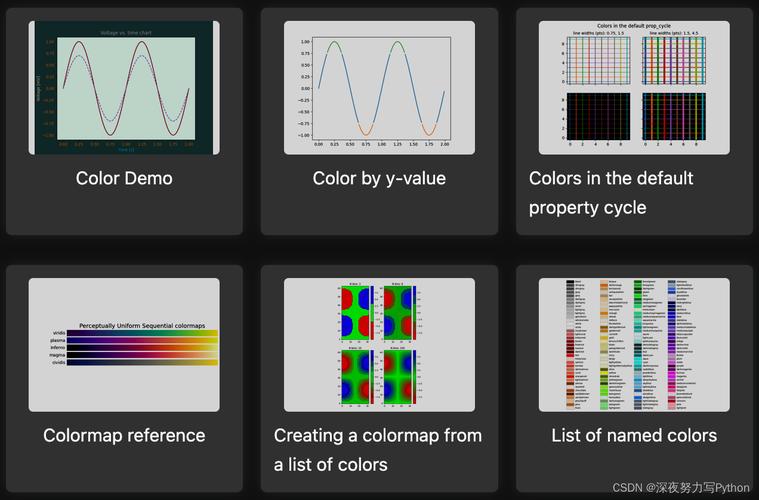
Here's a comprehensive guide covering everything from the basics to more advanced topics.
What is Matplotlib?
At its core, Matplotlib is a plotting library for the Python programming language and its numerical mathematics extension, NumPy. It provides an object-oriented API for embedding plots into applications using general-purpose GUI toolkits like Tkinter, wxPython, Qt, or GTK.
The most important thing to understand is the pyplot module. It's a collection of functions that make Matplotlib work like MATLAB. Each function call modifies a figure (e.g., creates a figure, creates a plotting area in a figure, plots some lines in a plotting area, decorates the plot with labels, etc.).
The "Hello World" of Matplotlib
Let's start by creating the simplest possible plot: a line plot.

First, make sure you have it installed:
pip install matplotlib numpy
Now, here's the basic code:
import matplotlib.pyplot as plt
import numpy as np
# 1. Prepare the data
x = np.linspace(0, 10, 100) # Create 100 evenly spaced points from 0 to 10
y = np.sin(x)               # Calculate the sine of each x value
# 2. Create the plot
plt.plot(x, y)              # Plot x and y using the default settings
# 3. Add labels and a title"Sine Wave")
plt.xlabel("X-axis")
plt.ylabel("Y-axis")
# 4. Display the plot
plt.show()
What this code does:
import matplotlib.pyplot as plt: Imports the necessary module, using the conventional aliasplt.import numpy as np: We use NumPy to easily generate the data for our plot.plt.plot(x, y): This is the core function. It takes the x and y data and creates a line plot by connecting the points.plt.title(),plt.xlabel(),plt.ylabel(): These functions add metadata to make the plot understandable.plt.show(): This function opens a window and displays your plot. Without it, the script would run but you wouldn't see anything.
Anatomy of a Matplotlib Figure
Understanding the components of a Matplotlib figure is key to customizing your plots.
- Figure: The overall window or page that everything is drawn on. You can have multiple figures in one script.
- Axes: This is what you would typically think of as a "plot." A single
Figurecan contain multipleAxes. It's the area where the data is plotted, including the x and y axis, ticks, labels, etc. - Axis: The x-axis and y-axis, which include the tick labels and line.
- Artist: Everything you can see on the figure is an artist (e.g.,
Figure,Axes,Line2D,Text).
Common Plot Types
Matplotlib can create a huge variety of plots. Here are the most common ones.
a) Line Plot (plt.plot)
We've already seen this. It's the default plot type.
plt.plot(x, y, label='sin(x)')
plt.plot(x, np.cos(x), label='cos(x)') # Plot another line on the same axes
plt.legend() # Add a legend to distinguish the lines
plt.show()
b) Scatter Plot (plt.scatter)
Used to show the relationship between two variables. Each point is plotted individually.
# Generate random data
x = np.random.rand(50)
y = np.random.rand(50)
colors = np.random.rand(50)
sizes = 1000 * np.random.rand(50)
plt.scatter(x, y, c=colors, s=sizes, alpha=0.5, cmap='viridis')
plt.colorbar() # Show color scale"Scatter Plot")
plt.show()
c) Bar Chart (plt.bar)
Useful for comparing discrete categories.
categories = ['A', 'B', 'C', 'D']
values = [15, 30, 45, 10]
plt.bar(categories, values, color=['red', 'blue', 'green', 'orange'])"Bar Chart")
plt.ylabel("Values")
plt.show()
d) Histogram (plt.hist)
Shows the distribution of a single dataset by binning the data into intervals.
data = np.random.randn(1000) # 1000 random numbers from a standard normal distribution
plt.hist(data, bins=30, color='purple', alpha=0.7)"Histogram")
plt.xlabel("Value")
plt.ylabel("Frequency")
plt.show()
e) Pie Chart (plt.pie)
Displays a set of categories as "slices" of a whole.
sizes = [15, 30, 45, 10]
labels = ['A', 'B', 'C', 'D']
explode = (0, 0.1, 0, 0) # "Explode" the second slice
plt.pie(sizes, explode=explode, labels=labels, autopct='%1.1f%%',
        shadow=True, startangle=90)
plt.axis('equal')  # Equal aspect ratio ensures that pie is drawn as a circle."Pie Chart")
plt.show()
Customization and Styling
You have fine-grained control over every element of your plot.
a) Line and Marker Styles
plt.plot(x, np.sin(x), color='blue', linestyle='--', linewidth=2, marker='o', markersize=8)"Customized Line Plot")
plt.show()
color: Sets the color (e.g.,'blue','g','#FF5733').linestyle: Sets the style (e.g., solid, dashed, dotted).linewidth: Sets the thickness of the line.marker: Sets the marker style (e.g.,'o'circle,'s'square,'^'triangle).markersize: Sets the size of the markers.
b) Text and Annotations
plt.plot(x, np.sin(x))"Annotated Plot")
plt.xlabel("X-axis")
plt.ylabel("Y-axis")
# Add text at a specific point
plt.text(5, 0.5, "Peak here!", fontsize=12, ha='center')
# Add an arrow pointing to a point
plt.annotate('Maximum',
             xy=(np.pi/2, 1),      # xy: point to annotate
             xytext=(2, 0.5),      # xytext: position of the text
             arrowprops=dict(facecolor='black', shrink=0.05))
plt.show()
c) Legends (plt.legend)
Legends identify different plot elements. The label argument in plt.plot is crucial.
plt.plot(x, np.sin(x), label='sin(x)')
plt.plot(x, np.cos(x), label='cos(x)')
plt.legend(loc='upper right') # loc can be 'upper left', 'lower right', etc.
plt.show()
Multiple Plots (Subplots)
You can display multiple plots within the same figure using plt.subplots().
The plt.subplots() function returns a figure object and an array of axes objects.
Method 1: plt.subplots() (Recommended)
# Create a figure and a set of subplots (2 rows, 1 column)
fig, axes = plt.subplots(2, 1, figsize=(8, 6)) # figsize is (width, height) in inches
# Plot on the first subplot
axes[0].plot(x, np.sin(x), 'r-')
axes[0].set_title('Sine Wave')
axes[0].set_ylabel('sin(x)')
# Plot on the second subplot
axes[1].plot(x, np.cos(x), 'b--')
axes[1].set_title('Cosine Wave')
axes[1].set_xlabel('X-axis')
axes[1].set_ylabel('cos(x)')
# Adjust layout to prevent labels from overlapping
plt.tight_layout()
plt.show()
Method 2: plt.subplot() (The "old" way)
plt.figure(figsize=(8, 6))
# First subplot (2 rows, 1 column, 1st plot)
plt.subplot(2, 1, 1)
plt.plot(x, np.sin(x), 'r-')'Sine Wave')
# Second subplot (2 rows, 1 column, 2nd plot)
plt.subplot(2, 1, 2)
plt.plot(x, np.cos(x), 'b--')'Cosine Wave')
plt.tight_layout()
plt.show()
Saving Plots
You can save your figure to a file using plt.savefig(). It's important to call this before plt.show(), as plt.show() clears the figure.
plt.plot(x, np.sin(x))"Sine Wave to be Saved")
# Save as PNG, SVG, PDF, etc.
# dpi is dots per inch (resolution)
plt.savefig('sine_wave.png', dpi=300, bbox_inches='tight')
plt.show()
Advanced: Object-Oriented API
For complex figures, using the object-oriented (OO) API is more powerful and less error-prone. Instead of calling functions on a global plt state, you get explicit control over the Figure and Axes objects.
The pattern is:
fig, ax = plt.subplots()- Call methods on the
axobject:ax.plot(),ax.set_title(),ax.legend(), etc.
This is the preferred method for non-trivial plotting.
# Create figure and axes objects
fig, ax = plt.subplots(figsize=(10, 6))
# Use the Axes object's methods
ax.plot(x, np.sin(x), label='sin(x)', color='blue')
ax.plot(x, np.cos(x), label='cos(x)', color='red', linestyle='--')
ax.set_title("Advanced Plot with OO API", fontsize=16)
ax.set_xlabel("X-axis", fontsize=12)
ax.set_ylabel("Y-axis", fontsize=12)
ax.legend()
ax.grid(True) # Add a grid
# You can even modify the figure object
fig.suptitle("Figure Suptitle", fontsize=20, y=1.02)
plt.show()
This approach is much cleaner when you have multiple subplots, as you can loop through the axes array.
fig, axes = plt.subplots(2, 2, figsize=(10, 8))
axes = axes.flatten() # Flatten the 2D array of axes for easy iteration
functions = [np.sin, np.cos, np.tan, np.exp]s = ['Sine', 'Cosine', 'Tangent', 'Exponential']
for i, (ax, func, title) in enumerate(zip(axes, functions, titles)):
    ax.plot(x, func(x))
    ax.set_title(title)
    ax.grid(True)
plt.tight_layout()
plt.show()