Of course! "Report builder" in Python can mean several different things, from simple scripts that generate text or CSV files to sophisticated libraries that create interactive, data-rich PDFs or web dashboards.
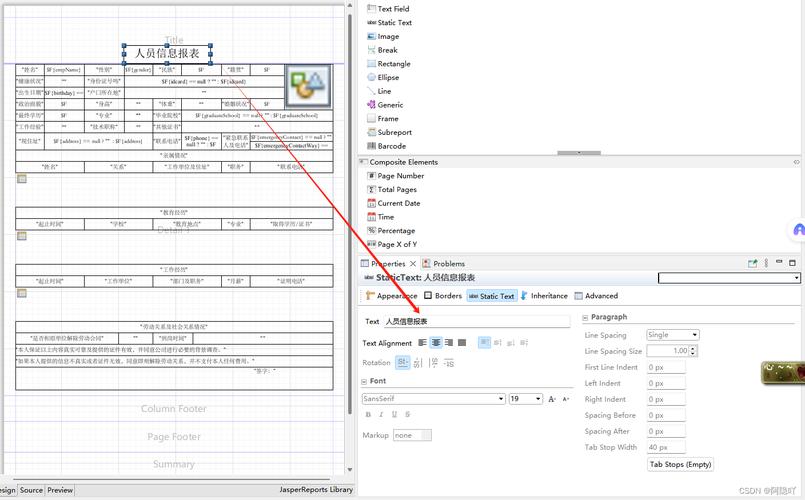
Let's break down the most common approaches, from simplest to most powerful, with code examples for each.
The Simple Approach: Scripting with Standard Libraries
This is the most fundamental way to build a report. You use Python's built-in libraries to fetch data, process it, and write it to a file. This is perfect for automated, text-based, or CSV reports that can be emailed or saved to a network drive.
Key Libraries:
csv: For writing data to Comma-Separated Values files.json: For writing data to JSON files.email/smtplib: For sending the report as an attachment.sqlite3: For querying a local database.
Example: Generating a CSV Report

Let's say you have a list of sales records and want to generate a CSV report.
import csv
# Sample data - in a real scenario, this would come from a database or API
sales_data = [
    {'date': '2025-10-26', 'product': 'Laptop', 'amount': 1200},
    {'date': '2025-10-27', 'product': 'Mouse', 'amount': 25},
    {'date': '2025-10-28', 'product': 'Keyboard', 'amount': 75},
    {'date': '2025-10-29', 'product': 'Monitor', 'amount': 300},
]
# Define the filename for the report
report_filename = 'sales_report.csv'
# Write the data to a CSV file
with open(report_filename, 'w', newline='') as csvfile:
    # Define the column headers
    fieldnames = ['date', 'product', 'amount']
    # Create a DictWriter object
    writer = csv.DictWriter(csvfile, fieldnames=fieldnames)
    # Write the header row
    writer.writeheader()
    # Write the data rows
    writer.writerows(sales_data)
print(f"Report '{report_filename}' generated successfully.")
This produces a sales_report.csv file that can be opened in Excel or any spreadsheet software.
The Powerful Approach: Generating PDF Reports
For professional, formatted reports that need to be printed or archived as a single file, PDF is the standard. Python has excellent libraries for this.
Key Libraries:
ReportLab: The most comprehensive and powerful library for creating complex PDFs from scratch. It's a bit verbose but gives you full control.FPDF2: A simpler, more user-friendly alternative to ReportLab. Great for basic to moderate PDFs.WeasyPrint: A modern library that uses HTML and CSS for styling. This is often the best choice if you already know web development, as it separates content (HTML) from presentation (CSS).
Example with WeasyPrint (Recommended for its simplicity)
First, install it: pip install weasyprint
The idea is to create an HTML template and a CSS file for styling, then use WeasyPrint to render them into a PDF.
report_template.html
<!DOCTYPE html>
<html>
<head>Sales Report</title>
    <style>
        body { font-family: sans-serif; }
        h1 { color: #333; border-bottom: 2px solid #ccc; }
        table { width: 100%; border-collapse: collapse; margin-top: 20px; }
        th, td { border: 1px solid #ddd; padding: 8px; text-align: left; }
        th { background-color: #f2f2f2; }
    </style>
</head>
<body>
    <h1>Monthly Sales Report</h1>
    <p>Generated on: 2025-10-31</p>
    <table>
        <thead>
            <tr>
                <th>Date</th>
                <th>Product</th>
                <th>Amount ($)</th>
            </tr>
        </thead>
        <tbody>
            <!-- Data will be inserted here by Python -->
            {% for sale in sales_data %}
            <tr>
                <td>{{ sale.date }}</td>
                <td>{{ sale.product }}</td>
                <td>{{ sale.amount }}</td>
            </tr>
            {% endfor %}
        </tbody>
    </table>
</body>
</html>
generate_pdf_report.py
from jinja2 import Template # A templating engine to fill the HTML
from weasyprint import HTML
import datetime
# Sample data
sales_data = [
    {'date': '2025-10-26', 'product': 'Laptop', 'amount': 1200},
    {'date': '2025-10-27', 'product': 'Mouse', 'amount': 25},
    {'date': '2025-10-28', 'product': 'Keyboard', 'amount': 75},
    {'date': '2025-10-29', 'product': 'Monitor', 'amount': 300},
]
# 1. Read the HTML template
with open('report_template.html', 'r') as f:
    html_template = f.read()
# 2. Use Jinja2 to render the template with data
template = Template(html_template)
final_html = template.render(sales_data=sales_data, generation_date=datetime.date.today())
# 3. Convert the HTML to a PDF
HTML(string=final_html).write_pdf("sales_report.pdf")
print("PDF report 'sales_report.pdf' generated successfully.")
This approach is highly maintainable because designers can work on the HTML/CSS while developers work on the Python logic.
The Modern Approach: Interactive Web Dashboards
For reports that require user interaction, filtering, and real-time updates, a web dashboard is the best solution. Libraries like Dash and Streamlit make this incredibly easy.
Key Libraries:
Dashby Plotly: A powerful framework for building analytical web applications purely in Python. It's more flexible and feature-rich.Streamlit: A newer, simpler library that's fantastic for quickly building data apps with minimal code. It's less customizable but much faster to get started with.
Example with Streamlit (Easiest to start)
First, install it: pip install streamlit pandas plotly
Create a Python file (e.g., dashboard.py).
import streamlit as st
import pandas as pd
import plotly.express as px
# Set the page title
st.set_page_config(page_title="Sales Dashboard", layout="wide")
# --- Data ---
# In a real app, you would load this from a database or CSV
sales_data = {
    'date': ['2025-10-26', '2025-10-27', '2025-10-28', '2025-10-29', '2025-10-30'],
    'product': ['Laptop', 'Mouse', 'Keyboard', 'Monitor', 'Laptop'],
    'amount': [1200, 25, 75, 300, 1100],
    'region': ['NA', 'EU', 'NA', 'APAC', 'EU']
}
df = pd.DataFrame(sales_data)
df['date'] = pd.to_datetime(df['date'])
# --- Dashboard Layout ---
st.title("📊 Sales Dashboard")
# 2. Filters
st.sidebar.header("Filters")
selected_regions = st.sidebar.multiselect(
    "Select Region",
    options=df['region'].unique(),
    default=df['region'].unique()
)
# Filter the dataframe based on selection
filtered_df = df[df['region'].isin(selected_regions)]
# 3. Key Metrics (KPIs)
total_sales = filtered_df['amount'].sum()
average_sale = filtered_df['amount'].mean()
total_transactions = len(filtered_df)
col1, col2, col3 = st.columns(3)
with col1:
    st.metric(label="Total Sales", value=f"${total_sales:,.2f}")
with col2:
    st.metric(label="Average Sale", value=f"${average_sale:,.2f}")
with col3:
    st.metric(label="Total Transactions", value=total_transactions)
# 4. Visualizations
st.header("Sales Over Time")
# Create a line chart using Plotly
fig = px.line(filtered_df, x='date', y='amount', title='Daily Sales Trend')
st.plotly_chart(fig, use_container_width=True)
st.header("Sales by Product")
# Create a bar chart
product_sales = filtered_df.groupby('product')['amount'].sum().reset_index()
fig2 = px.bar(product_sales, x='product', y='amount', title='Total Sales per Product')
st.plotly_chart(fig2, use_container_width=True)
# 5. Data Table
st.header("Underlying Data")
st.dataframe(filtered_df.sort_values('date', ascending=False))
# To run this app, save the file and run in your terminal:
# streamlit run dashboard.py
The Enterprise Approach: Business Intelligence (BI) Tools
For large organizations, the best "report builder"