Of course! Using SublimeREPL with Python is a fantastic way to create an interactive coding environment directly inside Sublime Text. It's perfect for quick testing, learning, and interactive data analysis without leaving your favorite editor.
Here is a comprehensive, step-by-step guide to setting it up and using it effectively.
What is SublimeREPL?
SublimeREPL is a Sublime Text package that embeds a Read-Eval-Print Loop (REPL) for various programming languages, including Python, directly into a Sublime Text tab. This allows you to write code in one pane and execute it line-by-line or in blocks in an interactive terminal pane within the same window.
Step 1: Install SublimeREPL
The easiest way to install packages in Sublime Text is through the Package Control.
-
Install Package Control: If you don't have it already, follow the instructions at https://packagecontrol.io/installation. This is a one-time installation.
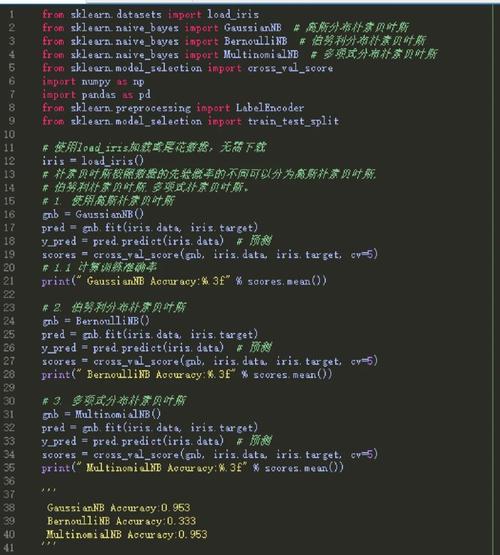 (图片来源网络,侵删)
 -
Open the Command Palette:
- Windows/Linux:
Ctrl + Shift + P - macOS:
Cmd + Shift + P
- Windows/Linux:
-
Install the Package:
- Type
Package Control: Install Packageand press Enter. - Wait for the package list to load.
- Type
SublimeREPLand select it from the list.
- Type
Package Control will handle the download and installation. You may need to restart Sublime Text for it to be fully recognized.
Step 2: Configure SublimeREPL (Optional but Recommended)
The default configuration works, but you can customize it to make it more powerful. The most common customization is to set the default Python interpreter to the one you use for development (e.g., a virtual environment).
-
Open the User Preferences:
- Go to
Preferences > Settings(orSublime Text > Preferences > Settingson macOS). - This will open your
Preferences.sublime-settingsfile. Click the "Settings - User" tab at the bottom to edit your user-specific settings.
- Go to
-
Add the Configuration:
- Add the following JSON object to your user settings file. This tells SublimeREPL to use the
python3interpreter from your system's PATH. If you use a virtual environment, you would point to thepythonexecutable inside that environment'sbin(orScriptson Windows) folder.
{ "default_extend_env": { "PYTHONPATH": "${project}:${packages}" }, "repl_python_run": "python3" }default_extend_env: This is useful for making sure your project's modules and SublimeREPL's own packages are available in the REPL'sPYTHONPATH.repl_python_run: This is the command that will be executed to start the Python REPL. You can change"python3"to"python"or to the full path of your interpreter, e.g.,"C:/Users/YourUser/venvs/myenv/Scripts/python.exe"on Windows or"/Users/YourUser/venvs/myenv/bin/python"on macOS/Linux.
- Add the following JSON object to your user settings file. This tells SublimeREPL to use the
Step 3: How to Use SublimeREPL for Python
There are two primary ways to interact with the Python REPL.
Method 1: Interactive REPL (The Classic Way)
This method opens a new tab with a Python prompt, just like in your terminal.
- Open the Command Palette (
Ctrl+Shift+P). - Type
SublimeREPL: Python - RUN current fileand press Enter.- Note: The exact name might be slightly different depending on your version. Look for anything with "Python" and "RUN".
- A new tab will open, showing a Python REPL (
>>>prompt). - You can now type Python commands directly into this tab and press Enter to execute them.
>>> print("Hello from SublimeREPL!")
Hello from SublimeREPL!
>>> 2 + 2
4
>>> my_list = [1, 2, 3]
>>> my_list
[1, 2, 3]
Method 2: Run Selection/Line (The Power-User Way)
This is the most common and powerful workflow. You execute code directly from your Python source file.
-
Open a new
.pyfile (e.g.,main.py) and write some code.# main.py import math import time def greet(name): print(f"Hello, {name}!") return len(name) # --- Let's test this --- # greet("Alice") # greet("Bob") -
To run a single line:
- Place your cursor on the line
greet("Alice"). - Open the Command Palette (
Ctrl+Shift+P). - Select
SublimeREPL: Python - Run current line. - Look at the REPL tab (you might need to switch to it). You will see the output:
>>> greet("Alice")
Hello, Alice!
5
>>>
- Place your cursor on the line
-
To run a selection of code:
- Select the two lines
greet("Alice")andgreet("Bob")in yourmain.pyfile. - Open the Command Palette (
Ctrl+Shift+P). - Select
SublimeREPL: Python - Run selection or current line. - The output in the REPL tab will be:
>>> greet("Alice")
Hello, Alice!
5
>>> greet("Bob")
Hello, Bob!
3
>>>
- Select the two lines
Step 4: Useful Keyboard Shortcuts
Typing out the commands from the palette is slow. It's highly recommended to create your own keyboard shortcuts.
-
Open the Key Bindings:
- Go to
Preferences > Key Bindings(orSublime Text > Preferences > Key Bindingson macOS). - Click the "Key Bindings - User" tab.
- Go to
-
Add Shortcuts:
- Add the following JSON to your user key bindings file. These are common and useful shortcuts.
[ // Open a new REPL tab { "keys": ["ctrl+shift+r"], "command": "repl_open", "caption": "Python - RUN", "args": {"type": "subprocess", "encoding": "utf8", "cmd": ["python3", "-i"], "cwd": "$file_path", "syntax": "Packages/Python/Python.tmLanguage"}}, // Run the current selection or line in the active REPL { "keys": ["ctrl+shift+e"], "command": "repl_run_selection_or_line", "caption": "Python - Run Selection/Line" }, // Send the current file to the REPL to be executed { "keys": ["ctrl+shift+f"], "command": "repl_send_python", "caption": "Python - Run Current File" } ]ctrl+shift+r: Opens a new Python REPL. You can change this key combination to whatever you like.ctrl+shift+e: Executes the selected code or the current line in the currently active REPL window. This is your most-used shortcut.ctrl+shift+f: Executes the entire file in the REPL.
Troubleshooting
-
"SublimeREPL: Python - ..." commands don't appear in the palette.
- Make sure SublimeREPL was installed correctly via Package Control.
- Restart Sublime Text.
- Check the console (
View > Show Console) for any error messages during startup.
-
The REPL uses the wrong Python version (e.g., Python 2).
- This is why the configuration in Step 2 is important. Edit your
Preferences.sublime-settingsand ensure the"repl_python_run"key points to the correct executable (e.g.,"python3"or"python").
- This is why the configuration in Step 2 is important. Edit your
-
Import errors in the REPL.
- The REPL runs in a separate subprocess. If your code relies on files in your project, make sure your project is open in Sublime Text (it creates a working directory context). The
"default_extend_env"setting in Step 2 helps with this.
- The REPL runs in a separate subprocess. If your code relies on files in your project, make sure your project is open in Sublime Text (it creates a working directory context). The
-
Shortcuts don't work.
- Check your
Key Bindings - Userfile for syntax errors (like missing commas or brackets). SublimeREPL's default shortcuts might conflict with others. The ones provided above are a safe starting point.
- Check your