Of course! uiautomator is a powerful and popular Python library for automating Android UI tests. It acts as a bridge between your Python script and the Android UI framework, allowing you to simulate user interactions like clicks, swipes, and text input.
Here's a comprehensive guide covering everything from setup to advanced usage.
What is UIAutomator?
uiautomator is an Android framework that allows you to test UI components of your application or any other application on the device. The Python library uiautomator2 is a modern, community-driven wrapper that makes it incredibly easy to use this framework from Python scripts.
Key Features:
- Cross-App Testing: Automate interactions between different apps.
- Deep UI Access: Inspect the UI hierarchy to find elements by text, resource ID, content description, or other properties.
- Rich Interaction Set: Perform clicks, long clicks, swipes, drag-and-drop, and more.
- Hardware Actions: Simulate pressing hardware buttons (Home, Back, Volume).
- Network Control: Take screenshots, screen recordings, and fetch device logs.
- Installation Management: Can automatically install the necessary helper APK on your device.
Prerequisites
Before you start, you need:
-
A Physical Android Device or an Emulator:
- Device: Enable Developer Options and USB Debugging.
- Emulator: Use Android Studio or AVD Manager to create a virtual device with Google Play Services.
-
Python 3: Installed on your computer.
-
ADB (Android Debug Bridge): This is the command-line tool that communicates with your device. It usually comes with the Android SDK Platform Tools. Make sure
adbis in your system's PATH.- Check ADB: Open your terminal or command prompt and run
adb version. If it's installed, you'll see the version number.
- Check ADB: Open your terminal or command prompt and run
Installation
The most recommended library is uiautomator2. It's actively maintained and much easier to use than the original uiautomator.
pip install --pre uiautomator2
--preis used to install the pre-release version, which often has the latest features and bug fixes.
First-Time Setup (Initialization)
The first time you use uiautomator2, you need to initialize it on your device. This will install a helper APK (atx-agent) on your device that the Python script will communicate with.
-
Connect your device/emulator and ensure ADB can see it:
adb devices
You should see your device's serial listed with
devicenext to it. -
Run the initialization command from your Python script or the command line:
python -m uiautomator2 init
This will:
- Check your device connection.
- Push the
atx-agentAPK to your device. - Install and start the agent.
- You will see a "Toast" message on your device saying "UIAutomator2 server is running".
Your First Script: A "Hello World" Example
Let's write a simple script to open the Settings app and find the "About phone" option.
Connect to the Device:
import uiautomator2 as u2
# Connect to the device (can be serial or IP address)
# If only one device is connected, you can just use this:
d = u2.connect()
# Or specify the serial if you have multiple devices:
# d = u2.connect("emulator-5554")
# Or connect via Wi-Fi (more stable, faster after initial setup)
# First, connect via USB and run `python -m uiautomator2 --no-init` to get the IP
# d = u2.connect("192.168.1.10:5555")
Perform Actions and Interact with UI Elements:
import uiautomator2 as u2
import time
# Connect to the device
d = u2.connect()
print("Device Info:", d.info)
# 1. Open the Settings app
print("Opening Settings app...")
d.app_start("com.android.settings")
time.sleep(2) # Wait for the app to load
# 2. Find and click the "About phone" element
# We can find it by its text
about_phone_element = d(text="About phone")
if about_phone_element.exists:
    print("Found 'About phone'. Clicking it...")
    about_phone_element.click()
    time.sleep(1)
else:
    print("Could not find 'About phone' element. Exiting.")
    exit()
# 3. Get the device name from the "Model number" field
# We find the element with the text "Model number" and get its sibling
model_element = d(text="Model number")
if model_element.exists:
    # The value is usually in a TextView that comes after the label
    # We can use a sibling selector
    model_value = model_element.sibling(className='android.widget.TextView').get_text()
    print(f"Model Number: {model_value}")
# 4. Go back to the home screen
print("Going back to home screen...")
d.press("home")
# 5. Stop the Settings app
print("Stopping Settings app...")
d.app_stop("com.android.settings")
print("Script finished.")
Core Concepts and API
The Device Object (d)
This is the main entry point to all device functions. It's created by u2.connect().
Finding UI Elements
The most powerful feature is finding elements. The d object has several methods for this:
d(resourceId="..."): Find by the Android resource ID (most reliable).d(text="..."): Find by visible text.d(description="..."): Find by content description (used for accessibility).d(className="android.widget.TextView"): Find by class name.d(index=0): Find by its index among siblings.- Combining them:
d(text="Save", className="android.widget.Button")
You can chain these to narrow down your search:
d(resourceId="com.example.app:id/login_container").child(text="Username")
Element Object Methods
Once you have an element object (e.g., my_element = d(text="OK")), you can call methods on it:
my_element.click(): Clicks the element.my_element.long_click(): Long-presses the element.my_element.exists: A boolean property,Trueif the element is currently on screen.my_element.enabled: Checks if the element is enabled.my_element.get_text(): Gets the visible text of the element.my_element.get_info(): Returns a dictionary with detailed info about the element (bounds, resource-id, text, etc.).my_element.swipe("up", 0.5): Swipes up from the center of the element.
Common Device Methods
d.press("home"),d.press("back"),d.press("enter"): Simulate hardware button presses.d.screenshot("my_screenshot.png"): Takes a screenshot and saves it.d.toast.get_message(): Gets the message from the most recent Toast.d.app_start("com.package.name"),d.app_stop("com.package.name"),d.app_clear("com.package.name"): Control apps.d.orientation("landscape"): Changes device orientation.d.drag(x1, y1, x2, y2, duration=0.5): Drags from one point to another.
Advanced Usage & Best Practices
Wi-Fi Connection (Recommended for CI/CD)
Running tests over Wi-Fi is much faster and more stable for long-running test suites.
- Connect your device to the same Wi-Fi network as your computer.
- Connect your device to your computer via USB.
- Get the device's IP address:
adb shell ifconfig | grep "inet " - Run the initialization over Wi-Fi:
python -m uiautomator2 --no-init -s <DEVICE_IP>
(The
--no-initflag prevents re-installing the APK if it's already there). - Now you can connect in your Python script using the IP:
d = u2.connect("192.168.1.10:5555") # Port 5555 is default
Handling Dynamic Content and Waits
UI elements don't always appear instantly. Hardcoding time.sleep() is brittle. It's better to use explicit waits.
uiautomator2 provides a wait method on elements.
# Wait up to 10 seconds for the "Login Success" toast to appear
# Returns the element if found, or None if the timeout is reached
toast_element = d.toast.get_message(wait_timeout=10.0, wait_interval=1.0)
if toast_element and "Login Success" in toast_element:
    print("Login was successful!")
else:
    print("Login failed or toast message not found.")
You can also create a small helper function for waiting for any element:
def wait_for_element(selector, timeout=10):
    """Waits for an element to become visible."""
    end_time = time.time() + timeout
    while time.time() < end_time:
        if selector.exists:
            return selector
        time.sleep(0.5)
    return None
# Usage
login_button = d(resourceId="com.example.app:id/btn_login")
if wait_for_element(login_button):
    login_button.click()
else:
    raise Exception("Login button did not appear within the timeout.")
Inspecting the UI Hierarchy
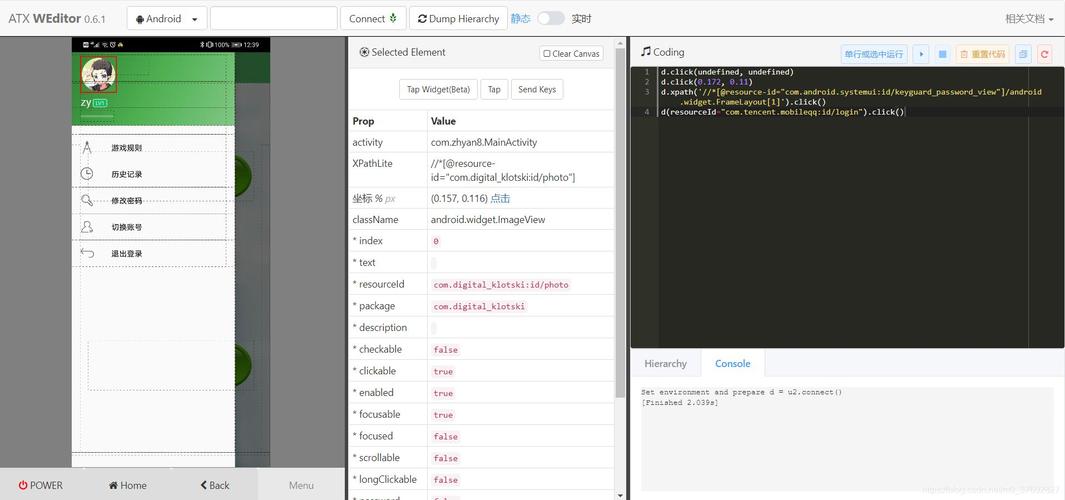
The hardest part of UI automation is finding the right selector. uiautomator2 has a built-in inspector to help you.
Run this command in your terminal:
python -m uiautomator2
This will start a local web server (usually at http://localhost:9000). Open this URL in your browser. You will see a live representation of your device's screen. You can tap on any element, and it will show you the exact resourceId, text, className, and other properties you can use in your Python script. This is an indispensable tool.
Alternatives
- Appium: The industry standard for mobile automation. It's more complex and supports multiple platforms (iOS, Android) and multiple languages (Python, Java, JavaScript, etc.). It uses
uiautomator2(for Android) under the hood. Choose Appium if you need cross-platform support or are working in a large, standardized QA team. - Espresso: Google's official UI testing framework for Android. It's incredibly fast and reliable but requires writing the tests in Java/Kotlin and integrating them into an Android project. It's not for scripting from a separate Python environment.
- Airtest: Another great Python-based UI automation framework. It's similar to
uiautomator2but also has built-in image recognition capabilities, which can be useful for elements that are hard to find by text or ID.
Summary
| Feature | uiautomator2 |
Appium | Espresso |
|---|---|---|---|
| Language | Python | Python, Java, JS, etc. | Java, Kotlin |
| Platform | Android | Android, iOS | Android |
| Setup | Very Easy | Moderate | Complex (Android project) |
| Best For | Fast Python scripting, device control, CI/CD | Cross-platform, enterprise, standardized QA | Unit & UI testing within Android app development |
| UI Inspector | Excellent (built-in web) | Good (Appium Inspector) | Good (Android Studio) |
For most Python developers and testers who need to automate Android devices, uiautomator2 is the best choice due to its simplicity, power, and excellent community support.