Of course! Connecting to a MySQL database from a Java application is a fundamental task. Here’s a comprehensive guide covering everything you need to know, from the basic setup to best practices and troubleshooting.
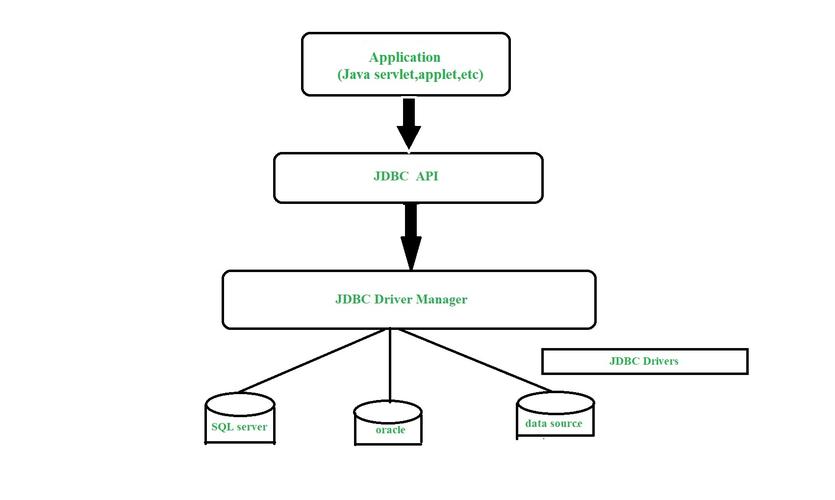
Overview
The process involves these key steps:
- Get the MySQL JDBC Driver: This is the Java library that acts as a bridge between your Java code and the MySQL database.
- Add the Driver to Your Project: Make the driver library available to your application.
- Write the Java Code: Use JDBC (Java Database Connectivity) API to establish a connection, execute queries, and process results.
- Handle Resources: Always close your connections, statements, and result sets to prevent resource leaks.
Step 1: Get the MySQL JDBC Driver
The official driver is called Connector/J. You can get it in two ways:
Option A: Using a Build Tool (Recommended for most projects)
If you're using Maven or Gradle, this is the easiest way to manage dependencies.
For Maven (pom.xml):
Add this dependency to your pom.xml file. Check the MySQL Connector/J repository for the latest version.
<dependency>
    <groupId>com.mysql</groupId>
    <artifactId>mysql-connector-j</artifactId>
    <version>8.0.33</version> <!-- Use the latest version -->
</dependency>
For Gradle (build.gradle or build.gradle.kts):
Add this line to your dependencies block.
// build.gradle
implementation 'com.mysql:mysql-connector-j:8.0.33' // Use the latest version
Option B: Manual Download (For projects without a build tool)
- Go to the official MySQL Connector/J download page: https://dev.mysql.com/downloads/connector/j/
- Select the Platform Independent (Architecture Independent), ZIP Archive version.
- Download and unzip the file.
- Inside the
mysql-connector-j-<version>-bin.jaris the driver JAR file you need to add to your project's classpath.
Step 2: Write the Java Connection Code
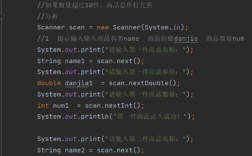
Here is a complete, well-commented example of how to connect to a MySQL database, execute a simple query, and display the results.
Prerequisites
- A running MySQL server.
- A database created on that server.
- A user with privileges on that database.
For this example, let's assume you have the following setup:
- Database Name:
testdb - Table Name:
users - Table Structure:
CREATE TABLE users ( id INT AUTO_INCREMENT PRIMARY KEY, name VARCHAR(100) NOT NULL, email VARCHAR(100) NOT NULL UNIQUE ); - Username:
java_user - Password:
secure_password
Complete Java Example (DatabaseExample.java)
import java.sql.Connection;
import java.sql.DriverManager;
import java.sql.ResultSet;
import java.sql.SQLException;
import java.sql.Statement;
public class DatabaseExample {
    // --- Database Connection Details ---
    // For MySQL 8.0+, use the 'com.mysql.cj.jdbc.Driver' class name.
    // For older versions (5.x), use 'com.mysql.jdbc.Driver'.
    private static final String DB_URL = "jdbc:mysql://localhost:3306/testdb?useSSL=false&serverTimezone=UTC";
    private static final String USER = "java_user";
    private static final String PASS = "secure_password";
    public static void main(String[] args) {
        // The 'try-with-resources' statement ensures that the connection is closed automatically.
        try (Connection conn = DriverManager.getConnection(DB_URL, USER, PASS)) {
            if (conn != null) {
                System.out.println("Connected to the database successfully!");
                // --- Create a statement ---
                // Statement is used to execute static SQL queries.
                Statement stmt = conn.createStatement();
                // --- Execute a query ---
                String sql = "SELECT id, name, email FROM users";
                ResultSet rs = stmt.executeQuery(sql);
                // --- Process the results ---
                System.out.println("\n--- User List ---");
                while (rs.next()) {
                    // Retrieve by column name is safer and more readable
                    int id = rs.getInt("id");
                    String name = rs.getString("name");
                    String email = rs.getString("email");
                    // Display values
                    System.out.print("ID: " + id);
                    System.out.print(", Name: " + name);
                    System.out.println(", Email: " + email);
                }
                System.out.println("------------------");
                // The 'try-with-resources' for the Statement and ResultSet will close them.
                // It's good practice to close them explicitly if not using try-with-resources.
                rs.close();
                stmt.close();
            }
        } catch (SQLException e) {
            System.err.println("Connection to database failed!");
            e.printStackTrace();
        }
    }
}
Step 3: Best Practices
Use try-with-resources
This is the modern, recommended way to handle resources like Connection, Statement, and ResultSet. It automatically closes them for you, even if an exception occurs, preventing resource leaks.
// Best Practice: Use try-with-resources
try (Connection conn = DriverManager.getConnection(...);
     Statement stmt = conn.createStatement();
     ResultSet rs = stmt.executeQuery("...")) {
    // Process results...
} catch (SQLException e) {
    // Handle exception
}
Use a Connection Pool
Creating a new database connection for every request is expensive and inefficient. A connection pool maintains a cache of open connections, which can be reused, dramatically improving performance.
Popular Java connection pools:
- HikariCP: Extremely fast and the de-facto standard. It's the default in Spring Boot.
- Apache DBCP
- c3p0
Example with HikariCP: First, add the dependency:
<!-- Maven -->
<dependency>
    <groupId>com.zaxxer</groupId>
    <artifactId>HikariCP</artifactId>
    <version>5.0.1</version> <!-- Use the latest version -->
</dependency>
Then, modify your code:
import com.zaxxer.hikari.HikariConfig;
import com.zaxxer.hikari.HikariDataSource;
import java.sql.Connection;
import java.sql.ResultSet;
import java.sql.Statement;
public class HikariCPExample {
    public static void main(String[] args) {
        HikariConfig config = new HikariConfig();
        config.setJdbcUrl("jdbc:mysql://localhost:3306/testdb?useSSL=false&serverTimezone=UTC");
        config.setUsername("java_user");
        config.setPassword("secure_password");
        config.addDataSourceProperty("cachePrepStmts", "true");
        config.addDataSourceProperty("prepStmtCacheSize", "250");
        config.addDataSourceProperty("prepStmtCacheSqlLimit", "2048");
        // The HikariDataSource manages the pool
        try (HikariDataSource ds = new HikariDataSource(config);
             Connection conn = ds.getConnection();
             Statement stmt = conn.createStatement();
             ResultSet rs = stmt.executeQuery("SELECT name FROM users")) {
            while (rs.next()) {
                System.out.println(rs.getString("name"));
            }
        } catch (SQLException e) {
            e.printStackTrace();
        }
    }
}
Use PreparedStatement to Prevent SQL Injection
If you are accepting user input for your queries, never concatenate it into a string. Use PreparedStatement to safely parameterize your queries.
// BAD - Vulnerable to SQL Injection
String userInput = "admin' OR '1'='1";
String sql = "SELECT * FROM users WHERE name = '" + userInput + "'";
// GOOD - Safe and Prevents SQL Injection
String sqlSafe = "SELECT * FROM users WHERE name = ?";
try (Connection conn = DriverManager.getConnection(...);
     PreparedStatement pstmt = conn.prepareStatement(sqlSafe)) {
    // Set the value for the first placeholder (?)
    pstmt.setString(1, userInput);
    ResultSet rs = pstmt.executeQuery();
    // ...
}
Common Errors and Troubleshooting
| Error Message | Possible Cause | Solution |
|---|---|---|
No suitable driver found for jdbc:mysql://... |
The MySQL JDBC driver JAR is not in your project's classpath. | If using Maven/Gradle, ensure the dependency is correctly added and your IDE has refreshed the project. 2. If using a manual JAR, add it to your Run Configuration's classpath. |
Access denied for user 'user'@'host' |
The username or password is incorrect, or the user does not have permission to connect to the database from the machine where your Java app is running (e.g., localhost). |
Check credentials. In MySQL, grant permissions: GRANT ALL PRIVILEGES ON testdb.* TO 'java_user'@'localhost' IDENTIFIED BY 'secure_password'; then FLUSH PRIVILEGES;. |
| `Communications link |