Of course! Here is a comprehensive guide covering everything you need to know about using MySQL with Python on Ubuntu. We'll break it down into several key sections:
- Prerequisites: Ensuring you have the necessary system tools.
- Install MySQL Server: Setting up the database on your Ubuntu machine.
- Create a Database and User: Essential first steps for your application.
- Install the Python MySQL Connector: The library that links Python and MySQL.
- Connect and Interact with Python: Writing Python code to connect, query, and manipulate data.
- Best Practices: Security and code structure tips.
- Troubleshooting: Common issues and their solutions.
Prerequisites
Before you start, make sure your system's package list is up to date. Open your terminal and run:
sudo apt update
sudo apt upgrade -y
Install MySQL Server on Ubuntu
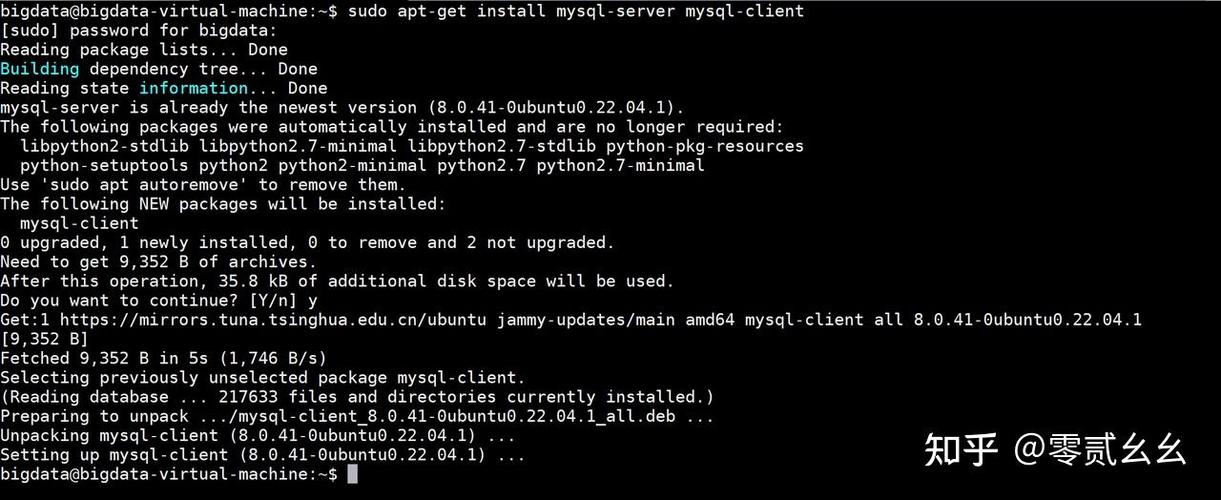
If you don't already have a MySQL server running, you'll need to install it.
Step 1: Install MySQL Server
sudo apt install mysql-server -y
Step 2: Secure Your Installation
The mysql_secure_installation script is a command-line utility that helps you improve the security of your MySQL installation. It will walk you through setting a root password, removing anonymous users, disallowing remote root login, and more.
sudo mysql_secure_installation
You will be prompted with a series of questions. Here are the recommended answers for a typical development setup:
- "VALIDATE PASSWORD PLUGIN?":
Y(Yes) is good for production, but for development, you can chooseN(No) to avoid password complexity rules. - "Set root password?":
Y(Yes). Set a strong password and remember it. - "Remove anonymous users?":
Y(Yes). This is a security best practice. - "Disallow root login remotely?":
Y(Yes). For security, the root user should only be accessible fromlocalhost. - "Remove test database and access to it?":
Y(Yes). You don't need these for a standard application. - "Reload privilege tables now?":
Y(Yes). This applies the changes you just made.
Step 3: Verify MySQL is Running
sudo systemctl status mysql
You should see active (running) in the output. If not, start it with sudo systemctl start mysql.
Create a Database and a Dedicated User
It's a bad practice to use the root user for your application. Let's create a new database and a user with privileges only on that database.
Step 1: Log in to the MySQL Shell
You'll need the root password you set in the previous step.
sudo mysql -u root -p
Step 2: Run SQL Commands
Once inside the MySQL shell, execute the following commands. Remember to replace 'your_strong_password' with a secure password.
-- Create a new database
CREATE DATABASE myapp_db;
-- Create a new user and grant privileges on the new database
-- The '%' means the user can connect from any host. For local-only, use 'localhost'.
CREATE USER 'myapp_user'@'localhost' IDENTIFIED BY 'your_strong_password';
-- Grant all privileges on the new database to the new user
GRANT ALL PRIVILEGES ON myapp_db.* TO 'myapp_user'@'localhost';
-- Apply the changes immediately
FLUSH PRIVILEGES;
-- Exit the MySQL shell
EXIT;
Install the Python MySQL Connector
The standard and most recommended library for connecting Python to MySQL is mysql-connector-python. It's maintained by Oracle and is pure Python, which makes installation easy.
Step 1: Install using pip
It's best practice to use a Python virtual environment to manage project dependencies.
# Create and activate a virtual environment
python3 -m venv venv
source venv/bin/activate
# Install the connector
pip install mysql-connector-python
Connect and Interact with Python (Code Examples)
Now for the fun part! Let's write Python code to connect to the database we created.
Create a new file, for example, db_manager.py.
import mysql.connector
from mysql.connector import Error
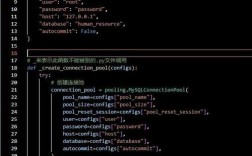
def create_server_connection(host_name, user_name, user_password):
    """Establishes a connection to the MySQL server."""
    connection = None
    try:
        connection = mysql.connector.connect(
            host=host_name,
            user=user_name,
            passwd=user_password
        )
        print("MySQL connection successful")
    except Error as e:
        print(f"The error '{e}' occurred")
    return connection
def create_db_connection(host_name, user_name, user_password, db_name):
    """Establishes a connection to a specific MySQL database."""
    connection = None
    try:
        connection = mysql.connector.connect(
            host=host_name,
            user=user_name,
            passwd=user_password,
            database=db_name
        )
        print(f"Successfully connected to the database '{db_name}'")
    except Error as e:
        print(f"The error '{e}' occurred")
    return connection
def execute_query(connection, query):
    """Executes a single query (INSERT, UPDATE, DELETE)."""
    cursor = connection.cursor()
    try:
        cursor.execute(query)
        connection.commit()
        print("Query successful")
    except Error as e:
        print(f"The error '{e}' occurred")
def execute_read_query(connection, query):
    """Executes a query and returns the results (SELECT)."""
    cursor = connection.cursor(dictionary=True) # dictionary=True gives rows as dicts
    result = None
    try:
        cursor.execute(query)
        result = cursor.fetchall()
        return result
    except Error as e:
        print(f"The error '{e}' occurred")
# --- Main Execution ---
if __name__ == "__main__":
    # Connection details for the server
    db_host = "localhost"
    db_user = "myapp_user"
    db_password = "your_strong_password" # Use the password you set for myapp_user
    # 1. Connect to the MySQL server and create the database (if it doesn't exist)
    # Note: We use the root user here to have the necessary privileges.
    # For a real app, you'd pre-create the database.
    connection_to_server = create_server_connection(db_host, "root", "your_root_password")
    if connection_to_server:
        create_database_query = "CREATE DATABASE IF NOT EXISTS myapp_db"
        execute_query(connection_to_server, create_database_query)
        connection_to_server.close()
    # 2. Connect to the specific database
    connection = create_db_connection(db_host, db_user, db_password, "myapp_db")
    if connection:
        # 3. Create a table
        create_users_table_query = """
        CREATE TABLE IF NOT EXISTS users (
          id INT AUTO_INCREMENT PRIMARY KEY,
          name VARCHAR(255) NOT NULL,
          email VARCHAR(255) NOT NULL UNIQUE,
          registration_date DATE NOT NULL
        );
        """
        execute_query(connection, create_users_table_query)
        # 4. Insert data into the table
        insert_user_query = "INSERT INTO users (name, email, registration_date) VALUES (%s, %s, %s)"
        user_data = ("John Doe", "john.doe@example.com", "2025-10-26")
        cursor = connection.cursor()
        cursor.execute(insert_user_query, user_data)
        connection.commit() # Commit the transaction
        print(f"Successfully inserted user with ID: {cursor.lastrowid}")
        # 5. Query data from the table
        select_users_query = "SELECT * FROM users"
        users = execute_read_query(connection, select_users_query)
        for user in users:
            print(user)
        # 6. Update data
        update_user_query = "UPDATE users SET name = 'Jane Doe' WHERE id = 1"
        execute_query(connection, update_user_query)
        # 7. Query again to see the update
        updated_users = execute_read_query(connection, select_users_query)
        print("\nAfter update:")
        for user in updated_users:
            print(user)
        # 8. Delete data
        delete_user_query = "DELETE FROM users WHERE id = 1"
        execute_query(connection, delete_user_query)
        # 9. Query again to see the deletion
        final_users = execute_read_query(connection, select_users_query)
        print("\nAfter deletion:")
        if not final_users:
            print("Table is empty.")
        else:
            for user in final_users:
                print(user)
        # 10. Close the connection
        connection.close()
To run this script:
- Make sure your virtual environment is active (
source venv/bin/activate). - Save the code as
db_manager.py. - Important: Replace
'your_strong_password'and'your_root_password'with the actual passwords you set. - Run from your terminal:
python db_manager.py
Best Practices
-
Use Environment Variables: Never hardcode passwords or sensitive information in your code. Use a
.envfile and a library likepython-dotenvto manage them.-
Install:
pip install python-dotenv -
Create a
.envfile:DB_HOST=localhost DB_USER=myapp_user DB_PASSWORD=your_strong_password DB_NAME=myapp_db -
Load them in Python:
import os
from dotenv import load_dotenv
load_dotenv()
db_host = os.getenv("DB_HOST")
-
-
Use Connection Pooling: For applications with many database connections, creating a new connection for every request is inefficient. Use a connection pool to reuse connections.
mysql-connector-pythonsupports this. -
Always Sanitize Inputs: To prevent SQL Injection attacks, never use Python's string formatting (
f-strings, ) to insert variables directly into a query. Always use parameterized queries (as shown in theexecute_queryexample with%s). -
Use
withStatements for Connections: Themysql.connectorlibrary supports the context manager protocol (withstatement), which automatically closes the connection for you.with mysql.connector.connect( host="localhost", user="myapp_user", password="your_strong_password", database="myapp_db" ) as connection: cursor = connection.cursor() cursor.execute("SELECT * FROM users") # ... do work ... # Connection is automatically closed here
Troubleshooting
Problem: mysql.connector.errors.ProgrammingError: 1045 (28000): Access denied for user 'myapp_user'@'localhost' (using password: YES)
- Cause: The password is incorrect, or the user
myapp_userdoes not exist or doesn't have privileges. - Solution:
- Double-check that the password in your Python script matches the one you set for
myapp_user. - Log in to MySQL as root and verify the user exists and has the correct grants:
mysql -u root -p
SELECT host, user FROM mysql.user WHERE user = 'myapp_user';
SHOW GRANTS FOR 'myapp_user'@'localhost';
- Double-check that the password in your Python script matches the one you set for
Problem: ModuleNotFoundError: No module named 'mysql'
- Cause: You haven't installed the
mysql-connector-pythonpackage, or you are trying to run it outside of your activated virtual environment. - Solution:
- Make sure your virtual environment is active (
source venv/bin/activate). - Install the package:
pip install mysql-connector-python.
- Make sure your virtual environment is active (