Of course! The phrase "python open as file" refers to Python's built-in open() function, which is the primary way to handle files. It allows you to read from, write to, and interact with files on your computer's filesystem.
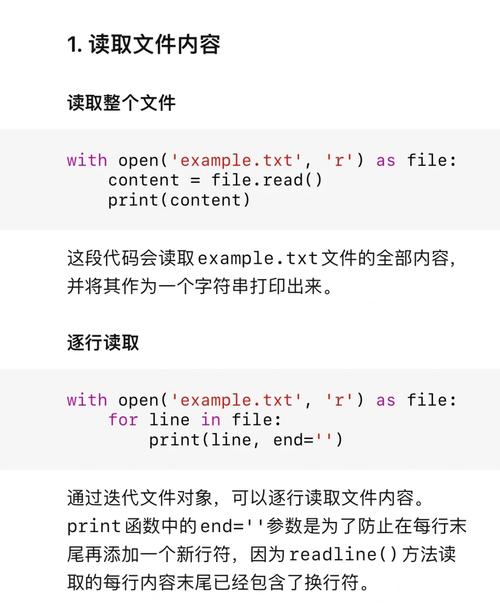
Here's a comprehensive guide covering everything from the basics to best practices.
The Basic Syntax
The open() function has a simple structure:
file_object = open(file_path, mode)
file_path: A string representing the path to the file. This can be a relative path (e.g.,my_data.txt) or an absolute path (e.g.,/Users/yourname/Documents/my_data.txt).mode: A string that specifies what you want to do with the file (e.g., read, write, append).
File Modes
The mode argument is crucial. Here are the most common ones:
| Mode | Description |
|---|---|
'r' |
Read (default). Opens the file for reading. Fails if the file doesn't exist. |
'w' |
Write. Opens the file for writing. Erases the file if it already exists. Creates the file if it doesn't exist. |
'a' |
Append. Opens the file for writing. Adds to the end of the file if it exists. Creates the file if it doesn't exist. |
'r+' |
Read and Write. Opens the file for both reading and writing. Fails if the file doesn't exist. |
'x' |
Exclusive Creation. Creates a new file. Fails if the file already exists. |
'b' |
Binary Mode. Used for non-text files (e.g., images, PDFs). Appended to other modes (e.g., 'rb', 'wb'). |
't' |
Text Mode (default). Appended to other modes for clarity (e.g., 'rt'). |
The with Statement (Crucial Best Practice)
When you open a file, it's essential to close it afterward to free up system resources. The with statement handles this automatically, even if errors occur. This is the recommended way to open files.
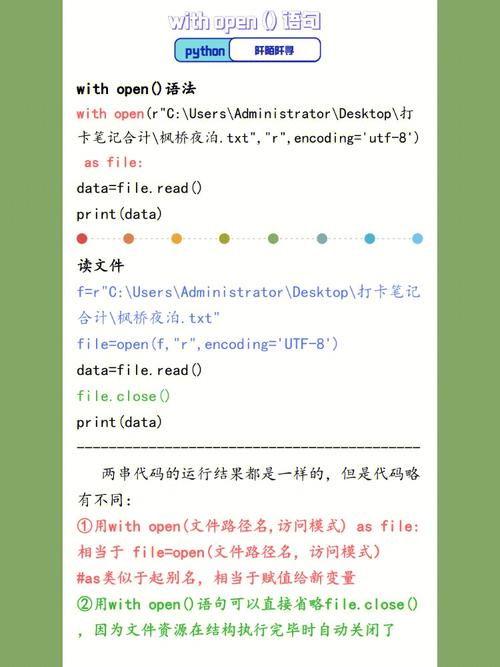
# The 'with' statement automatically closes the file when the block is exited.
with open('my_file.txt', 'r') as f:
    # Do something with the file 'f'
    content = f.read()
    # No need to call f.close() here!
Practical Examples
Let's assume we have a file named hello.txt with the following content:
Hello, World!
This is the second line.
Example 1: Reading a File ('r')
# Reading the entire file at once
with open('hello.txt', 'r') as f:
    content = f.read()
    print(content)
# Output:
# Hello, World!
# This is the second line.
# Reading line by line
with open('hello.txt', 'r') as f:
    print("--- Reading line by line ---")
    for line in f:
        print(line.strip()) # .strip() removes the trailing newline character
# Output:
# --- Reading line by line ---
# Hello, World!
# This is the second line.
# Reading a specific number of characters
with open('hello.txt', 'r') as f:
    first_five_chars = f.read(5)
    print(f"First 5 chars: '{first_five_chars}'")
# Output:
# First 5 chars: 'Hello'
# Reading all lines into a list
with open('hello.txt', 'r') as f:
    lines = f.readlines()
    print(f"All lines as a list: {lines}")
# Output:
# All lines as a list: ['Hello, World!\n', 'This is the second line.\n']
Example 2: Writing to a File ('w')
Warning: 'w' mode will overwrite the file if it already exists.
# Writing a single string
with open('new_file.txt', 'w') as f:
    f.write("This is the first line of the new file.\n")
    f.write("This is the second line.\n")
# Now, let's read it back to confirm
with open('new_file.txt', 'r') as f:
    print(f.read())
# Output:
# This is the first line of the new file.
# This is the second line.
Example 3: Appending to a File ('a')
This adds content to the end of an existing file without deleting it.
# Appending more text
with open('new_file.txt', 'a') as f:
    f.write("This line was appended at the end.\n")
# Read the file again to see the result
with open('new_file.txt', 'r') as f:
    print(f.read())
# Output:
# This is the first line of the new file.
# This is the second line.
# This line was appended at the end.
Example 4: Working with Binary Files ('rb', 'wb')
This is used for images, videos, executables, etc.
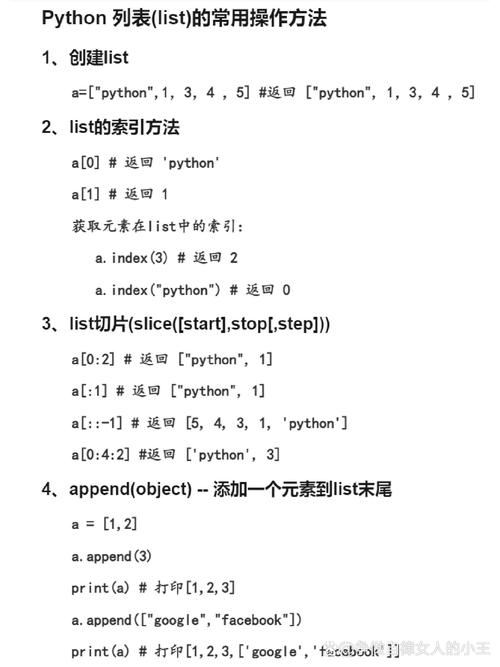
# Let's assume we have an image named 'my_image.png'
# Reading a binary file
try:
    with open('my_image.png', 'rb') as f:
        image_data = f.read()
        print(f"Read {len(image_data)} bytes from the image.")
except FileNotFoundError:
    print("Image file not found.")
# Writing a binary file
# Let's create a dummy binary file
binary_data = b'\x89PNG\r\n\x1a\n' # This is the start of a PNG file signature
with open('dummy_image.png', 'wb') as f:
    f.write(binary_data)
print("Created a dummy binary file.")
Handling Common Errors
-
FileNotFoundError: The file you're trying to read doesn't exist.try: with open('non_existent_file.txt', 'r') as f: content = f.read() except FileNotFoundError: print("Error: The file was not found.") -
PermissionError: You don't have the necessary permissions to access the file.try: # Trying to write to a protected system file with open('/etc/hosts', 'w') as f: f.write("some content") except PermissionError: print("Error: Permission denied.") -
UnicodeDecodeError: You're trying to read a binary file in text mode, or the file contains characters that can't be decoded using the default encoding.# This will likely fail if my_image.png is a real image file try: with open('my_image.png', 'r') as f: content = f.read() except UnicodeDecodeError: print("Error: Could not decode the file. It might be a binary file.")
Advanced: Specifying Encoding
It's a best practice to always specify the encoding when working with text files, especially to avoid issues with different operating systems (like Windows using cp1252 and Linux/macOS using utf-8).
# Explicitly specify UTF-8 encoding
with open('hello.txt', 'r', encoding='utf-8') as f:
    content = f.read()
    print(content)
This is particularly important when dealing with files that contain special characters (e.g., , , , ).