Of course! The "Python Qt Platform" is a powerful and popular combination for creating desktop applications. Let's break down what it is, how it works, the main tools you'll use, and how to get started.
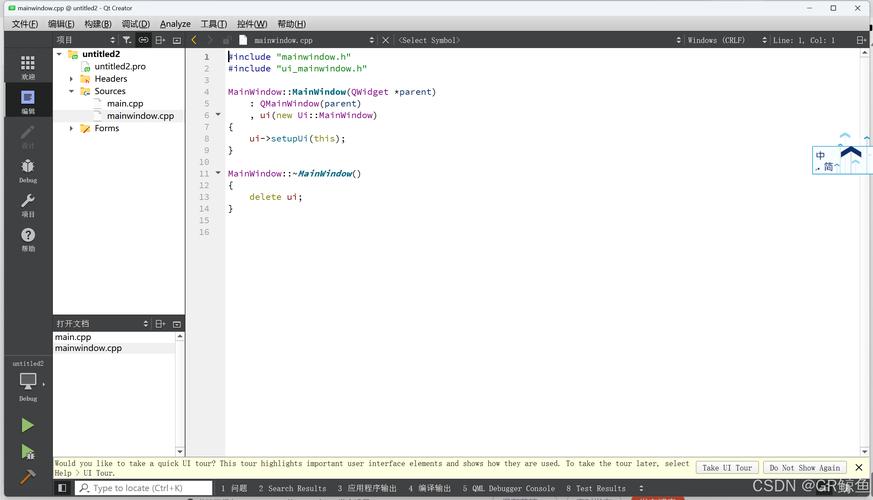
What is the "Python Qt Platform"?
At its core, it's the marriage of two key technologies:
- Python: A high-level, versatile, and easy-to-learn programming language. It's excellent for rapid development and has a massive ecosystem of libraries.
- Qt (pronounced "cute"): A mature, feature-rich, cross-platform framework for creating graphical user interfaces (GUIs). It's written in C++ but has bindings for many languages, including Python.
Together, they allow you to build professional-looking desktop applications that run on Windows, macOS, and Linux with minimal to no code changes.
The Key Components: Bindings vs. Wrappers
The "Python Qt Platform" isn't a single entity. It refers to how Python connects to the Qt C++ libraries. There are two main approaches:
A. PyQt
- What it is: A set of Python bindings for Qt. This means it directly maps Qt's C++ classes and functions to Python.
- How it works: PyQt uses a tool called
SIP(Python/C++ Integration Tool) to create a Python wrapper for each C++ class. When you call a PyQt method in Python, it's translated into a C++ call and executed by the Qt library. - License: PyQt is available under two licenses:
- GPL v3: If you develop an open-source application.
- Commercial License: Required if you develop proprietary, closed-source applications.
- Pros:
- Very mature and stable.
- Excellent performance as it's a direct binding.
- Comprehensive coverage of the Qt framework.
- Cons:
The dual licensing can be a concern for commercial projects.
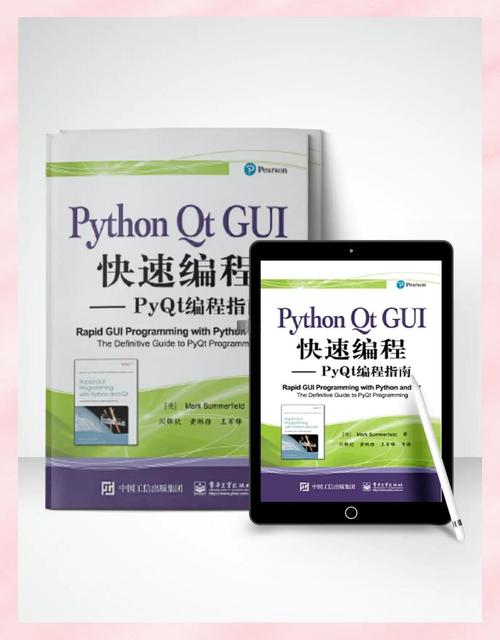 (图片来源网络,侵删)
B. PySide
- What it is: Officially known as PySide2 (for Qt5) and PySide6 (for Qt6), it is also a set of Python bindings for Qt.
- How it works: Very similar to PyQt, it's a direct mapping of Qt C++ classes to Python. It was originally created by Nokia (the same company behind Qt) to provide a fully open-source alternative to PyQt.
- License: LGPL v3. This is a more permissive license than the GPL. You can use PySide in proprietary, closed-source applications without needing to purchase a commercial license.
- Pros:
- Officially supported by The Qt Company.
- Uses the LGPL license, making it ideal for commercial projects.
- Nearly API-compatible with PyQt, making it easy to switch between them.
- Cons:
Historically slightly less mature than PyQt, but this gap has closed completely, especially with PySide6.
| Feature | PyQt | PySide (PySide2/PySide6) |
|---|---|---|
| License | GPL v3 or Commercial | LGPL v3 |
| Developer | Riverbank Computing | The Qt Company (Official) |
| Qt Version | PyQt5 (Qt5), PyQt6 (Qt6) | PySide2 (Qt5), PySide6 (Qt6) |
| API | Very similar to PySide | Very similar to PyQt |
| Recommendation | Great for open-source or those comfortable with GPL | Recommended for new projects, especially commercial ones. |
How to Build a Qt Application in Python: The Two Main Approaches
Once you've chosen PyQt or PySide, you need to decide how to build your application's user interface.
Approach 1: Code-Only (Programmatic UI)
You write Python code to create and arrange every single widget (buttons, labels, windows, etc.) in your application.
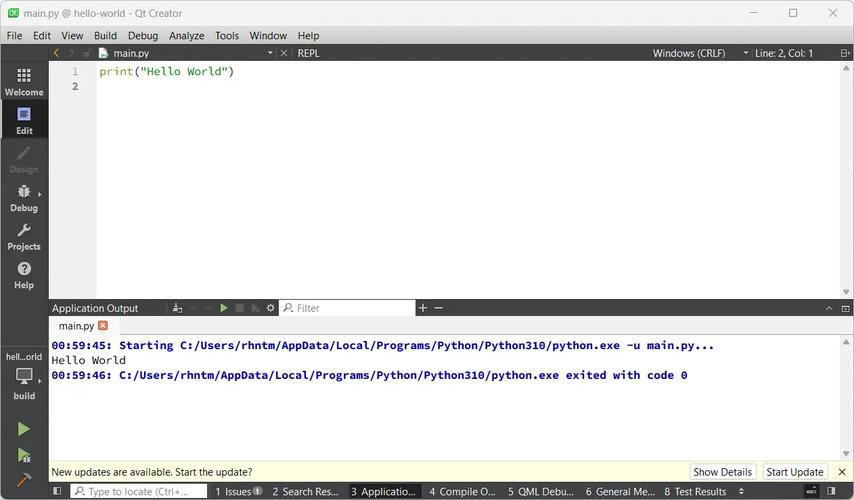
Example using PySide6:
import sys
from PySide6.QtWidgets import QApplication, QWidget, QVBoxLayout, QPushButton, QLabel
# 1. Create the application instance
app = QApplication(sys.argv)
# 2. Create the main window
window = QWidget()
window.setWindowTitle('My First App')
window.setGeometry(300, 300, 350, 200) # x, y, width, height
# 3. Create widgets
button = QPushButton('Click Me')
label = QLabel('Hello, World!')
label.setAlignment(Qt.AlignCenter)
# 4. Create a layout and add widgets to it
layout = QVBoxLayout()
layout.addWidget(label)
layout.addWidget(button)
# 5. Set the layout for the main window
window.setLayout(layout)
# 6. Show the window and start the application's event loop
window.show()
sys.exit(app.exec())
- Pros: Total control over the UI. No extra files to manage.
- Cons: Can become very complex and hard to maintain for non-trivial applications. Designing complex layouts by hand is tedious.
Approach 2: Qt Designer (Visual UI) + Python
This is the most common and recommended approach for larger projects.
- Design with Qt Designer: You use a visual drag-and-drop tool called Qt Designer to create your UI. It's included with both PyQt and PySide. You save your design as a
.uifile (an XML format). - Convert
.uito Python: You use a command-line tool (pyside6-uicfor PySide,pyuic6for PyQt) to convert the.uifile into a Python file that contains a class representing your UI. - Connect in Python: In your main Python script, you import the generated UI class and "connect" it to your application's logic.
Workflow Example:
-
Design in Qt Designer: Create a window with a
QLineEditand aQPushButton. Save it asmain_window.ui. -
Convert to Python:
# For PySide6
pyside6-uic main_window.ui -o ui_main_window.py
This creates
ui_main_window.py. -
Write the main application logic (
app.py):import sys from PySide6.QtWidgets import QApplication, QMainWindow from ui_main_window import Ui_MainWindow # Import the generated UI class class MainWindow(QMainWindow): def __init__(self): super(MainWindow, self).__init__() self.ui = Ui_MainWindow() # Create an instance of the UI self.ui.setupUi(self) # Set up the UI # Connect the button's 'clicked' signal to our custom slot self.ui.pushButton.clicked.connect(self.on_button_click) def on_button_click(self): # Get the text from the line edit and print it text = self.ui.lineEdit.text() print(f"Button clicked! Text is: {text}") self.ui.label.setText(f"Hello, {text}!") if __name__ == "__main__": app = QApplication(sys.argv) window = MainWindow() window.show() sys.exit(app.exec())
Installation and Getting Started
Prerequisites
You need Python and a C++ compiler toolchain. On Linux, you might need build-essential. On Windows, it's best to use a pre-compiled package from a site like Gohlke's or use an Anaconda distribution.
Installation (using pip)
For PySide6 (Recommended for new projects):
pip install PySide6
This will install PySide6, pyside6-uic, and pyside6-rcc (for resources).
For PyQt6:
pip install PyQt6
This will install PyQt6, pyuic6, and pyrcc6.
Key Concepts in Qt Programming
- Signals and Slots: This is Qt's mechanism for communication between objects. A signal is emitted by an object when a particular event occurs (e.g., a button is
clicked). A slot is a function that is called in response to a signal. You connect a signal to a slot. - Widgets: The basic building blocks of a Qt application (windows, buttons, labels, etc.).
- Layouts: Used to arrange widgets in a window automatically, so they resize correctly. Common layouts include
QVBoxLayout(vertical),QHBoxLayout(horizontal), andQGridLayout(grid). - MainWindow: A pre-built window class that typically includes a menu bar, toolbars, a status bar, and a central widget area.
Summary and Recommendation
| If you are... | Recommendation | Why? |
|---|---|---|
| Starting a new project | PySide6 | Official support, modern (Qt6), and the LGPL license is more flexible for most use cases. |
| Working on an existing PyQt5 project | Stick with PyQt5 or migrate to PySide2. | Compatibility is key. |
| Building an open-source app | PyQt6 or PySide6. | Both are excellent. PyQt's GPL is fine for open source. |
| Building a commercial app | PySide6. | The LGPL license allows you to use it in proprietary software without cost. |
For anyone starting today, PySide6 is the most recommended path forward for the Python Qt platform. It offers the best combination of official support, modern features, and licensing flexibility.