Of course. Here is a comprehensive guide to using pymssql with Python 3.6.

Understanding the Landscape: pymssql vs. pyodbc
Before we dive in, it's crucial to know that for Python 3.6, there are two primary libraries for connecting to Microsoft SQL Server:
pymssql: A pure Python implementation of the DB-API 2.0 specification. It's lightweight and has very few external dependencies. It's a great choice if you want a simple, self-contained library.pyodbc: A wrapper around the official Microsoft ODBC Driver for SQL Server. It's generally considered more robust, feature-complete, and performs better, especially for complex queries or large data volumes. It requires installing the ODBC driver.
For Python 3.6, both are viable options. This guide will focus on pymssql as requested, but I will provide a brief pyodbc section at the end for comparison.
Prerequisites
- Python 3.6: Ensure you have Python 3.6 installed.
- SQL Server: You need access to a SQL Server instance. This could be:
- A local installation of SQL Server Express, Developer, or Standard.
- A database on Azure SQL Database.
- A Docker container running SQL Server.
- Connection Details: You will need the following information to connect:
- Server Name (or IP address)
- Username
- Password
- Database Name (optional, can be specified later)
Installation
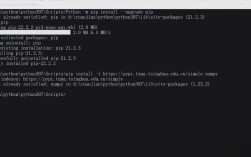
Installing pymssql on Python 3.6 is straightforward using pip.
Open your terminal or command prompt and run:
pip install pymssql
If you have multiple Python versions, you might need to be more specific:
python3.6 -m pip install pymssql
Basic Connection and Usage
Here is a complete, commented example demonstrating the most common database operations: connecting, executing a query, fetching data, inserting data, and handling errors.
import pymssql
import sys
# --- Connection Details ---
# Replace with your actual server, username, password, and database details
SERVER = 'your_server_name'  # e.g., 'localhost', 'server_name.database.windows.net'
USER = 'your_username'
PASSWORD = 'your_password'
DATABASE = 'your_database_name'
def main():
    """
    Main function to demonstrate pymssql operations.
    """
    connection = None
    try:
        # --- 1. Establish a connection ---
        print(f"Connecting to SQL Server '{SERVER}'...")
        connection = pymssql.connect(
            server=SERVER,
            user=USER,
            password=PASSWORD,
            database=DATABASE
        )
        print("Connection successful!")
        # --- 2. Create a cursor object ---
        # A cursor is used to execute SQL commands.
        cursor = connection.cursor()
        # --- 3. Execute a SELECT query ---
        print("\n--- Executing SELECT query ---")
        sql_select_query = "SELECT TOP 3 * FROM Employees;"
        cursor.execute(sql_select_query)
        # --- 4. Fetch the results ---
        # fetchone() retrieves a single row.
        # fetchall() retrieves all remaining rows.
        row = cursor.fetchone()
        while row:
            print(f"ID: {row[0]}, Name: {row[1]}, Role: {row[2]}")
            row = cursor.fetchone()
        # --- 5. Execute an INSERT query ---
        print("\n--- Executing INSERT query ---")
        # It's best practice to use parameterized queries to prevent SQL injection
        new_employee_name = 'Alice Smith'
        new_employee_role = 'Software Engineer'
        sql_insert_query = "INSERT INTO Employees (Name, Role) VALUES (%s, %s);"
        cursor.execute(sql_insert_query, (new_employee_name, new_employee_role))
        # Commit the transaction to make the change permanent
        connection.commit()
        print(f"Successfully inserted employee: {new_employee_name}")
        # --- 6. Verify the insert ---
        print("\n--- Verifying the INSERT ---")
        cursor.execute("SELECT ID, Name, Role FROM Employees WHERE Name = %s;", (new_employee_name,))
        inserted_row = cursor.fetchone()
        if inserted_row:
            print(f"Verification successful: ID: {inserted_row[0]}, Name: {inserted_row[1]}, Role: {inserted_row[2]}")
    except pymssql.Error as e:
        # --- 7. Handle errors ---
        print(f"Error connecting to or querying SQL Server: {e}")
        if connection:
            # Rollback any potential changes in case of error
            connection.rollback()
        sys.exit(1)
    finally:
        # --- 8. Close the connection ---
        # This block always runs, ensuring the connection is closed.
        if connection:
            connection.close()
            print("\nDatabase connection closed.")
if __name__ == '__main__':
    # Note: This example assumes a table named 'Employees' exists:
    # CREATE TABLE Employees (
    #     ID INT PRIMARY KEY IDENTITY(1,1),
    #     Name NVARCHAR(100),
    #     Role NVARCHAR(100)
    # );
    main()
Key Concepts from the Code:
pymssql.connect(...): Creates a connection object. This is the entry point for all database operations.connection.cursor(): Creates a cursor object, which is the workhorse for executing SQL.cursor.execute(sql, params): Executes a SQL command. Always use%splaceholders for parameters to prevent SQL injection. Pass parameters as a tuple.cursor.fetchone()/cursor.fetchall(): Methods to retrieve data from the executed query.connection.commit(): Crucial forINSERT,UPDATE, orDELETEqueries. It saves the changes to the database. Without it, changes are rolled back when the connection closes.connection.rollback(): Reverses any uncommitted changes. Useful intry...exceptblocks to maintain data integrity.connection.close(): Closes the connection, freeing up resources. Always do this. Thefinallyblock is the perfect place to ensure this happens.
Working with DataFrames (Pandas)
A very common use case is to fetch SQL data directly into a Pandas DataFrame for analysis.
First, install pandas:
pip install pandas
Then, you can use cursor.as_df():
import pymssql
import pandas as pd
# ... (connection details from before) ...
try:
    connection = pymssql.connect(server=SERVER, user=USER, password=PASSWORD, database=DATABASE)
    cursor = connection.cursor()
    # The as_df() method is a convenient feature of pymssql
    cursor.execute("SELECT * FROM Employees;")
    df = cursor.as_df()
    print("Data loaded into DataFrame:")
    print(df)
    # Now you can use all the power of pandas
    print("\nDataFrame Info:")
    df.info()
except pymssql.Error as e:
    print(f"An error occurred: {e}")
finally:
    if connection:
        connection.close()
Alternative: Using pyodbc for Python 3.6
If pymssql doesn't meet your needs (e.g., poor performance or missing features), pyodbc is the recommended alternative.
Installation:
pip install pyodbc
Install the ODBC Driver: You must install the official Microsoft ODBC driver. The most common one is "ODBC Driver 17 for SQL Server".
- Windows: Download from the Microsoft website.
- Linux/macOS: Use a package manager (e.g.,
sudo apt-get install msodbcsql17on Debian/Ubuntu).
Connection Example:
The connection string for pyodbc is slightly different and more powerful.
import pyodbc
# Connection string format
# DRIVER={...};SERVER=...;DATABASE=...;UID=...;PWD=...
conn_str = (
    r'DRIVER={ODBC Driver 17 for SQL Server};'
    r'SERVER=' + 'your_server_name' + ';'
    r'DATABASE=' + 'your_database_name' + ';'
    r'UID=' + 'your_username' + ';'
    r'PWD=' + 'your_password' + ';'
)
try:
    print("Connecting with pyodbc...")
    connection = pyodbc.connect(conn_str)
    print("Connection successful!")
    cursor = connection.cursor()
    cursor.execute("SELECT TOP 3 * FROM Employees;")
    rows = cursor.fetchall()
    for row in rows:
        print(row)
    connection.close()
except pyodbc.Error as e:
    print(f"An error occurred: {e}")
Summary and Recommendation for Python 3.6
| Feature | pymssql |
pyodbc |
|---|---|---|
| Dependencies | Pure Python (minimal) | Requires Microsoft ODBC Driver |
| Installation | pip install pymssql |
pip install pyodbc + Driver install |
| Performance | Good, but generally slower | Excellent, closer to native performance |
| Features | Good, covers most use cases | Excellent, full support for T-SQL and advanced features |
| Ease of Use | Very simple, good for beginners | Slightly more complex connection string |
| Best For | Quick scripts, simple applications, environments where drivers are hard to install. | Production applications, data analysis, complex queries, and performance-critical tasks. |
For most new projects on Python 3.6 today, pyodbc is often the recommended choice due to its superior performance and feature set. However, pymssql remains an excellent, lightweight, and perfectly capable option.