Of course! This is a very common question, especially for developers who want to run their Java applications from a standalone .exe file, similar to how you'd run a native Windows application.
Let's break down what "eclipse java exe" usually means and how to achieve it. There are two main interpretations:
- Making a Java application (built in Eclipse) into a
.exefile. - Running the Eclipse IDE itself as an
.exefile.
I'll cover both in detail.
How to Create a .exe File from Your Java Project in Eclipse
This is the most likely goal. You have a Java project in Eclipse, and you want to package it into a single .exe file that you can distribute to users who don't have Java installed.
The most popular and effective tool for this is Launch4j. It's a free, open-source tool that wraps your Java application's JAR file into a native Windows executable (.exe).
Here is a complete step-by-step guide:
Step 1: Export Your Project as a Runnable JAR from Eclipse
First, you need to get your compiled code into a Java Archive (JAR) file.
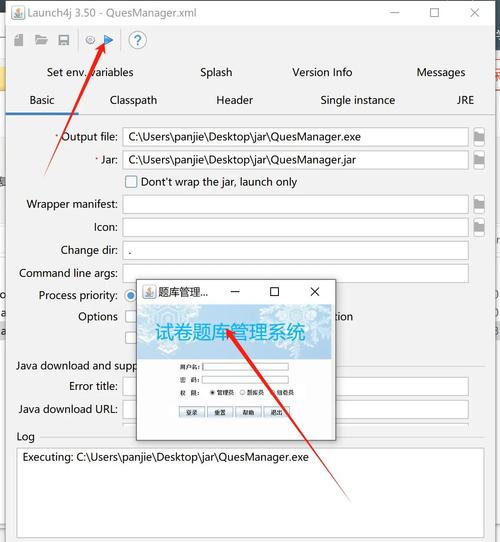
- In the Eclipse Package Explorer, right-click on your Java project.
- Go to Export....
- In the Export window, expand the Java folder and select Runnable JAR file.
- Click Next.
- Launch configuration: Select the main class of your application from the dropdown. This is the class with your
public static void main(String[] args)method. - Export destination: Choose a location and a name for your JAR file (e.g.,
C:\MyApp\my-app.jar). - Library handling: Choose "Extract required libraries into generated JAR". This bundles all your libraries into one file, making distribution much simpler.
- Click Finish. You now have a single
.jarfile that can be run on any machine with Java.
Step 2: Download and Install Launch4j
- Go to the Launch4j website: http://launch4j.sourceforge.net/
- Download the latest version (e.g.,
launch4j-3.x.x). - Unzip the downloaded file. You don't need to install it; just run the executable.
Step 3: Configure Launch4j to Create the .exe
-
Run the
launch4j.exefile from the unzipped folder. You will see a configuration window. -
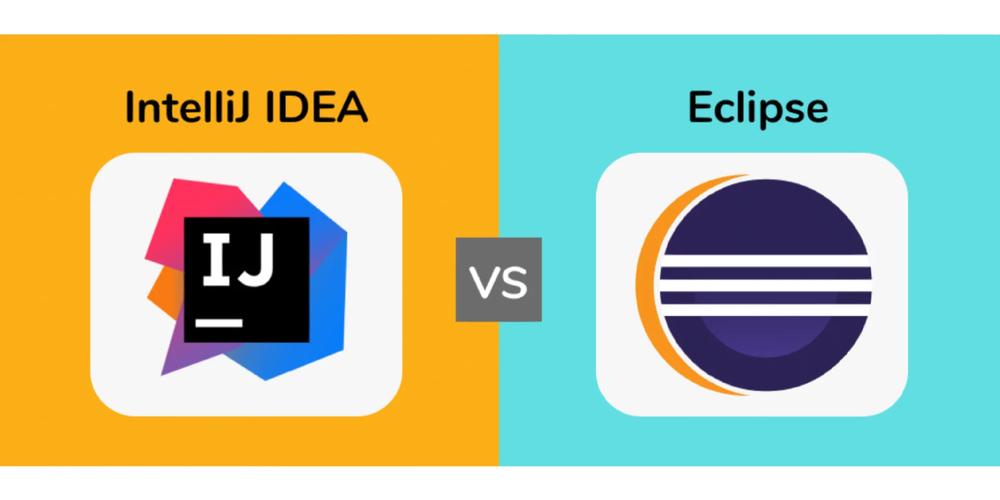
Configure the "Basic" Tab:
 (图片来源网络,侵删)
- Outfile: This is the most important field. Click the folder icon and choose where you want to save your final
.exefile (e.g.,C:\MyApp\my-app.exe). - Jar: Click the folder icon and browse to the
.jarfile you created in Step 1. - Don't wrap the jar: Keep this checked. Launch4j will wrap the JAR, not put it inside the EXE.
- Header type: Choose
guiif your application has a graphical user interface (GUI). Chooseconsoleif it's a command-line application. - Icon: (Optional) Click the folder icon to select a
.icofile to use as your application's icon. - Priority: Leave as
normal. - Initial heap size: Set this to a reasonable value (e.g.,
64for 64MB). - Maximum heap size: Set this to a value appropriate for your application's memory needs (e.g.,
512for 512MB). This is crucial for preventingOutOfMemoryError.
- Outfile: This is the most important field. Click the folder icon and choose where you want to save your final
-
Configure the "JRE" Tab:
- Min. JRE version: This is critical. It tells the
.exethe minimum version of Java it needs to run. For example, if your code uses Java 8 features, set this to8.0. - Bundled JRE path: If you want to package a specific JRE with your application so users don't need to install Java themselves, you can point this to a folder containing a JRE. For most simple distributions, users are expected to have Java installed, so you can leave this blank.
- Min. JRE version: This is critical. It tells the
-
Save Your Configuration: It's a good idea to save your settings by going to File -> Save As.... This allows you to regenerate the
.exelater without reconfiguring everything. -
Build the EXE: Click the Build wrapper button (the hammer icon) at the top of the window.
Launch4j will now create the .exe file in the location you specified. You can now run this .exe file on any Windows machine that has the correct version of Java installed (as specified in the "Min. JRE version").
Alternative: Using Maven Plugins (Advanced)
If your project uses Maven, you can automate this process with plugins like maven-assembly-plugin (to create the JAR) and maven-launch4j-plugin (to wrap it in an EXE). This is more complex but is great for automated build environments.
The Eclipse IDE .exe File
If you're asking about the Eclipse IDE itself, you don't need to do anything. The official Eclipse IDE for Java Developers is already distributed as a .zip file that contains an executable.
- Download: Go to the Eclipse Downloads page.
- Choose your package: Download the "Eclipse IDE for Java Developers".
- Extract: Unzip the downloaded file. You will see an
eclipse.exefile inside. - Run: Double-click
eclipse.exeto start the IDE.
This eclipse.exe is a launcher. It is a small native executable that starts the Java Virtual Machine (JVM), which then loads and runs the main Eclipse application code (which is itself a collection of JAR files). This is why Eclipse requires a Java Development Kit (JDK) to be installed on your system.
Summary
| Your Goal | The Solution |
|---|---|
| I want to turn my Java code into a .exe | Use Launch4j. First, export your project as a Runnable JAR from Eclipse, then use Launch4j to wrap that JAR into an .exe file. |
| I want to run the Eclipse IDE itself | Just download the official Eclipse package, unzip it, and run the included eclipse.exe file. |