Of course! Let's dive deep into using Selenium with ChromeDriver in Python. This is a powerful combination for web automation, scraping, and testing.
This guide will cover everything from the basics to more advanced topics.
What is ChromeDriver and Why Use It?
- Selenium: A browser automation framework. It allows you to programmatically control a web browser (like Chrome, Firefox, or Edge) to perform actions like clicking buttons, filling out forms, and navigating pages.
- ChromeDriver: A separate executable that acts as a "bridge" between your Selenium script and the Google Chrome browser. Selenium commands are translated into actions that ChromeDriver understands, which in turn tells Chrome what to do.
Analogy: Think of Selenium as the driver (the person in the car) and ChromeDriver as the car's engine and steering wheel. You can't drive the car without the engine, and Selenium can't control Chrome without ChromeDriver.
Prerequisites
Before you start, make sure you have the following installed:
- Python: If you don't have it, download it from python.org.
- Google Chrome: Make sure you have Chrome installed. You can download it from google.com/chrome.
- ChromeDriver: This is the most critical step. You must install a version of ChromeDriver that matches your installed version of Google Chrome.
How to Install ChromeDriver
Method A: The Easy Way (Recommended) - webdriver-manager
This is the modern, hassle-free way. This Python library automatically downloads and manages the correct ChromeDriver for you.
-
Install the library:
pip install webdriver-manager
-
In your Python script, you just need to add a few lines:
from selenium import webdriver
from selenium.webdriver.chrome.service import Service
from webdriver_manager.chrome import ChromeDriverManager
# Setup ChromeDriver using webdriver-manager
service = Service(ChromeDriverManager().install())
driver = webdriver.Chrome(service=service)
# ... your automation code here ...
driver.quit()
That's it! No manual downloads or version matching needed.
 (图片来源网络,侵删)
Method B: The Manual Way (Older Method)
-
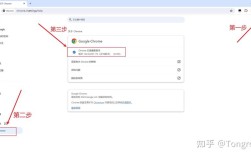
Find your Chrome version: Open Chrome, go to
chrome://settings/help. The version number is next to "Google Chrome". -
Download the matching ChromeDriver: Go to the Chrome for Testing availability dashboard or the official ChromeDriver download page. Find the download link that matches your Chrome version.
-
Extract the file: You will get a
chromedriver.exe(Windows) orchromedriver(macOS/Linux). Place it in a known location (e.g.,C:/chromedriveror/usr/local/bin). -
Point Selenium to it in your code:
from selenium import webdriver
from selenium.webdriver.chrome.service import Service
# Specify the path to the chromedriver executable
service = Service(executable_path='C:/path/to/your/chromedriver.exe')
driver = webdriver.Chrome(service=service)
# ... your automation code here ...
driver.quit()
Note: The
Serviceobject is the modern way to specify the driver path. The olderdriver = webdriver.Chrome('C:/path/to/chromedriver.exe')still works but is deprecated.
A Complete "Hello World" Example
This script will open a Chrome browser, navigate to Google, search for "Python", and print the page title.
# 1. Import necessary libraries
from selenium import webdriver
from selenium.webdriver.chrome.service import Service
from selenium.webdriver.common.by import By
from selenium.webdriver.common.keys import Keys
import time
# 2. Setup ChromeDriver using webdriver-manager (Recommended)
# This line automatically downloads and manages the driver for you.
service = Service(ChromeDriverManager().install())
# 3. Initialize the WebDriver
driver = webdriver.Chrome(service=service)
try:
    # 4. Open a webpage
    print("Opening Google...")
    driver.get("https://www.google.com")
    # 5. Find the search box element
    # We find it by its NAME attribute, which is "q"
    search_box = driver.find_element(By.NAME, "q")
    # 6. Type "Python" into the search box and press Enter
    print("Searching for 'Python'...")
    search_box.send_keys("Python")
    search_box.send_keys(Keys.RETURN)
    # 7. Wait for the results to load (optional but good for demonstration)
    # In real scripts, you'd use explicit waits (see below)
    time.sleep(2)
    # 8. Get the page title and print it
    print(f"Page Title is: {driver.title}")
    # 9. Verify the results page
    assert "Python" in driver.title
finally:
    # 10. Close the browser
    print("Closing the browser.")
    driver.quit()
To run this, save it as google_search.py and execute:
python google_search.py
You should see a Chrome window open, perform the search, and then close automatically.
Key Selenium Concepts & Common Actions
Finding Elements
You need to find elements on a page to interact with them. The most common methods are find_element (for one element) and find_elements (for a list of elements).
| Locator Strategy | Description | Example |
|---|---|---|
By.ID |
Unique ID of the element. | driver.find_element(By.ID, "submit-btn") |
By.NAME |
Name attribute of the element. | driver.find_element(By.NAME, "username") |
By.CLASS_NAME |
CSS class name. | driver.find_element(By.CLASS_NAME, "main-content") |
By.TAG_NAME |
HTML tag name (e.g., div, a, p). |
driver.find_element(By.TAG_NAME, "a") |
By.CSS_SELECTOR |
Powerful and flexible CSS selector. | driver.find_element(By.CSS_SELECTOR, "div.header > a#logo") |
By.XPATH |
Path to the element in the HTML document. | driver.find_element(By.XPATH, "//div[@id='content']//a[text()='Click Here']") |
Note: find_element will raise a NoSuchElementException if it can't find the element. find_elements will simply return an empty list.
Interacting with Elements
.click(): Clicks an element..send_keys("text"): Types text into an input field..clear(): Clears the text from an input field..text: Gets the visible text of an element..get_attribute("href"): Gets the value of an attribute (e.g., the URL of a link).
Handling Waits
Web pages load asynchronously. Just telling the script to "wait 5 seconds" (time.sleep()) is brittle. The better way is to use Explicit Waits.
from selenium.webdriver.support.ui import WebDriverWait
from selenium.webdriver.support import expected_conditions as EC
# Wait up to 10 seconds for an element with ID 'myDynamicElement' to be visible
try:
    element = WebDriverWait(driver, 10).until(
        EC.visibility_of_element_located((By.ID, "myDynamicElement"))
    )
    print("Element is visible!")
except:
    print("Element did not appear in 10 seconds.")
Advanced Example: Scraping Hacker News
This script will navigate to Hacker News, find the titles of the top 5 articles, and print them.
from selenium import webdriver
from selenium.webdriver.chrome.service import Service
from selenium.webdriver.common.by import By
from selenium.webdriver.support.ui import WebDriverWait
from selenium.webdriver.support import expected_conditions as EC
from webdriver_manager.chrome import ChromeDriverManager
# Setup
service = Service(ChromeDriverManager().install())
driver = webdriver.Chrome(service=service)
try:
    # 1. Go to Hacker News
    driver.get("https://news.ycombinator.com")
    # 2. Wait for the story titles to be present
    # The titles are in <span> elements with class="titleline"
    print("Waiting for story titles to load...")
    wait = WebDriverWait(driver, 15)s = wait.until(
        EC.presence_of_all_elements_located((By.CSS_SELECTOR, "span.titleline > a"))
    )
    # 3. Print the first 5 titles
    print("\n--- Top 5 Hacker News Titles ---")
    for i, title_element in enumerate(titles[:5]):
        print(f"{i+1}. {title_element.text}")
finally:
    # 4. Close the browser
    print("\nClosing browser.")
    driver.quit()
Common Issues & Troubleshooting
-
selenium.common.exceptions.SessionNotCreatedException: Message: session not created: This version of ChromeDriver only supports Chrome version X- Cause: Your ChromeDriver version does not match your Google Chrome browser version.
- Solution: Use the
webdriver-managerlibrary (Method A) to avoid this issue entirely. If you must do it manually, download the correct ChromeDriver version.
-
selenium.common.exceptions.NoSuchElementException: Message: no such element: Unable to locate element- Cause: The element you are trying to find does not exist on the page, or your locator strategy is incorrect.
- Solution:
- Double-check your locator (ID, NAME, CSS_SELECTOR, etc.).
- Use your browser's Developer Tools (F12) to inspect the element and verify its properties.
- The element might be inside an
<iframe>. You need to switch to the iframe first:driver.switch_to.frame("frame_name").
-
ElementNotInteractableException- Cause: The element exists on the page but is not visible or is disabled (e.g., a button is hidden behind a modal or is
disabled="disabled"). - Solution: Use an explicit wait for the element to be clickable, not just present.
element = WebDriverWait(driver, 10).until(
    EC.element_to_be_clickable((By.ID, "submit-btn"))
)
element.click()
- Cause: The element exists on the page but is not visible or is disabled (e.g., a button is hidden behind a modal or is