Of course! The phrase "java image image" is a bit ambiguous, so I'll cover the most common and important ways Java works with images. I'll break it down into key areas:
- Loading and Displaying Images (The basics)
- Manipulating Images (Resizing, Filters, etc.)
- Reading/Writing Image Metadata (EXIF data)
- Advanced Concepts (ImageIO, BufferedImages, VolatileImages)
Loading and Displaying Images (The Basics)
This is the most common task: taking an image file (like a .png or .jpg) and displaying it in a graphical user interface (GUI). The standard way to do this in Java Swing is with the ImageIcon class.
Example: Displaying an Image in a JFrame
This simple example loads an image from a file and displays it in a window.
import javax.swing.*;
import java.awt.*;
import java.net.URL; // Used to load images from a URL or classpath
public class ImageDisplayExample {
    public static void main(String[] args) {
        // Run the GUI creation on the Event Dispatch Thread (EDT)
        SwingUtilities.invokeLater(() -> {
            // Create a new JFrame (window)
            JFrame frame = new JFrame("Image Display Example");
            frame.setDefaultCloseOperation(JFrame.EXIT_ON_CLOSE);
            frame.setSize(800, 600);
            // --- Key Part: Loading the Image ---
            // Option 1: Load from a file path (use absolute or relative path)
            // ImageIcon imageIcon = new ImageIcon("path/to/your/image.png");
            // Option 2: Load from a resource in your project (best practice for self-contained apps)
            // This assumes the image is in the 'resources' folder at the root of your project.
            URL imageUrl = ImageDisplayExample.class.getResource("/java_logo.png");
            if (imageUrl == null) {
                System.err.println("Resource not found!");
                return;
            }
            ImageIcon imageIcon = new ImageIcon(imageUrl);
            // Create a JLabel to hold the image
            JLabel imageLabel = new JLabel(imageIcon);
            // Add the label to the frame's content pane
            frame.getContentPane().add(imageLabel, BorderLayout.CENTER);
            // Pack the frame to fit the preferred size of its components
            frame.pack();
            // Make the window visible
            frame.setVisible(true);
        });
    }
}
To run this:
- Create a Java project.
- Place an image file (e.g.,
java_logo.png) in aresourcesfolder at the root of your project's source directory. - Make sure the build path of your project includes the
resourcesfolder so it gets packaged with your application.
Manipulating Images (Resizing, Filters)
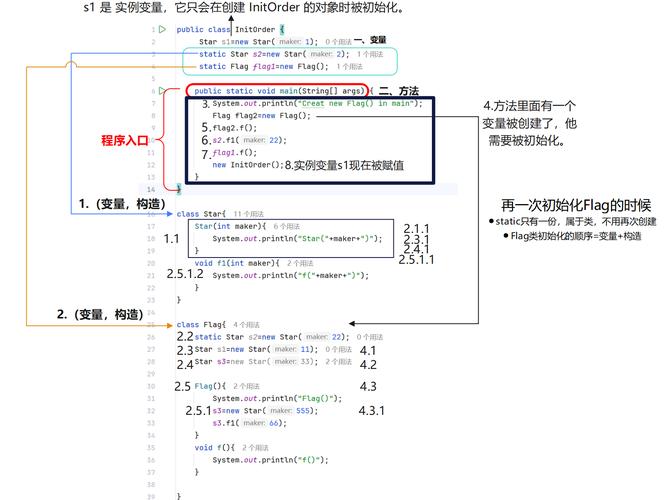
For more complex operations, you need to use the java.awt.image package. The core class is BufferedImage, which gives you direct access to the image's pixel data.
Example: Resizing an Image
This example loads an image, resizes it, and saves the result to a new file. It uses ImageIO for reading/writing and a AffineTransform for scaling.
import javax.imageio.ImageIO;
import java.awt.*;
import java.awt.geom.AffineTransform;
import java.awt.image.BufferedImage;
import java.io.File;
import java.io.IOException;
public class ImageResizer {
    public static void main(String[] args) {
        try {
            // 1. Load the original image
            File inputFile = new File("path/to/your/input_image.jpg");
            BufferedImage originalImage = ImageIO.read(inputFile);
            // 2. Define the new dimensions
            int newWidth = 300;
            int newHeight = 300;
            // 3. Create a new BufferedImage for the scaled image
            BufferedImage scaledImage = new BufferedImage(newWidth, newHeight, BufferedImage.TYPE_INT_RGB);
            // 4. Get the Graphics2D object to draw the scaled image
            Graphics2D g2d = scaledImage.createGraphics();
            // Set rendering hints for better quality
            g2d.setRenderingHint(RenderingHints.KEY_INTERPOLATION, RenderingHints.VALUE_INTERPOLATION_BILINEAR);
            g2d.setRenderingHint(RenderingHints.KEY_RENDERING, RenderingHints.VALUE_RENDER_QUALITY);
            g2d.setRenderingHint(RenderingHints.KEY_ANTIALIASING, RenderingHints.VALUE_ANTIALIAS_ON);
            // 5. Perform the scaling and draw the image
            AffineTransform at = AffineTransform.getScaleInstance((double) newWidth / originalImage.getWidth(),
                    (double) newHeight / originalImage.getHeight());
            g2d.drawRenderedImage(originalImage, at);
            // 6. Dispose of the Graphics2D object
            g2d.dispose();
            // 7. Save the scaled image to a new file
            File outputFile = new File("path/to/your/resized_image.jpg");
            ImageIO.write(scaledImage, "jpg", outputFile);
            System.out.println("Image resized successfully!");
        } catch (IOException e) {
            System.err.println("Error processing image: " + e.getMessage());
            e.printStackTrace();
        }
    }
}
Example: Applying a Grayscale Filter
This demonstrates how to iterate over pixels and modify them.
import javax.imageio.ImageIO;
import java.awt.image.BufferedImage;
import java.io.File;
import java.io.IOException;
public class GrayscaleFilter {
    public static void main(String[] args) {
        try {
            File inputFile = new File("path/to/your/color_image.jpg");
            BufferedImage originalImage = ImageIO.read(inputFile);
            // Create a copy to modify
            BufferedImage grayscaleImage = new BufferedImage(
                    originalImage.getWidth(),
                    originalImage.getHeight(),
                    BufferedImage.TYPE_BYTE_GRAY); // Special type for grayscale
            // The drawImage method does the conversion for us!
            // This is the simplest way.
            Graphics g = grayscaleImage.getGraphics();
            g.drawImage(originalImage, 0, 0, null);
            g.dispose();
            // Save the result
            File outputFile = new File("path/to/your/grayscale_image.jpg");
            ImageIO.write(grayscaleImage, "jpg", outputFile);
            System.out.println("Grayscale filter applied successfully!");
        } catch (IOException e) {
            e.printStackTrace();
        }
    }
}
Reading Image Metadata (EXIF Data)
Standard Java libraries do not handle EXIF data (camera info, GPS, etc.) from JPEG files. You need a third-party library. A popular and lightweight choice is metadata-extractor.
First, add the dependency to your project (e.g., in Maven):
<dependency>
    <groupId>com.drewnoakes</groupId>
    <artifactId>metadata-extractor</artifactId>
    <version>2.19.0</version>
</dependency>
Example: Reading EXIF Data
import com.drewnoakes.metadata.extractor.ImageMetadataReader;
import com.drewnoakes.metadata.extractor.Metadata;
import com.drewnoakes.metadata.extractor.Directory;
import com.drewnoakes.metadata.extractor.Tag;
import java.io.File;
import java.io.IOException;
public class ExifReader {
    public static void main(String[] args) {
        try {
            File imageFile = new File("path/to/your/camera_photo.jpg");
            Metadata metadata = ImageMetadataReader.readMetadata(imageFile);
            // Iterate through all directories
            for (Directory directory : metadata.getDirectories()) {
                // Iterate through all tags
                for (Tag tag : directory.getTags()) {
                    System.out.println(tag.getDirectoryName() + ": " + tag.getTagName() + " = " + tag.getDescription());
                }
                // Check if there are any errors
                if (!directory.hasErrors()) {
                    continue;
                }
                for (String error : directory.getErrors()) {
                    System.err.println("ERROR: " + error);
                }
            }
        } catch (IOException | ImageProcessingException e) {
            e.printStackTrace();
        }
    }
}
Advanced Concepts & Key Classes
| Class/Package | Description | Key Use Cases |
|---|---|---|
java.awt.Image |
An abstract superclass for all images. You can't instantiate it directly. | Represents an image in a generic way. |
java.awt.image.BufferedImage |
A subclass of Image that holds the image data in accessible memory (a buffer). |
The most important class for manipulation. Reading pixel data, applying filters, drawing. |
javax.swing.ImageIcon |
A Swing component that manages an image. | Easily displaying images in Swing components (JLabel, JButton). |
java.awt.Graphics & java.awt.Graphics2D |
The "pen and paintbrush" for drawing. Graphics2D is more advanced (shapes, text, transformations). |
Drawing shapes, text, and images onto other images or components. Used for resizing and filtering. |
javax.imageio.ImageIO |
The main class for reading and writing images using the Image I/O API. | Loading images from files/URLs (read()), saving images to files (write()). |
java.awt.image.BufferedImageOp |
An interface for objects that perform operations on BufferedImage objects. |
Applying filters (blur, sharpen) in a standardized way. The AffineTransformOp is used for scaling/rotating. |
Summary: "Java Image Image"
When you think about "Java image image", you're likely thinking about a workflow:
- Load: Use
ImageIO.read()to get aBufferedImagefrom a file. - Process/Manipulate: Use
Graphics2DorBufferedImageOpto draw, resize, filter, or analyze the pixel data of theBufferedImage. - Display: Wrap the
BufferedImagein anImageIconto display it easily in a Swing GUI. - Save: Use
ImageIO.write()to save the modifiedBufferedImageback to a file. - Analyze: Use a library like
metadata-extractorto get data about the image (EXIF).