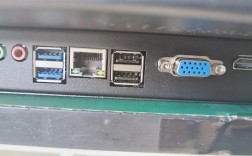
Of course! Working with USB devices in Python on Windows is a common task, but it requires the right tools and understanding. Here’s a comprehensive guide covering the concepts, libraries, and a step-by-step example.
Core Concepts on Windows
On Windows, USB devices are managed by the Windows Driver Framework (WDF). Directly communicating with a USB device from a user-mode application (like a Python script) requires going through the operating system's USB stack. This is different from Linux, where you often have direct access to device files like /dev/ttyACM0.
The key components are:
- VID (Vendor ID) and PID (Product ID): Every USB device has a unique 16-bit Vendor ID and 16-bit Product ID. These are the primary ways to identify which device you want to talk to.
- Device Interface: When a USB driver is installed for a device, it creates a "device interface" in the Windows Registry. Your application finds this interface to get a handle for communication.
- Handle: Once you have a handle to the device interface, you can use Windows API functions (like
CreateFile,DeviceIoControl,WriteFile,ReadFile) to send and receive data.
Recommended Python Libraries
You don't need to write raw C-style API calls. Several excellent Python libraries wrap this complexity for you.
pyusb (The Standard Choice)
pyusb is a pure Python wrapper around the libusb library. It's powerful, cross-platform (works on Windows, Linux, macOS), and gives you low-level control. This is often the best place to start.
How it works on Windows:
pyusb needs a way to talk to the USB stack on Windows. It does this by using a userspace driver library, most commonly libusb-win32 (which provides a backend called libusb1). You need to install this driver for your specific device or for all USB devices.
Installation:
pip install pyusb
Prerequisite (The Crucial Step on Windows): You need to install the libusb-win32 filter driver. The easiest way is to use Zadig.
- Download Zadig: Get it from the official GitHub releases page.
- Run Zadig: Plug in your USB device.
- Select your Device: In Zadig, from the "List all devices" dropdown, select your USB device.
- Install the Driver: In the "Driver" dropdown, select
libusb-win32 (v1.2.6.0). Click "Install Driver". - Done! Zadig will install the necessary driver, allowing
pyusbto access the device.
pywinusb (Windows-Only, Easier Setup)
pywinusb is a library specifically for Windows. It uses the native Windows USB API, which means you do not need to install any external drivers like Zadig. This is a major advantage for beginners.
Installation:
pip install pywinusb
Step-by-Step Example with pywinusb
Let's walk through a complete example using pywinusb because it's simpler to set up on Windows. We will:
- List all connected USB devices.
- Find a specific device by its VID and PID.
- Send data to it and receive data from it.
Scenario: Let's pretend we have a custom USB device with:
- VID:
0x0483(STMicroelectronics, a common VID for dev boards) - PID:
0x5740(A fictional PID for our example device) - Endpoint for sending data (OUT):
0x01 - Endpoint for receiving data (IN):
0x81
Step 1: Find Your Device's VID and PID
- Plug in your USB device.
- Open Device Manager (right-click the Start button and select "Device Manager").
- Expand the "Universal Serial Bus controllers" section.
- Find your device. It might be listed under "USB devices," "Ports (COM & LPT)," or with a specific driver name.
- Right-click on it and select Properties.
- Go to the Details tab.
- From the "Property" dropdown, select Hardware Ids.
- You will see a value like
USB\VID_0483&PID_5740\.... TheVID_0483is the Vendor ID andPID_5740is the Product ID.
Step 2: The Python Script
Create a Python file (e.g., usb_device_test.py) and use the following code.
import pywinusb.usb as usb
import time
# --- Configuration ---
# Replace with your device's actual VID and PID
TARGET_VID = 0x0483
TARGET_PID = 0x5740
# Endpoint addresses (1 for OUT, 81 for IN are common, check your device docs)
OUT_ENDPOINT_INDEX = 0  # Index of the OUT endpoint in the interface descriptor
IN_ENDPOINT_INDEX = 0    # Index of the IN endpoint
def device_found(dev):
    """Callback function called when a matching device is found."""
    print(f"Found device: {dev}")
    print(f"  - Vendor ID: 0x{dev.vendor_id:04X}")
    print(f"  - Product ID: 0x{dev.product_id:04X}")
    # We found our device, let's use it
    dev.set_configuration() # Must be called before claiming the interface
    print("Device configured. Claiming interface...")
    # Find the interface with the correct VID/PID
    # We assume the first interface is the one we want
    interface = dev.get_active_configuration()[0]
    # Find the IN and OUT endpoints
    out_ep = None
    in_ep = None
    for endpoint in interface:
        if endpoint.endpoint_address == 0x01: # OUT endpoint
            out_ep = endpoint
            print(f"  - Found OUT endpoint: {endpoint.endpoint_address}")
        elif endpoint.endpoint_address == 0x81: # IN endpoint
            in_ep = endpoint
            print(f"  - Found IN endpoint: {endpoint.endpoint_address}")
    if out_ep and in_ep:
        print("\n--- Communicating with device ---")
        try:
            # Send data to the device
            data_to_send = b"GET_STATUS\n" # Example command
            print(f"Sending: {data_to_send}")
            out_ep.write(data_to_send)
            # Read data from the device
            # read() is a blocking call, use a timeout or a separate thread
            # for non-blocking operation. Here we wait for 1 second.
            print("Waiting for response...")
            time.sleep(1) # Give the device time to process
            # We use a lambda to read data in a non-blocking way with a timeout
            # The actual read might need to be in a loop for continuous data
            data_read = in_ep.read(read_buffer_size=64, timeout=1000) # Read up to 64 bytes, 1s timeout
            print(f"Received: {data_read}")
        except usb.USBError as e:
            print(f"USB Error: {e}")
        finally:
            print("Releasing interface...")
            # Release the interface
            dev.release_interface()
    else:
        print("Could not find required IN/OUT endpoints.")
    print("--- Communication finished ---")
    # Stop the USB thread
    usb.core.find(find_all=True) # This will signal the backend to stop
def main():
    """Main function to find and connect to the USB device."""
    print("Searching for USB device...")
    # Find all devices matching our VID/PID
    devices = usb.core.find(find_all=True, idVendor=TARGET_VID, idProduct=TARGET_PID)
    if devices:
        # pywinusb returns a list, we'll just use the first one
        # The `find` function with a callback is more robust
        usb.core.find(custom_match=lambda d: d.vendor_id == TARGET_VID and d.product_id == TARGET_PID, callback=device_found)
    else:
        print(f"No device found with VID=0x{TARGET_VID:04X} and PID=0x{TARGET_PID:04X}")
if __name__ == '__main__':
    main()
Step 3: Run the Script
- Make sure your USB device is plugged in.
- Open Command Prompt or PowerShell.
- Navigate to the directory where you saved your script.
- Run the script:
python usb_device_test.py
Expected Output:
Searching for USB device...
Found device: UsbDevice(Vendor: 0x0483, Product: 0x5740, Serial: None, Interface: (0, 0))
  - Vendor ID: 0x0483
  - Product ID: 0x5740
Device configured. Claiming interface...
  - Found OUT endpoint: 1
  - Found IN endpoint: 81
--- Communicating with device ---
Sending: b'GET_STATUS\n'
Waiting for response...
Received: b'Device OK: Temp=25C\n'
--- Communication finished ---
Troubleshooting Common Issues
-
USBError: [Errno 13] Access is denied- Cause: This is the most common error. It means your script doesn't have permission to access the device.
- Solution (for
pyusb): You didn't install the libusb-win32 driver with Zadig. - Solution (for
pywinusb): This is less common but can happen. Try running your script as an Administrator. Right-click your terminal or Python IDE and select "Run as administrator".
-
No device found with VID=... and PID=...- Cause: The device isn't plugged in, the VID/PID is incorrect, or the driver isn't installed correctly.
- Solution: Double-check the VID and PID in the Device Manager. If using
pyusb, make sure you used Zadig to install thelibusb-win32driver.
-
The script hangs on
in_ep.read()- Cause: The
read()function is blocking. If the device never sends data, it will wait forever. - Solution: Always use the
timeoutparameter in theread()method (as shown in the example). If you expect continuous data, you should put theread()call inside awhileloop in a separate thread.
- Cause: The
Summary: Which Library to Choose?
| Library | Pros | Cons | Best For |
|---|---|---|---|
pywinusb |
- No external drivers needed on Windows. - Simpler setup. - Good Windows-specific features. |
- Windows-only. | Beginners, Windows-specific applications, and when you want to avoid driver installation hassle. |
pyusb |
- Cross-platform (Linux, macOS, Windows). - Large community, widely used. - Very powerful and flexible. |
- Requires installing a driver (libusb-win32) on Windows via Zadig. |
Cross-platform projects, users already familiar with libusb, or when you need low-level control not available in pywinusb. |