Of course. Let's break down how to work with Excel files in Java using ODBC. This is a classic approach, though it's now considered somewhat outdated due to security risks and the availability of better modern libraries.
We'll cover:
- The Core Concept: How ODBC bridges Java and Excel.
- Prerequisites: What you need to install and configure.
- Step-by-Step Guide: A detailed walkthrough with code.
- Java Code Examples: Reading and writing data.
- Crucial Considerations & Best Practices: The "why you might not want to do this" section.
The Core Concept: ODBC as a Bridge
Think of ODBC (Open Database Connectivity) as a universal translator.
- Java Application: Your Java code doesn't know or care about the specific details of an Excel file (
.xls,.xlsx, cell formulas, etc.). - ODBC Driver Manager: A component that manages database connections.
- Microsoft Excel ODBC Driver: The translator. It understands how to read/write Excel files and can present them to the Java application in a standard way: like a simple database table.
- Excel File: The data source. Each worksheet in the Excel file is treated as a table, and the first row is typically treated as the column names.
Your Java code will use standard JDBC (Java Database Connectivity) API calls, but behind the scenes, the ODBC driver will be doing the work of interacting with the Excel file.
Prerequisites: Setting Up the Environment
This is the most critical and often the trickiest part.
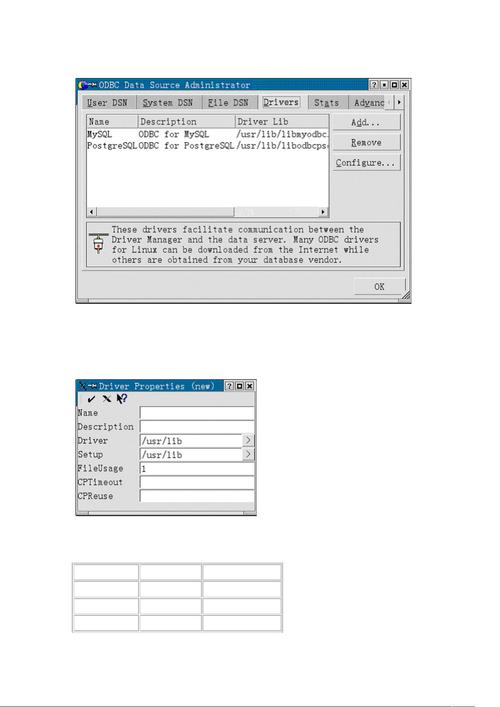
A. Install the Microsoft Access Database Engine
This is the package that contains the necessary ODBC drivers for Excel. You must choose the correct version (32-bit or 64-bit) to match your Java Development Kit (JDK) and your Java Virtual Machine (JVM).
-
How to check your JDK/JVM bitness:
- Open a command prompt or terminal.
- Run:
java -version - Look for "64-Bit" or "32-Bit" in the output.
-
Download Links:
- 32-bit version: Microsoft Access Database Engine 2010 Redistributable (Often works for newer versions too)
- 64-bit version: Microsoft Access Database Engine 2010 Redistributable (64-bit)
Important: Even if you are using a 64-bit operating system, if your JDK is 32-bit, you must install the 32-bit driver.
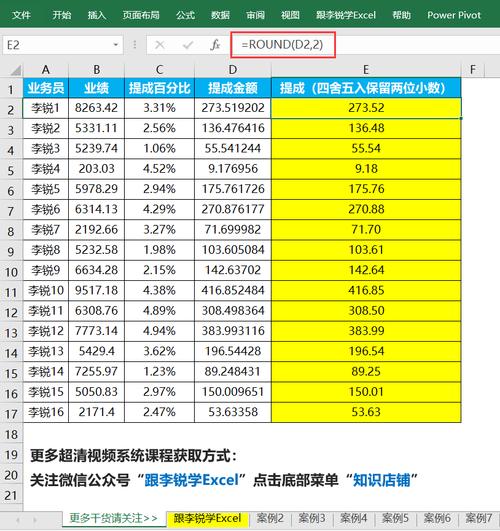
B. Configure the ODBC Data Source (DSN)
This step tells your Windows operating system where to find the driver and how to connect to your Excel file.
-
Open the ODBC Data Source Administrator.
- Easiest way: Press
Win + R, typeodbcad32.exe, and hit Enter. - Note: The path
Control Panel > Administrative Tools > Data Sources (ODBC)might lead you to a 64-bit version on a 64-bit OS. Always use the one that matches your JVM's bitness.
- Easiest way: Press
-
Go to the "User DSN" or "System DSN" tab and click "Add...".
-
In the list of drivers, select "Microsoft Excel Driver (.xls, .xlsx, .xlsm, .xlsb)" and click "Finish".
-
You will see a configuration window.
- Data Source Name: Give your connection a descriptive name (e.g.,
MyExcelDataSource). This is the name you'll use in your Java code. - Description (Optional): Add a helpful description.
- Select Workbook: Click "Select..." and browse to your Excel file. You can choose to have the driver read the first row for column names.
- Data Source Name: Give your connection a descriptive name (e.g.,
-
Click "OK". Your DSN is now created.
Step-by-Step Guide: Reading Data from Excel
Let's assume you have an Excel file named data.xlsx with a sheet named Sheet1 that looks like this:
| ID | Name | Value |
|---|---|---|
| 1 | Alice | 100 |
| 2 | Bob | 200 |
| 3 | Charlie | 300 |
Java Code to Read the Data
This code uses standard JDBC. The key is the connection URL, which includes the DSN name you configured.
import java.sql.Connection;
import java.sql.DriverManager;
import java.sql.ResultSet;
import java.sql.SQLException;
import java.sql.Statement;
public class ExcelReaderODBC {
    public static void main(String[] args) {
        // 1. Define the DSN name you created in the ODBC Data Source Administrator
        String dsnName = "MyExcelDataSource";
        // The connection URL for an ODBC DSN
        String url = "jdbc:odbc:" + dsnName;
        // The query to execute. 'Sheet1$' is the standard way to reference a worksheet.
        // The '$' is important.
        String sql = "SELECT ID, Name, Value FROM [Sheet1$]";
        // Use try-with-resources to ensure the connection is closed automatically
        try (Connection connection = DriverManager.getConnection(url);
             Statement statement = connection.createStatement();
             ResultSet resultSet = statement.executeQuery(sql)) {
            System.out.println("Successfully connected to Excel file!");
            System.out.println("ID\tName\tValue");
            // 2. Loop through the result set and print the data
            while (resultSet.next()) {
                // Retrieve by column name for robustness
                int id = resultSet.getInt("ID");
                String name = resultSet.getString("Name");
                int value = resultSet.getInt("Value");
                System.out.println(id + "\t" + name + "\t" + value);
            }
        } catch (SQLException e) {
            System.err.println("SQL Error: " + e.getMessage());
            e.printStackTrace();
        }
    }
}
How to Run the Code
- Make sure your
data.xlsxfile is in a known location and you've configured the ODBC DSN to point to it. - Compile the code:
javac ExcelReaderODBC.java - Run the code:
java ExcelReaderODBC
You should see the output from your Excel file printed to the console.
Java Code Example: Writing Data to Excel
Writing is also possible, but it comes with major caveats (see section 5).
import java.sql.Connection;
import java.sql.DriverManager;
import java.sql.SQLException;
import java.sql.Statement;
public class ExcelWriterODBC {
    public static void main(String[] args) {
        String dsnName = "MyExcelDataSource";
        String url = "jdbc:odbc:" + dsnName;
        // Note: For writing, you might need to specify the table (sheet) in the connection URL,
        // but often you create the table via the INSERT statement itself.
        // The ODBC driver will create the sheet if it doesn't exist.
        String sql = "INSERT INTO [Sheet1$] (ID, Name, Value) VALUES (4, 'David', 400)";
        try (Connection connection = DriverManager.getConnection(url);
             Statement statement = connection.createStatement()) {
            int rowsAffected = statement.executeUpdate(sql);
            if (rowsAffected > 0) {
                System.out.println(rowsAffected + " row(s) inserted successfully.");
            } else {
                System.out.println("No rows were inserted.");
            }
        } catch (SQLException e) {
            System.err.println("SQL Error during insert: " + e.getMessage());
            e.printStackTrace();
        }
    }
}
Crucial Considerations & Best Practices
While this method works, it is highly discouraged for new projects. Here’s why:
| Consideration | Why it's a Problem | Modern Alternative |
|---|---|---|
| Security Risk | The odbcad32.exe executable is often flagged by antivirus software. Malicious websites can exploit it. |
Use pure Java libraries that don't rely on native OS components. |
| Platform Dependency | ODBC drivers are Windows-only. Your Java code will not run on Linux or macOS without complex setup (e.g., using unixODBC). |
Pure Java libraries are cross-platform out of the box. |
| Performance | ODBC adds a layer of overhead. It's slower than direct file I/O. | Modern libraries are highly optimized for performance. |
| Brittleness | The setup is complex and fragile. If the Excel file is moved, the DSN breaks. If the driver is uninstalled, the app breaks. | Libraries connect directly to the file path, making them much more robust. |
| Limited Functionality | You lose access to most of Excel's advanced features: formulas, charts, formatting, macros, etc. You are essentially treating it as a dumb CSV file. | Libraries like Apache POI give you full control over Excel objects. |
| JDK Bitness | You must match the ODBC driver's bitness (32/64) with your JDK's bitness. This is a common source of frustrating ClassNotFoundException or "No suitable driver" errors. |
No such dependency. |
Recommended Modern Alternatives
For any new project, please consider these superior Java libraries for handling Excel files.
Apache POI (The De Facto Standard)
- What it is: A powerful Java library for manipulating various file formats based on Microsoft's OLE 2 Compound Document format, including Excel (
.xlsand.xlsx). - Pros:
- Full Control: Read/write formulas, styling, charts, images, and more.
- Mature & Stable: The industry standard for Java and Excel.
- Pure Java: Cross-platform.
- Cons:
- Can have a high memory footprint for very large files.
- The API can be complex for simple tasks.
- Maven Dependency:
<dependency>
    <groupId>org.apache.poi</groupId>
    <artifactId>poi</artifactId>
    <version>5.2.3</version> <!-- Use the latest version -->
</dependency>
<dependency>
    <groupId>org.apache.poi</groupId>
    <artifactId>poi-ooxml</artifactId>
    <version>5.2.3</version> <!-- For .xlsx files -->
</dependency>
EasyExcel (From Alibaba)
- What it is: A library from Alibaba, built on top of POI, designed for high performance and low memory usage.
- Pros:
- Extremely Low Memory: Uses a model called "read monitoring" to avoid loading the entire file into memory. Perfect for large files (GBs).
- Simple API: Much easier to use than raw POI for common read/write operations.
- Fast.
- Cons:
Less feature-rich for complex Excel object manipulation compared to POI.
- Maven Dependency:
<dependency>
    <groupId>com.alibaba</groupId>
    <artifactId>easyexcel</artifactId>
    <version>3.3.2</version> <!-- Use the latest version -->
</dependency>
Conclusion
Using Java, Excel, and ODBC is a legacy technique. It might be useful for maintaining very old systems where a rewrite is not feasible. However, for any new development, the security risks, platform limitations, and performance issues make it a poor choice.
Strongly recommend using modern, pure Java libraries like Apache POI or EasyExcel. They are safer, more powerful, more portable, and easier to manage in the long run.