Of course! Setting up Python development on a Mac using Eclipse is a great choice, especially if you're already familiar with Eclipse or work in a Java-centric environment. Here’s a comprehensive guide covering everything from installation to debugging.
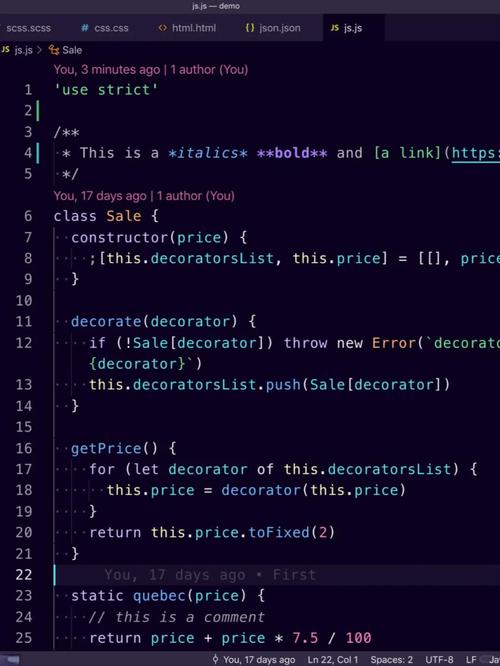
Overview: The "PyDev" Approach
Eclipse itself is a platform for building Integrated Development Environments (IDEs). It doesn't come with Python support out of the box. To use Eclipse for Python, you need to install a plugin called PyDev.
PyDev is a full-featured development environment for the Python language.
Step 1: Install Python on Your Mac
Before you can write Python code, you need Python installed. Modern Macs come with Python 2.7 pre-installed, but you should always use Python 3 for new projects.
The best way to manage Python versions on a Mac is using Homebrew.
-
Install Homebrew (if you don't have it): Open the Terminal app (you can find it in
/Applications/Utilities/or search for it with SpotlightCmd + Space).Copy and paste this command into the Terminal and press Enter:
/bin/bash -c "$(curl -fsSL https://raw.githubusercontent.com/Homebrew/install/HEAD/install.sh)"
This script will explain what it will do and prompt you for your password. Follow the on-screen instructions.
-
Install Python 3 using Homebrew: Once Homebrew is installed, run this command:
 (图片来源网络,侵删)
brew install python3
This will install the latest stable version of Python 3 and
pip3(Python's package installer). -
Verify the Installation: Check that Python 3 is installed correctly by running:
python3 --version
You should see something like
Python 3.11.4or a newer version.
Step 2: Install Eclipse for Java Developers
Eclipse is a Java application. You need to have a Java Development Kit (JDK) installed for Eclipse to run.
-
Install a JDK (if needed): Most modern Macs come with a JDK pre-installed. You can check by running this in Terminal:
/usr/libexec/java_home -V
If it returns a path, you're good to go. If not, download and install the latest LTS version of the JDK from the Oracle website or from Adoptium (Eclipse Temurin).
-
Download Eclipse: Go to the Eclipse Downloads page.
- Crucial: Do not download "Eclipse for Python Developers". It's outdated and often problematic. Instead, download "Eclipse IDE for Java Developers". This is the most stable and recommended base for installing PyDev.
-
Install Eclipse:
- Eclipse is distributed as a
.zipfile. - Download it and move the unzipped
Eclipse.appfolder to yourApplicationsfolder. - You can now launch Eclipse by double-clicking the
Eclipseicon inside theEclipse.appbundle.
- Eclipse is distributed as a
Step 3: Install the PyDev Plugin
This is the core step to connect Eclipse with Python.
-
Launch Eclipse: When you first launch Eclipse, it will ask you to choose a "workspace." This is the folder where your projects will be stored. You can use the default or create a new one.
-
Open the "Install New Software" Window:
- Go to the menu bar:
Help->Install New Software....
- Go to the menu bar:
-
Add the PyDev Update Site:
- In the "Work with:" field, type a name for the repository, like
PyDev. - Click the
Add...button on the right. - In the new window, for "Name," enter
PyDev. - For "Location," paste this URL:
http://pydev.org/updates - Click
OK.
- In the "Work with:" field, type a name for the repository, like
-
Select and Install PyDev:
- Eclipse will now contact the site and show you a list of available software. Wait for it to finish loading.
- You should see a top-level item named "PyDev". Check the box next to it.
- Click the
Next >button.
-
Review and Install:
- Review the details of what will be installed and click
Next >again. - Read and accept the license agreements, then click
Finish.
- Review the details of what will be installed and click
-
Complete the Installation:
- Eclipse will download and install PyDev. It may ask you to restart Eclipse. Click
Yesto restart.
- Eclipse will download and install PyDev. It may ask you to restart Eclipse. Click
Step 4: Configure PyDev to Use Your Python Interpreter
This is a critical step. You must tell PyDev where to find the Python 3 executable you installed with Homebrew.
-
Open the PyDev Preferences:
- Go to
Eclipse->Preferences...(on macOS) orWindow->Preferences...(on other OS).
- Go to
-
Navigate to Python Interpreter:
- In the left-hand pane, expand
PyDevand selectInterpreter - Python.
- In the left-hand pane, expand
-
Add a New Interpreter:
- On the right, you will see a list of interpreters. Click the
New...button.
- On the right, you will see a list of interpreters. Click the
-
Find Your Python 3 Executable:
- A "Select interpreter" window will pop up.
- Click the
Browse...button. - Navigate to your Python 3 installation. The standard path on a Mac with Homebrew is:
/usr/local/bin/python3 - If you can't find it, you can get the exact path by running this command in your Terminal:
which python3
- Select the
python3executable and clickOpen.
-
Name the Interpreter and Finish:
- Back in the "Select interpreter" window, give your interpreter a name, like
Python 3 (Homebrew). - Click
OK.
- Back in the "Select interpreter" window, give your interpreter a name, like
-
Apply and Close:
- You will be back in the Python Interpreter preferences. You should now see your new interpreter in the list.
- Click
Apply and Close.
Step 5: Create Your First Python Project
Let's put it all together.
-
Go to
File->New->Project... -
Select PyDev Project:
- In the wizard, expand the
PyDevfolder and selectPyDev Project. - Click
Next.
- In the wizard, expand the
-
Configure Project Details:
- Project Name: Give your project a name (e.g.,
HelloPyDev). - Interpreter: From the dropdown, select the Python 3 interpreter you configured in the previous step (
Python 3 (Homebrew)). - Grammar Version: Select the Python version that matches your interpreter (e.g.,
11). - Template: Check the box for
srcfolder. This is a good practice. - Click
Finish.
- Project Name: Give your project a name (e.g.,
-
Write and Run Code:
-
Eclipse will create the project structure. You should see a
srcfolder in theProject Explorerview. -
Right-click on the
srcfolder, go toNew->PyDev Module. -
Name the module (e.g.,
main) and clickFinish. -
A new file named
main.pywill open. Write a simple script:def greet(name): return f"Hello, {name}! Welcome to PyDev on Eclipse." if __name__ == "__main__": print(greet("Developer")) -
Run the code: Right-click anywhere in the
main.pyeditor and selectRun As->Python Run.
-
You should see the output "Hello, Developer! Welcome to PyDev on Eclipse." in the "Console" view at the bottom of the screen.
Step 6: Essential Features (Debugging, Code Completion, etc.)
-
Debugging:
- Double-click in the margin next to a line of code to set a breakpoint (a blue dot will appear).
- Right-click the file and select
Debug As->Python Run. - The "Debug" perspective will open, allowing you to step through your code, inspect variables, and see the call stack.
-
Code Completion and Linting:
- PyDev provides excellent code completion. Just start typing and press
Ctrl + Spaceto see suggestions. - It also has a built-in linter (Pylint) that will underline potential errors or style issues in your code, helping you write better code.
- PyDev provides excellent code completion. Just start typing and press
-
Installing Packages (e.g., requests):
- While you can use the Terminal (
pip3 install requests), PyDev has a built-in way. - Go to
PyDev->Package Dependencies. - Click
Add Package..., type the name of the package (e.g.,requests), and clickOK. PyDev will use your system'spipto install it.
- While you can use the Terminal (
Troubleshooting Common Issues
-
Problem:
ImportError: No module named 'requests'(or any other library).- Solution: PyDev might not be using the correct interpreter's
site-packagesfolder. Go back toEclipse->Preferences->PyDev->Interpreter - Python. Select your interpreter, clickLibrariestab, and ensure all your installed packages are listed. If not, you may need to manually add the path to yoursite-packagesfolder or use the "Add Package..." feature.
- Solution: PyDev might not be using the correct interpreter's
-
Problem: The PyDev perspective is missing or grayed out.
- Solution: Go to
Window->Perspective->Open Perspective->Other...and selectPyDev.
- Solution: Go to
-
Problem: Eclipse is very slow.
- Solution: This can happen with large projects. You can disable some heavy PyDev features in
Preferences->PyDev->Editor->Code Analysis(try unchecking some of the heavier checks like "Code Style Analysis"). Also, ensure you have allocated enough memory to Eclipse in theEclipse.app/Contents/Eclipse/eclipse.inifile (add-vmargs -Xmx2048Mfor 2GB of heap space, for example).
- Solution: This can happen with large projects. You can disable some heavy PyDev features in