Of course! Let's break down how to use NumPy within Python's IDLE. This is a great way to get started with numerical computing in Python.
We'll cover:
- What is NumPy? (A quick, essential explanation)
- How to Install NumPy (The crucial first step)
- How to Use NumPy in IDLE (A step-by-step guide with examples)
- Why Use NumPy? (The benefits over standard Python lists)
What is NumPy?
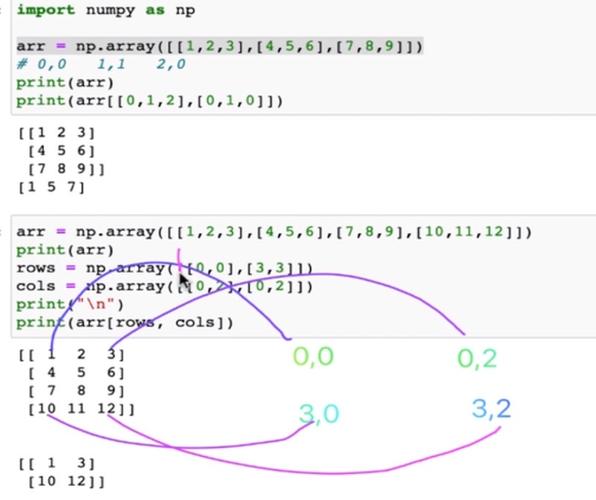
NumPy (Numerical Python) is the fundamental package for scientific computing in Python. Think of it as a super-powered version of Python's built-in lists.
Its main object is the ndarray (N-dimensional array), which is a grid of values, all of the same type. This is different from a standard Python list, which can hold elements of different types.
Key Advantages of NumPy Arrays:
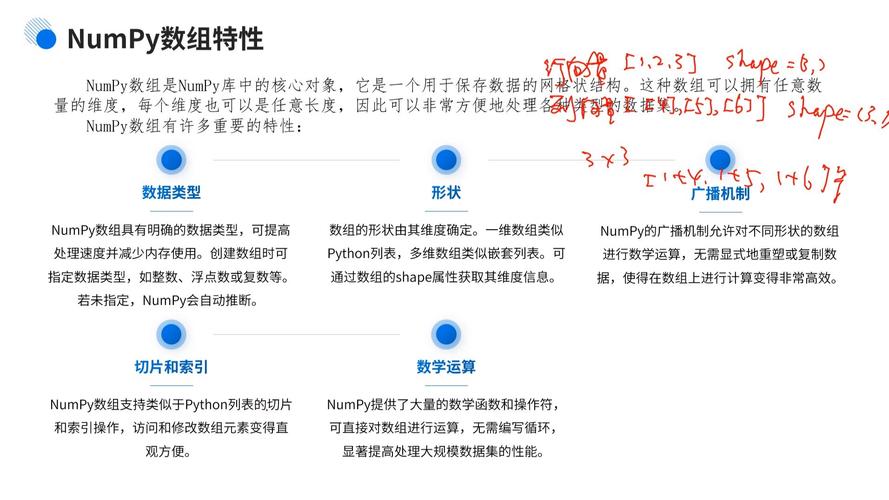
- Performance: Operations on NumPy arrays are executed in pre-compiled, highly optimized C or Fortran code. This makes them much faster than using standard Python lists for numerical calculations.
- Functionality: NumPy provides a huge library of mathematical functions that can operate on entire arrays at once (a concept called vectorization), without needing slow Python loops.
- Memory: NumPy arrays are more memory-efficient than Python lists.
How to Install NumPy
If you installed Python from the official python.org website, IDLE comes bundled with it. However, NumPy is not included by default and must be installed separately.
The easiest way to install it is using pip, Python's package installer.
-
Open your computer's Command Prompt or Terminal.
- On Windows: Press the
Windows Key, typecmd, and press Enter. - On macOS: Press
Cmd + Space, typeTerminal, and press Enter. - On Linux: Press
Ctrl + Alt + T.
- On Windows: Press the
-
Run the installation command: Type the following command and press Enter.
 (图片来源网络,侵删)
pip install numpy
-
Wait for it to finish. You will see progress bars and a final success message.
That's it! NumPy is now installed and ready to be used.
How to Use NumPy in IDLE (Step-by-Step)
Now for the main part. Let's open IDLE and start coding.
Step 1: Launch IDLE and Start a New File
It's best practice to write your code in a script file rather than directly in the interactive shell.
- Open IDLE.
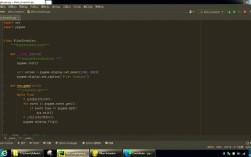
- Go to the menu bar and click File -> New File. This will open a new, empty text editor window.
Step 2: Import the NumPy Library
Before you can use any of NumPy's features, you must import it into your script. The standard convention is to import it with the alias np. This is a universal shorthand that makes your code shorter and more readable.
In your new file, type the following line at the top:
import numpy as np
Step 3: Create Your First NumPy Array
Let's create a simple 1D array from a standard Python list.
# Create a Python list
my_list = [1, 2, 3, 4, 5]
# Convert the list into a NumPy array
my_array = np.array(my_list)
# Print the array and its type to see the difference
print("The NumPy array is:", my_array)
print("The type of the object is:", type(my_array))
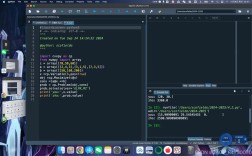
Save the file (e.g., as numpy_test.py) and run it by pressing F5 or going to Run -> Run Module.
You will see this output in the Shell window:
The NumPy array is: [1 2 3 4 5]
The type of the object is: <class 'numpy.ndarray'>
Step 4: Perform Basic Operations (The Power of NumPy)
This is where NumPy shines. Let's see how easy it is to perform calculations on an entire array.
import numpy as np
# Create an array of numbers from 1 to 10
data = np.arange(1, 11) # arange is like range(), but for arrays
print("Original data:", data)
# --- Vectorization in action! ---
# No loops needed!
# Add 5 to every element
data_plus_5 = data + 5
print("Data + 5:", data_plus_5)
# Multiply every element by 2
data_times_2 = data * 2
print("Data * 2:", data_times_2)
# Calculate the square of every element
data_squared = data ** 2
print("Data squared:", data_squared)
# Calculate the sine of every element (using a math function from NumPy)
data_sine = np.sin(data)
print("Sine of data:", data_sine)
Step 5: Explore Array Properties
NumPy arrays have useful attributes that tell you about their structure.
import numpy as np
# Create a 2D array (a matrix)
matrix = np.array([[1, 2, 3], [4, 5, 6]])
print("The matrix:\n", matrix) # \n adds a newline for better formatting
# Get the number of dimensions (axes)
print("Dimensions (axes):", matrix.ndim)
# Get the shape (number of rows, number of columns)
print("Shape:", matrix.shape)
# Get the total number of elements
print("Size (total elements):", matrix.size)
# Get the data type of the elements
print("Data type:", matrix.dtype)
Step 6: A Complete Example Script
Here is a complete script you can save and run. It demonstrates creating arrays, performing operations, and accessing elements.
# numpy_demo.py
import numpy as np
# --- 1. Creating Arrays ---
# From a list
arr1 = np.array([10, 20, 30, 40])
print("Array from list:", arr1)
# Using built-in functions for common patterns
arr_zeros = np.zeros(5) # Array of 5 zeros
print("Zeros array:", arr_zeros)
arr_ones = np.ones((2, 3)) # 2x3 matrix of ones
print("Ones matrix:\n", arr_ones)
arr_range = np.arange(0, 10, 2) # From 0 to 10 (exclusive), step by 2
print("Range array:", arr_range)
# --- 2. Basic Operations ---
print("\n--- Operations ---")
data = np.array([1, 5, 2, 8, 3])
print("Original data:", data)
# Sum of all elements
total_sum = np.sum(data)
print("Sum of all elements:", total_sum)
# Mean (average)
mean_val = np.mean(data)
print("Mean:", mean_val)
# Maximum and Minimum values
max_val = np.max(data)
min_val = np.min(data)
print("Max value:", max_val)
print("Min value:", min_val)
# --- 3. Indexing and Slicing ---
print("\n--- Indexing and Slicing ---")
arr = np.array([10, 20, 30, 40, 50])
# Get the element at index 0 (first element)
first_element = arr[0]
print("First element:", first_element)
# Get the element at the last index
last_element = arr[-1]
print("Last element:", last_element)
# Get a slice from index 1 up to (but not including) index 4
a_slice = arr[1:4]
print("Slice from index 1 to 4:", a_slice)
Why Use NumPy? (NumPy vs. Python Lists)
Let's put it all together with a simple performance comparison. This example shows why NumPy is essential for data science and machine learning.
import numpy as np
import time
# --- Create a large list and a large NumPy array ---
size = 10_000_000 # 10 million elements
# Standard Python list
python_list = list(range(size))
# NumPy array
numpy_array = np.arange(size)
# --- Task 1: Square every element ---
print("Squaring 10,000,000 elements...")
# Time the Python list version
start_time = time.time()
squared_list = [x * x for x in python_list]
end_time = time.time()
list_time = end_time - start_time
print(f"Python list took: {list_time:.4f} seconds")
# Time the NumPy array version
start_time = time.time()
squared_array = numpy_array ** 2
end_time = time.time()
array_time = end_time - start_time
print(f"NumPy array took:  {array_time:.4f} seconds")
# --- Show the speedup ---
print(f"\nNumPy was {list_time / array_time:.1f} times faster!")
When you run this, you will see a dramatic difference in execution time. The NumPy version will likely be 50 to 100 times faster, sometimes even more. This performance difference is what makes NumPy the foundation for powerful libraries like Pandas, SciPy, and scikit-learn.