Of course! Using Docker with Python for Serverless Application Engine (SAE) is a very common and powerful pattern. It gives you full control over your Python environment, dependencies, and runtime, which is essential for applications with specific requirements.
Let's break down the entire process, from the "why" to a complete, step-by-step example.
Why Use a Docker Image for SAE?
Serverless platforms like SAE abstract away the underlying server, but they still need to know how to run your code. By default, SAE supports running web applications by detecting a web server on a specific port (e.g., 9000). A Docker image is the perfect way to package your application and its entire runtime.
Key Benefits:
- Environment Control: Pin your exact Python version (e.g., Python 3.9, 3.11) and operating system.
- Dependency Management: Use a
requirements.txtorpyproject.tomlto define all your Python libraries. SAE will build the image and install these for you. - Custom Runtimes: If your application isn't a standard web framework (like Flask or Django), you can use a Docker image to define your own startup command and entrypoint.
- Binary Dependencies: Easily include compiled C/C++ extensions (e.g., for
Pillow,psycopg2,numpy) that are difficult to install in a serverless environment otherwise. - Reproducibility: Ensures your local development environment is identical to the SAE deployment environment.
Core Concepts: SAE's Docker Support
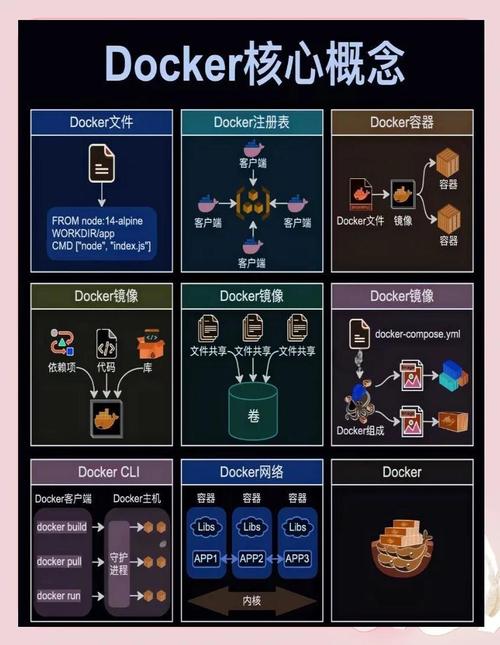
SAE interacts with your Docker image in a specific way:
-
Image Source: You provide a Docker image. SAE supports two main ways:
- Build from Source (Recommended): You provide your source code (
.zipfile or Git repo), and aDockerfile. SAE's build service will build the image for you. This is the most flexible and common approach. - Pre-built Image: You build the image yourself and push it to a container registry (like Alibaba Container Registry, ACR, or Docker Hub). You then provide the image URL to SAE.
- Build from Source (Recommended): You provide your source code (
-
Port Binding: SAE expects your application to bind to a specific port. The default is
9000. You must configure your application and your Dockerfile to listen on this port. -
Health Check: SAE needs to know if your application is running correctly. It does this by sending an HTTP
GETrequest to a specific path. The default is/health. Your application must return a200 OKstatus code for this check to pass.
Step-by-Step Guide: A Flask Application Example
Let's create a simple Python Flask application and deploy it to SAE using a Dockerfile.
Step 1: Create Your Python Application
First, set up your project directory.
mkdir my-sae-python-app
cd my-sae-python-app
Create a file named app.py. This will be our Flask application.
app.py
import os
from flask import Flask, jsonify
# Create the Flask application
app = Flask(__name__)
# A simple route
@app.route('/')
def hello():
    return "Hello from Python on SAE with Docker!"
# A route to demonstrate environment variable access
@app.route('/env')
def get_env():
    message = os.environ.get('MY_CUSTOM_MESSAGE', 'Default message: No env var set')
    return jsonify({"message": message})
# The health check route required by SAE
@app.route('/health')
def health_check():
    # SAE sends a GET request to this path.
    # It must return a 200 OK status.
    return jsonify({"status": "ok"}), 200
# This is the entry point for the WSGI server
if __name__ == '__main__':
    # SAE expects the app to run on port 9000
    app.run(host='0.0.0.0', port=9000, debug=True)
Create a requirements.txt file to list your Python dependencies.
requirements.txt
Flask==2.2.2
gunicorn==20.1.0  # We'll use gunicorn for a more robust server
Step 2: Create the Dockerfile
This is the most critical part. The Dockerfile tells SAE how to build your application's environment.
Dockerfile
# 1. Base Image: Use an official Python image
# Choose a specific version for reproducibility
FROM python:3.9-slim
# 2. Set the working directory inside the container
WORKDIR /app
# 3. Copy dependency files first for better Docker layer caching
# This layer is only rebuilt if requirements.txt changes
COPY requirements.txt .
# 4. Install Python dependencies
# --no-cache-dir reduces image size
RUN pip install --no-cache-dir -r requirements.txt
# 5. Copy the rest of your application code into the container
COPY . .
# 6. Expose the port SAE will use
# This is a documentation step, but good practice.
EXPOSE 9000
# 7. Set the command to run your application
# We use gunicorn, a production-grade WSGI server.
# It binds to all interfaces (0.0.0.0) on port 9000.
# 'app:app' means:
#   - 'app': the variable name in your app.py that holds the Flask instance.
#   - 'app': the module name (app.py).
CMD ["gunicorn", "--bind", "0.0.0.0:9000", "--workers", "1", "app:app"]
Explanation of the CMD:
gunicorn: The server we're using.--bind 0.0.0.0:9000: Makes the server accessible outside the container on port 9000. This is mandatory for SAE.--workers 1: In a serverless context, you typically only need one worker process.app:app: Tells Gunicorn where to find the WSGI application. The firstappis the Python file (app.py), and the secondappis the Flask application object within that file.
Step 3: Prepare for Deployment (Zip the Code)
SAE requires you to upload your application source code as a .zip archive.
Important: Do not zip the Dockerfile itself. SAE will find it in the root of your uploaded source.
# Create a zip file containing app.py and requirements.txt
# Make sure you are in the my-sae-python-app directory
zip -r my_app_source.zip app.py requirements.txt
You now have my_app_source.zip ready to upload.
Step 4: Deploy to SAE (via Console)
- Log in to the Alibaba Cloud Console and navigate to Serverless Application Engine (SAE).
- Click Create Application.
- Choose a Region and Application Name (e.g.,
my-python-docker-app). - In the Application Specifications step:
- Deployment Package: Select ZIP File.
- Click Upload and select the
my_app_source.zipfile you created. - Dockerfile: Leave this as
Dockerfile(the default name). SAE will automatically find it in your source package.
- Configure Instance Settings:
- CPU: Choose a suitable size (e.g., 0.25 vCPU for this small app).
- Memory: Choose a suitable size (e.g., 512 MB).
- Environment Variables: Click Add Environment Variable.
- Key:
MY_CUSTOM_MESSAGE - Value:
Hello from SAE Environment!
- Key:
- Review and Create your application.
SAE will now automatically build your Docker image and deploy the application. You can monitor the build and deployment progress in the SAE console. Once it's "Running," you can access your application via the URL provided.
Step 5: Test Your Application
Open your browser or use curl to access the endpoints:
-
Root Endpoint:
curl <your-sae-app-url>Expected Output:
Hello from Python on SAE with Docker! -
Environment Variable Endpoint:
curl <your-sae-app-url>/envExpected Output:
{"message": "Hello from SAE Environment!"} -
Health Check Endpoint (you can test this too):
curl <your-sae-app-url>/healthExpected Output:
{"status": "ok"}
Advanced Scenarios & Best Practices
-
Multi-Stage Builds: For production, use a multi-stage Dockerfile to keep your final image small and secure. The first stage builds the application, and the second stage copies only the necessary artifacts into a clean, minimal base image.
# ---- Stage 1: Build ----
FROM python:3.9-slim as builder
WORKDIR /build
COPY requirements.txt .
RUN pip install --user -r requirements.txt
# ---- Stage 2: Run ----
FROM python:3.9-slim
WORKDIR /app
# Copy installed packages from the builder stage
COPY --from=builder /root/.local /root/.local
# Copy your application code
COPY . .
# Add the local bin to the PATH
ENV PATH=/root/.local/bin:$PATH
EXPOSE 9000
CMD ["gunicorn", "--bind", "0.0.0.0:9000", "--workers", "1", "app:app"]
-
Using a Custom
DockerfileName: If your Dockerfile has a different name (e.g.,Dockerfile.prod), you must specify it in the SAE console during deployment. -
Pre-built Images (ACR):
- Build your image locally:
docker build -t my-registry.cn-hangzhou.aliyuncs.com/my-repo/my-python-app:latest . - Push it to Alibaba Container Registry (ACR):
docker push my-registry.cn-hangzhou.aliyuncs.com/my-repo/my-python-app:latest - In the SAE console, when creating the application, select Container Image as the deployment type and provide the ACR image URL. You will also need to configure ACR access for SAE.
- Build your image locally: