Of course! Here is a comprehensive guide to using Python and Pandas on a Mac, covering installation, setup, common tasks, and troubleshooting.
The Easiest Way: Using Anaconda
For most users, especially beginners, the best way to get started with Pandas on a Mac is by using the Anaconda distribution. Anaconda bundles Python, Pandas, and hundreds of other data science packages into a single, easy-to-install manager. It also handles virtual environments, which is crucial for avoiding package conflicts.
Why Use Anaconda?
- Simplicity: One installer for Python and all major data science libraries (NumPy, Matplotlib, Jupyter, etc.).
- Environment Management: Easily create separate environments for different projects to keep their dependencies clean and isolated.
- No Headaches: Avoids issues with Python's package manager,
pip, and system-level Python.
Step-by-Step Installation with Anaconda
-
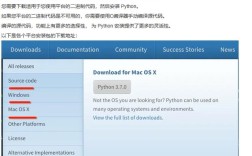
Download Anaconda: Go to the official Anaconda Distribution for macOS page. Download the latest Python 3 installer (e.g., "MacOS Installer"). The graphical installer is highly recommended.
-
Run the Installer: Open the downloaded
.pkgfile and follow the on-screen instructions. You can accept most of the default settings. The installer will add Anaconda to your system's PATH, so you can run it from the Terminal. -
Verify the Installation: Open the Terminal app (you can find it in
Applications/Utilitiesor search for it with Spotlight). (图片来源网络,侵删)
- Check if the Anaconda command-line tools are available:
conda --version
You should see a version number like
conda 23.10.0. - Check if Python is pointing to the Anaconda version:
which python
This should output a path like
/Users/your_username/opt/anaconda3/bin/python. If it points to/usr/bin/python, you might need to adjust your shell's PATH or usesource ~/.zshrc(orsource ~/.bash_profile).
- Check if the Anaconda command-line tools are available:
-
Create a New Environment (Best Practice) It's good practice to create a dedicated environment for your Pandas projects. This prevents conflicts with other projects.
# Create a new environment named 'pandas_project' with Python 3.10
conda create -n pandas_project python=3.10
# Activate the environment
conda activate pandas_project
Your terminal prompt will now change to show
(pandas_project), indicating the environment is active. (图片来源网络,侵删)
 -
Install Pandas: With your environment active, install Pandas. Conda will automatically install its dependencies, like NumPy.
conda install pandas
-
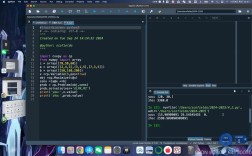
Verify Pandas is Installed: Start a Python interpreter and check the version.
# In your terminal (with the environment active)
python
Then, inside the Python interpreter:
import pandas as pd
print(pd.__version__)
You should see the installed Pandas version (e.g.,
1.3). Typeexit()to leave the interpreter.
The "From Scratch" Method: Using Homebrew and pip
If you prefer not to use Anaconda and manage Python yourself, you can use Homebrew (the de-facto package manager for macOS) and pip (Python's package installer).
Step-by-Step Installation
-
Install Homebrew: If you don't have Homebrew, open the Terminal and paste this command:
/bin/bash -c "$(curl -fsSL https://raw.githubusercontent.com/Homebrew/install/HEAD/install.sh)"
Follow the on-screen instructions.
-
Install Python with Homebrew: Homebrew provides a well-maintained version of Python.
brew install python
This installs Python 3 and
pip3. Homebrew adds this to your PATH, sopythonandpipwill now point to the Homebrew versions. -
Install Pandas with
pip: Now you can usepipto install Pandas.pip install pandas
-
Verify the Installation: The verification steps are the same as in the Anaconda guide.
# Check Python version
python --version
# Check Python location
which python
# Start Python and import pandas
python
>>> import pandas as pd
>>> print(pd.__version__)
>>> exit()
Working with Pandas on a Mac: Common Tasks
Once installed, here's how you can start using Pandas.
A. Using a Jupyter Notebook (Recommended)
Jupyter is an interactive environment perfect for data analysis.
-
Install Jupyter: If you used Anaconda, Jupyter is likely already installed. If not, install it.
# With conda
conda install jupyter
# With pip
pip install jupyter
-
Launch Jupyter:
jupyter notebook
This will open a new tab in your web browser with the Jupyter file explorer.
-
Create and Run a Notebook:
- Click "New" -> "Python 3" to create a new notebook.
- In the first cell, import pandas and NumPy.
import pandas as pd
import numpy as np
- Press
Shift + Enterto run the cell.
B. Basic Example: Creating and Manipulating a DataFrame
Here's a simple example you can run in a Jupyter cell or a Python script.
import pandas as pd
# 1. Create a DataFrame from a dictionary
data = {
    'Name': ['Alice', 'Bob', 'Charlie', 'David'],
    'City': ['New York', 'Los Angeles', 'Chicago', 'Houston'],
    'Age': [25, 30, 35, 28]
}
df = pd.DataFrame(data)
# 2. Display the first few rows
print("--- First 5 rows ---")
print(df.head())
# 3. Get basic information about the DataFrame
print("\n--- DataFrame Info ---")
df.info()
# 4. Select a column
print("\n--- 'Name' Column ---")
names = df['Name']
print(names)
# 5. Filter rows based on a condition
print("\n--- People older than 29 ---")
older_than_29 = df[df['Age'] > 29]
print(older_than_29)
# 6. Save DataFrame to a CSV file
df.to_csv('people.csv', index=False)
print("\n--- DataFrame saved to people.csv ---")
# 7. Read a CSV file into a new DataFrame
df_from_csv = pd.read_csv('people.csv')
print("\n--- DataFrame loaded from CSV ---")
print(df_from_csv)
Troubleshooting Common Mac Issues
Issue 1: ModuleNotFoundError: No module named 'pandas'
This is the most common error. It means Python can't find the Pandas library.
-
Cause 1: You are in the wrong Python environment.
- Solution: Make sure you have activated your Anaconda environment (
conda activate my_env) or are using the correct Python interpreter installed by Homebrew. Check withwhich python.
- Solution: Make sure you have activated your Anaconda environment (
-
Cause 2: Pandas was not installed in the current environment.
- Solution: Install it using
conda install pandasorpip install pandasin the active environment.
- Solution: Install it using
Issue 2: xcrun: error: invalid active developer path
You might see this when trying to install packages with pip if you have Xcode command line tools issues.
- Solution: Install or update the Xcode Command Line Tools.
xcode-select --install
Issue 3: Performance Issues with Large Files
Pandas is fast, but very large datasets can still be slow on any machine, including a Mac.
- Solutions:
- Use
dtypeoptimization: When reading a CSV, specify data types to save memory.# Read CSV with optimized dtypes df = pd.read_csv('large_file.csv', dtype={'id': 'int32', 'category': 'category'}) - Use
chunksize: Process the file in smaller pieces.chunk_iter = pd.read_csv('very_large_file.csv', chunksize=10000) for chunk in chunk_iter: # process each chunk process(chunk) - Consider Dask: For datasets larger than your RAM, use a library like Dask which provides a Pandas-like interface for out-of-core computation.
- Use
Summary and Recommendation
| Method | Pros | Cons | Best For |
|---|---|---|---|
| Anaconda | - Easiest setup - Manages environments - Bundles all data science tools - Avoids dependency hell |
- Larger installation size - Can feel "heavy" for simple tasks |
Everyone, especially beginners and data scientists. |
| Homebrew + pip | - Minimalist, uses standard tools - Good if you know what you're doing |
- Manual environment management - Prone to dependency conflicts |
- Developers who already use Homebrew - Users who prefer a lean setup. |
For 99% of users, starting with Anaconda is the recommended path. It saves a lot of time and frustration down the line.