Of course! This is a very common and powerful workflow in data analysis and automation. Let's break down how to work with Python, Excel, and JSON, covering reading, writing, and converting between them.
We'll use the most popular and user-friendly libraries for this task:
pandas: The go-to library for data manipulation. It can read/write Excel and JSON files with ease.openpyxl: A library thatpandasuses under the hood to handle.xlsxfiles.json: Python's built-in library for working with JSON data.
Step 1: Installation
First, you need to install the necessary libraries. Open your terminal or command prompt and run:
# For reading and writing Excel files
pip install pandas openpyxl
# For reading and writing JSON files (pandas uses the built-in json module)
# No extra installation needed for json, but you might want 'prettyjson' for printing
pip install prettyjson
Part 1: Reading Data from Excel and Converting to JSON
This is a frequent task, for example, when you have configuration data or a list of items in an Excel sheet that needs to be used in a web application.
Scenario: You have an Excel file data.xlsx with a sheet named Sheet1:
| id | name | city |
|---|---|---|
| 1 | Alice | New York |
| 2 | Bob | London |
| 3 | Charlie | Tokyo |
Goal: Convert this into a JSON file.
Python Code:
import pandas as pd
import json
# --- 1. Read the Excel file ---
# The `read_excel` function loads the data into a pandas DataFrame.
# The `sheet_name` argument specifies which sheet to read.
try:
    df = pd.read_excel('data.xlsx', sheet_name='Sheet1')
except FileNotFoundError:
    print("Error: 'data.xlsx' not found. Please make sure the file is in the same directory.")
    exit()
print("--- Data from Excel (DataFrame) ---")
print(df)
print("\n" + "="*30 + "\n")
# --- 2. Convert DataFrame to JSON ---
# The `to_json` method is very flexible.
# - `orient='records'`: This is the most common format. It creates a list of dictionaries,
#   where each dictionary represents a row. This is perfect for APIs and web apps.
json_data = df.to_json(orient='records')
# `json_data` is now a string. Let's parse it to a Python list of dictionaries.
# This makes it easy to inspect or manipulate.
python_list = json.loads(json_data)
print("--- Converted to Python List ---")
import prettyjson
print(prettyjson.dumps(python_list, indent=2))
print("\n" + "="*30 + "\n")
# --- 3. Write the JSON data to a file ---
# Use the standard `json.dump` to write the Python object to a file with indentation.
with open('data.json', 'w') as f:
    json.dump(python_list, f, indent=4)
print("Successfully created 'data.json' file.")
Output data.json:
[
    {
        "id": 1,
        "name": "Alice",
        "city": "New York"
    },
    {
        "id": 2,
        "name": "Bob",
        "city": "London"
    },
    {
        "id": 3,
        "name": "Charlie",
        "city": "Tokyo"
    }
]
Part 2: Reading Data from JSON and Converting to Excel
This is useful when you get data from an API or a configuration file in JSON format and need to analyze it in Excel.
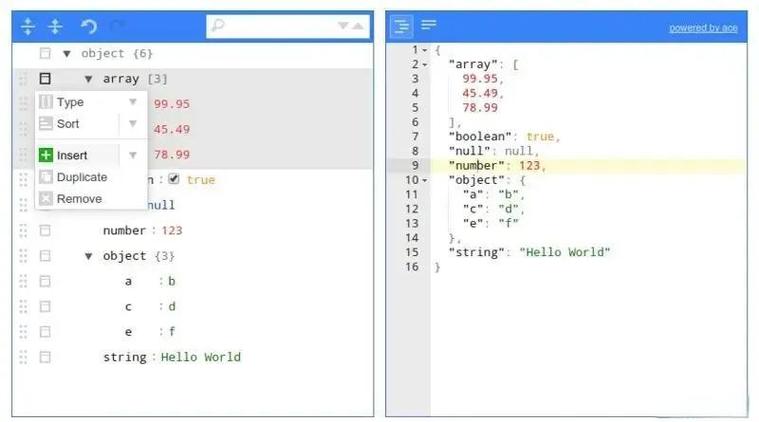
Scenario: You have a JSON file data.json:
[
    {
        "product_id": "A101",
        "product_name": "Laptop",
        "price": 1200,
        "in_stock": true
    },
    {
        "product_id": "B205",
        "product_name": "Mouse",
        "price": 25,
        "in_stock": true
    },
    {
        "product_id": "C310",
        "product_name": "Keyboard",
        "price": 75,
        "in_stock": false
    }
]
Goal: Convert this into an Excel file products.xlsx.
Python Code:
import pandas as pd
import json
# --- 1. Read the JSON file ---
# We can read the JSON directly into a pandas DataFrame.
try:
    df = pd.read_json('data.json')
except FileNotFoundError:
    print("Error: 'data.json' not found. Please make sure the file is in the same directory.")
    exit()
print("--- Data from JSON (DataFrame) ---")
print(df)
print("\n" + "="*30 + "\n")
# --- 2. Write the DataFrame to an Excel file ---
# The `to_excel` method does the magic.
# - `index=False`: Prevents pandas from writing the DataFrame index as a column.
# - `engine='openpyxl'`: Explicitly tells pandas to use the openpyxl engine.
df.to_excel('products.xlsx', index=False, engine='openpyxl')
print("Successfully created 'products.xlsx' file.")
Output products.xlsx:
| product_id | product_name | price | in_stock |
|---|---|---|---|
| A101 | Laptop | 1200 | TRUE |
| B205 | Mouse | 25 | TRUE |
| C310 | Keyboard | 75 | FALSE |
Part 3: Advanced Scenarios & Tips
A. Handling Multiple Sheets in Excel
If your Excel file has multiple sheets and you want to save each one as a separate JSON file.
import pandas as pd
import json
# Read all sheets from the Excel file into a dictionary of DataFrames
# The keys of the dictionary will be the sheet names.
excel_data = pd.read_excel('multi_sheet_data.xlsx', sheet_name=None)
print(f"Found sheets: {list(excel_data.keys())}")
# Loop through each sheet
for sheet_name, df in excel_data.items():
    # Create a filename for the JSON
    json_filename = f"{sheet_name}.json"
    # Convert to JSON and save
    with open(json_filename, 'w') as f:
        json.dump(df.to_json(orient='records'), f, indent=4)
    print(f"Successfully created '{json_filename}' from sheet '{sheet_name}'.")
B. Writing to a Specific Sheet in an Existing Excel File
Sometimes you don't want to overwrite the whole file, just add a new sheet.
import pandas as pd
# New data to be added as a new sheet
new_data = {
    'order_id': [1001, 1002],
    'customer': ['David', 'Eve']
}
new_df = pd.DataFrame(new_data)
# Excel file writer object
# This mode allows you to append to an existing file or create a new one.
with pd.ExcelWriter('report.xlsx', engine='openpyxl', mode='a', if_sheet_exists='replace') as writer:
    # Write the new DataFrame to a sheet named 'Orders'
    new_df.to_excel(writer, sheet_name='Orders', index=False)
print("Successfully added/updated 'Orders' sheet in 'report.xlsx'.")
Note: The mode='a' (append) and if_sheet_exists='replace' are important here. They tell pandas to open the existing file and replace the 'Orders' sheet if it exists, or create it if it doesn't.
C. Handling Different JSON Structures
The orient parameter in to_json is powerful.
orient value |
Output Structure | Best for... |
|---|---|---|
records |
[ {col1: val1, ...}, {col1: val2, ...}, ... ] |
Most common. APIs, simple data transfer. |
values |
[[val1, val2], [val3, val4]] |
Raw data, like a NumPy array. |
index |
{ index: { col1: val1, col2: val2 }, ... } |
When you need to preserve the row index. |
columns |
{ col1: { index: val1 }, col2: { index: val2 } } |
When you want columns as the primary key. |
split |
{ 'columns': [...], 'data': [...], 'index': [...] } |
Reconstructing the DataFrame later. |
You can also load JSON that isn't in the records format:
# Example of loading a 'split' oriented JSON
split_json = {
    "columns": ["name", "age"],
    "index": ["row1", "row2"],
    "data": [["Alice", 30], ["Bob", 25]]
}
df_from_split = pd.read_json(json.dumps(split_json), orient='split')
print(df_from_split)
Summary of Key Functions
| Task | Function | Key Arguments |
|---|---|---|
| Read Excel | pd.read_excel() |
filepath, sheet_name |
| Write Excel | df.to_excel() |
filepath, index=False, sheet_name |
| Read JSON | pd.read_json() |
filepath, orient |
| Write JSON | df.to_json() |
orient (e.g., 'records') |
| Write JSON to File | json.dump() |
file_object, data, indent |