Of course! This is a very common and important setup for web development. Let's break down how to configure and use Python with MySQL within the MAMP environment on macOS.
The core challenge is that MAMP runs its own self-contained versions of MySQL and PHP, which are separate from the system-wide versions. Python, on the other hand, uses its own package manager (pip) and needs a way to "talk" to the MAMP MySQL server.
Here is a complete, step-by-step guide.
The Short Answer (TL;DR)
- Install a MySQL Driver for Python: Open your Terminal and run:
pip install mysqlclient
- Find MAMP's MySQL Port: Open MAMP -> MySQL -> Port. It's likely
8889by default. - Find MAMP's MySQL Credentials: In MAMP -> MySQL -> "Root" user. The password is often
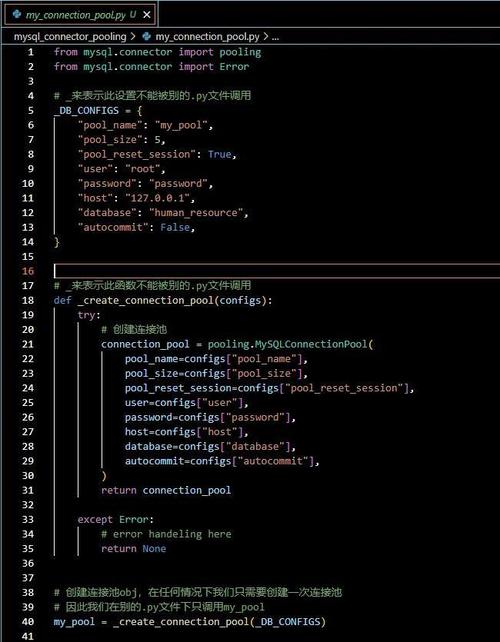
'root'. - Connect in Python: Use this connection string in your Python script, replacing the placeholders.
import MySQLdb
# --- Configuration ---
# Get these from your MAMP settings
DB_HOST = '127.0.0.1'  # or 'localhost'
DB_PORT = 8889         # This is the key! MAMP's default port.
DB_USER = 'root'
DB_PASSWORD = 'root'
DB_NAME = 'test_db'
try:
    # Establish the connection
    connection = MySQLdb.connect(
        host=DB_HOST,
        port=DB_PORT,
        user=DB_USER,
        passwd=DB_PASSWORD,
        db=DB_NAME
    )
    print("Successfully connected to the database!")
    # Create a cursor object to execute queries
    cursor = connection.cursor()
    # --- Example Query ---
    cursor.execute("SELECT VERSION()")
    version = cursor.fetchone()
    print(f"MySQL Database Version: {version[0]}")
    # --- Example: Create a table and insert data ---
    # cursor.execute("CREATE TABLE IF NOT EXISTS users (id INT AUTO_INCREMENT PRIMARY KEY, name VARCHAR(100))")
    # cursor.execute("INSERT INTO users (name) VALUES ('Alice')")
    # connection.commit() # IMPORTANT: Commit the transaction
    # print("Table created and data inserted.")
    # --- Example: Fetch data ---
    # cursor.execute("SELECT * FROM users")
    # users = cursor.fetchall()
    # for user in users:
    #     print(user)
    # Close the cursor and connection
    cursor.close()
    connection.close()
except MySQLdb.Error as e:
    print(f"Error connecting to MySQL: {e}")
Detailed Step-by-Step Guide
Step 1: Set Up MAMP and Create a Database
If you haven't already, make sure MAMP is running.
- Start MAMP: Open the MAMP application and start the servers.
- Create a Database:
- In the MAMP window, click on the "phpMyAdmin" button. This will open it in your browser.
- In the "Create database" field, enter a name (e.g.,
my_python_db). - Click "Create".
Step 2: Install the Python MySQL Driver
Python cannot communicate with MySQL directly. You need a "driver" or "connector" library. The most common and stable one is mysqlclient.
-
Open Terminal: You can find it in
/Applications/Utilities/or search for it with Spotlight (Cmd+Space). -
Install
mysqlclient: Run the following command. This will download and compile the library for your system.pip install mysqlclient
Note: If you have both Python 2 and 3, you might need
pip3 install mysqlclient.If you encounter compilation errors (related to
xcode-selector missing headers), you may need to install Xcode Command Line Tools first: (图片来源网络,侵删)
xcode-select --install
Step 3: Find MAMP's MySQL Connection Details
This is the most critical step. MAMP's MySQL server is not on the standard port 3306.
- Host: The host is always
localhostor0.0.1. - Port:
- In the MAMP application window, click on the MySQL tab.
- You will see the port number. The default is
8889. You must use this port in your Python script.
- Username and Password:
- By default, the username is
root. - The default password is also
root. You can change this in the MAMPUserstab if you wish.
- By default, the username is
- Database Name: Use the one you created in Step 1 (e.g.,
my_python_db).
Step 4: Write the Python Script
Now, create a Python file (e.g., db_test.py) and use the code from the "Short Answer" section, making sure to fill in your correct details.
# db_test.py
import MySQLdb
# --- MAMP Configuration ---
# Get these from your MAMP settings
DB_HOST = '127.0.0.1'
DB_PORT = 8889         # <--- CRITICAL: Use MAMP's port, not 3306
DB_USER = 'root'
DB_PASSWORD = 'root'   # <--- Change if you set a different password
DB_NAME = 'my_python_db' # <--- The database you created in phpMyAdmin
try:
    # Establish the connection
    connection = MySQLdb.connect(
        host=DB_HOST,
        port=DB_PORT,
        user=DB_USER,
        passwd=DB_PASSWORD,
        db=DB_NAME
    )
    print("✅ Successfully connected to the MAMP MySQL database!")
    # Create a cursor object
    cursor = connection.cursor()
    # --- Example 1: Get server version ---
    cursor.execute("SELECT VERSION()")
    version = cursor.fetchone()
    print(f"MySQL Version: {version[0]}\n")
    # --- Example 2: Create a table and insert data ---
    print("Creating table 'products'...")
    cursor.execute("""
        CREATE TABLE IF NOT EXISTS products (
            id INT AUTO_INCREMENT PRIMARY KEY,
            name VARCHAR(255) NOT NULL,
            price DECIMAL(10, 2)
        )
    """)
    # Check if data already exists to avoid duplicates on each run
    cursor.execute("SELECT COUNT(*) FROM products")
    if cursor.fetchone()[0] == 0:
        print("Inserting sample data...")
        cursor.execute("INSERT INTO products (name, price) VALUES ('Laptop', 1200.00)")
        cursor.execute("INSERT INTO products (name, price) VALUES ('Mouse', 25.50)")
        connection.commit() # Commit the transaction to save changes
        print("✅ Data inserted and committed.")
    else:
        print("Table already has data. Skipping insertion.")
    # --- Example 3: Fetch and display data ---
    print("\nFetching all products:")
    cursor.execute("SELECT id, name, price FROM products")
    products = cursor.fetchall()
    if products:
        print("ID | Name      | Price")
        print("------------------------")
        for product in products:
            print(f"{product[0]} | {product[1]:<9} | ${product[2]}")
    else:
        print("No products found.")
    # --- Clean up ---
    cursor.close()
    connection.close()
    print("\n✅ Connection closed.")
except MySQLdb.Error as e:
    print(f"❌ Error connecting to MySQL: {e}")
Step 5: Run the Python Script
-
Make sure MAMP servers are running.
-
Open your Terminal.
-
Navigate to the directory where you saved
db_test.py. -
Run the script:
python db_test.py
If everything is configured correctly, you will see the success messages and the output from your queries.
Troubleshooting Common Issues
-
OperationalError: (2002, "Can't connect to MySQL server on 'localhost' (61)")- Cause: This is the most common error. It almost always means you are using the wrong port.
- Solution: Double-check that
DB_PORTin your Python script is set to8889(or whatever port MAMP is using), not the default3306.
-
Access denied for user 'root'@'localhost'- Cause: The username or password in your Python script does not match what's set in MAMP.
- Solution: Go to MAMP -> MySQL -> "Root" and verify the password. If you changed it, update your script.
-
ImportError: No module named MySQLdb- Cause: The
mysqlclientlibrary is not installed or not installed for the version of Python you are using. - Solution: Run
pip install mysqlclientagain. If you have multiple Python versions, trypip3 install mysqlclient. Make sure you are running the script with the same Python executable (e.g.,pythonvspython3).
- Cause: The
-
Can't connect to MySQL server on '127.0.0.1' (99)- Cause: The MAMP MySQL server is not running.
- Solution: Open the MAMP application and ensure the servers are started (the traffic lights should be green).