Of course! The term "Windows side" in the context of Python usually refers to interacting with the Windows operating system. This can mean several things, from basic system information to advanced automation.
Here’s a comprehensive guide covering the most common "Windows side" tasks you can perform with Python, categorized from simple to advanced.
Getting System Information (The "View" Side)
This is about reading data from your Windows machine. The best library for this is psutil (Process and System utilities).
First, install it:
pip install psutil
Example Code:
import psutil
import platform
# --- Basic System Info ---
print("--- System Information ---")
print(f"Operating System: {platform.system()} {platform.release()}")
print(f"Machine: {platform.machine()}")
print(f"Processor: {platform.processor()}")
print(f"Node Name: {platform.node()}")
# --- CPU Information ---
print("\n--- CPU ---")
print(f"Logical CPUs: {psutil.cpu_count(logical=True)}")
print(f"Physical Cores: {psutil.cpu_count(logical=False)}")
print(f"Current CPU Usage: {psutil.cpu_percent(interval=1)}%")
# --- Memory (RAM) Information ---
print("\n--- Memory ---")
mem = psutil.virtual_memory()
print(f"Total RAM: {mem.total / (1024**3):.2f} GB")
print(f"Available RAM: {mem.available / (1024**3):.2f} GB")
print(f"Used RAM: {mem.used / (1024**3):.2f} GB ({mem.percent}%)")
# --- Disk Information ---
print("\n--- Disk ---")
disk = psutil.disk_usage('/')
print(f"Total C: Drive: {disk.total / (1024**3):.2f} GB")
print(f"Used C: Drive: {disk.used / (1024**3):.2f} GB ({disk.percent}%)")
print(f"Free C: Drive: {disk.free / (1024**3):.2f} GB")
# --- Network Information ---
print("\n--- Network ---")
net_io = psutil.net_io_counters()
print(f"Bytes Sent: {net_io.bytes_sent / (1024**2):.2f} MB")
print(f"Bytes Received: {net_io.bytes_recv / (1024**2):.2f} MB")
Automating Windows Tasks (The "Control" Side)
This is about making Python perform actions on Windows, like opening programs or managing files.
Method A: Using the os and subprocess Modules (Built-in)
These modules are part of Python's standard library, so no installation is needed.
Example 1: Opening a File or URL
import os
import webbrowser
# Open a file with its default application (e.g., a text file)
os.startfile("C:\\Users\\YourUser\\Documents\\readme.txt")
# Open a URL in the default web browser
webbrowser.open("https://www.python.org")
Example 2: Running a Command-Line Program
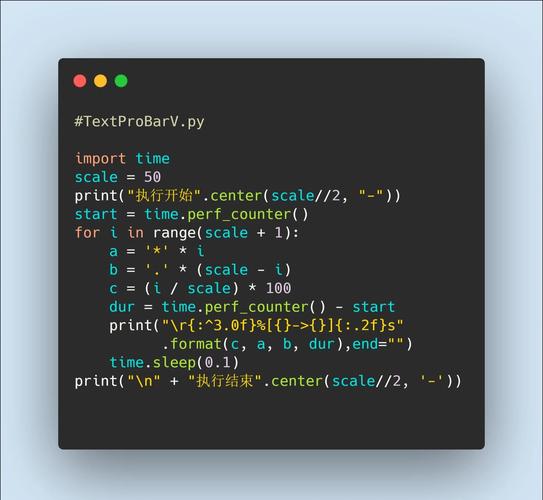
import subprocess
# Run the 'dir' command and print its output
# 'shell=True' is needed for some Windows commands
try:
    result = subprocess.run("dir", shell=True, check=True, capture_output=True, text=True)
    print("Command executed successfully!")
    print("Output:\n", result.stdout)
except subprocess.CalledProcessError as e:
    print(f"Error executing command: {e}")
    print("Error output:\n", e.stderr)
Method B: Using the pywin32 Library (Powerful & Native)
pywin32 gives you direct access to many Windows APIs. It's like supercharging Python for Windows tasks.
First, install it:
pip install pywin32
Example 1: Showing a System Dialog Box
import win32api
import win32con
# Show a simple message box
win32api.MessageBox(0, "Hello from Python!", "My Python Script", win32con.MB_OK)
Example 2: Getting a List of All Running Processes
import win32process
import win32gui
import win32con
def get_all_window_titles():
    """Enumerates all top-level windows and returns their titles."""
    def callback(hwnd, hwnds):
        if win32gui.IsWindowVisible(hwnd):
            title = win32gui.GetWindowText(hwnd)
            if title: # Only add windows with a title
                hwnds.append(title)
        return True
    hwnds = []
    win32gui.EnumWindows(callback, hwnds)
    return hwnds
# Get and print all visible window titles
all_windows = get_all_window_titles()
print("Currently Open Windows:")in sorted(all_windows):
    print(f"- {title}")
Interacting with the Windows Registry
The Windows Registry is a database for settings and options. The winreg module is built-in for this.
Example: Reading a Registry Value
import winreg
try:
    # Open the registry key for the current user's environment variables
    # HKEY_CURRENT_USER\Environment
    key = winreg.OpenKey(winreg.HKEY_CURRENT_USER, "Environment")
    # Try to read the 'PATH' variable
    path_value, _ = winreg.QueryValueEx(key, "PATH")
    print(f"Current User's PATH:\n{path_value}")
    winreg.CloseKey(key)
except FileNotFoundError:
    print("The 'PATH' variable was not found.")
except WindowsError as e:
    print(f"An error occurred: {e}")
Example: Adding a Desktop Shortcut (Advanced)
Creating a shortcut is complex, but pywin32 makes it possible.
import pythoncom
from win32com.shell import shell, shellcon
import os
def create_shortcut(target_path, shortcut_path, description=""):
    """
    Creates a shortcut (.lnk file).
    :param target_path: The file or executable the shortcut points to.
    :param shortcut_path: The full path for the new .lnk file.
    :param description: A description for the shortcut.
    """
    # Ensure the COM library is initialized
    pythoncom.CoInitialize()
    # Create a shortcut object
    shortcut = pythoncom.CoCreateInstance(
        shell.CLSID_ShellLink,
        None,
        pythoncom.CLSCTX_INPROC_SERVER,
        shell.IID_IShellLink
    )
    # Set the shortcut's properties
    shortcut.SetPath(target_path)
    shortcut.SetDescription(description)
    # Query for the IPersistFile interface to save the shortcut
    persist_file = shortcut.QueryInterface(pythoncom.IID_IPersistFile)
    # Save the shortcut. The final '0' is for code page.
    persist_file.Save(shortcut_path, 0)
# --- Usage Example ---
notepad_path = r"C:\Windows\System32\notepad.exe"
desktop_path = os.path.join(os.path.expanduser("~"), "Desktop")
shortcut_on_desktop = os.path.join(desktop_path, "My Notepad Shortcut.lnk")
create_shortcut(
    target_path=notepad_path,
    shortcut_path=shortcut_on_desktop,
    description="A shortcut opened by Python!"
)
print(f"Shortcut created at: {shortcut_on_desktop}")
Graphical User Interfaces (GUIs) for Windows
If you want to build your own desktop applications that run on Windows, you have several great options.
| Library | Description | Difficulty | Best For |
|---|---|---|---|
| Tkinter | Built-in to Python. Simple and good for basic apps. | Easy | Beginners, simple tools, internal utilities. |
| PyQt / PySide | Powerful, professional framework for complex desktop apps. | Hard | Complex applications, data visualization, professional software. |
| Kivy | Cross-platform, great for touch-enabled applications. | Medium | Mobile apps, multi-touch interfaces. |
| Dear PyGui | Modern, immediate-mode GUI framework. Easy for data-heavy apps. | Easy | Rapid prototyping, dashboards, data visualization tools. |
Simple Tkinter Example:
import tkinter as tk
from tkinter import messagebox
def show_message():
    """Shows a message box when the button is clicked."""
    messagebox.showinfo("Hello!", "You clicked the button!")
# Create the main window
window = tk.Tk()
window.title("My First App")
window.geometry("300x200")
# Add a widget (a button)
button = tk.Button(window, text="Click Me!", command=show_message)
button.pack(pady=20) # .pack() is a simple way to place widgets
# Start the application's main loop
window.mainloop()
Summary: Which one to choose?
- To just read system info: Use
psutil. - To open files/programs or run simple commands: Use
osandsubprocess. - To deeply integrate with Windows (dialogs, registry, processes): Use
pywin32. - To build a desktop application: Choose a GUI library like Tkinter (easy start) or PyQt/PySide (professional).



![Python reversed()怎么用?[::-1]和它有啥区别?](https://www.jerry.net.cn/zb_users/cache/thumbs/ed28fc61e3e820b31c4e5ed7c6a8b7fc-252-157-1.jpeg)