Of course! The term "output mode" in Python isn't a single, built-in setting, but rather a concept that refers to how and where your program sends its results. This can range from printing to the console, writing to a file, creating a graphical user interface (GUI), or sending data over a network.
Let's break down the most common "output modes" in Python, from simplest to most complex.
Console Output (Standard Output)
This is the most fundamental way to see your program's results. It's what you see in the terminal or command prompt.
a) print() Function
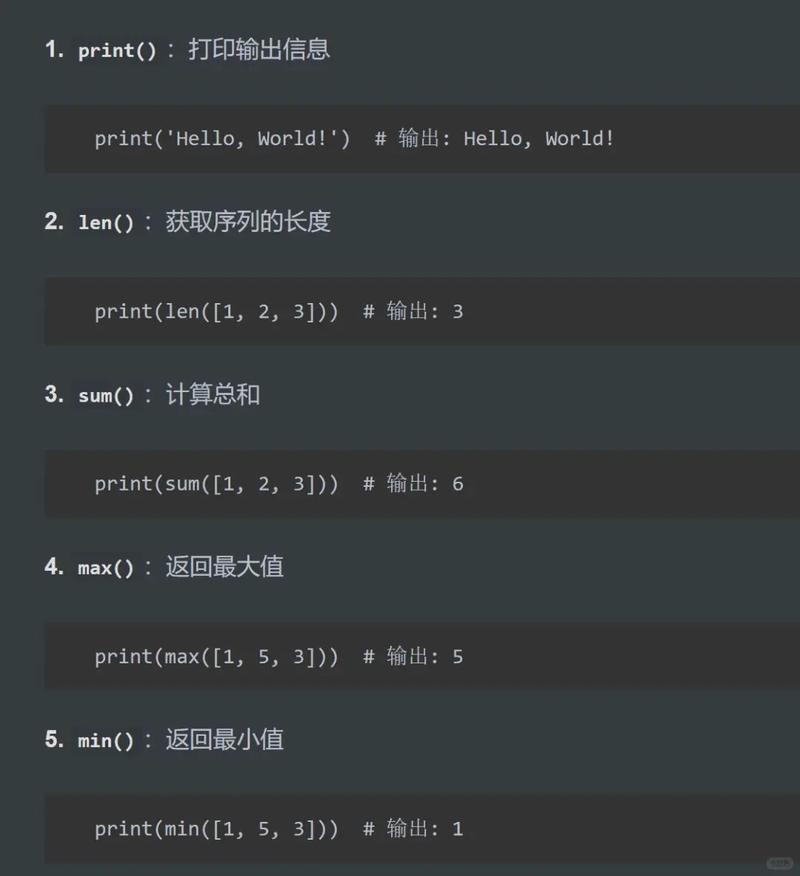
The print() function is the primary tool for sending text to the console.
# Basic printing
print("Hello, World!")
# Printing variables
name = "Alice"
age = 30
print(f"Name: {name}, Age: {age}") # Using an f-string (modern & recommended)
# Printing multiple items (separated by a space by default)
print("The values are:", 10, 20, 30)
# Printing without a newline at the end
print("Processing...", end=" ")
print("done.")
# Printing to a different stream (e.g., standard error)
import sys
print("This is an error message.", file=sys.stderr)
b) Formatted Strings (f-strings)
While print() displays the output, f-strings (f"...") are the modern, preferred way to create the string that will be printed.
# f-strings are powerful and readable
user = "Bob"
score = 95
message = f"User {user} has a score of {score}."
print(message)
# You can even execute expressions inside them
print(f"5 squared is {5**2}")
File Output
Instead of sending output to the screen, you can save it to a file. This is crucial for data persistence and logging.
a) Writing Text Files
You use the open() function with the mode 'w' (write). Important: This mode will overwrite the file if it already exists. Use 'a' (append) to add to the end of an existing file.
# Using 'w' to write (and overwrite)
with open("my_data.txt", "w") as f:
    f.write("This is the first line.\n")
    f.write(f"User: {name}, Score: {score}\n")
# Using 'a' to append
with open("my_data.txt", "a") as f:
    f.write("This line is appended to the file.\n")
print("Data has been written to my_data.txt")
Key Points:
withstatement: This is the recommended way to handle files. It automatically closes the file for you, even if errors occur.- Mode
'w'(write): Creates a new file or overwrites an existing one. - Mode
'a'(append): Adds data to the end of an existing file. - Mode
'x'(exclusive creation): Creates a new file, but fails if the file already exists. - Mode
'r+'(read and write): Opens a file for both reading and writing.
b) Writing CSV Files
For tabular data, the built-in csv module is perfect.
import csv
data = [
    ["Name", "Age", "City"],
    ["Charlie", 35, "New York"],
    ["Diana", 28, "London"]
]
with open("users.csv", "w", newline='') as f:
    writer = csv.writer(f)
    writer.writerows(data)
print("Data has been written to users.csv")
c) Writing JSON Files
For structured data, the built-in json module is the standard.
import json
data = {
    "name": "Eve",
    "age": 42,
    "is_active": True,
    "skills": ["Python", "SQL"]
}
with open("data.json", "w") as f:
    # json.dump() writes the Python object to a file
    json.dump(data, f, indent=4) # indent makes it human-readable
print("Data has been written to data.json")
GUI Output
This involves creating windows, buttons, and text fields for a graphical user interface.
a) Using Tkinter (Built-in)
Tkinter is Python's standard GUI library and comes pre-installed.
import tkinter as tk
# Create the main window
window = tk.Tk()
window.title("My First GUI")
window.geometry("300x200")
# Create a label widget
label = tk.Label(window, text="Hello, GUI World!")
label.pack(pady=20) # pady adds vertical padding
# Create a button widget
def on_button_click():
    label.config(text="Button was clicked!")
button = tk.Button(window, text="Click Me", command=on_button_click)
button.pack()
# Start the GUI event loop
window.mainloop()
b) Using Other Libraries
For more complex GUIs, libraries like PyQt/PySide or Kivy are popular choices.
Web Output
This mode involves sending data to a web browser, either by generating a web page or by providing data through an API.
a) Generating HTML with a Framework (e.g., Flask)
Flask is a lightweight web framework that makes it easy to create web applications.
# First, install Flask: pip install Flask
from flask import Flask
app = Flask(__name__)
@app.route("/")
def home():
    # This function's output is sent to the user's browser
    return "<h1>Welcome to my Website!</h1><p>This is a page generated by Python.</p>"
@app.route("/user/<username>")
def show_user_profile(username):
    return f"<h1>Profile for {username}</h1>"
if __name__ == "__main__":
    app.run(debug=True)
When you run this script and visit http://127.0.0.1:5000 in your browser, you see the HTML output.
b) Serving Data as an API (JSON)
Modern web applications often communicate via APIs, which typically send and receive JSON data.
# Using Flask again, but returning JSON
from flask import Flask, jsonify
app = Flask(__name__)
@app.route("/api/data")
def get_data():
    data = {"message": "This is data from an API", "status": "success"}
    # jsonify converts a Python dictionary to a JSON response
    return jsonify(data)
if __name__ == "__main__":
    app.run(debug=True)
Visiting http://127.0.0.1:5000/api/data in your browser would display the JSON.
Summary Table
| Output Mode | Primary Tool(s) | Common Use Case |
|---|---|---|
| Console | print() function, f-strings |
Debugging, simple scripts, command-line tools |
| File (Text) | open() with mode 'w' or 'a' |
Logging, saving data, configuration files |
| File (CSV) | csv module |
Storing tabular data (spreadsheets) |
| File (JSON) | json module |
Storing structured data, configuration, API payloads |
| GUI | tkinter, PyQt, Kivy |
Desktop applications, user interfaces |
| Web (HTML) | Web Framework (Flask, Django) | Websites, web pages |
| Web (API/JSON) | Web Framework (Flask, Django) + jsonify |
Mobile app backends, data services, microservices |
Which "Output Mode" Should I Use?
- For learning and quick tests: Use the console with
print(). - To save results for later: Use file output (text, CSV, or JSON).
- To create a desktop application: Use a GUI library like Tkinter or PyQt.
- To create a website or API: Use a web framework like Flask or Django.